



Mostly those laptops which are given by the companies to their employs have their USB ports blocked or other things too for security purpose. Recently my friend tried copying some data on his laptop but the USB ports were blocked so we finally decided to unblock them, but when we tried to unblock them from Registry or "Regedit" it was also blocked too. So we finally came up with this method to unblock Registry for enabling USB ports.

STEP 1- Press window key+R and type gpedit.msc

STEP 2- Browse to
User Configuration -> Administrative Templates -> System.
STEP 3- Double Click on "Prevent Access to registry editing tools" a popup will appear click on Disable and press Ok.

Now you can access Registry or "Regedit" after restarting your laptop/pc.
STEP 1- Open notepad and copy the following lines
Option Explicit
Dim WSHShell, n, MyBox, p, t, mustboot, errnum, vers
Dim enab, disab, jobfunc, itemtype
Set WSHShell = WScript.CreateObject("WScript.Shell")
p = "HKCUSoftwareMicrosoftWindowsCurrentVersionPoliciesSystem"
p = p & "DisableRegistryTools"
itemtype = "REG_DWORD"
mustboot = "Log off and back on, or restart your pc to" & vbCR & "effect the changes"
enab = "ENABLED"
disab = "DISABLED"
jobfunc = "Registry Editing Tools are now "
t = "Confirmation"
Err.Clear
On Error Resume Next
n = WSHShell.RegRead (p)
On Error Goto 0
errnum = Err.Number
if errnum <> 0 then
WSHShell.RegWrite p, 0, itemtype
End If
If n = 0 Then
n = 1
WSHShell.RegWrite p, n, itemtype
Mybox = MsgBox(jobfunc & disab & vbCR & mustboot, 4096, t)
ElseIf n = 1 then
n = 0
WSHShell.RegWrite p, n, itemtype
Mybox = MsgBox(jobfunc & enab & vbCR & mustboot, 4096, t)
End If
Save the file by name "*.vbs".
STEP 2- Open the file this will enable the Registry or "Regedit".
After rebooting you will be able to access Registry.
STEP 1- Open notepad and paste the following code.
Available link for download
Read more »
NOTE- THIS METHOD IS FOR EDUCATIONAL PURPOSE ONLY WE ARE NOT RESPONSIBLE FOR ANY UNAUTHORIZED USE OF THIS METHOD.
=> ENABLING REGISTRY BY GROUP POLICY EDITOR
STEP 1- Press window key+R and type gpedit.msc
STEP 2- Browse to
User Configuration -> Administrative Templates -> System.
STEP 3- Double Click on "Prevent Access to registry editing tools" a popup will appear click on Disable and press Ok.
Now you can access Registry or "Regedit" after restarting your laptop/pc.
=> ENABLE REGISTRY USING VISUAL BASIC SCRIPT
STEP 1- Open notepad and copy the following lines
Option Explicit
Dim WSHShell, n, MyBox, p, t, mustboot, errnum, vers
Dim enab, disab, jobfunc, itemtype
Set WSHShell = WScript.CreateObject("WScript.Shell")
p = "HKCUSoftwareMicrosoftWindowsCurrentVersionPoliciesSystem"
p = p & "DisableRegistryTools"
itemtype = "REG_DWORD"
mustboot = "Log off and back on, or restart your pc to" & vbCR & "effect the changes"
enab = "ENABLED"
disab = "DISABLED"
jobfunc = "Registry Editing Tools are now "
t = "Confirmation"
Err.Clear
On Error Resume Next
n = WSHShell.RegRead (p)
On Error Goto 0
errnum = Err.Number
if errnum <> 0 then
WSHShell.RegWrite p, 0, itemtype
End If
If n = 0 Then
n = 1
WSHShell.RegWrite p, n, itemtype
Mybox = MsgBox(jobfunc & disab & vbCR & mustboot, 4096, t)
ElseIf n = 1 then
n = 0
WSHShell.RegWrite p, n, itemtype
Mybox = MsgBox(jobfunc & enab & vbCR & mustboot, 4096, t)
End If
Save the file by name "*.vbs".
STEP 2- Open the file this will enable the Registry or "Regedit".
After rebooting you will be able to access Registry.
=> ENABLING REGISTRY BY CMD COMMAND
STEP 1- Open notepad and paste the following code.
Available link for download








.png)

.png)
.png)
.png)
.jpg)
.png)
.png)
.png)



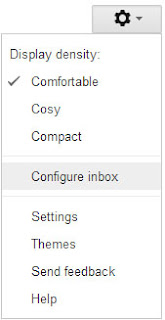
 Recently Google introduced Gmail tabbed inbox, which is really reduced the clutter in inbox and became more simple. It brings a tabbed inbox and divides the mail we receive in to Categories. In this Gmail update we can add up to 5 tabs(categories) which are..