Showing posts with label voice. Show all posts
Showing posts with label voice. Show all posts
Monday, February 20, 2017
How To Control Your Device with Voice Using Google Voice Access
How To Control Your Device with Voice Using Google Voice Access

How To Control Your Device with Voice Using Google Voice Access
Google Voice Access is a new application by google that lets you control your device using your Voice. You can get full control of your device just using your voice. The app is designed to help disabled users who can’t hold their phones but are able to speak to use their devices. Though the application is still in beta stage, you can still check it out.
The voice search feature has been available via Googe app, but it only deals with basic commands like making a web search, sending an Email, making a phone call, switching on/off WiFi/Bluetooth and other similar tasks. Google aims to provide fully hands-free usage of your Android device via Voice Access. With Voice Access, you can use commands like scroll left, tap next, go home. Also, it labels icons/buttons with numbers so you can speak the number to perform the action associated with that icon/button.
Unfortunately, Google is not accepting any more testers for the Beta program as the list is already full. But you can try out the application by downloading the APK file from the link given below and then installing it on your Android device.


As you can see in the screenshots above each icon is labelled on the home screen and even on the keyboard each letter is labelled with the number. With the help of voice access, you can just speak the number of the action you want to perform. For example, if I would speak the number 15 and Voice Access will automatically open camera application for me (see the last screenshot). I can even say type Hello World when the keyboard is active to type the message.
On testing the application I found it a great alternative for controlling your device when your hands are busy or for a disabled person. My voice was recognized more often than not and the commands were executed accordingly. You might face a lag or a force close while using Voice Access as the development is still at Beta stage. But still it is worth giving a shot if you would like to get hands free experience with your Android device.
Download Voice Access Beta
You may even download the Voice Access application via XdaLabs application. For that, you need to Sign In into XdaLabs application using a Xda account or Google Plus account. Then go into App section then search for Voice Access. Tap on the Download button to begin downloading the application and then install it on your device. You can download XdaLabs application from here.Do let us know what do you feel about this new application by Google. Also, tell us whether it would be a useful application to have on your device.
Available link for download

Thursday, December 29, 2016
How To Enable Voice Calling On Samsung Galaxy Tab 10 1
How To Enable Voice Calling On Samsung Galaxy Tab 10 1
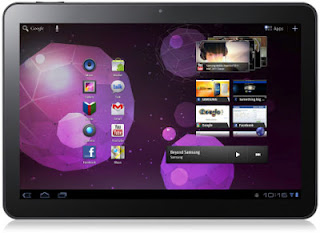
Requirements:
- Samsung Galaxy Tab 10.1 3G [GT-P7500].
- You Must have Unlocked Recovery Mode. For Flashing .zip
- Any ROM based on Stock ICS 4.0.4 OR JB CyanogenMod10 Or ICS CyanogenMod9 OR AOKP.
Go to XDA forum thread to download latest builds and get the tutorial on flashing.
Available link for download
Subscribe to:
Posts (Atom)