Showing posts with label web. Show all posts
Showing posts with label web. Show all posts
Saturday, November 12, 2016
How to Print Full Web Page As JPEG File In Chrome
How to Print Full Web Page As JPEG File In Chrome
Many web pages are important for you and you want to get a printout of full web page, because many times when you take a printout of the full web page. You get a small printout only. Important text and pictures are missing. If you able to make a JPEG file of the web page, then you can easily move that in your tablet and smartphone for any purpose.
If you have Google chrome web browser and you are trying to save a full web page as a JPEG image, then follow the step given below.
Read Also : Why Google chrome crashed Many Times [Solution]
Step #1
First of all download and install Universal Document Converters on your PC.
Step #2
Go to Start Menu of your PC and click on "Devices and Printers".
Step #3
Now click on Universal Document Converter and click Printing Perferance.
Step #4
Now go to file format and select JPEG image, then click "OK".
Read Also : How to Zoom in and Out in Google Chrome Browser
Step #5
After select JPEG image open a web page in Google chrome and click on "Print".
Step #6
Check background colors and images and then click print to save web pages JPEG.
After select JPEG image open a web page in Google chrome and click on "Print".
Step #6
Check background colors and images and then click print to save web pages JPEG.
Available link for download

Sunday, October 9, 2016
How To Enable Gmail Tabbed Inbox in Web Browser
How To Enable Gmail Tabbed Inbox in Web Browser
 Recently Google introduced Gmail tabbed inbox, which is really reduced the clutter in inbox and became more simple. It brings a tabbed inbox and divides the mail we receive in to Categories. In this Gmail update we can add up to 5 tabs(categories) which are..
1. Primary
Person-to-person conversations ie. from friends and family.
2. Social
Messages from social networks, media-sharing sites,online dating service etc.
3. Promotions
Deals, offers and other marketing emails.
4.Updates
Personal, auto-generated updates including confirmations, receipts, bills and statements.
5. Forums
Messages from online groups, discussion boards and mailing lists.
We can customize the above tabs as which category we wish to see. To enable this Tab feature in your Gmail inbox just follow the simple steps below.
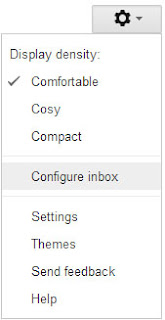
1. Sign in to Gmail, Click the Settings icon on the right side and select Configure inbox.
2. Now it will prompt a dialog to choose the tabs you see in the inbox. Select your desired tabs and click Save.

Thats it...you are successfully enabled Gmail Tabbed inbox.
Available link for download
Subscribe to:
Posts (Atom)