Showing posts with label gmail. Show all posts
Showing posts with label gmail. Show all posts
Monday, December 19, 2016
Hentikan Gmail dari Auto Saving Alamat Email ke Kontak
Hentikan Gmail dari Auto Saving Alamat Email ke Kontak
 Gmail adalah layanan yang didukung webmail, POP3, IMAP dan layanan gratis, yang disediakan oleh Google. Gmail mendukung sejumlah fitur dengan mengaktifkan dan menonaktifkan pilihan sehingga Anda dapat menghentikan / menjalankan sebagian besar fitur pada setiap waktu dan mengkonfigurasi Gmail sesuai dengan kebutuhan Anda. Biasanya, ketika Anda mengirim email dari Gmail, ia menambahkan alamat email penerima ke daftar kontak. Jika Anda membalas sejumlah besar mail setiap hari maka Gmail secara otomatis menyimpan semua kontak yang nantinya bisa sangat menyakitkan untuk mengelola. Tapi Gmail memberikan kita pilihan untuk menonaktifkan fitur ini dari pengaturannya.
Anda dapat menonaktifkan kontak auto-save dari "Membuat kontak untuk auto-lengkap" di bagian tab General dari layar Pengaturan, seperti yang ditunjukkan pada gambar di bawah.
Available link for download

Monday, December 12, 2016
How to Activate Automatic Responses on Gmail
How to Activate Automatic Responses on Gmail
If you are going for a vacation and you cant use any computer, android during to low network internet connection and you are a busy person and you receive so many email from other persons. Every person, which are send an email to you waiting of your reply. You can easily solve this problem by use of automatic email reply with Gmail email template. This program able to give automatic response when you cant be online. To activate automatic responses in Gmail follow the steps, which is shown below.
Activate Automatic Responses in Gmail ( Step 1 of 3 )
Activate Automatic Responses in Gmail ( Step 1 of 3 )
Step #1
First, click on "Setting", which is shown on the top corner of your Gmail account. Under the “General” tab, look for “Vacation responder”.

Activate Vacation responder and select date of vacation, write subject and message body.

Step #3
The duration of sending emails automatically is 7 days. But you can extend it by clicking on the “Ends” option and defining the ending date. At last click on "Save changes".
Conclusion
Vacation responder is very useful if you’re out of town and want to tell your friend about that if they sends any mail. You can easily learn that how to activate automatic responses in Gmail.
The duration of sending emails automatically is 7 days. But you can extend it by clicking on the “Ends” option and defining the ending date. At last click on "Save changes".
Conclusion
Vacation responder is very useful if you’re out of town and want to tell your friend about that if they sends any mail. You can easily learn that how to activate automatic responses in Gmail.
Available link for download
Sunday, November 13, 2016
Gunakan New Gmail Drag dan Drop Fitur
Gunakan New Gmail Drag dan Drop Fitur
Google telah menjadi populer karena selalu menjadi pemimpin dalam menyediakan melanggar jalur dan fitur inovatif untuk para penggunanya . Mail Google baru saja menambahkan fitur baru di Gmail saat menulis mail . Sekarang Anda dapat menambahkan gambar apapun langsung di daerah menulis surat dengan bantuan drag dan drop . Ini berarti Anda dapat meng-upload gambar langsung dari komputer Anda atau halaman Web manapun. Jadi lampiran gambar tidak lebih persyaratan . Ini akan otomatis mempercepat proses komposisi mail Anda dan menghemat waktu jika Anda berada dalam kebiasaan secara teratur bekerja dengan gambar di Google mail .
Langkah-langkah untuk menggunakan Drag dan Drop dalam surat Google :
1 . Login dengan akun Gmail Anda dan mulai membuat email baru.
2 . Sekarang drag gambar yang dipilih dari komputer lokal atau lokasi web dan drop di daerah menyusun Gmail menggunakan mouse Anda .
Langkah-langkah untuk menggunakan Drag dan Drop dalam surat Google :
1 . Login dengan akun Gmail Anda dan mulai membuat email baru.
2 . Sekarang drag gambar yang dipilih dari komputer lokal atau lokasi web dan drop di daerah menyusun Gmail menggunakan mouse Anda .

3 . Setelah Anda Drag dan Drop gambar , Anda akan melihatnya di daerah menyusun mail Anda . Ini akan memakan waktu tergantung pada ukuran gambar .

Aku memeriksa fitur ini hanya dengan Google Chrome dan saya harap email Google juga mendukung fitur yang sama di browser lain juga . Saya pikir itu pasti akan bertindak sebagai penghemat waktu karena sekarang Anda tidak perlu meng-upload gambar secara manual menggunakan pilihan insert . Jika Anda seperti ini maka silakan lakukan komentar
Available link for download
Sunday, October 9, 2016
How To Enable Gmail Tabbed Inbox in Web Browser
How To Enable Gmail Tabbed Inbox in Web Browser
 Recently Google introduced Gmail tabbed inbox, which is really reduced the clutter in inbox and became more simple. It brings a tabbed inbox and divides the mail we receive in to Categories. In this Gmail update we can add up to 5 tabs(categories) which are..
1. Primary
Person-to-person conversations ie. from friends and family.
2. Social
Messages from social networks, media-sharing sites,online dating service etc.
3. Promotions
Deals, offers and other marketing emails.
4.Updates
Personal, auto-generated updates including confirmations, receipts, bills and statements.
5. Forums
Messages from online groups, discussion boards and mailing lists.
We can customize the above tabs as which category we wish to see. To enable this Tab feature in your Gmail inbox just follow the simple steps below.
1. Sign in to Gmail, Click the Settings icon on the right side and select Configure inbox.
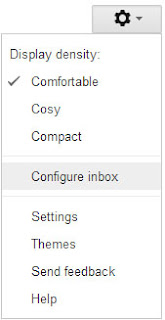
2. Now it will prompt a dialog to choose the tabs you see in the inbox. Select your desired tabs and click Save.

Thats it...you are successfully enabled Gmail Tabbed inbox.
Available link for download
Subscribe to:
Posts (Atom)