Showing posts with label zenfone. Show all posts
Showing posts with label zenfone. Show all posts
Sunday, December 25, 2016
How To Fix Asus Zenfone 5 From Not Installed or Not Available For SIM Card 1 or 2
How To Fix Asus Zenfone 5 From Not Installed or Not Available For SIM Card 1 or 2
Localtechno greeting, this time localtechno will share with you all about "how to resolve the error SIM card on Asus Zenfone 5"
There are several causes, why the SIM card is not detected :
- 1. Because its too hard when inserting the SIM card
- 2. The IMEI is lost, because the flash or change the ROM
- 3. Socket SIM card is already loose or ill-fitting
Equipment needed :
- 1. Needle
- 2. Miser nail cutter
- 1. Turn off your HH
- 2. Insert the needle gets under the SIM card and push forward to restore the flexibility of a SIM card
- 3. Align the side of the SIM Card, to be a little smaller parts and smooth
- 4. Replace your SIM card and turn on your HH
You can also see videos and screenshots by localtechno result, the following :


Available link for download

Wednesday, November 30, 2016
How to Set Password on Asus ZenFone 5 6
How to Set Password on Asus ZenFone 5 6

To set a password on your Asus ZenFone 5/6 phone, you can make reference to the following steps.
Step 1: Open Settings.
Step 2: Find and click Lock screen.
Step 3: Choose Screen lock to move on.
Step 4: Select Password from the items offered.
Step 5: Type at least 4 characters to be the password and choose Continue.
Tip: There must be at least one letter in the code.
Related Articles:
How to Enable USB Debugging in Asus ZenFone 5/6
How to Set Password on Asus PadFone
Asus Android USB Driver
How to Set A Password to My Android Phone
How to Set A Password to My Android Phone
Available link for download
Monday, November 28, 2016
How to root Asus Zenfone 4 without PC
How to root Asus Zenfone 4 without PC

Asus Zenfone 4 has superb performance, you must be root your phone, because root gives us a power to use a maximum of your phone without any restrictions. After root you can install custom Rom,custom setting and apps on your phone.
Preparations of Root:
1. Take a backup of your phone.
2. Your phone battery should charge 80% minimum.
3. Read all steps then do it careful.
Follow these Steps to Root your Asus Zenfone 4:
Step 1: Download Root Kit and USB driver of Zenfone 4 click here. Then extract where you want.
Step 2: Fist of install USB driver on your PC. You can find your USB driver in the root kit.
Step 3: Then after enable USB Debugging on your Phone. Go to Settings >>> Developer options >>> USB debugging check it ( If your phone have Android 4.2 or upper version then see how to enable Developer options here is guide of this Click here)
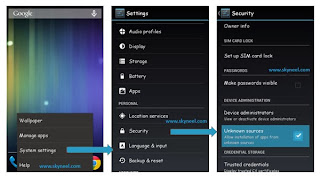
Step 4: Now power off your phone >>> Then press and hold Power button with volume up and down key for some time >>> after then you will see Droidboot on your phone screen.
Step 5: When you will see Ready to Download on your phone screen then connect your phone to PC via USB cable
Step 5: When you will see Ready to Download on your phone screen then connect your phone to PC via USB cable

Step 6: Now root kit folder and find Open.CMD file >>> then double click to open this file >>> you will see a Dos box >>> then type command fastboot flash update root.zip (see in above image) >>> and click on enter button >>> now processing start >>> after finish your phone is rooted. That’s all
After this root process, you will find the Su app in your application menu. You can manage your rooted phone by Su app. Su app work as like firewall, So you should be careful in giving permission to the any app by Su app. If you want to check your Mobile rooted or not try this app Root checker
How to unroot your Asus Zenfone 4:
It is must for you to know how to unroot your phone. When you feel that you dont want rooted phone, then you can easily un-install the root app and unroot your phone. Here are simple steps to unroot your device. You can also see an unroot process in this image.
Open Su App >>> Setting >>> Full Unroot thats all
Open Su App >>> Setting >>> Full Unroot thats all
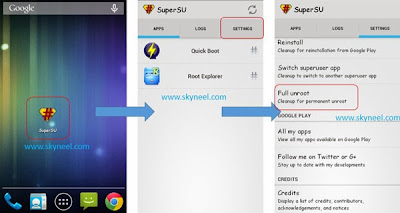
This is simple and easy root process for your device. I can try to make it easy and make all steps clear to understand and try to make the image all steps for you. If you feel any problem, then please comment us. I try to best resolve your problem
*************************************************************
Available link for download
Thursday, November 24, 2016
How to Enable USB Debugging in Asus ZenFone 5 6
How to Enable USB Debugging in Asus ZenFone 5 6

Is there no USB debugging in Asus ZenFone 5/6 phone? Actually, it does exist, but it is hidden. And this article, for your convenience, will summarize the steps to enable USB debugging in ZenFone 5/6(Android 4.3).
Step 1: Go to Settings.
Step 2: Click About.
Step 3: Open Software information.
Step 4: Tap Build number continuously until a pop-up hint informs you that you’ve entered the developer mode.
Step 5: Return to Settings.
Step 6: Find and open Developer options.
Step 7: Select USB debugging and click OK.
After these seven steps, the USB debugging is enabled successfully.
Related Articles:
Asus Android USB Drivers
Related Articles:
Asus Android USB Drivers
How to Set Password on Asus ZenFone 5/6
How to Set Password on Asus PadFone
Available link for download
Subscribe to:
Posts (Atom)