Showing posts with label page. Show all posts
Showing posts with label page. Show all posts
Wednesday, November 30, 2016
How To Change Blogger Static Page URL
How To Change Blogger Static Page URL
 After publishing the post How To Change Blogger Post URL using Permalink? I got some mail and comment about changing the Blogger Static Page URL ! I didnt found any option given by Blogger for this purpose.
Like Blogger post , Page URL suddenly changed to match Page Title. After some Googling i got a simple solution to prevent changing the Blogger page URL match to page title.here it is.
Method:
1. In your Blogger dashboard Click Pages > New page > Blank page .

2. Now type the Page title as you want to show in the URL and click Publish. For example if you want to show about as your page URL,then you type about in the page title field.
3. Now revert back your blogger to Old Blogger interface.

4. Then click Edit Posts > Edit Pages.


5. Then click on Edit option of the page we recently created. In our example about.

6. Finally enter the Page Tile you wish to show in the page and click PUBLISH PAGE. In my casa I am typed About Technoxide.
Thats all ! Done !
Click here to Check my page URL i am created using this trick.
Available link for download

Saturday, November 12, 2016
How to Print Full Web Page As JPEG File In Chrome
How to Print Full Web Page As JPEG File In Chrome
Many web pages are important for you and you want to get a printout of full web page, because many times when you take a printout of the full web page. You get a small printout only. Important text and pictures are missing. If you able to make a JPEG file of the web page, then you can easily move that in your tablet and smartphone for any purpose.
If you have Google chrome web browser and you are trying to save a full web page as a JPEG image, then follow the step given below.
Read Also : Why Google chrome crashed Many Times [Solution]
Step #1
First of all download and install Universal Document Converters on your PC.
Step #2
Go to Start Menu of your PC and click on "Devices and Printers".
Step #3
Now click on Universal Document Converter and click Printing Perferance.
Step #4
Now go to file format and select JPEG image, then click "OK".
Read Also : How to Zoom in and Out in Google Chrome Browser
Step #5
After select JPEG image open a web page in Google chrome and click on "Print".
Step #6
Check background colors and images and then click print to save web pages JPEG.
After select JPEG image open a web page in Google chrome and click on "Print".
Step #6
Check background colors and images and then click print to save web pages JPEG.
Available link for download
Saturday, October 22, 2016
How to enable facebook fan page in blogger
How to enable facebook fan page in blogger
Hi guys this is rajtechieguy in this tutorial i will show you how to enable facebook fanpage in your blogger or wordpress . facebook fan page is a easy way to reach your latest updates. A Facebook Fan Box or Like Box is a great plugin that allows blog visitors to subscribe to your blog updates via their Facebook accounts, without leaving your blog. Once subscribing (by pressing the like button), visitors will receive your most recent blog updates on their Facebook page. This box also displays faces of the "likers" on your blog. Before creating a fan box, you should already have a Facebook fan page.
STEPS TO ADD FB FAN PAGE
STEP 1 : First you should have a facebook fan page and copy your fb fan page link (e.g http://www.facebook.com/techarmesofficial )
STEP 2 : And enter into the link https://developers.facebook.com/docs/plugins
STEP 3 : Click on the Social plugin and select page plugin show in pic below
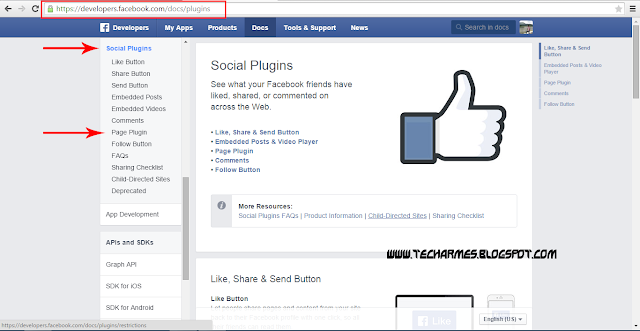
STEP 4 : Enter your fb page link in the Facebook page url and select your width and height for your choice and if you want cover photo in your blog dont click on the hide cover photo or if you want to show your page post in your blog click on the show page post otherwise unchecked . last box was show friends faces if you checked the friend face will show on the page in your blogger otherwise unchecked
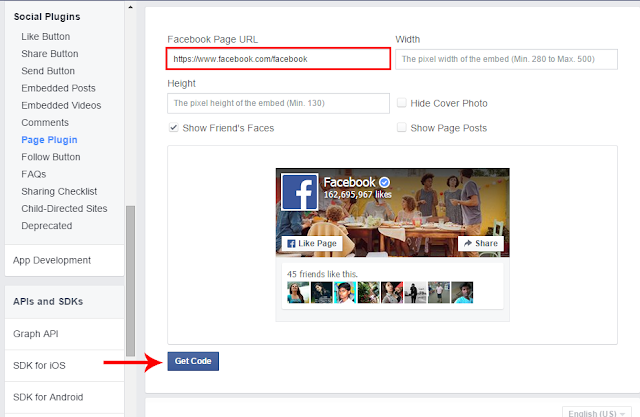
STEP 5 : And click on the Get Code and your code was displayed like below pic
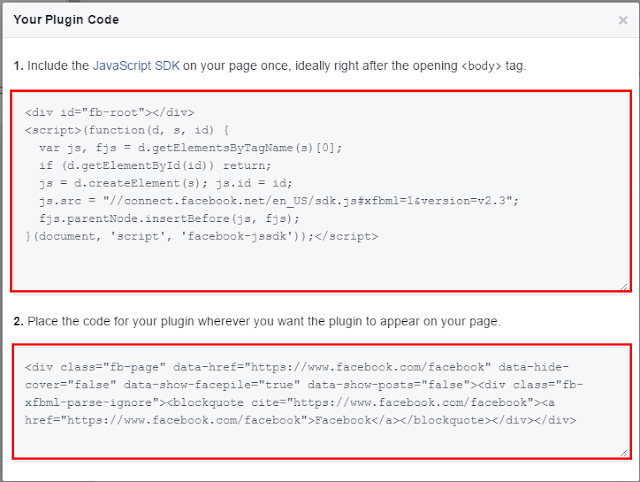
STEP 6 : Two code was displayed . copy the first code and paste the code below the <body> tag
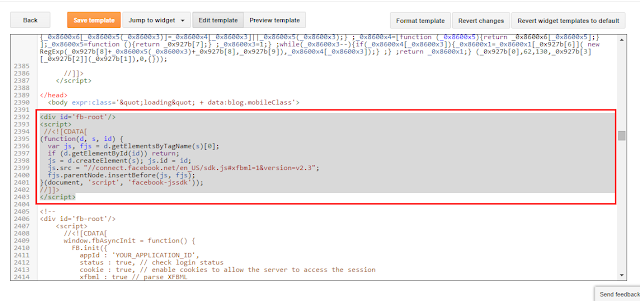
STEP 7 : copy the second code and paste in your widget gadget
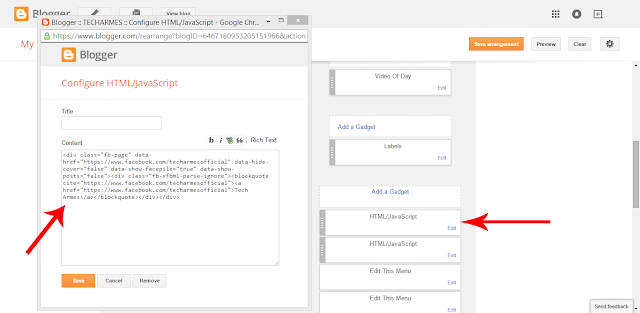
STEP 8 : finally save the widget and fb fan page was in your blogger
Available link for download
Subscribe to:
Posts (Atom)