Showing posts with label notification. Show all posts
Showing posts with label notification. Show all posts
Friday, April 7, 2017
How To Block Cell Broadcast SMS Notification in Android
How To Block Cell Broadcast SMS Notification in Android
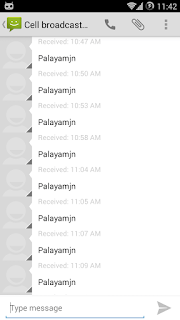 Just now I flashed Cyanogen Mod Nightly in my Galaxy S3. Everything works smoothly and better, but a broadcasting SMS from cell broadcast channel 50 annoys me repeatedly. I got 50+ notification in just 15 minutes. Tried to black list, force stop, etc. But nothing worked. Finally, I found a solution from the CM forum which I shares here.
Block Notification From Cell Broadcast Channel 50
1. Open Terminal Emulator2. Type su and tap on enter
(Allow on Superuser Permission popup)
3. Then type pm disable com.android.cellbroadcastreceiver and tap on enter.
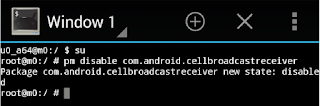
4. Thats it .. You will get the success message as below
"package com.android.cellbroadcastreceiver new state: disabled"
source
Available link for download

Sunday, March 26, 2017
How to add more notification toggles to our Samsung Galaxy Core GT I8262
How to add more notification toggles to our Samsung Galaxy Core GT I8262
Notice: You should be running on stock android to do this. This requires root and although its not so risky but it is always better to have a backup. Also please do not blame me if you softbrick your device.. Do at your own risk!! It worked for me and it should work for anyone running stock rooted like I am.
Okay.. so, heres what you need:
(1) Rooted Galaxy Core in Easy Way
(2) Sqlite editor app
Dts all!!
So heres what you need to do:
(1) Open sqlite and give root permission. It should show a list
(2) Scroll down to "Settings Storage" and open it
(3) Open "Settings.db"
(4) Next, tap "System"
(5) Scroll down until you find "notification_panel_active_app_list" NOT the notification_panel_default_active_app_list.Tap it. If its not present (well... it was not present for me atleast)(Make sure to Check Properly),then tap the menu key and then tap new record. Set the name to "notification_panel_active_app_list" and under value type the following.
Note that the above letters should be CaSe sEnsItiVe and no spaces
(6) ReBoot
(7) Congratzz... U have successfully customized the notification panel..
You can press the thanks button if you think ive helped you as ive researched alot on this.. This is my first post here and i hope to see some warm welcomes
If you have any questions regarding this then im always ready to help..
Thank you,
Ansley
Okay.. so, heres what you need:
(1) Rooted Galaxy Core in Easy Way
(2) Sqlite editor app
Dts all!!
So heres what you need to do:
(1) Open sqlite and give root permission. It should show a list
(2) Scroll down to "Settings Storage" and open it
(3) Open "Settings.db"
(4) Next, tap "System"
(5) Scroll down until you find "notification_panel_active_app_list" NOT the notification_panel_default_active_app_list.Tap it. If its not present (well... it was not present for me atleast)(Make sure to Check Properly),then tap the menu key and then tap new record. Set the name to "notification_panel_active_app_list" and under value type the following.
Code:
Wifi;Location;SilentMode;Bluetooth;MobileData;AutoRotate;WiFiHotspot;SmartStay;AirplaneMode;DormantMode;PowerSaving;DrivingMode;Sync
(6) ReBoot
(7) Congratzz... U have successfully customized the notification panel..
You can press the thanks button if you think ive helped you as ive researched alot on this.. This is my first post here and i hope to see some warm welcomes
If you have any questions regarding this then im always ready to help..
Thank you,
Ansley
Available link for download
Wednesday, March 8, 2017
How To Customize Android Notification Bar
How To Customize Android Notification Bar
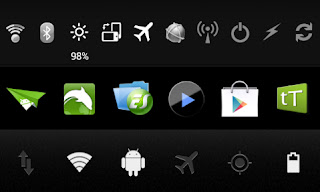
For custom notification toggles i am not going to recommend you to flash a custom ROM. Without having a custom or rooted ROM you can add and customize notification toggles by installing free or paid apps.
I prefer Notification Toggles and 1Tap quick Bar. These apps are free for download. To enable the premium features you can buy the full version from PlayStore. I am happy with the free version.
Notification Toggle
Pros:- Possible to add many toggles in one line
- Possible to add 2 Notification bar
- Possible to add Installed apps to notification bar
- Possible to add custom icon images
- Possible to add custom icon colors
Cons:
- Installed apps icons are a little big
- default toggle icons are not much attractive when compared with 1Tab Quick Bar
- UI is not much attractive
1Tap quick Bar
Pros:- UI is attractive and user friendly
- Possible to add Installed apps to notification bar
- Possible to add background to the notification bar
- Installed apps icons are better size when compared with Notification Toggle
- Default toggle icons are better than Notification Toggle
Cons:
- Possible to add only 6 icons per notification bar
- Free version limited with 1 notification bar
Note : Above is my review for the Free versions of the apps. The premium version may be more attractive.
Download Apps from Play Store Notification Toggles | 1Tap quick Bar
Available link for download
Tuesday, January 24, 2017
How To Enable Disable Paranoid Android Halo Notification
How To Enable Disable Paranoid Android Halo Notification

In this post I include the steps to enable and disable HALO notification in Paranoid Android ROM.
How To Enable HALO Notification in Paranoid Android ROM ?
1. Swipe the Notification Panel and touch the HALO icon.
How To Disable HALO Notification in Paranoid Android ROM ?
Method 1 ( Reverse HALO Checked ):
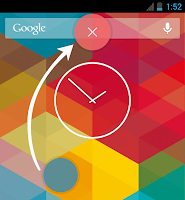
1. Double-Tap on the HALO floating widget and drag it to the red circle.
Method 2 ( Reverse HALO Unchecked ):
1. Tap on the HALO floating widget and drag it to the red circle.
source
Available link for download
Saturday, December 31, 2016
How To Clear Voicemail Notification Icon in Android
How To Clear Voicemail Notification Icon in Android
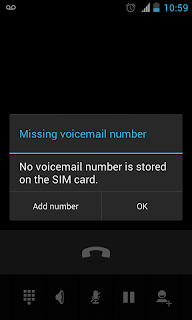
In some android devices Voicemail notification icon remains and we cant clear it by clicking on the notification or by the clear button. It may be because of the network provider issue or the Android ( I dont know the actual reason ).
If you are facing the issue with voice mail notification and want to get rid off it,then here are the steps to clear Voicemail notification icon from the Android notification bar.
Method 1
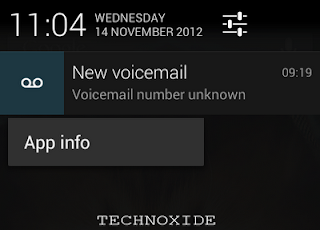
1. Long Click on the New voicemail notification in the notification bar.
2. Now it will drop a App info menu...Click on it.
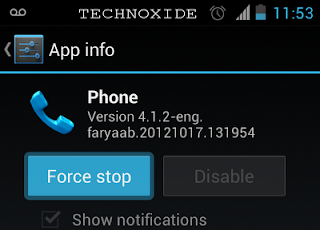
3. It will navigate to Phone app info page.
4. Click Force stop.
Method 2
1. Go to Settings -> Apps -> ALL -> Phone.
2. Click Force stop.
Thats it ...Done...Now it will clear the voicemail notification icon from clear bar.
I am tested it with Android 4.0.4 and 4.1.2 and worked successfully. Please check in your phone and do reply to help others.
Available link for download
Subscribe to:
Posts (Atom)