Showing posts with label browser. Show all posts
Showing posts with label browser. Show all posts
Sunday, March 5, 2017
How To Get Flash And H 264 To Work In Vivaldi Browser Ubuntu Linux Mint
How To Get Flash And H 264 To Work In Vivaldi Browser Ubuntu Linux Mint
Vivaldi 1.0 stable was released today and if you gave it a try, you might have noticed, at least on a fresh Ubuntu installation, that Flash and H.264 dont work out of the box.
Heres how to get Adobe Flash and H.264 (used, for instance, by the YouTube HTML5 player) to work with Vivaldi browser, in Ubuntu, Linux Mint and derivatives.
Get Vivaldi browser to support H.264
 |
| Before installing "chromium-codecs-ffmpeg-extra" |
 |
| After installing "chromium-codecs-ffmpeg-extra" |
To enable H.264 support for Vivaldi in Ubuntu, you need to install a package called "chromium-codecs-ffmpeg-extra".
This is already available if Chromium browser is installed on your system. If you dont have Chromium browser, you can install the package that provides H.264 support by using the following command:
sudo apt-get install chromium-codecs-ffmpeg-extraAnd restart Vivaldi.
You can check if your browser supports H.264 by visiting the YouTube HTML5 page.
Get Adobe Flash working in Vivaldi Browser
Important note: since Google Chrome is now only available for 64bit on Linux, it means that its Pepper Flash plugin is also only available on 64bit. So the instructions below only work on 64bit! Flash might work on Vivaldi 32bit if you have an old Google Chrome for 32bit installed, but it wont receive any updates so you shouldnt use it.
Vivaldi supports the Google Chrome built-in Pepper Flash plugin, but it doesnt come bundled with it. If you have Google Chrome installed on your system, Vivaldi should already be using its Pepper Flash plugin, so theres nothing you need to do.
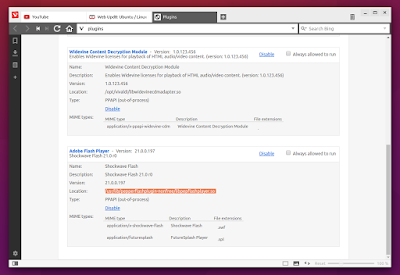
If Google Chrome is not installed on your system, to get Vivaldi browser to use the Google Chrome Pepper Flash plugin, you can install a package called "pepperflashplugin-nonfree".
The package is available in Ubuntu 14.04, 15.04, 14.10 and 16.04 / Linux Mint 17.x and derivatives and you can install it by using the following command:
The package is available in Ubuntu 14.04, 15.04, 14.10 and 16.04 / Linux Mint 17.x and derivatives and you can install it by using the following command:
sudo apt-get install pepperflashplugin-nonfreeThen restart Vivaldi. Thats it!
Update: the bug that caused pepperflashplugin-nonfree not to work in Ubuntu 16.04 was fixed.
Extra tip:
If Google Chrome is installed, Vivaldi will automatically pick up its Widevine Content Decryption plugin (it comes with a symbolic link to the location of the libwidevinecdm.so plugin in the Google Chrome stable installation folder).
If you dont want to install Google Chrome and you need this plugin, you can extract libwidevinecdm.so from the Google Chrome deb and place it in /opt/vivaldi/, replacing the existing symbolic link.
thanks to B.Jay for the tip!

Available link for download

Sunday, January 29, 2017
How to inspect an Element in Safari Browser
How to inspect an Element in Safari Browser
If you are a web programmer then sometimes we need to inspect an element in safari browser. But nothing found in right click option like other Firefox and Chrome browser. Today we share that how to enable inspects element in safari. This is simple and easy tips to add inspect the element.
How to inspect an Element in Safari
Step #1
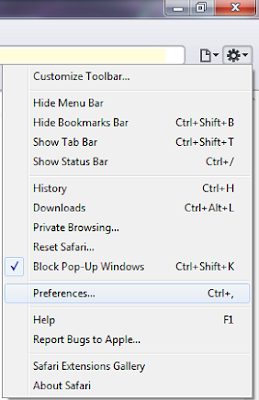
Click on the gear setting icon in safari browser, who appear in the right top corner side.
Step #2
After that click on Preferences (Ctrl +,)
Step #3
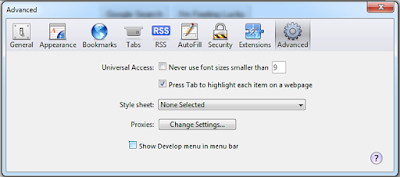
In the Preferences Pop up, Click on Advanced tab
Step #4
Check the Show Develop menu in menu bar
Step #5
Close the Preferences Pop up, now the web developer tool has enabled. Right click and Choose Inspect Element option.
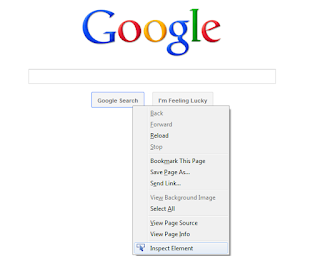
Now you can inspect any element in Safari browser.
Available link for download
Thursday, November 10, 2016
Google Chrome Browser
Google Chrome Browser
GOOGLE CHROME 51.0.2704.79 (x86-x64)
- It is Fast and easy browser
- Try it for free.
Download Link
http://www.indishare.me/cv0hbh29bn3z


Available link for download
Sunday, October 9, 2016
How To Enable Gmail Tabbed Inbox in Web Browser
How To Enable Gmail Tabbed Inbox in Web Browser
 Recently Google introduced Gmail tabbed inbox, which is really reduced the clutter in inbox and became more simple. It brings a tabbed inbox and divides the mail we receive in to Categories. In this Gmail update we can add up to 5 tabs(categories) which are..
1. Primary
Person-to-person conversations ie. from friends and family.
2. Social
Messages from social networks, media-sharing sites,online dating service etc.
3. Promotions
Deals, offers and other marketing emails.
4.Updates
Personal, auto-generated updates including confirmations, receipts, bills and statements.
5. Forums
Messages from online groups, discussion boards and mailing lists.
We can customize the above tabs as which category we wish to see. To enable this Tab feature in your Gmail inbox just follow the simple steps below.
1. Sign in to Gmail, Click the Settings icon on the right side and select Configure inbox.
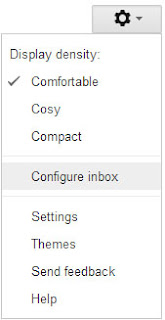
2. Now it will prompt a dialog to choose the tabs you see in the inbox. Select your desired tabs and click Save.

Thats it...you are successfully enabled Gmail Tabbed inbox.
Available link for download
Subscribe to:
Posts (Atom)