Tuesday, April 11, 2017
How to repair replace invalid imei on Android Tablets and Smartphones
How to repair replace invalid imei on Android Tablets and Smartphones
How to Replace or Repair Invalid IMEI on Android Tablets and Smartphones.
Imei Invalid Android Fix
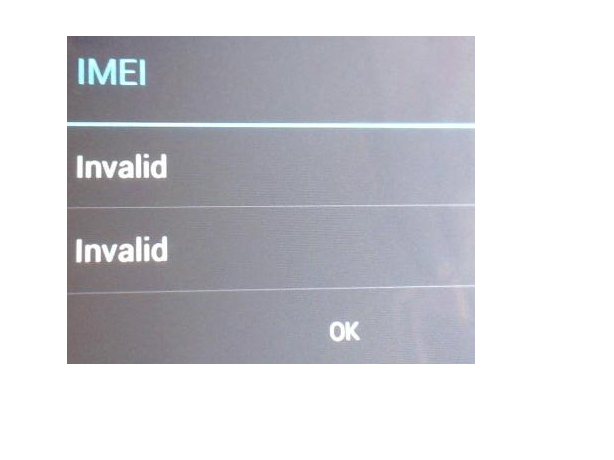
What is IMEI ?
Imei is 14 digit base unique identity for Tablets and mobiles. You can find it under the battery starting with 35xxxx or 1xxxxxx .
To repair invalid IMEI on MTK CPU based android smartphones and tablets , you need MTK Droid Tools. Download MTK DROID TOOLS .
Turn on USB Debugging Mode on your tablet or smartphone.
Connect your tablet with computer and run MTKdroidTools.exe .

All information regarding your tablet will be show . On lower corner of software screen, you will see yellow box with name of your MTK devices. You must root your smartphone or android tablet to repair the invalid imei .
For Root click on Root button .
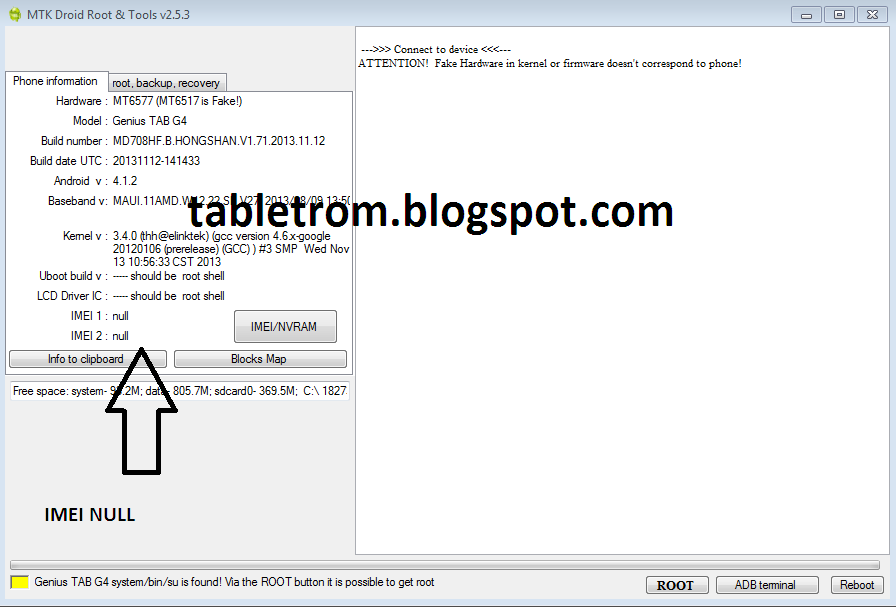
Some files will be run into software and the box in the lower left corner turn into green. You will see (Root Shell) written after your device name.(as shown below picture).A SU(Super User) icon will appear on your tablet or smartphone .

Now Click on IMEI/NVRM button . Write Original IMEI or whatever IMEI you want . Do not forget to add country code in start before IMEI number. For example, the user in united state of america must add 01xxxxxxxxxxxx and then 12digit IMEI . IMEI must be 14 digit long. First two digit of your country code and then 12 digit of IMEI number. Click on Replace IMEI. A pop up window will appear click OK .

Changes will take effect shortly . If you still not see IMEI then Reboot tablet with reboot button. IMEI number will be available as show below. You are done. Now you can use SIM, 3G/4G,GPRS features on your tablet or smartphones.

How To Root Android Smartphones
What is Recovery in Android
What is Rooting means in Android
How to Root Allwinner Tablets
Fix Screen Shift on Allwinner Tablet
Touch Replacement Video Tutorial .
Available link for download

Monday, March 27, 2017
How to Root Android Smartphones with Rooting Tools
How to Root Android Smartphones with Rooting Tools
How to Root Android Smartphones.
Best Rooting tools for Android .


What is Rooting ?
How Does VROOT work ?
How to Root with VROOT ?
Available link for download
Monday, March 20, 2017
How to root any Mediatek MTK CPU based smartphones
How to root any Mediatek MTK CPU based smartphones

- Boost your Phone speed & Battery Life.
- Remove Pre installed crap ware like System Apps.
- Remove Bloatwares, Apps like Facebook, Chrome Keep sucking your Ram & battery by running in background So, Among the smartphone geek crowd, applications like these are referred to as “bloatware:” they do nothing but bloat the software by existing as unnecessary applications.
- Tweak your phone like : Increase Video streaming speed, Increase Wifi Speed, Increase SIM detecting Speed, Increase SD read/write speed.
- Most Important & Best part, Install Custom Kernel & Custom ROMS ( I will explain about it in Installing Custom ROM section Custom ROM section )
- Finally, Truly Own your Device, Make it appear in the way you want.
Note:
- No data loss process : Your Android phone data like contacts, pictures, video etc will not be affected.
- Warranty Void : Your Android Device warranty may get void after following the below tutorial.
- How to Unroot : To unroot your device, Open Kinguser on your device > Settings > Remove Root permission.
Success Rate : 92-98%
Rooting Android using Kingo Root PC App:
Download Kingo Root : Kingo Root App
- VRoot Rooting App for PC: Download.
- Install it. Just click Next and Launch it.
- Connect your android device and make sure that USB Debugging mode is enabled from Settings – Developer Options.
- From VRoot on your PC, click Root.
- Wait for the result. If it’s a success, your device will reboot and you can now disconnect your android device from your PC.
- Check if you are successfully rooted by downloading and installing Root Checker app from Play Store.
- Done.
How to Root using iRoot:
iRoot App for PC: Download
before continuing.
rooting process to be completed. (Don’t unplug the USB cable).
Available link for download
Monday, January 2, 2017
How To Enable USB Debugging Option In All Android Smartphones
How To Enable USB Debugging Option In All Android Smartphones
Enabling the USB Debugging option in android devices especially in smartphones is very important because without that you cannot root or update your Android device. If you are new to the android world probably you don’t know how to do that. So, in this article I have decided to explain about how to Enable USB Debugging option in android cell phones. Generally, the USB debugging option allows you to connect your android phones to the computer and use the android SDK along with it.
Enabling and disabling the USB Debugging option is available in every android phones. But some devices, it will be disabled due to some safety measures. To be very frank, Google developed the USB debugging option only for the developers. They can use this option if they want to test their newly created android app on their phone. So, it is generally disabled. The disabling option prevent the non-developers from the risk of enabling it accidentally. That’s why in the latest Android versions, you can find this option under the “Developer Options“.
How To Enable USB Debugging Mode?
As I have already said, by default this option is generally disabled and hidden. Therefore, if you want to enable the USB Debugging option you need to follow the instructions given below. I have given separate instructions for Android 2.3, 4.0 and 4.2 versions.Enable USB Debugging In Android 2.3 Or Earlier Version:

1.First go to “Settings“.
2.Their tap on the “Applications” option.
3.From there go to “Development“.
4.Now, you need to check the (tick) “USB Debugging” to enable it.
Enable USB Debugging In Android 4.0 Or Higher Version:
1.Google has slightly changed this option on Android 4.0 version compared to the previous versions.2.From the main menu, first go to the “Settings” in your android phone.
3.Scrolling down, you will be able to find the “Developer options“.
4.Tap that option now and you can see the “USB Debugging” option. Just enable it by taping on it.
Enable USB Debugging Mode In Android 4.2 Or Latest Versions (4.4, 5.0, etc):

1.In this version, Google has hidden the whole “Developer options” section for the users who are not much familiar to use developing tools.
2.So, to enable it go to “Settings” option.
3.From Settings go to “About” option.
4.From there go the “Build number“. You can find this at the end of the scroll.
5.Just tap that Build Number option repeatedly for 7 times. On the third tap, you will be presented with a message saying you have only 4 more taps to be a developer.
6.Continue to tap until you the message “Hooray, you are now a Developer“. At this phase, go back to the “Settings” page.
7.Now, you will be able to see the “Developer options“.
8.Launch the developer options, then check the “USB Debugging” option. Tap “OK“.
Once this option is enabled, even as a non-developer you can access this option over your device and you will get full freedom to control your android phone. There after you can easily root or update your android smartphone by following the appropriate procedure. Enjoy!
Available link for download