





Showing posts with label copy. Show all posts

Friday, March 24, 2017

How to Copy backup Whatsapp Chat from Android to Computer

How to Copy backup Whatsapp Chat from Android to Computer


How to Copy WhatsApp conversation from Android  and print them out . 

How to backup Whatsapp Conversation For Android smartphones and Tablets. 


how to copy whatsapp chat on pc.

A question asked by many Android users " How to Print Out Whatsapp Conversations , how to backup whatsapp chat ",  So I decide to write step by step tutorial to make it easy for android users. If you are in need of backup whatsapp messages or need a soft or hard copy of your Whatsapp conversation or Whatsapp group chat or you want to save your Whatsapp chat on computer , you are on right place.  


How to Print Out Whatsapp Conversation, Chat. 


Simply Open WhatsApp on your Android Tablet or Smartphones. Click on  Whatsapp Setting . 


how to copy whatsapp chat on pc.


Click on Chat Setting 

how to copy whatsapp chat on pc.

Now Click on Email Conversation. 


how to copy whatsapp chat on pc.


Choose whatever Whatsapp conversation you want to email for print out. 

how to copy whatsapp chat on pc.


After Selection Email Conversation you have select wether you email your conversation with media or without Whatsapp media files . Attaching Media may take some time to attach media files. 

how to copy whatsapp chat on pc.

If you are Gmail user then click on gmail .Your Gmail account is already added in Google accounts so choosing Gmail is easy to send email your whatsapp chat
whatsapp messenger

If you have email account other than Gmail click on  email and Configure your desired email account. 

whatsapp messenger

How to backup Whatsapp Chat. 


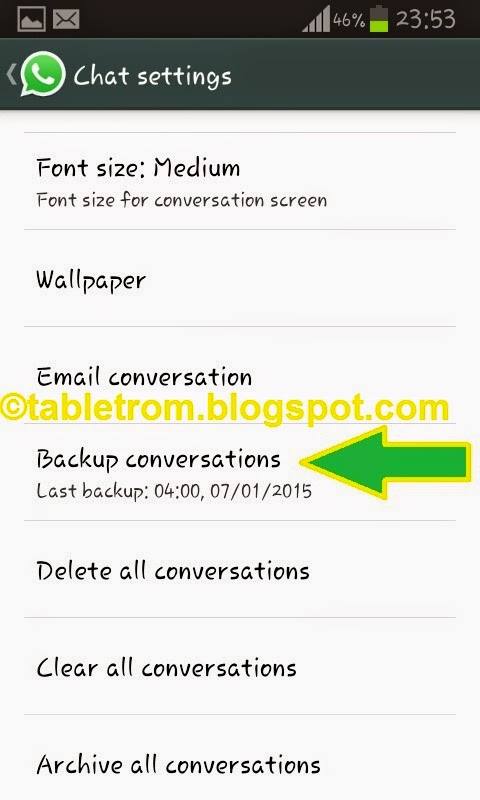
 you can also backup single or whole whatsapp conversations by clicking on Backup conversation in whatsapp setting.


whatsapp messenger

All whatsapp chat will be saved on your local internal memory. 

whatsapp messenger

Note: Images are property of their respected owners. Screenshot ware taken on Samsung Smartphone running 4.1.2 Jellybean. 


Available link for download

Read more »

Wednesday, March 15, 2017

How To Copy Paste and Enable Root Access in CyanogenMod CM File Manager

How To Copy Paste and Enable Root Access in CyanogenMod CM File Manager


CM File Manager comes as the default file manager in CyanogenMod ROM. The file manager has an attractive holo UI with dark and light theme. It also has the features like root access, swipe to delete,create archive etc. Even there are many advanced file managers are available in Google Play, still many CyanogenMod users prefer CM file manager for daily use.

In this post I include the steps to enable root access, enable swipe to delete and copy/paste in cyanogenmod cm file manager.


Enable Root Access in CyanogenMod CM File Manager

1. Open CM File Manager
2. Go to Settings -> General settings
3. Then tap on Access mode and select Root Access mode in the prompt dialog.
4. On Superuser or SuperSu prompt select Remember choice forever and tap on Allow


Copy / Paste Files in CyanogenMod CM File Manager

1. Open CM File Manager
2. Select the desired files you want to copy
3. Go to the destination folder you want to paste the selected files
4. tap on the Actions button


5. Finally in the Actions dialog tap on Copy selection here


Thats it....


Available link for download

Read more »

Wednesday, February 15, 2017

How to copy android system files

How to copy android system files


Have you experienced copying system files, reboot and nothing happen? Unable to replace system files?

One major problem is you did not mount system folder to Read and Write!


Your phone must be fully ROOTED!
After running Root Explorer and inside the system folder. Remember to click on the MOUNT R/W.
If you do not mount it to Read/Write you will not be able to copy new files.

You should have this error message if you did not mount it. Others File Explorer might just show pop-up message and gone... this is another problem. You might not see the message.


Make sure Root Explorer allow in SuperUser! If not, you will not be able to access system files will full right.

Once copied. Remember to set permission. Normally to "rw-r--r--".

REBOOT! New system file will only executed after reboot.

NOTE:
Make sure you rename existing system file to BAK before copying new file! Else you might end up asking around for original file :)


Available link for download

Read more »

Thursday, January 12, 2017

How to highlight and copy text on sites that block it

How to highlight and copy text on sites that block it


Every now and then I come across sites on the Internet that prevent you from copying some or all of the text displayed to the clipboard, or even selecting it in first place using the mouse or keyboard.
I noticed this on a banks site recently for example where I was not allowed to copy the bank account number to the clipboard.
This guide looks at methods to overcome the limitation put in place by websites on the Internet. But first, why do sites implement these restrictions in first place?
While reasons are provided by companies and individuals who implement the functionality on their web properties, the most likely reason is some form of copy protection.
Method 1: Turn off JavaScript
javascript
Most websites use JavaScript to block mouse functionality. If you turn off JavaScript on the site temporarily or even permanently, you will be able to copy text displayed on it using the mouse.
Some websites rely on JavaScript on the other hand which means that you may run into issues doing so. Some may even refuse to display at all when JavaScript is turned off.
  • Firefox users can press F12, there on the preferences icon to disable JavaScript in the menu that opens.
  • Chrome users can disable JavaScript in the Content settings: chrome://settings/content
  • Internet Explorer users can turn off JavaScript in Internet Option > Security > Zone > Custom Level > Active Scripting
  • Opera users can disable JavaScript under Websites in the Opera settings: opera://settings/
Extensions like NoScript can be useful in this regard as they block the execution of scripts as well.
Method 2: The source
source
Another option that you have is to display the source code of the website you are on. Since it is displayed in a plain text editor it is possible to copy anything from it without restriction.
Simply press Ctrl-u while you are on the site to display its source code. This works in most browsers including Firefox, Chrome and Internet Explorer.
It is still necessary to find the text or content that you are looking for in the source. Use Ctrl-f to jump directly to it.
There you may also find links to images and other contents that you could not save or copy.
Method 3: Extensions and scripts
The third and final option is most suitable if you encounter sites regularly that prohibit right-click use or text copying when you are on them, and if the methods outlined above dont work or are not really suitable.
RightToClick for Firefox disables JavaScript annoyances such as forbidding right-clicks or text selection on sites.
RightToCopy for Chrome offers similar features.
You find numerous extensions for these two browsers that remove annoyances on websites.
Summary
Article Name
How to highlight and copy text on sites that block it
Description
Some sites block text selection and copying using JavaScript. This guide looks at three methods that allow you to copy text on these sites anyway.
Author


Available link for download

Read more »