Showing posts with label in. Show all posts

Wednesday, April 12, 2017

How To Install GNOME 3 20 In Ubuntu GNOME 16 04 Xenial Xerus

How To Install GNOME 3 20 In Ubuntu GNOME 16 04 Xenial Xerus


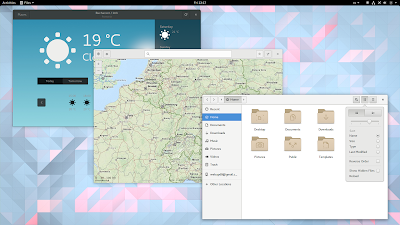
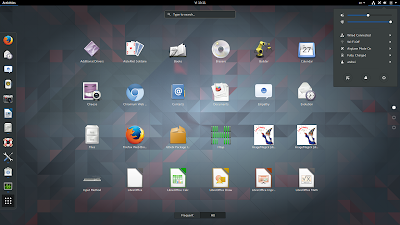
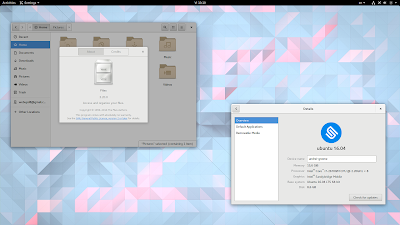
Now that Ubuntu GNOME 16.04 (Xenial Xerus) is out, you may want to install the latest GNOME 3.20. I wont get into details about whats new in GNOME 3.20 since Ive already covered that.

GNOME 3.20 Ubuntu 16.04

Ubuntu GNOME 16.04 uses GNOME 3.18 for the most part: GTK 3.18, along with GNOME Shell 3.18, GDM 3.18 and the 3.18.x release for most GNOME applications. Exceptions are Nautilus (3.14), GNOME Software and GNOME Calendar (both updated to version 3.20.x).

To upgrade to GNOME 3.20 in Ubuntu GNOME 16.04, youll have to use the GNOME 3 Staging PPA.

The PPA doesnt have the complete GNOME 3.20 though. On a first look, I can tell you that the following packages werent updated to version 3.20 in the PPA: Bijiben, Cheese, Epiphany, Evince, Boxes, Disks and probably others.

GNOME 3.20 Ubuntu 16.04

Nautilus (Files), Gedit, Maps, Documents, System Monitor, Terminal and so on, along with GTK+, Settings (Control Center / Settings Daemon), GNOME Shell, and GDM were all updated to version 3.20.

To see all the packages available for Ubuntu (GNOME) 16.04 in the GNOME 3 Staging PPA, click HERE.

GNOME 3.20 Ubuntu 16.04

Ive been using GNOME 3.20 in Ubuntu GNOME 16.04 for a few hours and I didnt encounter any major issues however, there might be things I didnt notice. Furthermore, bugs can be introduced with future updates, especially since the PPA packages are not as widely tested as the packages available in the official Ubuntu repositories.

So use the PPA with care and only if you know what youre doing!

Update: pierremichaud points out in a comment below that the GNOME Calendar and Evolution calendar synchronization with Google doesnt work for now.

If something doesnt work the way its supposed to or you simply dont want to use GNOME 3.20 any more, you can purge the PPA and go back to the default GNOME version (3.18) available in Ubuntu GNOME 16.04. Youll find instructions for how to do this at the end of the article.


How to upgrade to GNOME 3.20 in Ubuntu GNOME 16.04 (Xenial Xerus)


Before proceeding, its important to mention that you should only use this PPA in Ubuntu GNOME. In Unity for instance, updating GTK and other libraries, along with applications without Unity patches can result in quite a bad desktop experience, crashes, etc.

Also, I recommend switching to the default GNOME theme (Adwaita), to avoid any issues that may occur with a newer GTK+ version and the theme youre using.

To add th GNOME 3 Staging PPA and upgrade to GNOME 3.20 in Ubuntu GNOME 16.04, use the following commands (read the important notice below before running the "dist-ugrade" command):
sudo add-apt-repository ppa:gnome3-team/gnome3-staging
sudo apt update
sudo apt dist-upgrade
Important! Read the output of "apt dist-upgrade" before entering Y to make sure important packages wont be removed! This is up to you to figure out.

For instance, in my test, the "dist-upgrade" command displayed a message saying that "grilo-plugins-0.2-base" was about to be removed. I knew thats ok because "grilo-plugins-0.3-base" was mentioned below, in the section that lets you know about new packages that will be installed:
$ sudo apt dist-upgrade
Reading package lists... Done
Building dependency tree
Reading state information... Done
Calculating upgrade... Done
The following packages will be REMOVED:
grilo-plugins-0.2-base grilo-plugins-0.2-extra libmutter0g
The following NEW packages will be installed:
gir1.2-geoclue-2.0 gir1.2-grilo-0.3 gir1.2-lokdocview-0.1 grilo-plugins-0.3
grilo-plugins-0.3-base grilo-plugins-0.3-extra libcamel-1.2-57 libgexiv2-2
libgrilo-0.3-0 libgspell-1-1 libjpeg62 libmutter0h libreoffice-gtk3
The following packages will be upgraded:
...................

The same goes for "grilo-plugins-0.2-extra" and "libmutter0g". This is just an example though!

Once the upgrade is completed, its best to restart your system to avoid running into issues.


How to revert the changes and go back to GNOME 3.18 in Ubuntu GNOME 16.04


If you want to revert the changes and go back to GNOME 3.18 in Ubuntu 16.04 (Xenial Xerus), you can purge the PPA. To purge the PPA, use the following commands:
sudo apt install ppa-purge
sudo ppa-purge ppa:gnome3-team/gnome3-staging


Available link for download
Read more »

Tuesday, April 11, 2017

How to Open USB Debugging in Samsung Galaxy S5

How to Open USB Debugging in Samsung Galaxy S5


To open USB debugging in Samsung Galaxy S5(Android 4.4), you can follow the steps below.


Firstly, access Settings.


Secondly, locate and open About device.


Thirdly, keep clicking Build number for 5 to 7 times, and stop when a prompt turns up, which reads, “No need, developer mode has already been enabled.”


 Fourthly, go back to Settings and turn on Developer options.


 Fifthly, choose USB debugging in Developer options and tap OK in the pop-up confirm window.


 In a word, with the above 5 steps, the USB debugging in Samsung Galaxy S5 can be opened easily.


Related articles:
How to Enable and Disable USB Debugging in Samsung GALAXY Tab2
How to Set Password on Galaxy S4 GT-I9500/GT-I9508
How to Set Password on Samsung Galaxy S3 I9300/I9308
How to Get Your Contacts Back on Samsung Galaxy Note 3 Android


Available link for download

Read more »

Monday, April 10, 2017

How to Save Power in Any Mobile Phone

How to Save Power in Any Mobile Phone


We all know that mobile phone is very important to all of us. It is the alternative way in communicating our love ones especially if they are far away. Mobile Phones are in everywhere as mobile companies continue to produce and improve mobile features to satisfy our needs. As many features are added, battery consumption becomes too fast. You might fully recharged your device in couple of hours, but your battery became empty in just a couple of minutes. It is very
frustrating when you run out of power especially when you are dealing with a very important or serious matter. Ever wondered why is that so? Try to follow these easy steps, it might help you extend your battery life in any mobile phones and devices.

1. Keep your Screen Brightness as low as possible. 

   Keeping your screen brightness in low can help you save power. When you are using your devices at night, it is more appropriate to reduce your screen brightness. This can also help in protecting your eyes since too much brightness in the dark can is not appropriate.


2. Keep backlight time at a minimum level.

   Keeping your your device backlight time at a minimum level can help save power. This will let your device doesnt stay active for long when not in use. 


3. Avoid in using Widgets which needs Internet Connection.

   Widgets like weather, news feeds, and social networking updates consume more power as they use your phones data connection and auto sync capabilities.


4. Turn off Bluetooth and Wi-Fi when not in use.

   Turning off your bluetooth and Wi-Fi can help you save power. They may just be like that but they consume more battery power.


5. Close running unused applications.

   When you are using your device, for example a tablet, there are times that you do really open lots of applications ( Games, Browsers or etc ). And so inorder to have easier access with them, you just minimize it on the dock. To save power, close unused applications. They are just minimized and still continue to function, thus consuming more battery.


6. Download a Battery Saver App.

   It is much better to download a battery saver application in play store ( If your device is Android ). This app will provide you a lists of running applications which consumes more power. 
    

If you have questions/clarifications or additional tips, please leave a comment.


Available link for download

Read more »

Friday, April 7, 2017

How To Block Cell Broadcast SMS Notification in Android

How To Block Cell Broadcast SMS Notification in Android


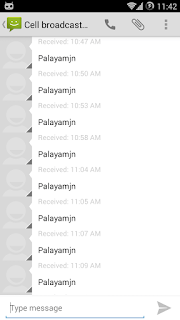
cell broadcast channel 50Just now I flashed Cyanogen Mod Nightly in my Galaxy S3. Everything works smoothly and better, but a broadcasting SMS from cell broadcast channel 50 annoys me repeatedly. I got 50+ notification in just 15 minutes. Tried to black list, force stop, etc. But nothing worked. Finally, I found a solution from the CM forum which I shares here.

Block Notification From Cell Broadcast Channel 50

1. Open Terminal Emulator
2. Type su and tap on enter
(Allow on Superuser Permission popup)
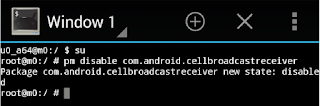
3. Then type pm disable com.android.cellbroadcastreceiver and tap on enter.

cell broadcast channel 50 disable command

4. Thats it .. You will get the success message as below
"package com.android.cellbroadcastreceiver new state: disabled"

source


Available link for download

Read more »

How to Enable and Disable USB Debugging in Samsung GALAXY Tab2

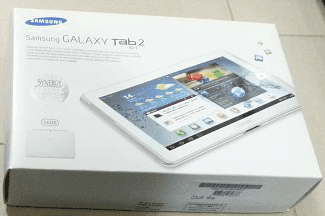
How to Enable and Disable USB Debugging in Samsung GALAXY Tab2


In this article, the method to enable and disable USB debugging in Samsung GALAXY Tab2 (with Android 4.0) is illustrated in detail.


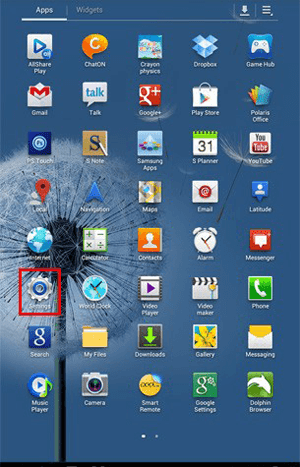
 Step 1: Open all apps.

Click the Apps icon on the top right corner of the tablet screen.


Step 2: Access Settings in Apps interface.

Find and click Settings to enter it.


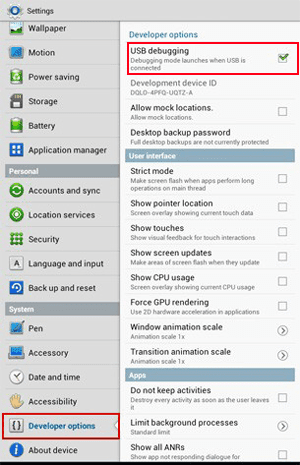
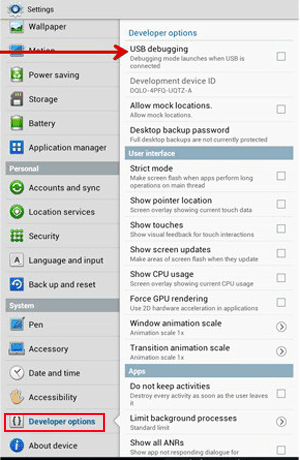
Step 3: Enable or disable USB debugging.


1.    Locate Developer options, open it and select USB debugging to enable it.


 2.     To disable USB debugging, open Developer optionsand uncheck USB dubugging.


Related articles:
How to Open USB Debugging in Samsung Galaxy S5
How to Set Password on Galaxy S4 GT-I9500/GT-I9508
How to Get Your Contacts Back on Samsung Galaxy Note 3 Android


Available link for download

Read more »

How To Easily Create AppFolders In GNOME Shell Using GNOME AppFolders Manager Or GNOME Software

How To Easily Create AppFolders In GNOME Shell Using GNOME AppFolders Manager Or GNOME Software


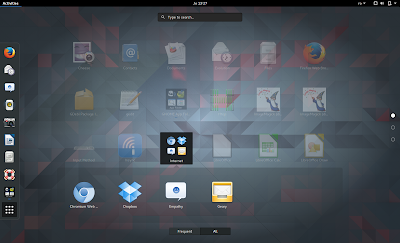
By default, the GNOME (Shell) overview displays applications in two views: "all", where all the applications are listed in alphabetic order, and "frequent", in which the frequently used applications are displayed.

GNOME Shell supports grouping applications in app folders, and there are two such predefined folders, "Utilities" and "Sundry". Some might not know how to create custom app folders, so here are two ways of achieving this.


Create and edit GNOME Shell app folders with GNOME AppFolders Manager


GNOME Appfolders Manager

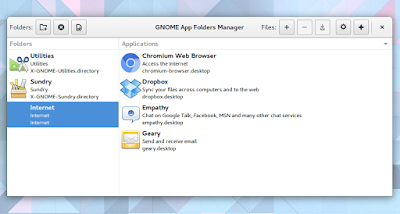
GNOME AppFolders Manager is a tool to create and edit app folders in GNOME Shell.

The application is fairly easy to use - in the left section, you can create, delete or edit app folders, while in the right section you can add (or remove) applications to app folders.

Once youve added the applications you want to an app folder, click the save button. Thats it! Heres a custom GNOME application folder I created using GNOME AppFolders Manager:

GNOME Appfolders

To install GNOME AppFolders Manager in Ubuntu GNOME 16.04, 15.10 or 15.04 (the app requires GNOME 3.12+, while Ubuntu 14.04 uses GNOME 3.10), you can use the main WebUpd8 PPA. Add the PPA and install the app using the following commands:
sudo add-apt-repository ppa:nilarimogard/webupd8
sudo apt update
sudo apt install gnome-appfolders-manager

Arch Linux users can install GNOME AppFolders Manager via AUR.

For other Linux distributions, see the application installation page.

Report any bugs you may find @ GitHub.


Add applications to app folders using GNOME Software


Note that in my test, the instructions below did not work in Ubuntu 16.04 with GNOME 3.18 and GNOME Software 3.20 (no error was displayed, the appfolder simply wasnt created). It didnt work in Fedora 24 with GNOME 3.20 either, but it did work in Fedora 22 with GNOME 3.16.

Also, GNOME Software is not available in the official repositories for Ubuntu versions older than 16.04. So for Ubuntu and for GNOME versions in which this functionality is broken, use GNOME AppFolders Manager.

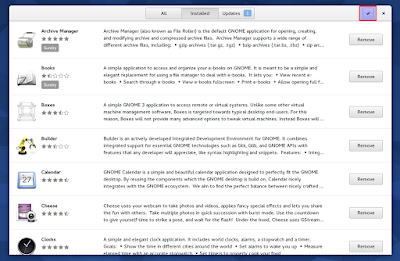
If youre using GNOME Software, you can easily add applications to app folders and create new app folders. To do this, launch GNOME Software, switch to the "Installed" tab and click the select button (top right):

GNOME Appfolders

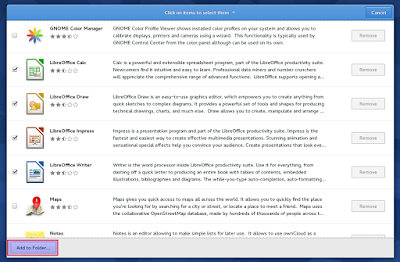
Then, select the applications you want to add to a folder and click "Add to Folder":

GNOME Appfolders

And finally, simply select the app folder you want to add the applications to, or click "+" to add a new app folder, and click "Add":

GNOME Appfolders

In the same way, you can also remove or move applications from app folders.

Heres the result:

GNOME Appfolders


Available link for download

Read more »

Wednesday, April 5, 2017

How To Install Budgie Desktop In Ubuntu 16 04 Or 15 10 Via PPA

How To Install Budgie Desktop In Ubuntu 16 04 Or 15 10 Via PPA


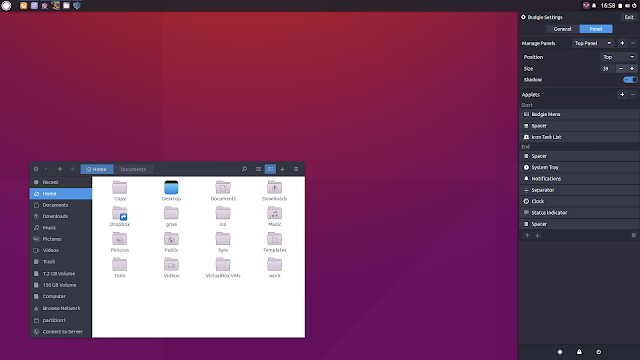
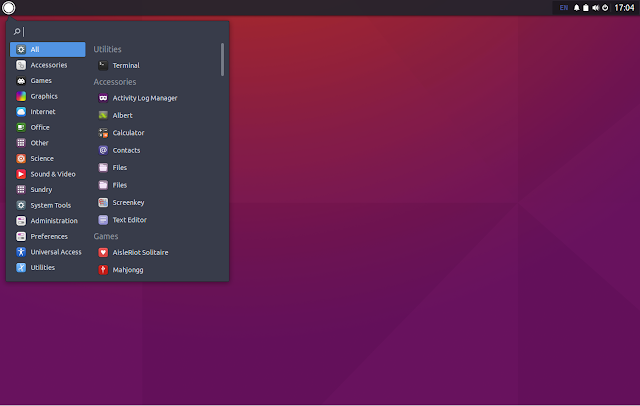
Budgie is a modern GTK-based desktop that was written from scratch, with simplicity and elegance in mind.

Budgie Desktop Ubuntu screenshot

Used by default in Solus (not to be confused with SolusOS), a relatively new Linux distribution, Budgie Desktop integrates tightly with the GNOME stack and it features a libmutter-based window manager and a customizable panel which includes Raven, an applet, notification and customization center.

Since recent Budgie Desktop versions werent available in any Ubuntu PPA, fossfreedom decided to maintain such a PPA, which offers the latest Budgie Desktop version (10.2.4 at the time Im writing this article), for Ubuntu 15.10 and 16.04. The PPA doesnt support Ubuntu 14.04 because Budgie Desktop requires a newer GTK version.

Ive briefly tested Budgie Desktop in Ubuntu and it works great for the most part - the only issue I have with it so far is that the tray applet doesnt display the nm-applet or Dropbox icons (and probably others). Update: this bug was fixed and the nm-applet icon now shows up in the tray!

I should also mention that Budgie Desktop doesnt support AppIndicators, though this feature might be added in the future.


In other Budgie Desktop news:
  • Solus 1.1 was released yesterday featuring the latest Budgie Desktop and various improvements. See THIS article for more information;
  • Budgie Remix is a new Ubuntu (16.04) based Budgie Desktop Linux distributions which, from what I understand, might be the foundation for a new Ubuntu flavor. Right now, this is work in progress and should only be used for testing. More info HERE.


Budgie Desktop video


For a quick look at Budgie Desktop (version 10.2.4) in Ubuntu, check out the video below:


(direct video link)


Install Budgie Desktop in Ubuntu 15.10 or 16.04 via PPA


-----------------------------------------------
Important update for Ubuntu 16.04 users.

The PPA below now updates Nautilus to version 3.18 (while Ubuntu 16.04 has version 3.14.x), without any Unity patches and because of this, Nautilus doesnt come with any Unity integration, so it uses header bars, it doesnt uses a traditional menu and so on.

If youre using Unity and you know what youre doing, you can lock Nautilus so it never upgrades to the version from this PPA. The other option is to not use the PPA below!

If youve already added the PPA and upgraded Nautilus, you can use PPA Purge to purge the PPA (see below).
-----------------------------------------------

To add the budgie-remix PPA and install the latest Budgie Desktop (version 10.2.4 at the time Im writing this article) in Ubuntu 15.10 or 16.04, use the following commands:
sudo add-apt-repository ppa:budgie-remix/ppa
sudo apt-get update
sudo apt-get install budgie-desktop
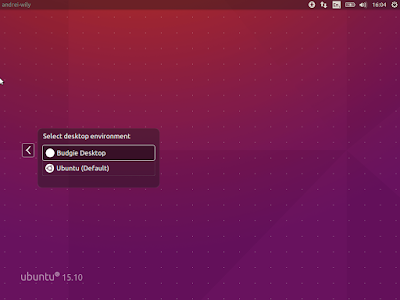
Once installed, log out and select "Budgie Desktop" from the login screen session list:


For best results, fossfreedom has included the Moka icon theme and Arc GTK theme in the PPA, and they should be installed automatically when installing budgie-desktop. After logging in, you can switch the GTK/icon themes by clicking on the Status Indicator applet (battery/sound/power), click the top-right settings icon and select "Arc-Dark" for the "Widget theme" and "Moka" for the "Icon theme".

Tip: if youve used THIS to fix large black borders around header bar apps with some themes in Ubuntu 15.10, remove it or else you wont have any shadow for header bar applications under Budgie Desktop.

Update: theres a bug that prevents the GNOME appmenu from being displayed in Budgie Desktop 10.2.4. Until this is fixed, you can use the command below to get it working:
gsettings set org.gnome.settings-daemon.plugins.xsettings overrides "{Gtk/ShellShowsAppMenu: ,Gtk/DecorationLayout: <menu:minimize,maximize,close>}"


Purging the PPA


Since the PPA in this article provides a Nautilus version newer than the one available in the official Ubuntu 16.04 repositories, and without any Unity patches, you might need to purge the PPA at some point. 

To purge the budgie-remix PPA (disable it and downgrade any packages installed from that PPA), you can use the following commands:
sudo apt-get install ppa-purge
sudo ppa-purge ppa:budgie-remix/ppa

via xpressubuntu


Available link for download
Read more »

Monday, April 3, 2017

How to add banner in About Phone Noob friendly

How to add banner in About Phone Noob friendly


What you need ? : 

  • Latest APKTOOL package .
  • A brain .
  • PC  .
  • Knowledge in decompiling and recompiling .


Lets start the GUIDE !  

Resources 

  • APKTOOL here .
  • Image Resolution : 700*215 .

Guide-

1)

  • Decompile Settings
  • Go to res/Layout folder
  • Download this file
  • paste it in Layout folder

2) 
  • Copy the image to res/drawable folder
  • Rename it to logo and it must be "PNG" !
  • Quote:
    EX: logo.png
3)
  • Go to res/xml
  • open device_info_settings.xml
  • Add this
    Quote:
    <PreferenceScreen android_layout="@layout/logo" android_key="od_logo" />
    after this line
    Quote:
    >


SAMPLE


Available link for download

Read more »

How To Get A Global Menu In Xubuntu 16 04 Or Lubuntu 16 04 Using TopMenu

How To Get A Global Menu In Xubuntu 16 04 Or Lubuntu 16 04 Using TopMenu


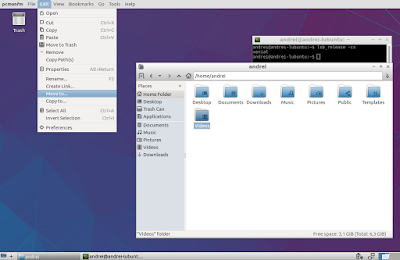
TopMenu (a global menu for MATE, Xfce and LXDE panels) is available in the official Ubuntu 16.04 repositories and it works great in Ubuntu MATE 16.04, but it doesnt work in Xubuntu 16.04 and Lubuntu 16.04 by simply installing the panel applet package.

Heres how to get TopMenu to work in Xubuntu 16.04 and Lubuntu 16.04, using the official packages, with a minor tweak.

Note that TopMenu only works with GTK2 and GTK3 applications. It doesnt work for Qt (4 or 5) applications as well as LibreOffice, Firefox andThunderbird.


How to install and get TopMenu to work in Xubuntu 16.04


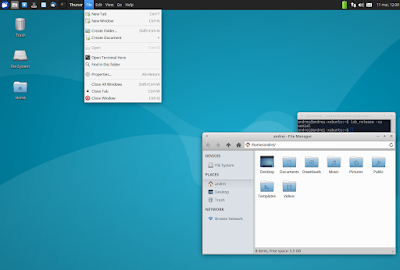
global menu topmenu xubuntu 16.04 xenial xerus

1. Install all the required packages

The TopMenu Xfce panel applet package doesnt depend on all the packages required for it to work. To install all the required packages in Xubuntu 16.04, use the command below:
sudo apt install xfce4-topmenu-plugin libtopmenu-client-gtk2-0 libtopmenu-server-gtk2-0 libtopmenu-client-gtk3-0 libtopmenu-server-gtk3-0 topmenu-gtk2 topmenu-gtk3

2. Load TopMenu via /etc/profile.d/

The next step is to create a file, lets call it "topmenu-gtk.sh", in /etc/profile.d/ - Ill use Mousepad (the default Xubuntu 16.04 text editor) below to open an empty file at that location:
pkexec mousepad /etc/profile.d/topmenu-gtk.sh
And in this file, paste the following:
#!/bin/sh
export GTK_MODULES=$GTK_MODULES:topmenu-gtk-module
Then save the file and restart the session (logout/login or restart the system).

3. Add TopMenu to the Xubuntu 16.04 Xfce panel

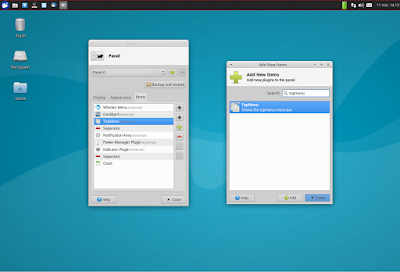
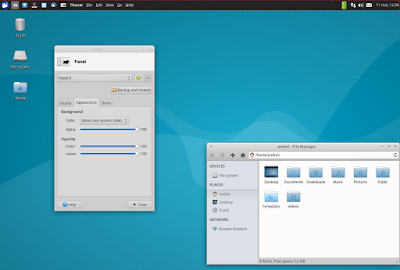
To add TopMenu to the Xfce panel, right click the panel, select Panel > Panel Preferences and on the "Items" tab, click "+" and add TopMenu, then use the up and down arrows to move the applet to the desired location:

global menu topmenu xubuntu 16.04 xenial xerus

Its important to mention that TopMenu doesnt support panel transparency so if you want Topmenu to have the same backgound as the rest of the panel, set the Xfce panel opacity to 100 by right clicking on the panel and selecting Panel > Panel Preferences, on the Appearance tab (set "Alpha" to 100):

global menu topmenu xubuntu 16.04 xenial xerus


How to install and get TopMenu to work in Lubuntu 16.04


global menu topmenu lubuntu 16.04 xenial xerus

1. Install all the required packages

Just like the Xfce panel applet, installing the LXDE TopMenu panel applet doesnt install all the packages required for the applet to work, so lets install them:
sudo apt install lxpanel-plugin-topmenu libtopmenu-client-gtk2-0 libtopmenu-server-gtk2-0 libtopmenu-client-gtk3-0 libtopmenu-server-gtk3-0 topmenu-gtk2 topmenu-gtk3


2. Load TopMenu via /etc/profile.d/

The next step is to create a file, lets call it "topmenu-gtk.sh", in /etc/profile.d/ - Ill use Leafpad (the default Lubuntu 16.04 text editor) below to open an empty file at that location:
gksu leafpad /etc/profile.d/topmenu-gtk.sh
And in this file, paste the following:
#!/bin/sh
export GTK_MODULES=$GTK_MODULES:topmenu-gtk-module
Then save the file and restart the session (logout/login or restart the system).

3. Add TopMenu to the Lubuntu 16.04 LXDE panel

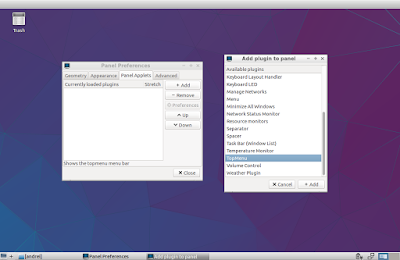
Top add Topmenu to the LXDE panel, right click the panel, select "Add / Remove Panel Items", click "Add" and select TopMenu:

global menu topmenu lubuntu 16.04 xenial xerus


Available link for download

Read more »

Sunday, April 2, 2017

How to increase ram in android by sdcard

How to increase ram in android by sdcard


Methods To Increase RAM of Android Device : -

                          Basically there are two methods to boost or increase your phone RAM in Android phone. The first method uses an application, available for free and premium pack, in the Google play store or Android market. Download them and extend your RAM easily. The second method is done manually to increase RAM in Android phone.

Note: How to Root your Android phone 

METHOD 1:-

  INCREASE RAM IN ANDROID PHONE USING APP

ROEHSOFT RAM EXPANDER 

                               Roehsoft RAM Expander is a wonderful application where you can create partitions in your SD card or Memory card and convert and use it as your RAM. Your SD card will now act as a Virtual RAM for your Android phone.

Click here to Download the app


FEATURES: 
Free SD card memory as a RAM use (SWAP RAM / SWAP MEMORY)
  • Swapfile RAM expansion up to 4.0 GB (file system limit)
  • There is No limit on SWAP partition.
  • The usual performance degradation when paged not occur with sd card from class-8
  • Widget for PNP swap (swap on / off swap)
  • Detailed Memory Information & Analysis
  • Autorun
  • Swappiness kernel parameter set
  • Easy foolproof use
  • Supporting Tung all Android devices (root access and Kernelswap support)
Using RAM Expander to increase Android phone RAM
  • Check for the compatibility of the app with your android device before downloading it. You can use a testing app, MemoryInfo & Swapfile Check, to check for it before buying the app.
  • Install the App on your Android phone.
  • Create Swap file by clicking Swap Active and Enable it.
  • Click Active Swap.
There you go! You have successfully increase RAM for your Android cell phone.

METHOD 2:- 

METHOD TO INCREASE RAM FOR YOUR ANDROID SMART PHONE

Requirements to increase ram in Android Smart Phone
  • SD Card of Class 4 or Higher.
  • Rooted Android Smart Phone or tablet.
  • Windows Pc
  • SD Card Reader
To know more about Rooting click here

STEP 1:-

Check If Your Android Phone Supports Swapping

As mentioned above, you have to check for swapping functionality. This can be done by using the MemoryInfo & Swapfile Check.

STEP 2:-

Partition your SD Card or Memory Card

  • Download the mini tool partition wizard from the link: Mini tool partition wizard
  • Insert the SD card you want to make partition into your PC.
  • Open Mini tool partition and format the inserted SD card.
  • Now Make partition by right clicking on your SD card. Select the partition as primary and file system as FAT32 for card more than 4GB.
  • Leave about 1 GB memory for next partition.
  • Then select done and again click on make partition option select primary partition but change the file system to EXT2, EXT3 or EXT4.
  • Click on apply changes and your partition is completed.

STEP 3:-

 Link with your Rooted Android Device.

  • Download Link2SD from  Click here!
  • Launch the app and give root permission. Choose the “.ext” partition.
  • Start linking them.

STEP 4:-

Increase RAM for your Android Device

  • For this you need to Download Swapper for Root.

  • Launch the app and select the amount of RAM you want to increase.
  • This will create a .swp file and it will increase the RAm of your Android Device.
And that’s it! You are done. Check your phone and you will find an increase in RAM by the amount you selected.
Congrats! You have successfully increased RAM of your Android device using SD card


*********************************************************


Available link for download

Read more »

How to burn a CD DVD Using Windows Default CD DVD Burning Program In Windows 10

How to burn a CD DVD Using Windows Default CD DVD Burning Program In Windows 10


In this tutorial you will learn how to burn a CD/DVD without using any 3rd party software in Windows 10.It also works in Windows 8 and Windows 8.1.


PS- DVDs Created using this procedure are Data DVDs. It will work in all types of computers and most of the new generation DVD players.But not all DVD players could run this.In that case you need to create a Video DVD using a 3rd party softwares  like power2Go,nero etc.Please check the format of the disks supported by your DVD player.


Available link for download

Read more »

Friday, March 31, 2017

How To Install Extended Power Menu Mod in Samsung Galaxy S3

How To Install Extended Power Menu Mod in Samsung Galaxy S3


galaxy s3 extended power menu
The default power menu in Samsung Galaxy S3 is limited to Power off , Data network mode, Flight mode, Restart and sound profiles. So if we want to boot our Samsung Galaxy S3 to download or recovery mode there is no one click option rather than the key combination method. The key combo method is not practical always as it needs our both hands.

In this post I included the steps to install extended power menu mod (Recovery, Download, etc.) in Samsung Galaxy S3. We should thank XDA Recognized Developer AndiP for making this mod. Currently, extended power menu mod is only available for selected ICS and Jelly bean versions.

Note:
- Make sure to download the correct odex or deodex firmware versions file. Check if Odexed or Deodexed ?
- This mod is only for Galaxy S3 with Stock Rom.

Disclaimer:
Installing Mods may brick your phone. I am not responsible for any damage. Do at your risk.


How To Install Extended Power Menu Mod in Samsung Galaxy S3 ?

1. Download the correct version of Extended PowerMenu zip for your firmware build number - Download

2. Copy XX...-ExtPowMenu.zip to SD card.

3. Boot into CWM recovery. ( Power Off .... Press and Hold Volume up , Home and Power button )

4. In CWM Recovery select - install zip from sd card

5. Now click choose zip from sd card.

6. Finally select the XX...-ExtPowMenu.zip

After installation .... reboot...done...After reboot long press power button and click reboot. if the installation was success it will show options like Recovery, Download etc..


If the above method not worked or if you want to rollback the power menu to its default state just follow the steps below.

How to Restore the default power menu in Samsung Galaxy S3 ?

1. Download the correct version of Extended PowerMenu Rollback zip for your firmware build number - Download

2. Copy XX...-ExtPowMenu-Rollback.zip to SD card.

3. Boot into CWM recovery. ( Power Off .... Press and Hold Volume up , Home and Power button )

4. In CWM Recovery select - install zip from sd card

5. Now click choose zip from sd card.

6. Finally select the XX...-ExtPowMenu-Rollback.zip

After complete install...reboot...


source


Available link for download

Read more »

Sunday, March 26, 2017

How to increase import database in php my admin

How to increase import database in php my admin


If you want do import using phpmyadmin change settings in php.ini file  in C:wamp inapacheapache2.2.22 in apa

post_max_size = 10M 
upload_max_filesize
= 10


Available link for download

Read more »

Wednesday, March 22, 2017

How to increase max allowed packet in phpmyadmin

How to increase max allowed packet in phpmyadmin


max_allowed_packetis set in mysql config, not on php side
[mysqld]
max_allowed_packet
=16M
You can see its curent value in mysql like this:
SHOW VARIABLES LIKE max_allowed_packet
You can try to change it like this, but its unlikely this will work on shared hosting:
SET GLOBAL max_allowed_packet=16777216;
You can read about it here http://dev.mysql.com/doc/refman/5.1/en/packet-too-large.html


Available link for download

Read more »

Sunday, March 19, 2017

How To Run Zedge In India

How To Run Zedge In India


UNABLE TO CONNECT ZEDGE ERROR FIXED//ACCESS ZEDGE APP IN INDIA!

How To Run Zedge In India?


The one and only and the best mobile customization app Zedge has been blocked on some Internet Service Providers and mobile operators in India.Everyone using this app was amazed by its bunch of unique and amazing wallpapers that fits their screen resolution and was proud to be a zedger but nowadays it displays the following message for certain Vodafone Mumbai,Delhi-NCR or even the wifi users :-

“ZEDGE is currently blocked by certain Internet Service Providers and Mobile Operators in INDIA due to decree issued by the DOT and Indian High Court. This means that many users in India are unable to use this app and our websites"

or simply the message displays:-

"Unable to Connect ZEDGE servers cannot be reached.Please try again shortly" when opened on wifi networks,

The company hasnt disclosed the reason of the block,but they promised the users that they will find the solution to fix this problem ASAP!!
by the way why should we take strains further if we know the method to run the app.
This method is totally working in all the devices!!

Now what you need?

The main thing what we need is that you should have a rooted phone , if you dont have root access then the mtnl/bsnl or airtel service providers users of the following can run the app by allowing the data to it simply. The Non-Rooted users can also install SurfEasy free vpn or SuperVpn App from the play store to access zedge on their device!!

Now lets go simply move on to the simple steps to run the app:-

1:- Download the Hotspot-Vpn app from the link provided under the post,( dont download any other version of it, the provided apks link under is the only working one).

2:- Now after installing the apk give root permission to it then open it and make the secure connection.

3:- Now its all done you can now open ZEDGE and start freeing up your phone and enjoy the amazing wallpapers and tons of ringtones.

4:- Make a sure that in the play store setting you should uncheck the "automatic updates" option.

Back to zedger mode again!!!!

Feel free to comment well be there to help you ASAP.

"Working Hotspot vpn download link for zedge"

>>>Zedge app download link<<<


Available link for download

Read more »