Showing posts with label without. Show all posts

Saturday, April 1, 2017

How To Root Unroot Xiaomi Redmi 2 Without PC

How To Root Unroot Xiaomi Redmi 2 Without PC


redmi 2 root without pcRedmi 2 is my first Xiaomi device and I am really satisfied with the spec and performance of the Redmi 2 for the price tag 6,999/- INR. Here I am posting the safest root method available in Xiaomi official forum for Redmi 2. This root method doesnt need any PC or Custom Recovery, just do it in your phone it self.
I have tested this root on the Redmi 2 Global version with MIUI version 6.4.4.0 (KHJMICB) and it worked without issue. In the Xiaomi forums Redmi 2 rooting thread you can find other variants of Redmi 2 root too.

Update
- Post updated with unrooting method.

Update (23/05/2015)
- Redmi 2 OTA update installation will fail on rooted device. So Unroot your Redmi 2 before OTA update.

Update (29-5-2015)
- Root available for V6.5.2.0.KHJMICD

Update (21-7-2015)
- Root available for V6.6.6.0.KHJMICF

Notes:
- In this post I am using the root for Redmi 2 Indian (Global) version with MIUI 6.4.4.0 (KHJMICB). If you have different phone or different MIUI version use appropriate root file.
- This root process will not delete any data. (Still recommend to backup important data)
- Battery percentage should be 40 or above.
- Rooting Will Void Warranty I am not responsible for any damage.

Redmi 2 Root Without PC

1. Download Specific Root File for Your Redmi 2 Version - Download
2. Copy The Root File to Internal Memory.
3. Open Updater app (Probably in Tools Folder)
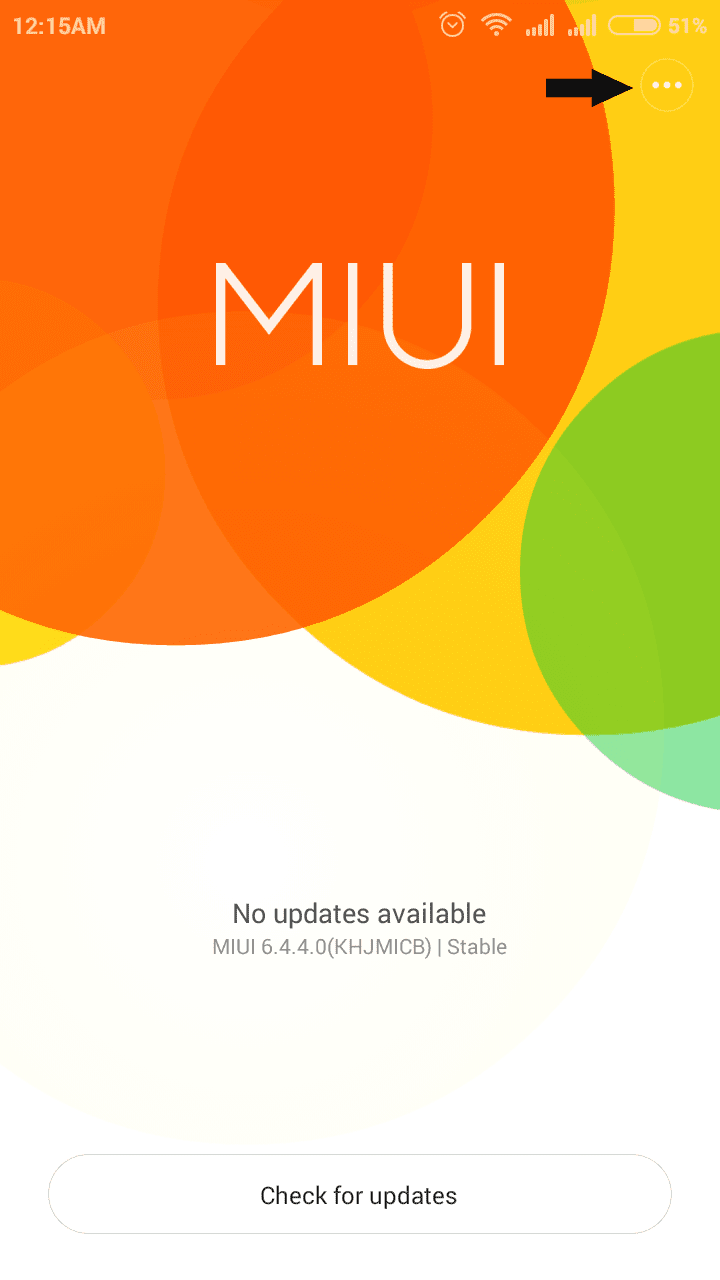
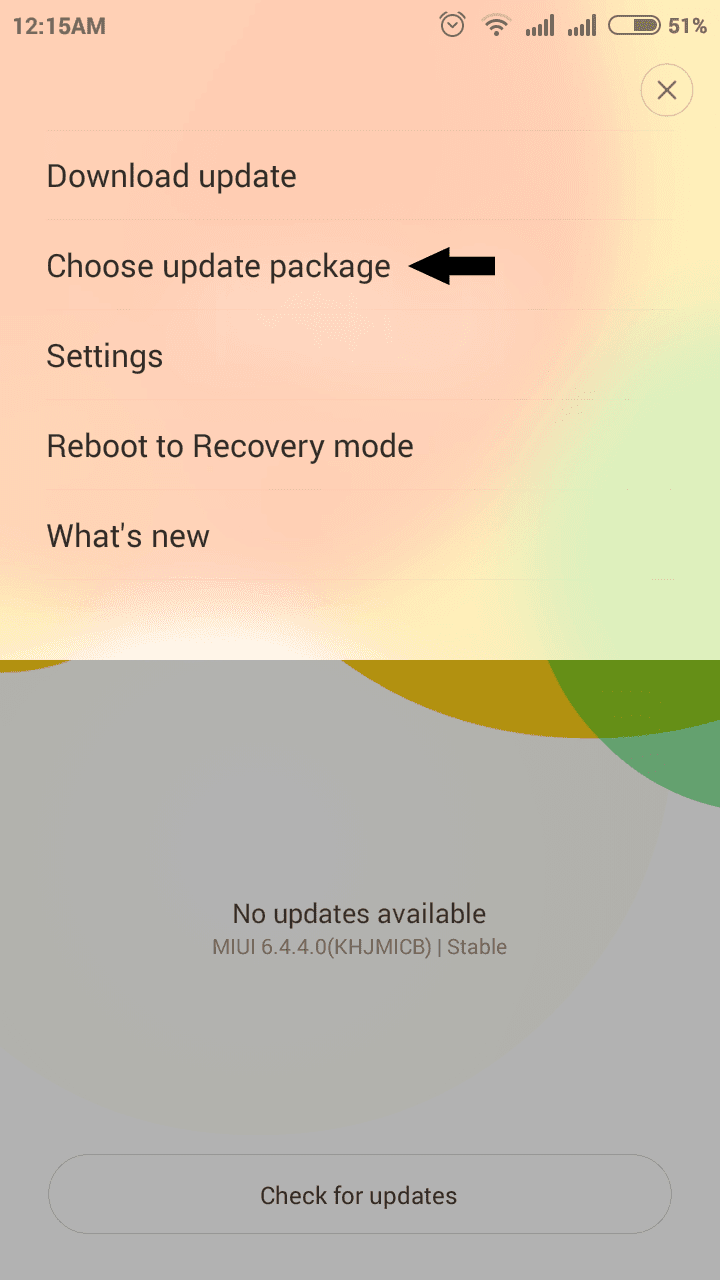
4. In Updated app tap on the 3 dots on the right top and select Choose update package.

redmi 2 updater softwareredmi 2 updater choose update package

5. Now browse for the copied root file and select it.
(When You select the root package phone will reboot. Wait till it finish the process.)

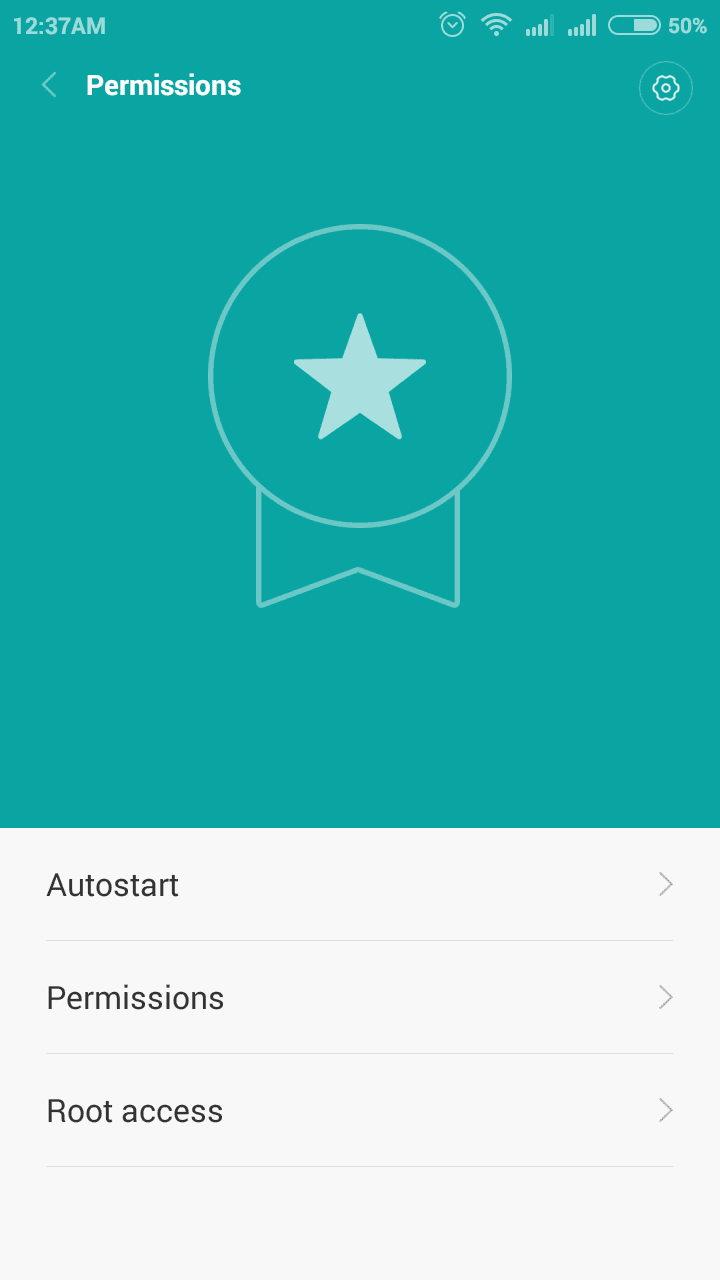
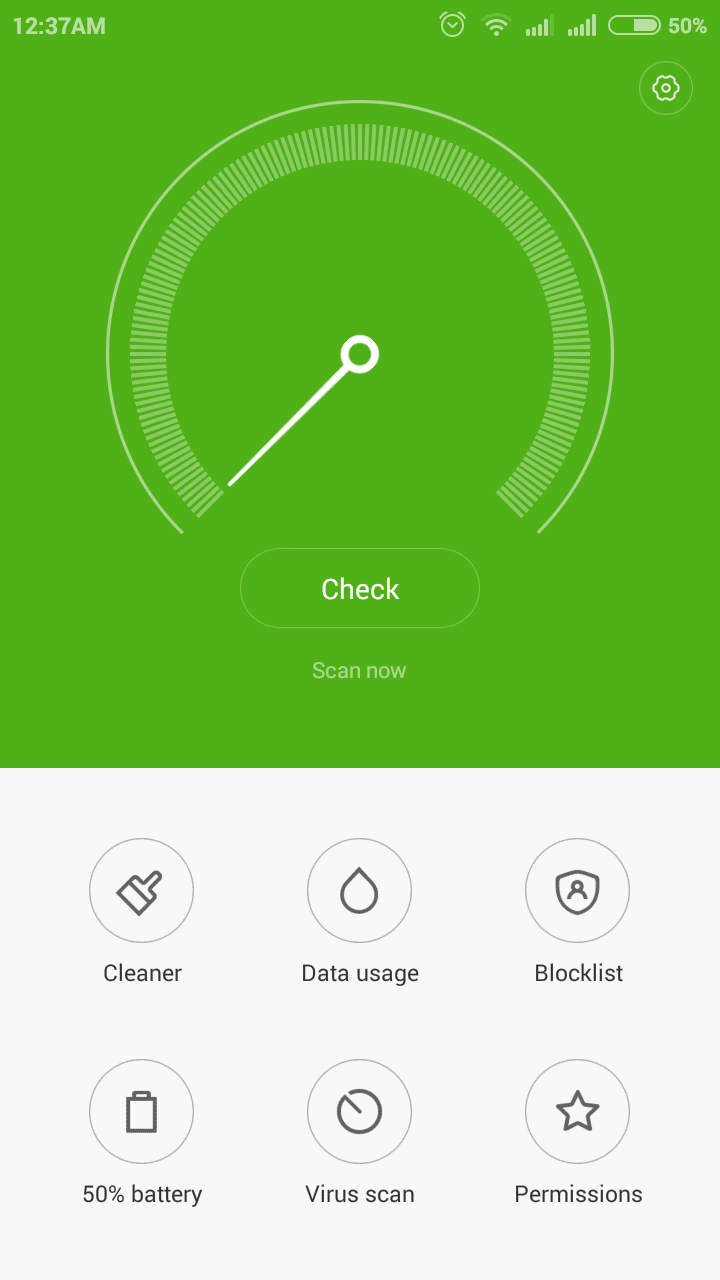
6. After Reboot, Open Security app and tap on Permissions. You will see Root access menu there.

xiaomi redmi 2 root access

7. For Better root Management download Supersu and open it, then enable root access for Supersu in Security app finally Reboot device ...

Thats it you are successfully rooted your Xiaomi Redmi 2.

Redmi 2 Unroot Without PC

If any case you wish to unroot your Redmi 2 follow the below steps.

1. Download Specific UnrootRoot (Disable) File for Your Redmi 2 Version - Download

2. Copy the Unroot file to Internal Memory.

3. follow the rooting procedure from step 3.

Thats it.


Available link for download

Read more »

Thursday, March 30, 2017

How To Install CWM TWRP or Any Other Recovery Without PC Faster and Safer Method

How To Install CWM TWRP or Any Other Recovery Without PC Faster and Safer Method


Whether it is CWM (Clockworkmod) or TWRP (Team Win Recovery Project) recovery, definitely you will flash any of the custom recovery if you wish to extend the Android experience. You can flash the custom recovery with or without using a PC. As a samsung user mostly I use Odin to flash a new recovery but, it is not possible keep a PC everywhere we travels. So sometimes we need an alternate solution.

There are many apps available in the Google Play Store which helps to install a custom recovery without PC but, I prefer Flashify. Flashify is a must have tool for every android root user which, comes with a clean hole UI and bunch of flash and backup options. I am not going to review the app...In this post I included simple steps flash CWM or TWRP custom recovery image using Flashify.

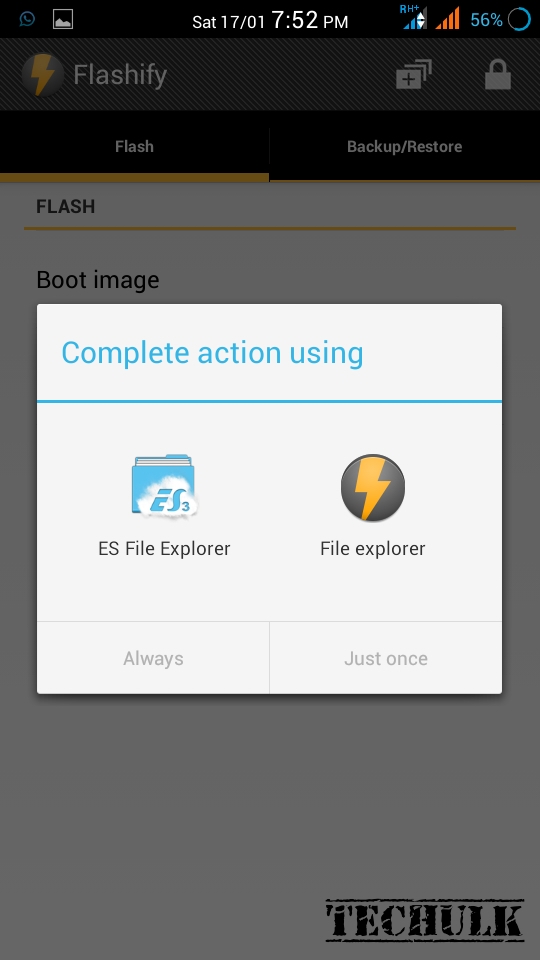
cwm or twrc recovery without pc

Requirement:
- Android 2.3 and up
- Root Permission

Install CMW / TWRP Custom Recovery Without PC

1. Download Flashify - Google Play [ Free ]

2. Download your favorite custom recovery .img file for your device
CWM ( Clockworkmod )
TWRP (Team Win Recovery Project)
**If you downloaded the recovery using PC...copy it to your internal or external storage.

3. Open Flashify app... Accept disclaimer and Grant permission on popup

4. In FLASH tab tap on Recovery Image and browse / select the downloaded recovery .img file using flashify explorer.


5. Now the app will popup a confirm Flash recovery? dialog.


6. Finally Tap on Yup! and wait.

Thats it....After successful installation it will popup a Flash Complete dialog.....Choose Reboot now if you wish to boot into recovery or Exit app.


Available link for download

Read more »

Thursday, March 9, 2017

How to flash recovery without pc

How to flash recovery without pc


This post is about the CWM/TWRP custom recovery. What is Recovery and the method of its Installation is the core of this post. 

Let us begin with knowing a little about what is a custom Recovery & what are its uses after then we will move forward step by step for installing it on your android Device properly.

What is a Custom RECOVERY??
A custom recovery is a replacement for stock recovery found on every android device. It is an .img(image) file that can be flashed using different methods which we will be talking today.
Some of its key features are-
> Rom Backup
> Flashing any Update.zip package.
> Replacing your stock android operating system with a new custom official or unofficial operating system like MIUI, CyanogenMod, Paranoid Android etc. This is also known as flashing a custom ROM.
> Wiping Data/factory reset or flashing various kernels.
and much more...
For booting into the custom recovery installed, the user have to press the required key in combinations which might be different for various android devices.
ex: Power+vol up/vol down etc

>Installation Guide< (For Rooted Users)


Using Mobileuncle Tools/Mtk Devices


Step 1- Download and install Mobileuncle tools app. (Download link given below).
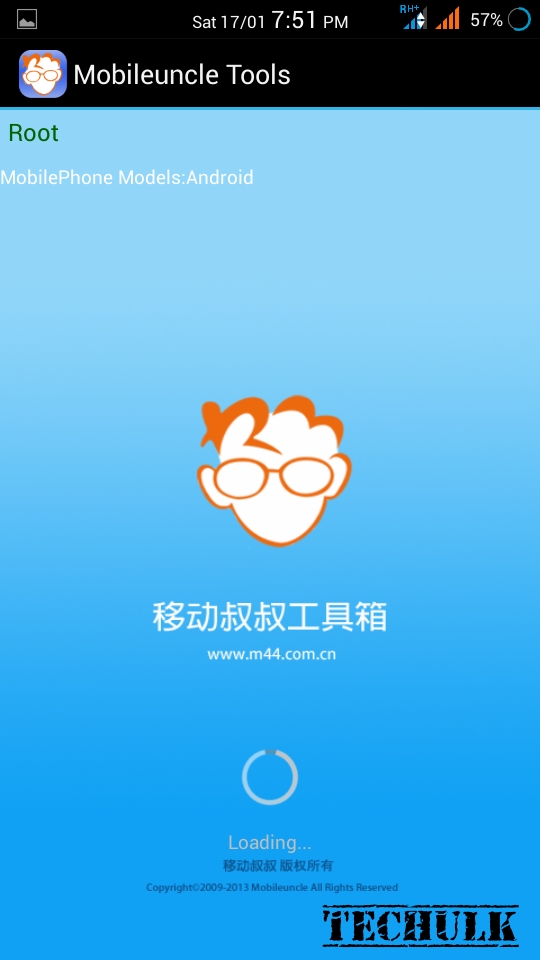

how to flash recovery without pc

Step 2- Download CWM/TWRP recovery file of your device and rename it torecovery.img .

Step 3- Open mobileuncle tools and click on "recovery update" there you will findrecovery.img on the top, select it. Press OK it will reboot your device into your required recovery.
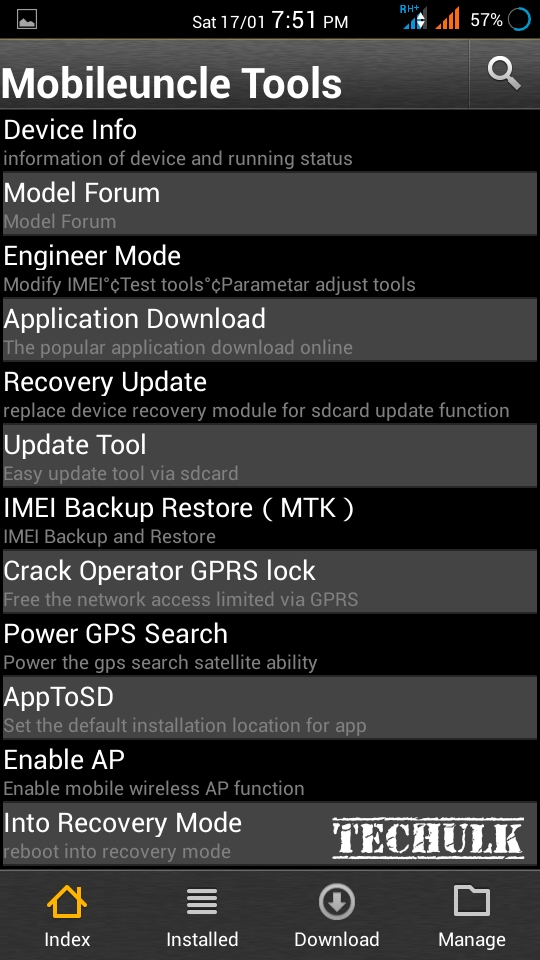

how to flash recovery without pc

DONE!!

>>Download Mobileuncle Tools Here<<

Using Flashify/Snapdragon and all the others


Step 1- Download flashify from the link given below (or from Google Playstore) and install it on the device.

Step 2- After that download CWM/TWRP recovery file for your device and rename it to recovery.img

Step 3- Open Flashify and tap on recovery image option.
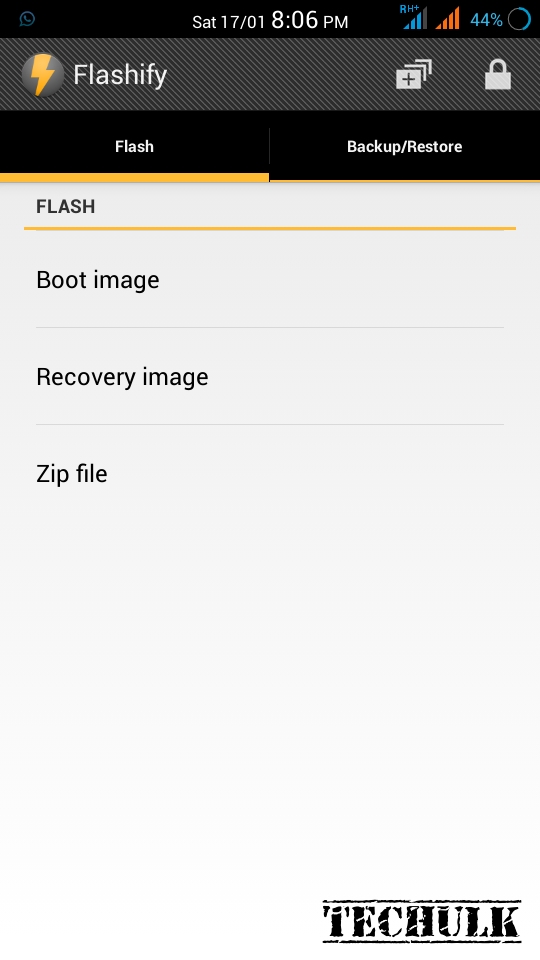

how to flash custom recovery without pc

Step 4- Now a pop up will appear just click on choose a file to select one of your file explorer app and browse to the file recovery.img.
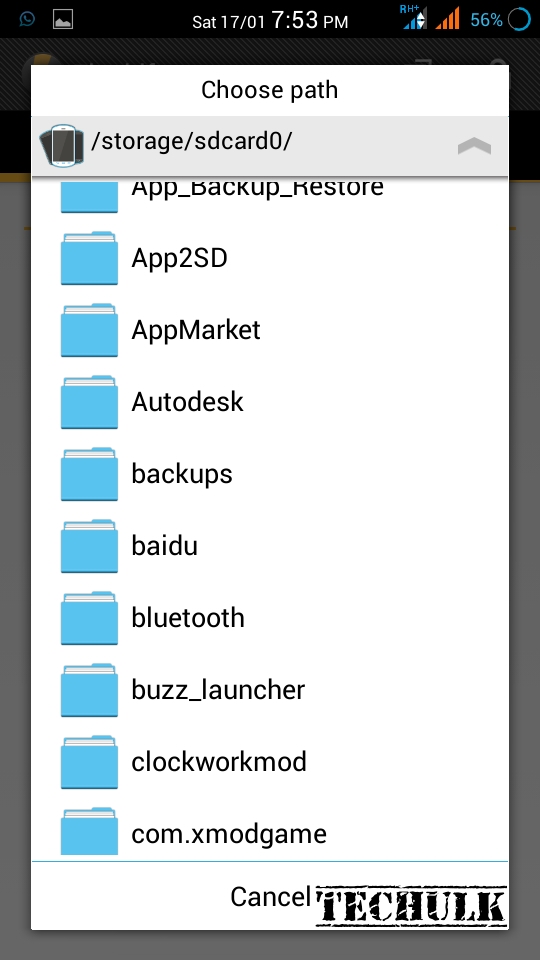

how to install custom recovery without Pc
how to flash recovery without PC


Step 5- Tap on the .img file and tap on Yup.

Done!!


>>Download Flashify Here<<

NOTE - IN BOTH THE METHODS ALLOW SUPERUSER PERMISSION REQUEST PROMPTED BY THE APP.


Available link for download

Read more »

Wednesday, February 15, 2017

How To Root Galaxy Core Duos GT I8262 Without PC

How To Root Galaxy Core Duos GT I8262 Without PC


Galaxy Core Duos GT-I8262 is one of the recent successful low budget device from Samsung. It has a decent configuration for the price tag. By rooting the Galaxy Core Duos GT-I8262 we can customize the device to a high extend. Some of them are Uninstall unwanted system apps, Install mods, install custom ROM etc.

In this post I included the simple steps to root Galaxy Core Duos GT-I8262 using a single Android app Framaroot. Framroot is the free Android app developed by alephzain, which helps to root Android device without using a PC. Framroot root also supports many other Android devices, the list is too big so I am not including it here, check out the official thread for all the available device.

Note:
- Backup all important data
- Required minimum 30% battery
- Rooting will void warranty (You can get warranty back by unrooting)

Disclaimer
Rooting may brick your device .. I am not responsible for any damage .. Do at your risk.

Galaxy Core Duos I8262 Root Without PC ?

1. Download the Latest Framaroot - Download
2. Install the downloaded apk to your device.
3. Open Framroot app
4. Select Install SuperSU and tap on Gandalf.


5. On Success you will get a Success dialog ... tap OK.


6. Finally, Reboot device to complete root process.

Thats it.


Available link for download

Read more »

Monday, February 13, 2017

How To Remove Pattern Lock Without losing data

How To Remove Pattern Lock Without losing data


How To Remove Pattern Lock Without Data Loss
Have You Forgot Your Android Phone pattern lock and searching for a genuine method To Remove Lock from your device Without data loss?

There are lot’s of Article about Removing Pattern Lock over the internet but you have risk of losing your data, but not to worry now,  Today I will to share an ultimate method on How To Remove Pattern Lock Without Data Loss.

So before we start ,We need To understand how Pattern lock works and how can we crack it,..
So there is a file in our mobile’s  System storage which Constance the pattern lock,Simply if  we Remove/delete that file we can Unlock our Phone without data loss.
So Let’s Start Cracking The Pattern Lock-
There are many Ways to Crack The pattern lock….

  • Remove Pattern Lock When ADB is on-

First you need to check is there ADB (android debugging bridge) option enabled in phone or not. For checking it You need to connect your phone to pc with usb cable after connecting if you able to see a android icon on your mobile phone status bar that means ADB is enable in your phone and you can Easily Remove your pattern lock.
If ADB option is not ON in Your phone Don’t be sad There is another way to crack it in the next part of this article.
So after you have checked and confirmed that ADB is enabled in Your phone Follow these steps to REMOVE YOUR PATTERN LOCK-

  • Download the driver and android multi tool from Here-
  • Install the driver and connect your phone via usb cable.
  • Open android multi tool You will see something like this.

  • Press 2 for removing PIN LOCK and 3 for PATTERN LOCK then press ENTER.
  • After pressing ENTER it will reboot Your phone and voila You have successfully removed your PIN or Pattern Lock.
If You seeing LOCK again Don’t be panic enter random(koi bhi) pattern/pin and it will unlock ,don’t forgot to remove pattern lock permanently from setting.


How To REMOVE PATTERN LOCK IF ADB IS NOT ENABLE-
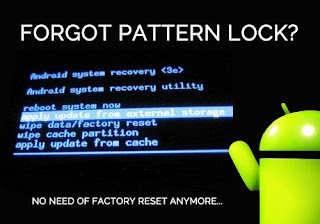
Cracking Pattern lock without adb is little Tricky and difficult,For Removing Pattern Lock We are going to use  “AROMA FILE MANAGER”.
Aroma file manager is a file manager that can  directly executed From CWM Recovery(Custom Recovery),And we can delete Password file from Mobile, to unlock our phone. So We need to install CWM recovery in our mobile phone for running Aroma file manager but unfortunately all devices have their different method to install it, which is based on their CPU type. So before proceeding further You need to install CWM recovery in your phone ,just google it “How to install CWM recovery in ‘your mobile name’ ” .
Tip-If You have SAMSUNG mobile you can install recovery from ODIN TOOL ,simply download CWM recovery image for your device and flash it.
if You have MEDIATEK/MTK CPU based mobile you can flash recovery with the help of “SP FLASH TOOL”,

After Installing CWM Recovery in your smart phone  download AROMA FILE MANAGER from here.
Now follow the steps below -

  1. Download aroma file manager from here
  2. Paste AROMAFILEMANAGER.zip in root of your micro sd-card.(Do not unzip the file).
  3. Insert Micro-sd card in your device.
  4. Reboot it to CWM Recovery by pressing volume down+power key.
  5. go to mount and storage and mount all partitions.( use vol +/- key for up and down and Power key for select).
  6. Come back in main menu.
  7. Choose Install zip from sd card–>choose zip from sd card–>select aromafilemanager.zip–> Yes-install aromafilemanager.zip
After  Selecting “Yes” the aroma file manager will run and you will see something like this-

now go in DATA/SYSTEM and delete “gesture.key”(if u have pattern lock) or delete “password.key”(if you have pin lock).

That’s it Now just reboot your Phone and Enter some random pin or pattern to unlock your phone.

Hope You Enjoy My First Post,If you Face Any Problem or did not able to install CWM recovery in your phone just comment your device model I will help you.
Thanks.


Available link for download

Read more »

Friday, January 27, 2017

How to Read WhatsApp Messages without Alerting the Sender

How to Read WhatsApp Messages without Alerting the Sender


How to Read WhatsApp Messages without Alerting the Sender


WhatsApp is probably the most popular and known instant messaging service of the last few years. It doesn’t even need an official introduction. You, your friends, your parents, and even that cruel relative who gives you lecture about your future is taking advantage of this free app to stay connected with everybody.

Last year WhatsApp added a function that tells the sender whether you have read their message or not. This came as a problem to a few (err.. a lot) since it somewhat forced you to reply to the message instantly. Some users liked it while some didn’t. If you don’t like this feature then here are 5 techniques you can use to read WhatsApp messages without altering the sender.

1. Disable Read Receipts

Disabling “Read receipts” option is probably the most straightforward technique. By doing so you’ll disable the ability of WhatsApp to show blue ticks to the sender that tells them that you’ve read their message. But the downside here is that if you disable read receipts you will not be able to know whether someone has read your texts or not. Here’s how to disable it.
  1. Open WhatsApp and go to app settings.
  2. Tap on “Accounts” and then on “Privacy”.
  3. Scroll to the bottom and untick “Read receipts”.

2. Get A Glance From The Notification Bar

This is a no-brainer – you get a notification in your notification area when you get a message. You can easily read the complete or partial message from the notification bar without opening the app. The blue ticks show only when you open the app to read messages.

3. Enable Airplane Mode Before Reading Messages

Once you get a message don’t open the app immediately, turn on the airplane mode or flight mode instead. This will turn off the WiFi or mobile data and will take WhatsApp offline. Now go ahead and read the message and you won’t alert the sender since you’ll be reading the message from app cache. Once you are done, close the app (remove it from your recent apps list too) and turn off the airplane mode.

4. Add WhatsApp Widget To Your Home Screen

I don’t know if you are aware of the fact that WhatsApp has a widget. You can place this widget on your home screen to read messages at a glance. Since reading via widget doesn’t open the app you can keep the blue ticks from showing up.

5. Use WhatsApp Pop-up

A lot of people might have forgotten about this old feature but it is still available in WhatsApp. Go to the app’s settings and select “Notifications”. Now look for “Pop-up Notification” under “Message Notifications”. Tap on it and select one that suits you from the following:
  • Only when screen “on”
  • Only when screen “off”
  • Always show pop-up
By doing so you can read the messages without actually opening the app.


Available link for download

Read more »

Wednesday, January 18, 2017

How to Burn CD DVD in Windows 10 without Any 3rd Party Software

How to Burn CD DVD in Windows 10 without Any 3rd Party Software


In this tutorial you will learn how to burn a CD or DVD in Windows 10 without any 3rd party Software. We will use Windows 10 pro version for demonstration.

If youre using Windows 8.1 or Windows 10, you wont need any third party software to burn your CD or DVD. You can Use windows Default CD/DVD Burning Feature & its awesome.Simple & does the job perfectly.


Procedure -
Step 1. If you have a perfectly working CD/DVD writer & a blank disk, do the following.

 insert your blank CD or DVD into the media drive. The quality of a burned CD or DVD depends on several things: the brand of CD or DVD, the brand of media drive and the size of data you need to write on CD or DVD (the longer is the writing process, the longer the disc is exposed to a possible error).

Step 2. From the desktop screen, open File Explorer.

Step 3.Your empty DVD or CD should be seen under "Devices and drives". Double-click it.

Step 4. Youll see a "Burn a Disc" box appearing. Type in a name of your CD or DVD in the "Disc title" field and, from the CD/DVD usage options, choose "With a CD/DVD player". Click "Next".

Step 5. Add the contents to your future CD or DVD. Copy the contents from their folder and paste them into blank CD/DVD window or simply drag the contents there.

Step 6. Right-click the white area of the window. From the displayed context menu, click "Burn to Disc".

Step 7. In the "Burn to Disc" box, select the desired recording speed. Usually, the slower is the burning speed; the better is the quality of data writing on CD or DVD.

Step 8. Click "Next" to start burning your CD or DVD. The writing process can take from several minutes to half an hour, depending on the speed of the media drive, and current data quality & format.

Step 9. When your CD or DVD is ready, you can take it out. Check your CD or DVD by opening it on your computer.


Note- DVDs Created using this procedure are Data DVDs. It will work in all types of computers and most of the new generation DVD players.But not all DVD players could run this.In that case you need to create a Video DVD using a 3rd party softwares  like power2Go,nero etc.Please check the format of the disks supported by your DVD player.

REGARDS
Shankha Jana


Available link for download

Read more »

Saturday, December 31, 2016

How to force install apps to SD card without ROOT!!!

How to force install apps to SD card without ROOT!!!


Note: Works on both froyo & GB

Source:Androinica How to Install Apps to the SD Card by Default on Android 2.2 Froyo (not for Ace)

You can find the latest version of this tutorial here. Though I will try to keep updating this thread too.

Getting Ready:
1. First you have to enable USB debugging on your Android device from Settings > Applications > Development > USB debugging.
2. You need to download and install the latest Android SDK on your computer fromhttp://developer.android.com/sdk/.
3. Install the latest java SDk if you dont already have one.

Tutorial:
1. Extract the package to the folder of your choice [Lets say- C:/android-sdk-windows/], run SDK Manager.exe

2. Close the command / windows command prompt window that opens.

3. In the new window, click on Available Packages to the left. Untick all options you are prompted to download except the USB driver option & Android sdk tools revisionx(13 as of now) & Android sdk platform-tools revision x(7 as of now) if they are there.
(Note-If you get an error message at this point, enable “Force https://…” in the Settings. From the list of available packages, select “Usb Driver package”, click on the Install Selected button in the bottom right corner and follow the prompts. )

4. Do not open Samsung Kies. Connect your phone to your computer with a USB-cable. Your OS will prompt you to install new drivers. Choose to install them from the android-sdk-windows/extras/google/usb_driverfolder. Do not mount your device; you only need to plug-in the cable.
(If you dont see this prompt, It means USB drivers are already installed or else install them manually: SAMSUNG USB drivers from samfirmware.com)

5. Run command prompt in administrator.
Type in the following after the ">" at each step (without quotations,and including spaces and capital letters) 

"cd C:android-sdk-windowsplatform-tools" 
"adb devices"
"adb shell"
A $ sign should pop up
"pm setInstallLocation 2" 
Another $ should pop up

And your done. Close everything, disconnect phone, turn off phone and then turn it back on again

Note:Now the phone will be set to install all apps you install onto the SD card. However, current apps on phone will mostly still be stored on the internal memory. This process doesnt move these apps for you, it adds the ability. So you must now manually move those already installed on the phone. Install some apps like app2sd etc.

It’s preferable to install certain apps to the main memory, since it will take a while before the SD card becomes available when you start your phone. Applications installed on the memory card will also be unavailable to the system each time you mount your phone as a disk drive. 

In general, apps that integrate with the Android OS and that often run in the background is better to install on the internal storage, while games and most other applications will have no problem chilling outside on your SD.

Widgets should essentially be installed on phone memory.

Update:
From what I have come to understand (correct me if I am wrong), Each app will store some .odex files on phone memory to speed up the boot process. 
So dont complain that phone memory is getting lesser after each install. Though if you couldve installed 40 apps before now maybe 150+ and still have 30-40 mb left. (depends on what kind of apps you install).

Darktremors a2sd scripts deodex the apps and COMPLETELY move the apps and cache to sd card but you will need to root and run the scripts.
How to install Darktremors a2sd on Froyo!!
Though an easier way will be to install a custom rom.


____________________________________________


Available link for download

Read more »

Friday, December 30, 2016

How to change Computer icon without any software in windows 10

How to change Computer icon without any software in windows 10


Hello Everyone ! are you tired of old My computer icon in your desktop?? Me too! In this tutorial i will show you how to change My Computer icon without any software in Windows 10.

Lets begin!!  I think visual representation is better than anything.So, ive created a video tutorial for this.Watch the video given below,it shows detailed steps. Its very simple :)


Click here to subscribe my YouTube Channel.

--------------------
Regards
Shankha Jana


Available link for download

Read more »

Thursday, December 22, 2016

How to Download or Verify Gameloft Games without Wifi

How to Download or Verify Gameloft Games without Wifi


hope you all are fine and waiting for new 3D games,but today im gonna post a Tip/Trick to how to Skip Wifi verification of gameloft games,
You love gameloft but sometimes u dont like them ,Reason? due to all new HD gameloft games requires WIFI Verification to start/play those gameloft games,but most of the users dose not have a wifi conection on their locations,so now? what to do? Dont be worry i have a simple trick to change WIFI mode to your Carrier Network Gprs/GPRS ,now u can verifygameloft games through ur mobile internet,and also u dont need to use Titanium backup again,

U have installed apk of the game and also placed data files in ur sdcards gameloft/games folder,but whenever u try to play that game it says download must be perform through wifi,this line dose not mean that u need to download data files again but this line means that u need wifi to verify data files,after verify data files u will be able to play those games again,so now u got it?do u think u need titanium backup again? so let us see how to do this trick

Required rooted phone?
Answer: No 

Instruction:
Download This TXT file and place it into SDCard,it will be like this SDCard/qaWifiOnlyMode

Download TXT file from here:


Download Now


Available link for download

Read more »

Tuesday, December 20, 2016

How to Activate Windows 7 Into Genuine Version Without Software!

How to Activate Windows 7 Into Genuine Version Without Software!


We all know that most of people cant buy a genuine windows 7 due to its high cost.
So without wasting any time lets go straight to the business.

How to Activate Windows 7
this Tutorial will show you an easy way to make your windows 7 genuine using command prompt.
- See more at: http://www.shelaf.com/2013/04/how-to-activate-windows-7-into-genuine.html#sthash.xBqGChs0.dpuf
 This Tutorial will will show you an easy way to make your windows7 geuniune using this command prompt.

 How to make Windows 7 Genuine using Command Prompt
1. Press Windows Key+R
2. Now "run" box will appear, in the run box Type CMD, click on ok.
Note: Run CMD as Administrator now command prompt will appear in command type SLMGR-REARM and then hit the Enter button
 Wait 5-10 seconds now a message will appear as shown in link image below

 Done!
Now your Windows 7 is Genuine! Restart your PC once. Hereafter you wont see the warning message that "Windows 7 is not Genuine"


Do you find this post useful? Why dont you click on one of the below Share buttons for the convenience of others to see it too.
Use the below comment box to give us your feedback.


this Tutorial will show you an easy way to make your windows 7 genuine using command prompt.
- See more at: http://www.shelaf.com/2013/04/how-to-activate-windows-7-into-genuine.html#sthash.xBqGChs0.dpuf
this Tutorial will show you an easy way to make your windows 7 genuine using command prompt.

How to Make Windows 7 Genuine Using Command Prompt
   1. Press Windows key + R
   2. Now "run" box will appear , In the "run" box type CMD, Click on OK
Note: Run CMD as Administrator Now command prompt will appear In command prompt type SLMGR -REARM and then Hit the Enter button. - See more at: http://www.shelaf.com/2013/04/how-to-activate-windows-7-into-genuine.html#sthash.qGfUNAYK.dpuf


Available link for download

Read more »