Showing posts with label lock. Show all posts
Showing posts with label lock. Show all posts
Tuesday, April 4, 2017
How to reset FRP lOCK on 2016 Phones
How to reset FRP lOCK on 2016 Phones
How to reset FRP lOCK on 2016 Phones?????????????

-SET WIFI ON PHONE AFTER FACTORY RESET
-INSTALL sidesync ON PC FIRST
-OPEN SIDESYNC AND CONNECT USB TO PHONE(PHONE IS ON NORMAL MODE)
-SELECT CHROME AFTER CONNECT USB TO PHONE
-TYPE http://adf.ly/1aCAF4 IN CHROME AND THEN PRESS GO
-WAIT FOR DOWNLOAD APK
-PRESS BACK/OK AND GOTO GALAXY APPS FROM CHROME AFTER DOWNLOAD APK
-PRESS AGREE IN GALAXY APPS
-SELECT SEARCH IN GALAXY APPS
-TYPE ES FILE EXPLORER
-SELECT INSTALL
-PHONE NEED NEW SAM ACC
-CREATE NEW ACCOUNT FOR PHONE AND SIGN IN
-INSTALL ES FILE EXPLORER AFTER SIGN IN
-GOTO ES FILE EXPLORER FOLDERS/DOWNLOAD
-INSTALL HUA.APK AND THEN OPEN
-GOTO BACKUP/RESET AND AFTER OPEN HUA.APK
-SELECT FACTORY DATA RESET AND WAIT FOR NEW REBOOT
-DONE
important points
-SOME NEW PHONES NEED ENBALE DEVELOPER OPTIONS AND THEN OEM LOCK FOR RESET AFTER INSTALL APK
-USE DOWNGRAD WITHOUT SELECT BOOTLOADER FILE(IN ODIN)FOR A5 A7 A3 2016 PHONES IF DEVELOPER OPTIONS IS HIDDEN AFTER ACTIVE
EXAMPLE : USE A510FXXU1AOLB FOR DOWNGRADE
Available link for download

Friday, February 24, 2017
HOW TO REMOVE FRP LOCK ON MTK DEVICES
HOW TO REMOVE FRP LOCK ON MTK DEVICES
HOW TO REMOVE FRP LOCK ON MTK DEVICES
Am going to show you how to remove factory reset protection {FRP} on mtk device
WHAT IS FRP {factory Reset rotection} ?.
Factory Reset Protection (FRP) is a security method that was designed to make sure someone cant just wipe and factory reset your phone if youve lost it or it was stolen. Starting with Android Lollipop, FRP is "standard" in vanilla Android, and most companies making our phones have implemented it in their own models. Its a good thing — it makes a stolen phone harder to use, which makes it less appealing to thieves, and anything that can protect our data on a phone weve lost is welcome.
The problem is that people are selling or trading or even giving away phones with FRP enabled and this makes things difficult for the next user.
How it works explains why. If you reset a phone with FRP enabled, you have to provide the user name and password for the last Google account that was registered with the device. There are random work-arounds on the Internet, but they tend to get patched almost as soon as they are discovered. Youll pretty much need to know the login details for the last account to use the phone before you can do anything with it if FRP was enabled before you reset it.
The problem is that people are selling or trading or even giving away phones with FRP enabled and this makes things difficult for the next user.
How it works explains why. If you reset a phone with FRP enabled, you have to provide the user name and password for the last Google account that was registered with the device. There are random work-arounds on the Internet, but they tend to get patched almost as soon as they are discovered. Youll pretty much need to know the login details for the last account to use the phone before you can do anything with it if FRP was enabled before you reset it.
With these easy step am goin to show below
Downnload miracle box latest version hereUnder MTK tab click Unlock/Fix
Tick Clear Settings/Frp
Click Start button
When the backup flash pop up appears, Select NO
Connect the device to PC
Miracle Box will detect the device and start the process
When you see Done!, the process is complete
Disconnect and reboot phone
Note
First boot after this process is a bit longer than normal
See Picture Guide below

Available link for download
Monday, February 13, 2017
How To Remove Pattern Lock Without losing data
How To Remove Pattern Lock Without losing data
How To Remove Pattern Lock Without Data Loss
Have You Forgot Your Android Phone pattern lock and searching for a genuine method To Remove Lock from your device Without data loss?
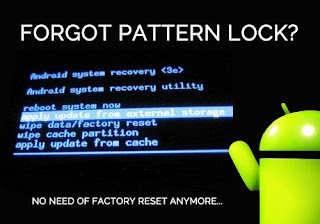
So before we start ,We need To understand how Pattern lock works and how can we crack it,..
So there is a file in our mobile’s System storage which Constance the pattern lock,Simply if we Remove/delete that file we can Unlock our Phone without data loss.
So Let’s Start Cracking The Pattern Lock-
There are many Ways to Crack The pattern lock….
- Remove Pattern Lock When ADB is on-
First you need to check is there ADB (android debugging bridge) option enabled in phone or not. For checking it You need to connect your phone to pc with usb cable after connecting if you able to see a android icon on your mobile phone status bar that means ADB is enable in your phone and you can Easily Remove your pattern lock.
If ADB option is not ON in Your phone Don’t be sad There is another way to crack it in the next part of this article.
So after you have checked and confirmed that ADB is enabled in Your phone Follow these steps to REMOVE YOUR PATTERN LOCK-
- Download the driver and android multi tool from Here-
- Install the driver and connect your phone via usb cable.
- Open android multi tool You will see something like this.
- Press 2 for removing PIN LOCK and 3 for PATTERN LOCK then press ENTER.
- After pressing ENTER it will reboot Your phone and voila You have successfully removed your PIN or Pattern Lock.
How To REMOVE PATTERN LOCK IF ADB IS NOT ENABLE-
Cracking Pattern lock without adb is little Tricky and difficult,For Removing Pattern Lock We are going to use “AROMA FILE MANAGER”.
Aroma file manager is a file manager that can directly executed From CWM Recovery(Custom Recovery),And we can delete Password file from Mobile, to unlock our phone. So We need to install CWM recovery in our mobile phone for running Aroma file manager but unfortunately all devices have their different method to install it, which is based on their CPU type. So before proceeding further You need to install CWM recovery in your phone ,just google it “How to install CWM recovery in ‘your mobile name’ ” .
Tip-If You have SAMSUNG mobile you can install recovery from ODIN TOOL ,simply download CWM recovery image for your device and flash it.
if You have MEDIATEK/MTK CPU based mobile you can flash recovery with the help of “SP FLASH TOOL”,
After Installing CWM Recovery in your smart phone download AROMA FILE MANAGER from here.
Now follow the steps below -
- Download aroma file manager from here
- Paste AROMAFILEMANAGER.zip in root of your micro sd-card.(Do not unzip the file).
- Insert Micro-sd card in your device.
- Reboot it to CWM Recovery by pressing volume down+power key.
- go to mount and storage and mount all partitions.( use vol +/- key for up and down and Power key for select).
- Come back in main menu.
- Choose Install zip from sd card–>choose zip from sd card–>select aromafilemanager.zip–> Yes-install aromafilemanager.zip
now go in DATA/SYSTEM and delete “gesture.key”(if u have pattern lock) or delete “password.key”(if you have pin lock).
That’s it Now just reboot your Phone and Enter some random pin or pattern to unlock your phone.
Hope You Enjoy My First Post,If you Face Any Problem or did not able to install CWM recovery in your phone just comment your device model I will help you.
Thanks.
Available link for download
Tuesday, December 27, 2016
How to Bypass Factory Reset Protection on Nexus Devices FRP lock bypass
How to Bypass Factory Reset Protection on Nexus Devices FRP lock bypass
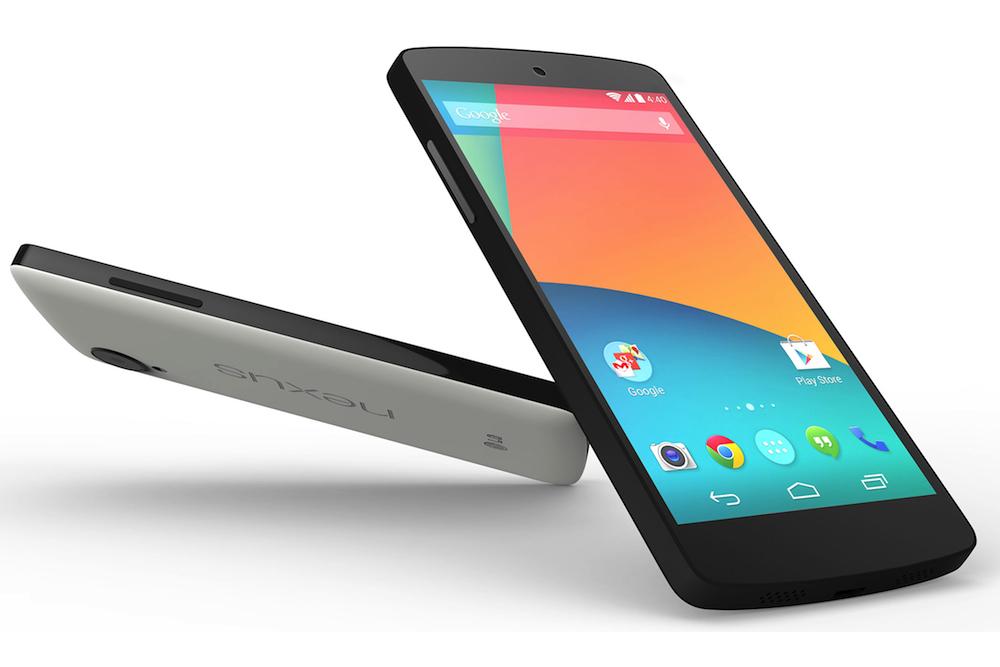
How to Bypass Factory Reset Protection on Nexus Devices- FRP lock bypass
Security is a major concern on every Android device. To make your device more secure Google introduced a new security measure in Android 5.0 A.K.A. Android Lollipop called Factory Reset Protection (FRP). If you are already familiar with the term factory reset, you may have figured out what FRP is. Factory Reset protection keeps your data safe in case your device gets stolen. It does so by requiring authentication after a factory reset to make the device usable.
Once the factory reset is done and the process to setup the device begins, the device will ask to enter the Google account and password that was previously linked with the device. This is Factory Reset Protection. Now, the device is not useful to the thief. Thank you, Google!
What if, instead of losing your device, you forget your password and Google account details? You are stuck; you can’t even make it usable via factory resetting your device (thanks to FRP). You already know that in order to activate FRP you must attach a Google account to your device, set a security option, and factory reset your device via stock recovery menu. If you happen to have a Nexus device (probably a recent one like Nexus 6P, 5X, Nexus 6, and 5) than the Factory Reset Protection can be bypassed in just a few minutes. Here’s how to do it.
Requirement for Performing This Procedure:
The device on which we performing this trick must have a SIM card in it.
Bypass Factory Reset Protection on Nexus Devices
Let’s begin!
Turn off your phone, enter into recovery menu, and factory reset your device.
Now you’ll see the setup wizard. Tap on any Wi-Fi connection to get the “enter password” field. But instead of entering the password hold down “,” button and go into settings.
Tap on language and then tap on the three vertical dots on the top right of the screen and then tap on “Help & feedback”.
Now you’ll get a search bar. Type anything there and hold the text and then select “Share” from the popup menu.
Choose the option to share it via Google messenger. Once the app opens, tap on “New message”.
Dial any number in the “To” input field and then tap on “Send to”.
You’ll see a contact’s like icon on the top right of the next screen. Tap on it and then tap on the “tick mark” icon. This will bring up phone icon that will let you make a call.
Once the call is placed hit the pause button and then hit add dialler button. This will bring up the dialler.
In the input field, type *#*#4636#*#*. Doing so will open up the test mode.
Tap on “Usage statistics” and then tap on the back option. Now you’ll be in device’s settings menu.
From the settings, you can factory reset your phone.
Now, the requirement for FRP to appear is that a Google account must be attached and your phone must have security option enabled. Since neither of these requirements is fulfilled while factory resetting the device for the second time, FRP will be bypassed.
Available link for download
Saturday, December 10, 2016
How to Create A PIN Lock for Samsung Galaxy Gio GT S5660
How to Create A PIN Lock for Samsung Galaxy Gio GT S5660
Locking phone screen to prevent other people from easily accessing the phone seems to be a must-to-do thing to protect the private data. And among all available methods, a relatively effective method is creating a PIN lock. Moreover, this post primarily introduces the steps to create a PIN lock on Samsung Galaxy Gio GT-S5660.
Step 1: Open Settings.
Step 2: Choose Location and security.
Step 3: Click Set screen lock.
Step 4: Select PIN to go on.
Step 5: Select 4 numbers to form a PIN, and press Continuewhen finished.
Step 6: Reselect the 4 numbers to confirm the PIN, and tap OK.
Related Articles:
How to Set Pattern Lock on Samsung Galaxy Gio GT-S5660
How to Set Password on Samsung GT-I8190N
How to Set Password on Samsung GT-I8268
How to Enable and Disable USB Debugging in Samsung GALAXY Tab2
Available link for download
Monday, December 5, 2016
How to Hard Reset symphony H400 Pattern lock solution 100 Tested
How to Hard Reset symphony H400 Pattern lock solution 100 Tested
Symphony H400 firmware-flashfile free download 100% Tested
Symphony H400 new-update- firmware download
How to Hard reset symphony H400 Pattern lock solution
How to Root Symphony H400 Root File Free Download
Symphony H400 Hang on logo done

Available link for download
Subscribe to:
Posts (Atom)