Showing posts with label whatsapp. Show all posts
Showing posts with label whatsapp. Show all posts
Friday, March 24, 2017
How to Copy backup Whatsapp Chat from Android to Computer
How to Copy backup Whatsapp Chat from Android to Computer
How to Copy WhatsApp conversation from Android and print them out .
How to backup Whatsapp Conversation For Android smartphones and Tablets.

A question asked by many Android users " How to Print Out Whatsapp Conversations , how to backup whatsapp chat ", So I decide to write step by step tutorial to make it easy for android users. If you are in need of backup whatsapp messages or need a soft or hard copy of your Whatsapp conversation or Whatsapp group chat or you want to save your Whatsapp chat on computer , you are on right place.
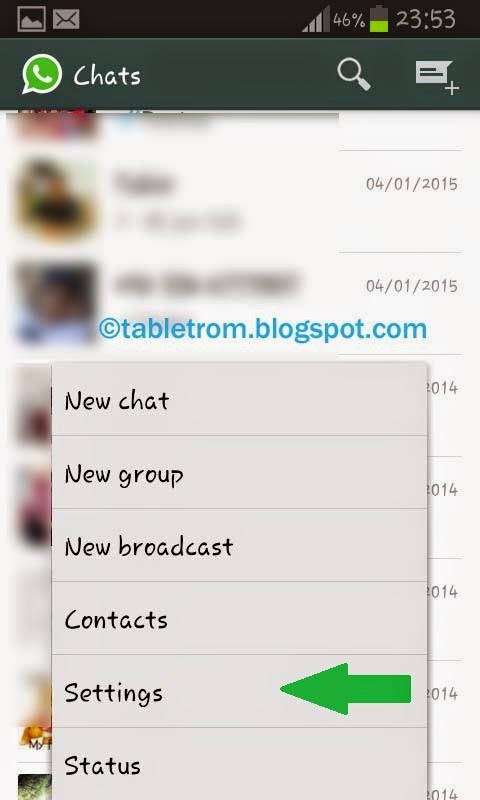

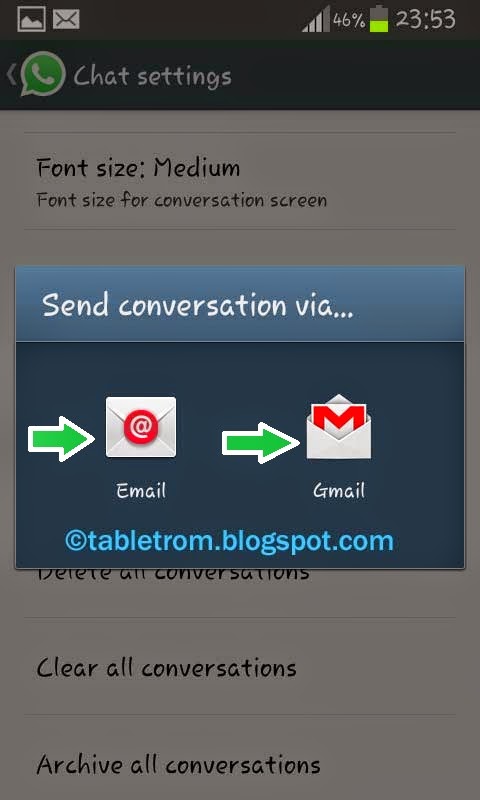

you can also backup single or whole whatsapp conversations by clicking on Backup conversation in whatsapp setting.
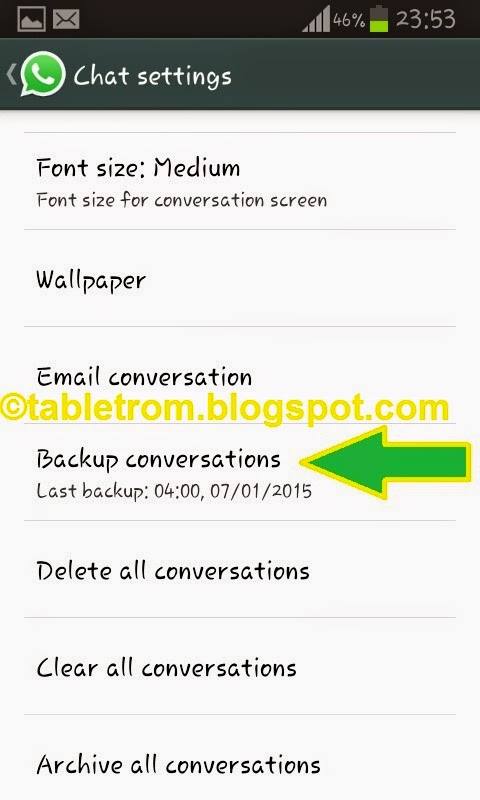

How to Print Out Whatsapp Conversation, Chat.
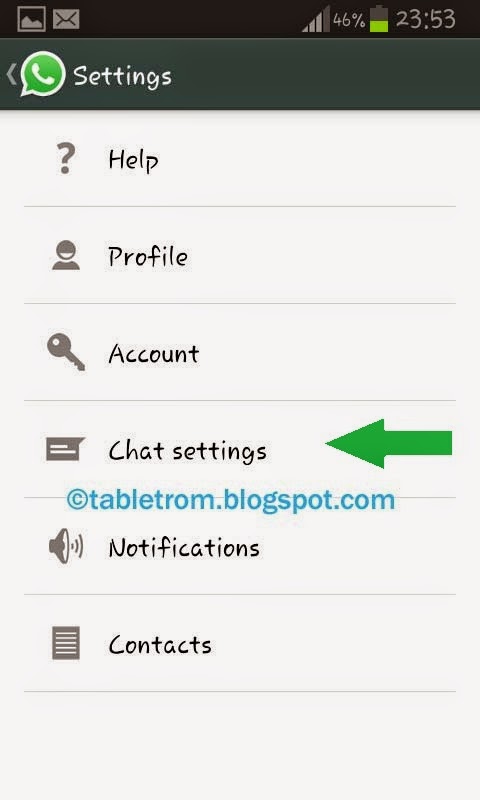
Simply Open WhatsApp on your Android Tablet or Smartphones. Click on Whatsapp Setting .
Click on Chat Setting
Now Click on Email Conversation.
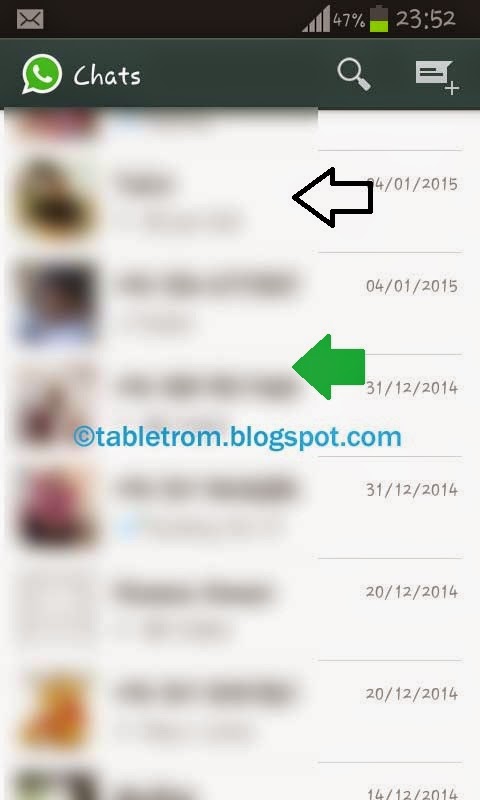
Choose whatever Whatsapp conversation you want to email for print out.
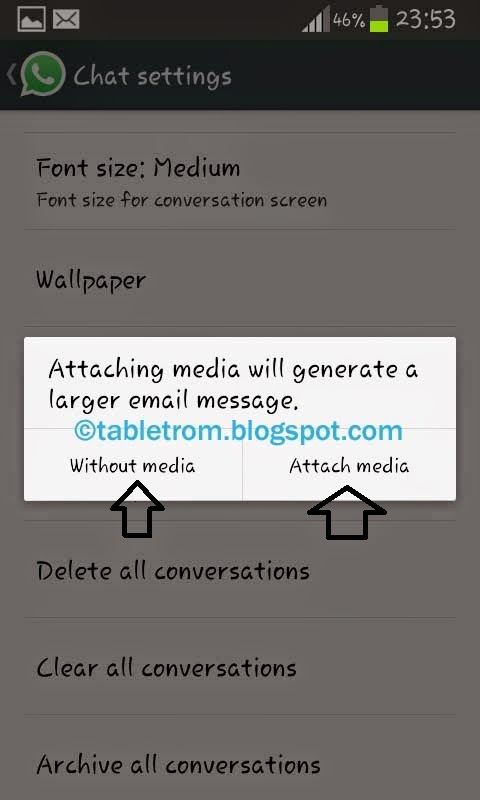
After Selection Email Conversation you have select wether you email your conversation with media or without Whatsapp media files . Attaching Media may take some time to attach media files.
If you are Gmail user then click on gmail .Your Gmail account is already added in Google accounts so choosing Gmail is easy to send email your whatsapp chat.
If you have email account other than Gmail click on email and Configure your desired email account.
How to backup Whatsapp Chat.
you can also backup single or whole whatsapp conversations by clicking on Backup conversation in whatsapp setting.
All whatsapp chat will be saved on your local internal memory.
Note: Images are property of their respected owners. Screenshot ware taken on Samsung Smartphone running 4.1.2 Jellybean.
Available link for download

Saturday, February 4, 2017
How to Backup Whatsapp Messages
How to Backup Whatsapp Messages
How to Backup Whatsapp Chat Messages. WhatsApp is no doubt one of the fastest growing means of keeping up with friends and other contacts from your mobile phone. It’s like BlackBerry Messenger on Android and iPhone – and we love it!
Now just imagine, you have had an important chat with a friend around evening and later that night, you plan to do a full reset on your phone. Well, you will lose that chat you had in the evening with your friend.
WhatsApp creates a backup automatically of your conversations everyday at 4am, but in case you want to back up your conversations at some other time, you can do it manually. This post will guide you on How to Backup Whatsapp Chat Messages. You need not to worry about losing your important Whatsapp messages.
How to Backup Whatsapp Chat Messages:
Follow the step-by-step instructions to backup Whatsapp Chat Messages:
Step 1 – Open Whatsapp and head over to Settings by pressing menu key.

Step 2 – Next, go to Chat Settings.

Step 3 – Finally, Tap on Backup Conversations.
You have successfully created a backup of your Whatsapp Conversations. Next time you Install Whatsapp after performing a factory reset, it will ask you to restore previous backup which are probably stored on your SDCard.
Available link for download
Friday, January 27, 2017
How to Read WhatsApp Messages without Alerting the Sender
How to Read WhatsApp Messages without Alerting the Sender

How to Read WhatsApp Messages without Alerting the Sender
WhatsApp is probably the most popular and known instant messaging service of the last few years. It doesn’t even need an official introduction. You, your friends, your parents, and even that cruel relative who gives you lecture about your future is taking advantage of this free app to stay connected with everybody.
Last year WhatsApp added a function that tells the sender whether you have read their message or not. This came as a problem to a few (err.. a lot) since it somewhat forced you to reply to the message instantly. Some users liked it while some didn’t. If you don’t like this feature then here are 5 techniques you can use to read WhatsApp messages without altering the sender.
1. Disable Read Receipts
Disabling “Read receipts” option is probably the most straightforward technique. By doing so you’ll disable the ability of WhatsApp to show blue ticks to the sender that tells them that you’ve read their message. But the downside here is that if you disable read receipts you will not be able to know whether someone has read your texts or not. Here’s how to disable it.
- Open WhatsApp and go to app settings.
- Tap on “Accounts” and then on “Privacy”.
- Scroll to the bottom and untick “Read receipts”.
2. Get A Glance From The Notification Bar
This is a no-brainer – you get a notification in your notification area when you get a message. You can easily read the complete or partial message from the notification bar without opening the app. The blue ticks show only when you open the app to read messages.
3. Enable Airplane Mode Before Reading Messages
Once you get a message don’t open the app immediately, turn on the airplane mode or flight mode instead. This will turn off the WiFi or mobile data and will take WhatsApp offline. Now go ahead and read the message and you won’t alert the sender since you’ll be reading the message from app cache. Once you are done, close the app (remove it from your recent apps list too) and turn off the airplane mode.
4. Add WhatsApp Widget To Your Home Screen
I don’t know if you are aware of the fact that WhatsApp has a widget. You can place this widget on your home screen to read messages at a glance. Since reading via widget doesn’t open the app you can keep the blue ticks from showing up.
5. Use WhatsApp Pop-up
A lot of people might have forgotten about this old feature but it is still available in WhatsApp. Go to the app’s settings and select “Notifications”. Now look for “Pop-up Notification” under “Message Notifications”. Tap on it and select one that suits you from the following:
- Only when screen “on”
- Only when screen “off”
- Always show pop-up
By doing so you can read the messages without actually opening the app.
Available link for download
Monday, October 10, 2016
GUIDE Use more than one Whatsapp account on any Android phone!
GUIDE Use more than one Whatsapp account on any Android phone!
In this Guide i will show you how to simply use more than one Whatsapp accounts on same device without any complications.What you need to do is simply just install an app named OGWHATSAPP
which will allow you to do it.
Some features of OGWhatsApp are:-
1. You can use 2 numbers on the same device.
2. Take your data backups.
More...
How to install OGWhatsapp?
1. Download the APP from official website HERE
2. Create Backup of current whatsapp
3. Uninstall your Whatsapp messenger.
4. Now Rename the Whatsapp folder in your SD card/ Internal SD to OGWhatsapp
5. Verify your OLD number in OGWhatsapp and NEW number in Whatsapp.
which will allow you to do it.
Some features of OGWhatsApp are:-
1. You can use 2 numbers on the same device.
2. Take your data backups.
More...
How to install OGWhatsapp?
1. Download the APP from official website HERE
2. Create Backup of current whatsapp
3. Uninstall your Whatsapp messenger.
4. Now Rename the Whatsapp folder in your SD card/ Internal SD to OGWhatsapp
5. Verify your OLD number in OGWhatsapp and NEW number in Whatsapp.
Available link for download
Subscribe to:
Posts (Atom)