Showing posts with label apps. Show all posts
Showing posts with label apps. Show all posts
Saturday, April 1, 2017
How to Recover Uninstalled Apps on Android Devices
How to Recover Uninstalled Apps on Android Devices

How to Recover Uninstalled Apps on Android Devices
It is for a certain fact that Android isn’t as stable as iOS, or Windows Phone, and it does have a lot more crashes and system failures than the other OSes. Believe me, I’m a full-time Android user, and the biggest pain is when you loose all of your data, particularly all of your installed applications.
Android is so vulnerable that, with just a little tap, it can eradicate every piece of the application installed on your device. Your 3-year old might’ve done it, or your sister, due to sibling rivalry (trust me, I know). In any case, the end result is always the same – how do your recover all of your uninstalled applications from your Android device?
While you cannot recover the data stored in it, you can still easily install all the applications using a section from the Google Play Store. This section, without any surprise, is that of ‘My Apps and Games‘ folder, which you always ignore. Once you tap on it, it’ll not only show you the currently installed applications, but it’ll also give you a visual overview of all the applications you have downloaded till date.
Recover Uninstalled Apps on Android
- Ensure you’re still logged into the same Google account as before, otherwise, this just won’t work.
- Launch the Google Play Store, and tap on the little ‘hamburger’ icon on the top-left corner to pull out a hidden menu. From the list, select ‘My Apps and Games‘.
- This will bring you to your currently installed screen of applications by default.
- You would want to swipe in from the right to hop into the other section, which showcases every single application you’ve ever downloaded on your Android device.
- Now, it is as easy as tapping the icons, and installing them as normal applications.


While this process can be quite tiresome, it is well worth the effort, otherwise, you would have to manually search for a specific application, and then install them.
Available link for download

Thursday, March 30, 2017
How to Delete or Unistall Preloaded Google Apps on Samsung Phone
How to Delete or Unistall Preloaded Google Apps on Samsung Phone
Google Play Store is the most using an app for Android phones. It is the best way to install any likeable app on your phones. If you are using android phone and Google Play Store them you know many times we are installing many apps on the phone. But some apps dont use on your phone. If you want to install your preloaded Google apps, then follow below instruction.
Uninstall and Disable Apps
Using Task manager
Step #1
Hold Home Key for few seconds and then Task Manager
Step #2
After then Downloaded tab
Step #3
Scroll down for Uninstall, Press Uninstall Button
Step #4
Application details page appear
Step #5Using Task manager
Step #1
Hold Home Key for few seconds and then Task Manager
Step #2
After then Downloaded tab
Step #3
Scroll down for Uninstall, Press Uninstall Button
Step #4
Application details page appear
Click OK Button
Using Application Manager
Step #1
Menu >> Settings >> More >> Application Manager
Step #2
Touch the DOWNLOADED Tab
Step #3
Press Uninstall then OK
Step #4
After then Touch Uninstall Updates then OK Button
Available link for download
Saturday, March 11, 2017
How to download Games and Apps apks from Google Play to Computer
How to download Games and Apps apks from Google Play to Computer
How to download Games and Apps apks from Google Play to Computer directly
In this post you will learn how to download APK from google play to computer. By default Google play does not allow you to do so because in Google terms and Condition it is illegal. But today I am sharing a plugin by using it you can download apk from google play to your computer easily.
Please remember you can only download free apps and games apk files, you can not download paid apps and games.
1.Install Chrome Browser on your PC, if you have already installed then continue to next setup.
2. Download and Install APK Downloader Extension . To install this extension first download it from giving link then open Chrome Browser Go to Options > Extensions. Then Drag and drop Downloaded APK downloader Extension to center of page.
3. open Google play on your Smartphone then search and Install Android Device ID . After Downloading and installation process open it.
4. once Android Device ID application opens look for Google Service framework(GSF ID Key). you need to copy that 16 digit GSF ID key.
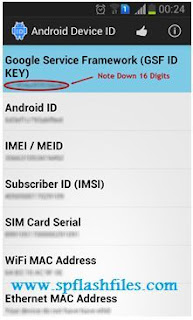 5. Now open Chrome Browser and Go to options > Tools > below the APK downloader Extension you will see a option link. click on that link to continue.

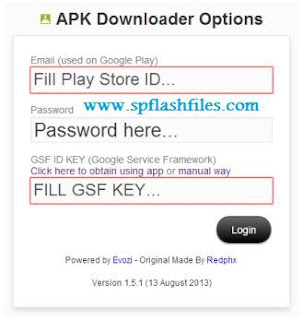
6. In APK Downloader Extension option Add Email ID and set Password of Play Store and then add GSF ID KEY which you have copies form Android Device ID. once you filled all the fields click login button.
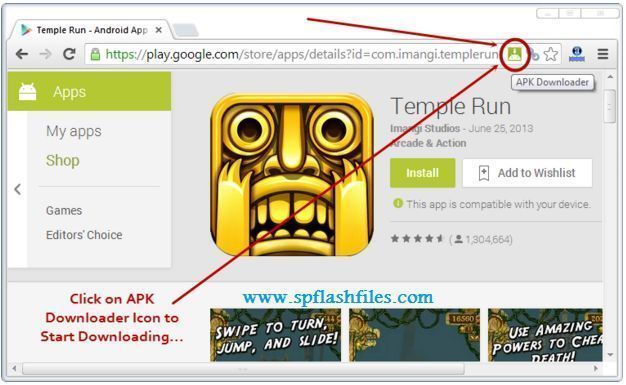
7. Now open play.google.com in chrome browser on your PC and search for any app or game which you want to download apk file on your Computer. Once the application page is opened, click on the APK downloader icon in the Address Bar to start downloading apk file.
Related Searches:
play store download
play store apk
google play download
google play store apk
google play store download
download play store
apk downloader
apk download
google play download apk
download play store apk
google play apk download
download google play store apk
download apk
play store apk download
download apk from google play
google play store apk download
download google play apk
play store download apk
play store download for pc
google play store download apk
download play store for pc
apk downloads
google play apk file
download google play store for pc
google play apk downloader
download apk files
free apk apps
free apk downloads
download google play apk file
apk files download
In this post you will learn how to download APK from google play to computer. By default Google play does not allow you to do so because in Google terms and Condition it is illegal. But today I am sharing a plugin by using it you can download apk from google play to your computer easily.
Please remember you can only download free apps and games apk files, you can not download paid apps and games.
To start downloading apps and games apk files from google play follow these simple and easy steps.
1.Install Chrome Browser on your PC, if you have already installed then continue to next setup.
2. Download and Install APK Downloader Extension . To install this extension first download it from giving link then open Chrome Browser Go to Options > Extensions. Then Drag and drop Downloaded APK downloader Extension to center of page.
3. open Google play on your Smartphone then search and Install Android Device ID . After Downloading and installation process open it.
4. once Android Device ID application opens look for Google Service framework(GSF ID Key). you need to copy that 16 digit GSF ID key.
6. In APK Downloader Extension option Add Email ID and set Password of Play Store and then add GSF ID KEY which you have copies form Android Device ID. once you filled all the fields click login button.
7. Now open play.google.com in chrome browser on your PC and search for any app or game which you want to download apk file on your Computer. Once the application page is opened, click on the APK downloader icon in the Address Bar to start downloading apk file.
Related Searches:
play store download
play store apk
google play download
google play store apk
google play store download
download play store
apk downloader
apk download
google play download apk
download play store apk
google play apk download
download google play store apk
download apk
play store apk download
download apk from google play
google play store apk download
download google play apk
play store download apk
play store download for pc
google play store download apk
download play store for pc
apk downloads
google play apk file
download google play store for pc
google play apk downloader
download apk files
free apk apps
free apk downloads
download google play apk file
apk files download
Available link for download
Wednesday, February 1, 2017
How to Make More Secure Your Phone Some Useful Android Apps to Create Strong Passwords
How to Make More Secure Your Phone Some Useful Android Apps to Create Strong Passwords

How to Make More Secure Your Phone- Some Useful Android Apps to Create Strong Passwords
With so many new services that keep springing up every day, creating a strong, unique password for each service becomes a little difficult by the day. You can always use a number of combinations, but it’s not always possible to remember them and create really strong passwords.
To help you with creating strong passwords, third-party developers have released a wide range of apps for Android. As a longtime 1Password and LastPass user, I still end up using other third party apps to create passwords. If you are of the kind that does not want to save passwords with third-party apps and sites, we have a list of apps you can use. These apps will just help you create a strong password without any feature to save them in the app – locally or in the cloud.
Create Strong Passwords With These Free Apps
1. Passera
Starting off with a completely open-source and ad-free app, Passera comes out on top for its simplicity and transparency. If you’re using a tool as sensitive as a password generator, transparency comes first.

Passera’s main feature is that the app sets password difficulty depending on the website or your hints. It can then generate passwords up to 64 characters in length. This may be overkill for most, so the app allows you to set the character length as well. The other unique feature of Passera is that the app lets you input a passphrase. Simply put, you could enter your favourite line in Passera, and it will use this phrase to generate a unique password. The generated password is not only strong, it is secured using your passphrase and the character length as well.
Passera is available on other platforms as well – check out the Github page of the app here. It is not available on Play Store, though. You will have to use F-Droid, the most popular and open-source third-party app repository for Android.
Download Passera from F-Droid
2. Password Creator
Password Creator is a beautiful, Material Design app. It also comes with a lot of options – you can choose if you want to use numbers, letters, special characters and so on. The app also lets you set a character length.

Apart from letting you create passwords, Password Creator will also let you save them in the app. However, if you are not looking for this feature, you can safely ignore it.
Password Creator is available for free in the Play Store. A $1 in-app purchase unlocks the ability to save unlimited passwords, among other things.
3. Random Password Generator

Random Password Generator is self-descriptive. The app lets you generate a random password every time you try. This app does the basics well, without any extra abilities. Customizations are present, though – you can choose if you want to use alphabets, numbers, special characters and set password length as well.
4. Hash It

If you are still looking for options, you may like Hash It. This app lets you enter the name of the site and a hint/passphrase to help you generate a unique, strong password. It’s akin to Passera but slightly less unique. If you enter a generic name/phrase, Hash It will generate the same password.
Instead, Hash It developer advises you to use custom passphrases. So as long as your phrases are really weird/unique, Hash It will continue to generate unique passwords.
Available link for download
Thursday, January 12, 2017
How to Install Third Party Apps on Android TV
How to Install Third Party Apps on Android TV
How to Install Third Party Apps on Android TV
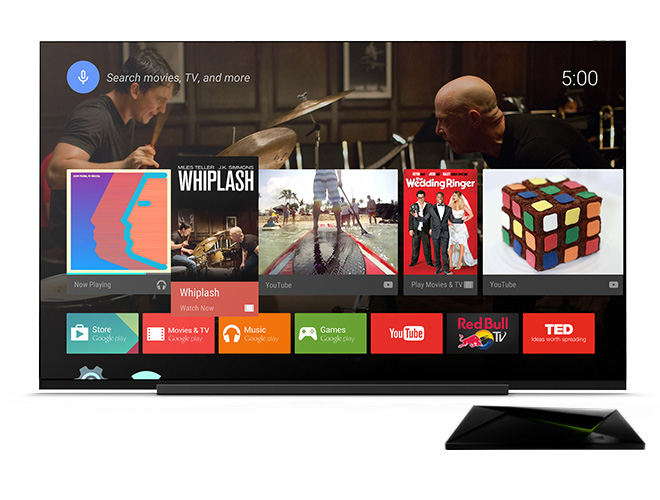
If you are an Android TV user, you may be looking at ways to access third party apps on your TV. If an app is unavailable for your Android TV, don’t be disappointed. Since it runs on Android at the core, you can manually install and uninstall apps. Thanks to sites like APKMirror that host untouched APKs of popular free apps, you can install many free apps from popular third-party developers on your Android TV.
Install Third Party Apps on Android TV

Installing third party apps on Android TV is a simple process. The only additional steps you will have to take are downloading APKs and tapping on install. But before that, you will have to get a File Manager.
Android TV does not come with a file manager out of the box. Google has, for some reason, never released a stock file manager for Android. However, there are many free third party File Managers in the Play Store compatible with Android TV. One of the most popular ones is ES File Explorer – it’s free and supports Samba file sharing and FTP protocols. Solid Explorer is another File Manager you can try – it’s paid but works great and has an excellent UI.
Enable Installation from Unknown Sources
Like all other Android devices, installation from Unknown Sources is disabled by default. To be able to manually install apps on your Android TV, you will have to enable it first. Go to Settings -> Security and Restrictions and scroll down to the Unknown Sources option. Tap on the checkbox to enable it.
Download the APK
Many sites like APKMirror host many Android app APKs. For safety, we recommend using APKMirror only.
Transfer the APK
You can transfer the APK to your Android TV using a memory card or a pen drive. Transfer the APKs to your memory card or pen drive and connect it to your Android TV. Using the file manager downloaded above to copy those APKs to your TV.
Install the APKs
All you will have to do now is browse to the location where you have saved these APKs and tap on them.
Available link for download
How To Remove System Apps in Android
How To Remove System Apps in Android

Are you on stock rom ? Do you want to get rid off the preinstalled apps ? Then this post is for you. In this post i am describing the steps to remove system apps from android mobiles.
Requirement
- A third party uninstaller
If you search on Play Store you will get many apps to remove system apps. I am selected HiUninstaller which is a free uninstaller with a simple interface and it allows to remove some pre installed apps without root.
STEPS
1. Download and Install HiUninstaller.
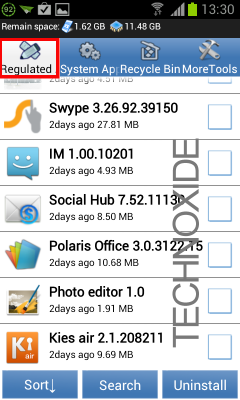
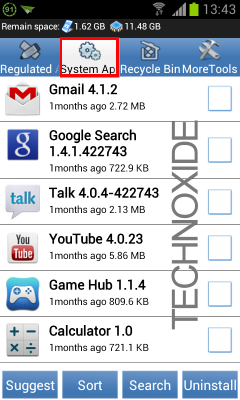
2. Open HiUninstaller , then you will see 4 Tabs Regulated Apps , System Apps, Recycle Bin and More Tools.
Regulated Apps tab - This tab shows all the apps installed by us and some pre installed apps.. you can uninstall any apps from this tab without root.
System Apps tab - This tab shows all the pre installed system apps.. your device must be rooted to uninstall any app from this tab.
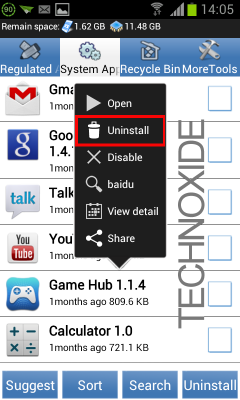
3. Select your preferred tab and click on the app you want to uninstall...It will popup a menu....select Uninstall.
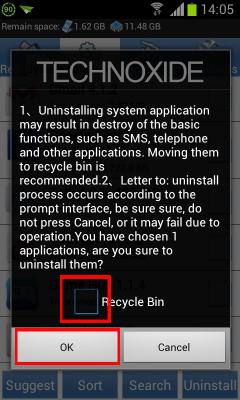
4. It will popup a confirmation ... uncheck Recycle Bin if you dont want to keep backup and click OK button.
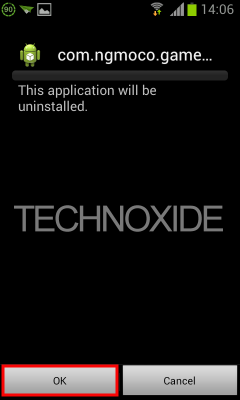
5. Again you will get a confirmation ...click OK button.
Thats it...
Note : Also you can uninstall apps by checking the corresponding checkbox and click Uninstall at the bottom right.
Available link for download
Thursday, January 5, 2017
How to Install IOS apps on Android
How to Install IOS apps on Android
How to Install iOS Apps on Android
  |

Right now CIDER is not quite compatible with iOS Apps. Some of hardware are not accessible for iOS on Android OS like GPS and its working quite slow . Official said " Cider is an impressively Alternative solution to app cross compatibility. But it need bit more development and tweaking to work like charm, it could be very well serve as a viable replacement for an iOS device in future." This would be the biggest success after the the Cider will be updated and bug fixed.
All the logos are property of their respected owner.
Available link for download
Saturday, December 31, 2016
How to force install apps to SD card without ROOT!!!
How to force install apps to SD card without ROOT!!!
Note: Works on both froyo & GB
Source:Androinica How to Install Apps to the SD Card by Default on Android 2.2 Froyo (not for Ace)
You can find the latest version of this tutorial here. Though I will try to keep updating this thread too.
Getting Ready:
1. First you have to enable USB debugging on your Android device from Settings > Applications > Development > USB debugging.
2. You need to download and install the latest Android SDK on your computer fromhttp://developer.android.com/sdk/.
3. Install the latest java SDk if you dont already have one.
Tutorial:
1. Extract the package to the folder of your choice [Lets say- C:/android-sdk-windows/], run SDK Manager.exe
2. Close the command / windows command prompt window that opens.
3. In the new window, click on Available Packages to the left. Untick all options you are prompted to download except the USB driver option & Android sdk tools revisionx(13 as of now) & Android sdk platform-tools revision x(7 as of now) if they are there.
(Note-If you get an error message at this point, enable “Force https://…” in the Settings. From the list of available packages, select “Usb Driver package”, click on the Install Selected button in the bottom right corner and follow the prompts. )
4. Do not open Samsung Kies. Connect your phone to your computer with a USB-cable. Your OS will prompt you to install new drivers. Choose to install them from the android-sdk-windows/extras/google/usb_driverfolder. Do not mount your device; you only need to plug-in the cable.
(If you dont see this prompt, It means USB drivers are already installed or else install them manually: SAMSUNG USB drivers from samfirmware.com)
5. Run command prompt in administrator.
Type in the following after the ">" at each step (without quotations,and including spaces and capital letters)
"cd C:android-sdk-windowsplatform-tools"
"adb devices"
"adb shell"
A $ sign should pop up
"pm setInstallLocation 2"
Another $ should pop up
And your done. Close everything, disconnect phone, turn off phone and then turn it back on again
Note:Now the phone will be set to install all apps you install onto the SD card. However, current apps on phone will mostly still be stored on the internal memory. This process doesnt move these apps for you, it adds the ability. So you must now manually move those already installed on the phone. Install some apps like app2sd etc.
It’s preferable to install certain apps to the main memory, since it will take a while before the SD card becomes available when you start your phone. Applications installed on the memory card will also be unavailable to the system each time you mount your phone as a disk drive.
In general, apps that integrate with the Android OS and that often run in the background is better to install on the internal storage, while games and most other applications will have no problem chilling outside on your SD.
Widgets should essentially be installed on phone memory.
Update:
From what I have come to understand (correct me if I am wrong), Each app will store some .odex files on phone memory to speed up the boot process.
So dont complain that phone memory is getting lesser after each install. Though if you couldve installed 40 apps before now maybe 150+ and still have 30-40 mb left. (depends on what kind of apps you install).
Darktremors a2sd scripts deodex the apps and COMPLETELY move the apps and cache to sd card but you will need to root and run the scripts.
How to install Darktremors a2sd on Froyo!!
Though an easier way will be to install a custom rom.
____________________________________________
Source:Androinica How to Install Apps to the SD Card by Default on Android 2.2 Froyo (not for Ace)
You can find the latest version of this tutorial here. Though I will try to keep updating this thread too.
Getting Ready:
1. First you have to enable USB debugging on your Android device from Settings > Applications > Development > USB debugging.
2. You need to download and install the latest Android SDK on your computer fromhttp://developer.android.com/sdk/.
3. Install the latest java SDk if you dont already have one.
Tutorial:
1. Extract the package to the folder of your choice [Lets say- C:/android-sdk-windows/], run SDK Manager.exe
2. Close the command / windows command prompt window that opens.
3. In the new window, click on Available Packages to the left. Untick all options you are prompted to download except the USB driver option & Android sdk tools revisionx(13 as of now) & Android sdk platform-tools revision x(7 as of now) if they are there.
(Note-If you get an error message at this point, enable “Force https://…” in the Settings. From the list of available packages, select “Usb Driver package”, click on the Install Selected button in the bottom right corner and follow the prompts. )
4. Do not open Samsung Kies. Connect your phone to your computer with a USB-cable. Your OS will prompt you to install new drivers. Choose to install them from the android-sdk-windows/extras/google/usb_driverfolder. Do not mount your device; you only need to plug-in the cable.
(If you dont see this prompt, It means USB drivers are already installed or else install them manually: SAMSUNG USB drivers from samfirmware.com)
5. Run command prompt in administrator.
Type in the following after the ">" at each step (without quotations,and including spaces and capital letters)
"cd C:android-sdk-windowsplatform-tools"
"adb devices"
"adb shell"
A $ sign should pop up
"pm setInstallLocation 2"
Another $ should pop up
And your done. Close everything, disconnect phone, turn off phone and then turn it back on again
Note:Now the phone will be set to install all apps you install onto the SD card. However, current apps on phone will mostly still be stored on the internal memory. This process doesnt move these apps for you, it adds the ability. So you must now manually move those already installed on the phone. Install some apps like app2sd etc.
It’s preferable to install certain apps to the main memory, since it will take a while before the SD card becomes available when you start your phone. Applications installed on the memory card will also be unavailable to the system each time you mount your phone as a disk drive.
In general, apps that integrate with the Android OS and that often run in the background is better to install on the internal storage, while games and most other applications will have no problem chilling outside on your SD.
Widgets should essentially be installed on phone memory.
Update:
From what I have come to understand (correct me if I am wrong), Each app will store some .odex files on phone memory to speed up the boot process.
So dont complain that phone memory is getting lesser after each install. Though if you couldve installed 40 apps before now maybe 150+ and still have 30-40 mb left. (depends on what kind of apps you install).
Darktremors a2sd scripts deodex the apps and COMPLETELY move the apps and cache to sd card but you will need to root and run the scripts.
How to install Darktremors a2sd on Froyo!!
Though an easier way will be to install a custom rom.
____________________________________________
Available link for download
Wednesday, December 7, 2016
How To Backup Android Apps As APK using ES File Explorer
How To Backup Android Apps As APK using ES File Explorer

Downloading apps or games from Google Play on each Factory reset or format is always not possible, As it needs a better 3G plan or WiFi. So making the apk backups of installed apps will help you to install those apps later without Google Play or any other Android app store.
In this post I included the steps to backup android apps or games as apk using ES File Explorer.
How To Backup Android Installed Apps and Games using ES File Explorer ?
1. Install ES File Explorer from Google Play(Skip it if you already installed)
2. Open ES File Explorer.
3. Tap on Fast Access icon (top left) or options soft key.

4. Now in the swipe menu tap on App Manager.
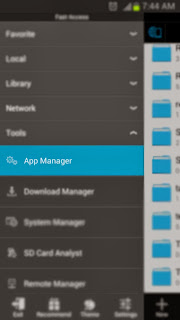
5. In user app list ... Long press on the app or game you wish to backup as apk.
6. Finally Tap on Backup in the bottom menu.

Thats it...
Note:
To get the backed up apk files browse to /sdcard/backups/apps/.
Available link for download
Sunday, December 4, 2016
How to Directly Download Apps From Play Store To PC
How to Directly Download Apps From Play Store To PC

10 DEC 2013 - THIS METHOD CANNOT BE USED ANYMORE
Sunday, October 9, 2016
How to Prevent Unwanted apps purchase in Android
How to Prevent Unwanted apps purchase in Android
How to Prevent In App Purchase or Accidently Purchase/Unwanted apps purchase in Android

Mostly Parents use their credit card information to purchase Android Apps which help them in daily life routine . But they forget to remove their account information and hand over their smartphones , or Android tablets to childs to play the amazing android games but when they got bill at month end "They Shout, I did not made purchase " . Applying theses setting can prevent unwanted,accidently app purchase from childs.
For Android smartphones and tablets .
Slide Play Store menu from left .
Click on Setting
Under "User Control" touch the "Require Password for Purchase ".
Choose Password
- For All purchase
- Every 30 minutes
- Never
Select your password by typing.
This setting can save your money wasting on unwanted app purchase.
Available link for download
Tuesday, October 4, 2016
How to download Apps from Nokia Ovi Store to Computer
How to download Apps from Nokia Ovi Store to Computer
 Nokias ovi store provides many Free and Paid apps to download for our nokia devices. but the are not giving any official way to download those apps to our computer.Here is simple hack that made it possible.
Method:
1. Go to http://store.ovi.com/ using your favorite browser.
2. Now sign in with your Nokia account.
3. Now set your Nokia device.

4. Now click on the desired app or game you want to download,then look at the address bar of your browser you will get something like the url below, depends by the app you selected.
http://store.ovi.com/content/189734?clickSource=homepage&pos=22
5. Now replace the red color part of the url to /download
http://store.ovi.com/content/189734/download
6. Finally , Hit enter or click go !
Thats all ! Done ! Do it your self and share your feed backs !
Watch the video Tutorial:
Note: This method only works with free apps , you cant download paid apps by using this method.
Available link for download
Subscribe to:
Posts (Atom)