Showing posts with label other. Show all posts
Showing posts with label other. Show all posts
Thursday, March 30, 2017
How To Install CWM TWRP or Any Other Recovery Without PC Faster and Safer Method
How To Install CWM TWRP or Any Other Recovery Without PC Faster and Safer Method
Whether it is CWM (Clockworkmod) or TWRP (Team Win Recovery Project) recovery, definitely you will flash any of the custom recovery if you wish to extend the Android experience. You can flash the custom recovery with or without using a PC. As a samsung user mostly I use Odin to flash a new recovery but, it is not possible keep a PC everywhere we travels. So sometimes we need an alternate solution.
There are many apps available in the Google Play Store which helps to install a custom recovery without PC but, I prefer Flashify. Flashify is a must have tool for every android root user which, comes with a clean hole UI and bunch of flash and backup options. I am not going to review the app...In this post I included simple steps flash CWM or TWRP custom recovery image using Flashify.

Requirement:
- Android 2.3 and up
- Root Permission
2. Download your favorite custom recovery .img file for your device
CWM ( Clockworkmod )
TWRP (Team Win Recovery Project)
**If you downloaded the recovery using PC...copy it to your internal or external storage.
3. Open Flashify app... Accept disclaimer and Grant permission on popup
4. In FLASH tab tap on Recovery Image and browse / select the downloaded recovery .img file using flashify explorer.


5. Now the app will popup a confirm Flash recovery? dialog.

6. Finally Tap on Yup! and wait.
Thats it....After successful installation it will popup a Flash Complete dialog.....Choose Reboot now if you wish to boot into recovery or Exit app.
There are many apps available in the Google Play Store which helps to install a custom recovery without PC but, I prefer Flashify. Flashify is a must have tool for every android root user which, comes with a clean hole UI and bunch of flash and backup options. I am not going to review the app...In this post I included simple steps flash CWM or TWRP custom recovery image using Flashify.
Requirement:
- Android 2.3 and up
- Root Permission
Install CMW / TWRP Custom Recovery Without PC
1. Download Flashify - Google Play [ Free ]2. Download your favorite custom recovery .img file for your device
CWM ( Clockworkmod )
TWRP (Team Win Recovery Project)
**If you downloaded the recovery using PC...copy it to your internal or external storage.
3. Open Flashify app... Accept disclaimer and Grant permission on popup
4. In FLASH tab tap on Recovery Image and browse / select the downloaded recovery .img file using flashify explorer.
5. Now the app will popup a confirm Flash recovery? dialog.
6. Finally Tap on Yup! and wait.
Thats it....After successful installation it will popup a Flash Complete dialog.....Choose Reboot now if you wish to boot into recovery or Exit app.
Available link for download

Saturday, February 11, 2017
How to factory unlock iphone for indians and other operators
How to factory unlock iphone for indians and other operators

How to factory unlock iphone for indians and other operators
Here is our experience on legally unlocking iPhone 4, which was bought from AT&T USA. We recently unlocked the iPhone legally and started using with Airtel in India.
When we moved from USA to India, one of the gadgets my wife wanted to bring was an iPhone. Just before returning to India, we bought an iPhone from AT&T in USA and paid the cancellation charges to cancel the contract with AT&T. We were of the impression that once we pay the contract cancellation charges, the phone will become ours to keep and use it how and where we want to use it.
Once we reached India, we realized that is not the case. We failed to unlock the iPhone 4 anywhere in India. After making several attempts in various ways, we gave up on unlocking iPhone. Finally, we were able to make the iPhone 4 work in India using a Gevey Ultra we imported from USA.
Even though Gevey Ultra worked reasonably well, it often required reconfiguration on the iPhone, which was a pain to do all the time.
Once we reached India, we realized that is not the case. We failed to unlock the iPhone 4 anywhere in India. After making several attempts in various ways, we gave up on unlocking iPhone. Finally, we were able to make the iPhone 4 work in India using a Gevey Ultra we imported from USA.
Even though Gevey Ultra worked reasonably well, it often required reconfiguration on the iPhone, which was a pain to do all the time.
The good days came to an end when we accidentally upgraded our iPhone 4 to the latest iOS 5.1 operating system. When iOS 5.1 was installed on iPhone, it locked out the Gevey Ultra and the Airtel SIM was no longer working. The iPhone would no longer recognize the SIM and it became another toy on our table.
Unlock iPhone 4 through AT&T
After keeping the iPhone in the shelf for several months, we heard the official announcement from AT&T about the unlocking process. We immediately called AT&T to find the reality. We were not very confident since I had called AT&T several times in the past asking for help to unlock but they refused to unlock the phone even though we said we had paid out all contract cancellation fees.
When we called this time, one of the menu options in their automated phone system was Press 1 if you are calling to unlock your iPhone. That was music to our ears!
The process was very easy and simple this time. See the steps we followed which results in unlocking our AT&T iPhone:
1. Called AT&T customer service
2. Gave our original AT&T cell phone number which we used with the iPhone more than a year ago and theIMEI number of the phone.
3. AT&T representative verified the record to make sure we had paid out all contract cancellation fees. In case you did not cancel your contract but completed your 2 year contract period, that would qualify.
4. AT&T representative updated their system and recorded our request for unlocking. They suggested us to wait for an email from Apple explaining the unlocking process.
5. Within a day, we got an email from Apple asking us to do a simple process - backup the iPhone using iTunes and then restore from the backup.
6. We went to Airtel office in India, applied for a new Micro SIM to match the iPhone. Within 2 minutes, we got the new Micro Sim and it got activated within 10 minutes.
7. We came home from Airtel, connected iPhone to the computer, opened iTunes and selected "Backup iPhone".
8. Once the backup was completed, we chose "Restore from Backup".
When the phone was restored from backup, Apple pushed the unlock code to our phone which unlocked the phone permanently!
Here is the welcome message we got:

My wife was literally dancing because it has been more than a year she was struggling to use her iPhone 4 in India with Airtel service provider.
However, the joy did not last long. Even though the iTunes showed the phone is successfully activated, the phone was still showing "No Service" error. My wife was about to explode but I suggested her to complete the wizard in iTunes and click "Continue" until she get out of the wizard to complete the restore process.
Once we completed the restore wizard in iTunes, the phone started flashing and then it gave the moment of celebration to us with the label "Airtel" appearing in top left corner of the phone.
The one year long wait seem to have come to an end. We made couple of calls from the iPhone 4 and the unlocked iPhone 4 appears to be working great with Airtel.
We are using an iPhone 4, but I am pretty sure the same process will work for iPhone 4S. Also, even though we are using Airtel, you should be able to follow same unlock process and should be able to use your iPhone with any other service provider in India.
SIM not found error in iPhone when using Airtel micro SIM
When we received the micro Sim from Airtel, we had no patience to wait until we connect to iTunes and perform the backup and restore process suggested by Apple to complete the unlock process. We thought since we had done several backup and restore in the past, that would be enough to complete the unlock process. So, we inserted the Airtel micro sim card to the iPhone and wife started pressing everywhere on the phone in the effort to get it working. No matter what she try, the phone kept on giving various erros including SIM not found, invalid SIM, No Service etc. At some point, she even called Airtel complaining that the Sim was not activated and is giving error with the iPhone.
Finally, it all turned out that following correct process solved the problem. Once we backed up the iPhone and restored from backup as suggested by Apple, the iPhone started working perfectly with Airtel in India.
If the above steps did not work, you may try the following phone unlocking services. GSM Unlock Labs offers affordable unlocking services for iPhone.
Available link for download
Wednesday, February 1, 2017
How To Disable Camera Shutter Sound in Redmi2 Redmi Note and Other MIUI Devices
How To Disable Camera Shutter Sound in Redmi2 Redmi Note and Other MIUI Devices
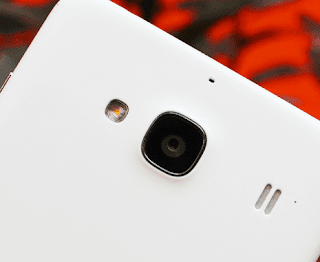 Previously, I wrote post a on disabling camera shutter sound on Samsung and many other Android devices using the app named Enforced Stream Silencer. Unlike Samsung and other Android devices, MIUI devices like Redmi 2S/2A, Redmi Note, MI 4i, etc. doesnt need a third party app to disable the Camera Shutter sound as the default Camera app in MIUI has a built in option to turn off the annoying capture sound.
Here are the steps to turn off the camera sound in MI devices.
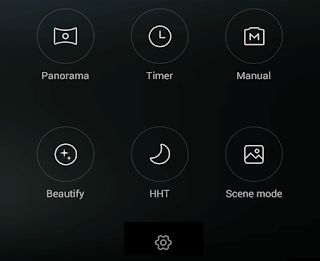
1. Open the Camera app.
2. Swipe Left and tap on the Settings icon.
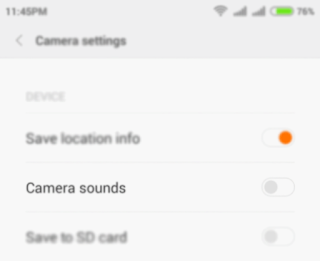
3. In Camera Settings page tap on Camera sounds toggle button to turn off the sound.
Thats it.
Available link for download
Sunday, January 29, 2017
How To Download YouTube Video As Mp3 in Windows Mac Linux IOS Android Symbian or Any Other Platform
How To Download YouTube Video As Mp3 in Windows Mac Linux IOS Android Symbian or Any Other Platform
 As all we know YouTube is the largest video sharing website where uploads many movies, songs, etc. in every instant. You may watch many songs on YouTube and may wish to save it for listening later. To download YouTube videos there are many third party softwares available for every platform and most of the apps are capable of saving to video formats only. If you download a song, it could be better if it gets as mp3 format which saves our Smartphone battery more than video playback.
In this post I included the instruction to download YouTube video as mp3 without installing any third party apps. There are many websites does it, but I prefer video2mp3.net because of many reasons.
video2mp3.net is one of the best rated YouTube to mp3 converting website, which allow us to convert unlimited number of YouTube videos to mp3 without losing any quality. The websites responsive interface makes the browsing faster and simpler in both PC and mobile devices.
How To convert Youtube Video to Mp3 File ?
1. Copy the prefered video URL2. Go to www.video2mp3.net
3. Paste the youtube video URL in the convert box and click convert
( Wait till it finish conversion...after conversion it will generate a download link of mp3 file)
5. Finally Click on Download your MP3 file

Thats it...
Available link for download
Friday, November 25, 2016
How To Disable Increasing Ringtone Volume in Galaxy Note 3 S4 S3 and all other Samsung and LG Mobiles
How To Disable Increasing Ringtone Volume in Galaxy Note 3 S4 S3 and all other Samsung and LG Mobiles

This option is very much annoying because we cant hear our favorite ringtone in its real structure. The ring tone starts quietly, then increase to the level the volume was set at. Even Samsung hasnt included the option to disable ascending / increasing ringtone volume we can still disable it using third party apps or switching to any custom ROM.
Flashing a custom ROM to disable increasing volume may not fit for every user. So, in this post I included the download link of an Android app which uses to Disable Increasing Ring. The app is available for free at Google Play.
How To
1. Install Disable Increasing Ring
2. Open the app
Thats it..
Note:
To hide the Disable Increasing Ring app notification uncheck Show notification in App info.
Disable Increasing Ring (Playboard) | Disable Increasing Ring (Play Store)
Available link for download
Subscribe to:
Posts (Atom)