Showing posts with label recovery. Show all posts

Wednesday, April 12, 2017

How to HTC 10 S OFF Download Recovery

How to HTC 10 S OFF Download Recovery


How to HTC 10 S OFF Download Recovery 

Unofficial Support site All Mobile Solution

Here is a step-by-step manual how to S-OFF your HTC 10:

1. First step is to unlock bootloader:
a) If bootloader unlock is turned off on your phone, you need to turn it on first:
- Boot to Android OS and perform initial setup if necessary
- Go to Menu -> Developer settings and tick "Enable OEM unlock"
Run XTC 2 Tool and open "Bootloader unlock" tab, follow instructions to unlock your bootloader.

2. Reboot to download mode, open "HTC 10" tab and install twrp recovery, you can get it here:
Download twrp-3.0.2-5-pme.img
or
twrp-3.0.2-5-pme.img

3. Boot to Bootloader, and press "Reboot to recovery".

4. In "HTC 10" tab press "Do S-OFF button".

5. Wait for the process to finish. Done.

For More Information

FACEBOOK
 APP


Available link for download

Read more »

Thursday, March 30, 2017

How To Install CWM TWRP or Any Other Recovery Without PC Faster and Safer Method

How To Install CWM TWRP or Any Other Recovery Without PC Faster and Safer Method


Whether it is CWM (Clockworkmod) or TWRP (Team Win Recovery Project) recovery, definitely you will flash any of the custom recovery if you wish to extend the Android experience. You can flash the custom recovery with or without using a PC. As a samsung user mostly I use Odin to flash a new recovery but, it is not possible keep a PC everywhere we travels. So sometimes we need an alternate solution.

There are many apps available in the Google Play Store which helps to install a custom recovery without PC but, I prefer Flashify. Flashify is a must have tool for every android root user which, comes with a clean hole UI and bunch of flash and backup options. I am not going to review the app...In this post I included simple steps flash CWM or TWRP custom recovery image using Flashify.

cwm or twrc recovery without pc

Requirement:
- Android 2.3 and up
- Root Permission

Install CMW / TWRP Custom Recovery Without PC

1. Download Flashify - Google Play [ Free ]

2. Download your favorite custom recovery .img file for your device
CWM ( Clockworkmod )
TWRP (Team Win Recovery Project)
**If you downloaded the recovery using PC...copy it to your internal or external storage.

3. Open Flashify app... Accept disclaimer and Grant permission on popup

4. In FLASH tab tap on Recovery Image and browse / select the downloaded recovery .img file using flashify explorer.


5. Now the app will popup a confirm Flash recovery? dialog.


6. Finally Tap on Yup! and wait.

Thats it....After successful installation it will popup a Flash Complete dialog.....Choose Reboot now if you wish to boot into recovery or Exit app.


Available link for download

Read more »

Thursday, March 9, 2017

How to flash recovery without pc

How to flash recovery without pc


This post is about the CWM/TWRP custom recovery. What is Recovery and the method of its Installation is the core of this post. 

Let us begin with knowing a little about what is a custom Recovery & what are its uses after then we will move forward step by step for installing it on your android Device properly.

What is a Custom RECOVERY??
A custom recovery is a replacement for stock recovery found on every android device. It is an .img(image) file that can be flashed using different methods which we will be talking today.
Some of its key features are-
> Rom Backup
> Flashing any Update.zip package.
> Replacing your stock android operating system with a new custom official or unofficial operating system like MIUI, CyanogenMod, Paranoid Android etc. This is also known as flashing a custom ROM.
> Wiping Data/factory reset or flashing various kernels.
and much more...
For booting into the custom recovery installed, the user have to press the required key in combinations which might be different for various android devices.
ex: Power+vol up/vol down etc

>Installation Guide< (For Rooted Users)


Using Mobileuncle Tools/Mtk Devices


Step 1- Download and install Mobileuncle tools app. (Download link given below).
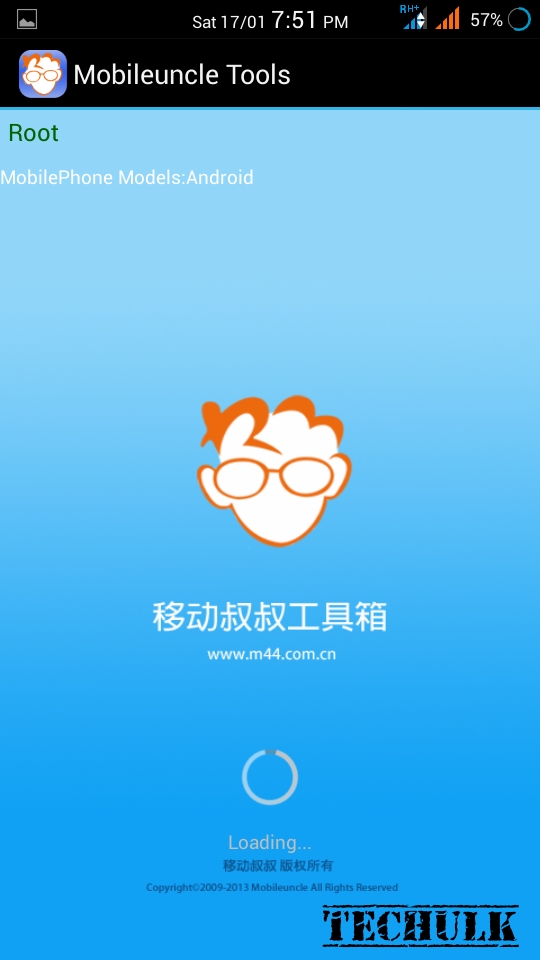

how to flash recovery without pc

Step 2- Download CWM/TWRP recovery file of your device and rename it torecovery.img .

Step 3- Open mobileuncle tools and click on "recovery update" there you will findrecovery.img on the top, select it. Press OK it will reboot your device into your required recovery.
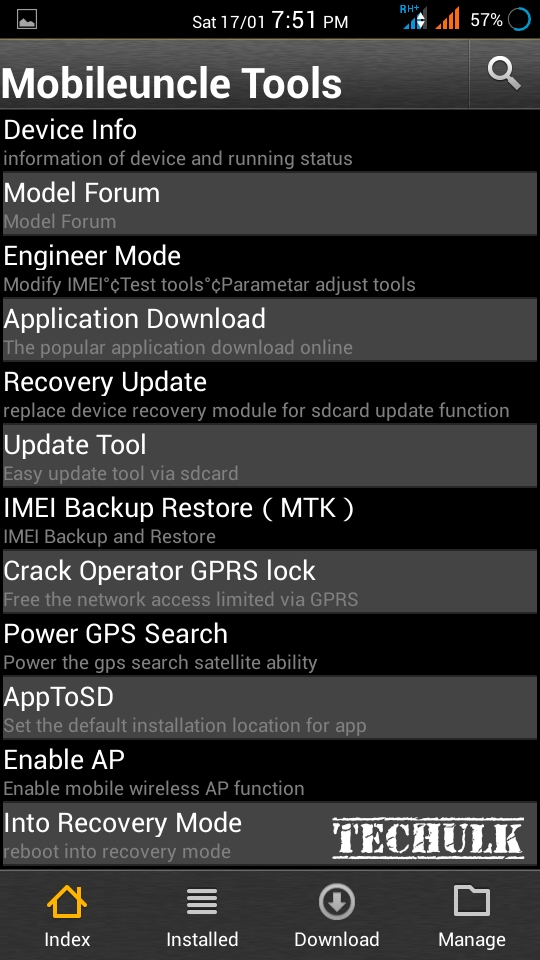

how to flash recovery without pc

DONE!!

>>Download Mobileuncle Tools Here<<

Using Flashify/Snapdragon and all the others


Step 1- Download flashify from the link given below (or from Google Playstore) and install it on the device.

Step 2- After that download CWM/TWRP recovery file for your device and rename it to recovery.img

Step 3- Open Flashify and tap on recovery image option.
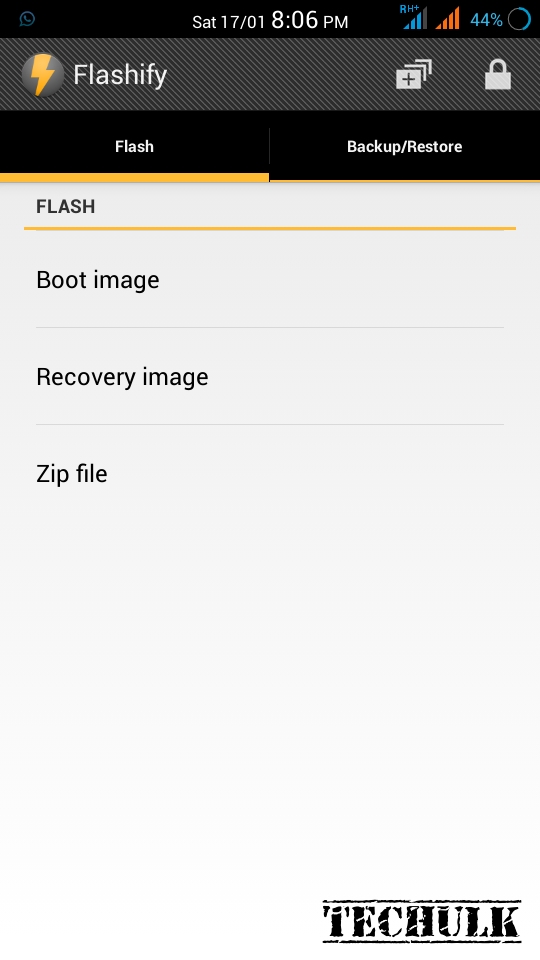

how to flash custom recovery without pc

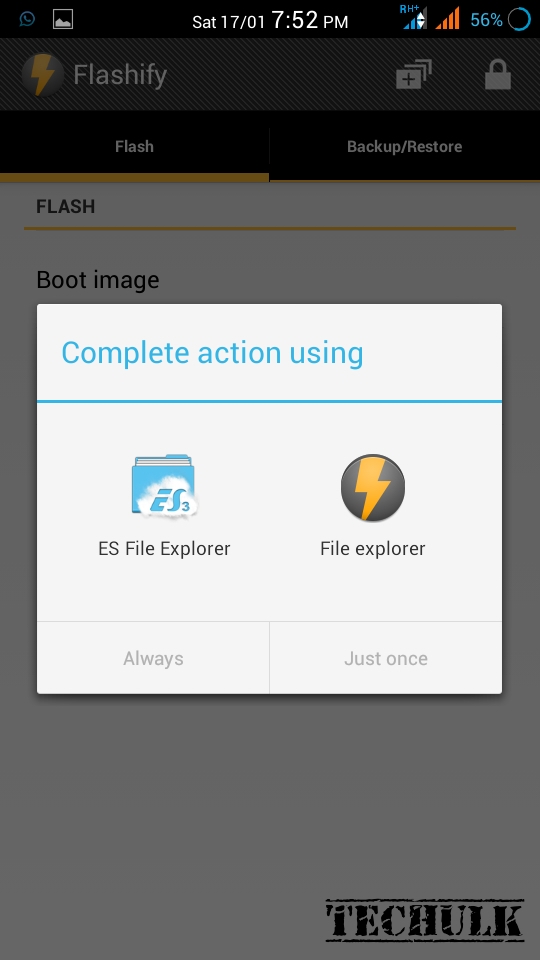
Step 4- Now a pop up will appear just click on choose a file to select one of your file explorer app and browse to the file recovery.img.
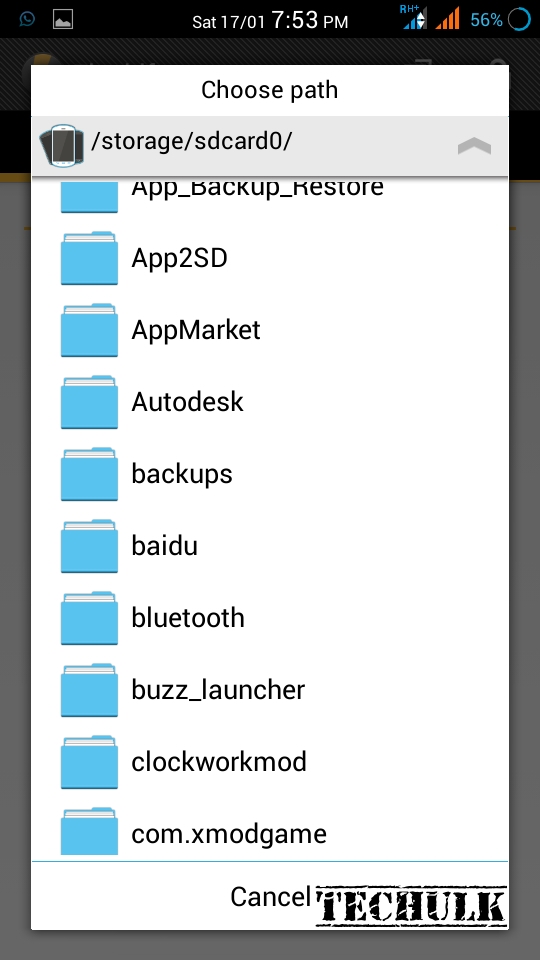

how to install custom recovery without Pc
how to flash recovery without PC


Step 5- Tap on the .img file and tap on Yup.

Done!!


>>Download Flashify Here<<

NOTE - IN BOTH THE METHODS ALLOW SUPERUSER PERMISSION REQUEST PROMPTED BY THE APP.


Available link for download

Read more »

Wednesday, February 8, 2017

How to Install Latest TWRP Recovery on Android Devices

How to Install Latest TWRP Recovery on Android Devices


twrp-galaxy-s6-696x392.jpg (696×392)


How to Install Latest TWRP Recovery on Android Devices

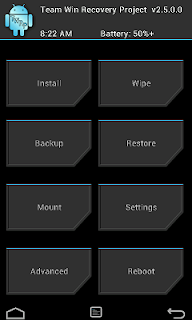
TWRP is the most popular custom recovery available for Android devices and it just got a newer version. So if you own an Android device that has already TWRP installed or any another recovery, it’s time for your to update to the latest TWRP 3.0.
For those who are unaware of TWRP or custom recoveries, let me clear things for you. TWRP is a custom recovery which lets you perform actions like:
  • Installing ROMs, Mods or any other zip or .img files to your system.
  • Making Nandroid backups, i.e. backup of your entire ROM including data and other partitions.
  • Restore ROM backups
  • Wipe any partition of your device,
These tasks cannot be performed by stock recovery, just like custom ROMs custom recoveries gives you more features and easy to use interface specially TWRP. Well the TWRP custom recovery gives you immense control of your device, but you should take things easy and do not play around with every option until you are sure what you are doing.
The newer version brings many changes, the most noticeable being the introduction of Material design. Other changes introduced in the latest version are:
  • Completely new theme – Much more modern and much nicer looking (by z31s1g)
  • True Terminal Emulator – Includes arrow keys, tab, and tab completion, etc. (by _that)
  • Language translation – It won’t be perfect and especially some languages that require large font files like Chinese & Japanese won’t be available on most devices. Also, some languages may only be partially translated at this time. Feel free to submit more translations to OmniROM’s Gerrit. (mostly by Dees_Troy)
  • Flashing of sparse images – On select devices you will be able to flash some parts of factory images via the TWRP GUI (by HashBang173)
  • Adopted storage support for select devices – TWRP can now decrypt adopted storage partitions from Marshmallow
  • Reworked graphics to bring us more up to date with AOSP – includes support for ADF and DRM graphics (by Dees_Troy)
  • SuperSU prompt will no longer display if a Marshmallow ROM is installed
  • Update exFAT, exFAT fuse, dosfstools (by mdmower)
  • Update AOSP base to 6.0
  • A huge laundry list of other minor fixes and tweaks
twrp-menu-screenTWRP-3.0-screenshots

Install TWRP 3.0 on Your Android Device

Things You Will Need

  • An Android device and a PC
  • Download the latest TWRP.img for your device: Link
  • Minimal ADB and Fastboot: Follow this guide and install Minimal Fastboot and ADB on your PC. (How to Get ADB and Fastboot within Seconds)
  • Usb drivers: Link

Steps to Follow

Follow any one of the following methods that suit you:

For Those Who Already have an earlier version of TWRP

  1. Download the .img file for your device from the links given above.
  2. Boot your device into TWRP custom recovery.
  3. Select Install, then browse for the download image file. Keep in mind you will have to tap on Images button in the bottom right corner first in order to display .img files in the list. (as shown below).twrp_1
  4. Now select the TWRP 3.0 .img file, then select Recovery partition on the next screen.(as shown in the screenshot below)twrp_2
  5. Now swipe right to confirm the installation.
  6. Reboot to recovery, it should have been updated.

For Those Who Do Not Have a Custom Recovery Installed but have Root Privilege

  1. Download the TWRP manager app from Google Play Store.twrp-manager_1
  2. Select TWRP Install and select device name and version to install and then select Install Recovery.twrp-manager_2

Fastboot Install Method ( Who are Installing Custom Recovery for the First Time)

This method will most of the Android devices. If you are unable to install it or you get stuck somewhere feel free to leave a comment down below, we will be happy to help you.
  1. Download the .img file for your device from the links given above.
  2. Download and Install Minimal Fastboot and ADB following this guide.
  3. Copy the .img file to the Minimal ADB and Fastboot folder (usually C:Program Files (x86)Minimal ADB and Fastboot) and rename it to ‘twrp.img’.
  4. On your device, go to Settings -> About and find the Build Number and tap on it 7 times to enable developer settings. Press back and go into Developer Options and enable USB debugging.
  5. Connect your device to your PC via USB cable.
  6. Open Minimal ADB and Fastboot, it will open a command prompt
  7. Type the following command and hit Enter:
    adb reboot bootloader
  8. Above step will boot your device into fastboot mode. Now type the following command to install TWRP3.0:
    fastboot flash recovery twrp.img
  9. Now type the following command to reboot your device:
    fastboot reboot
  10. Now press the default key combo for your device for booting into Recovery mode.
Note many devices will replace your custom recovery automatically during first boot. To prevent this, use Google to find the proper key combo to enter recovery. After typing fastboot reboot, hold the key combo and boot to TWRP. Once TWRP is booted, TWRP will patch the stock ROM to prevent the stock ROM from replacing TWRP. If you don’t follow this step, you will have to repeat the installation process.
Once you have installed TWRP 3.0 custom recovery on your Android device, you could use to install any Mods or custom zip files on your device. But before installing any custom files on your device’s system make sure to backup your current ROM, using Backup option available in the TWRP recovery. Taking backup ensures that your data is safe and you could restore using this backup if something messes up your device. Also, make sure to flash files meant for your device/model only otherwise, your device could get bricked.

Flashing Zip Files Using TWRP Recovery

  1. Download the zip file and copy it to your device’s storage.
  2. Boot your device into TWRP recovery.
  3. Select Install button in the recovery and then browse for the zip file you want to install on your device.
  4. Now swipe to confirm the installation.
  5. Now tap the Reboot option and select System to see the effect of the ROM/mod you have installed.
Enjoy latest TWRP on your Android version and have the freedom of flashing anything on your device. But be careful! while using it. Let us know if you have any queries in the comment section below.


Available link for download

Read more »

Sunday, February 5, 2017

How to add reboot recovery and bootloader options in Power menu

How to add reboot recovery and bootloader options in Power menu


So lets Start

Required
1-apktool
2-notepad++
3-some brains


STEP-1

Decompile Framework-res.apk

goto to res/vlaues/arrays.xml

and add these lines at the end

Code:
 <string-array name="reboot_options">
<item>@string/reboot_normal</item>
<item>@string/reboot_recovery</item>
<item>@string/reboot_bootloader</item>
</string-array>
<string-array name="reboot_actions">
<item>now</item>
<item>recovery</item>
<item>bootloader</item>
</string-array>

now goto res/values/strings
and add these lines at the end


Code:
 <string name="reboot">Reboot</string>
<string name="reboot_normal">Reboot</string>
<string name="reboot_recovery">Recovery</string>
<string name="reboot_bootloader">Bootloader</string>

goto add the ic_lock_reboot.png which i have i provided in the resources attached below this post to drawablw-hdpi folder

so before compiling the framework-res.apk follow erorcuns guide to properly recompile framework-res.apk

once recompile is done ....decompile again to get the HEX IDs

STEP-2

decompile android.policy.jar

goto classoutcomandroidinternalpolicyimpl

and add the 3 smalis files which i provided in the resources attached below

Now option classoutcomandroidinternalpolicyimplGlobalAc tions.smali

and find these lines and add the red marked lines between them

Code:
 .line 235
iget-object v0, p0, Lcom/android/internal/policy/impl/GlobalActions;->mItems:Ljava/util/ArrayList;

new-instance v1, Lcom/android/internal/policy/impl/GlobalActions$2;

const v2, 0x1080030

const v3, 0x10400fa

invoke-direct {v1, p0, v2, v3}, Lcom/android/internal/policy/impl/GlobalActions$2;-><init>(Lcom/android/internal/policy/impl/GlobalActions;II)V

invoke-virtual {v0, v1}, Ljava/util/ArrayList;->add(Ljava/lang/Object;)Z

.line 213
move-object/from16 v0, p0

iget-object v1, v0, Lcom/android/internal/policy/impl/GlobalActions;->mItems:Ljava/util/ArrayList;

new-instance v2, Lcom/android/internal/policy/impl/GlobalActions$11;

const v3, 0x1080827

const v4, 0x104060b

move-object/from16 v0, p0

invoke-direct {v2, v0, v3, v4}, Lcom/android/internal/policy/impl/GlobalActions$11;-><init>(Lcom/android/internal/policy/impl/GlobalActions;II)V

invoke-virtual {v1, v2}, Ljava/util/ArrayList;->add(Ljava/lang/Object;)Z


.line 260
iget-object v0, p0, Lcom/android/internal/policy/impl/GlobalActions;->mItems:Ljava/util/ArrayList;

iget-object v1, p0, Lcom/android/internal/policy/impl/GlobalActions;->mAirplaneModeOn:Lcom/android/internal/policy/impl/GlobalActions$ToggleAction;

invoke-virtual {v0, v1}, Ljava/util/ArrayList;->add(Ljava/lang/Object;)Z

now we need to assign the Hex ids as per ur Public.xml

NOTE: the hex ids might be different from mine and yours so be careful while comparing

new as per the above changes in GlobalActions.xml

assign the ids as below

<public type="drawable" name="ic_lock_reboot" id="0x01080827" />

Code:
 new-instance v2, Lcom/android/internal/policy/impl/GlobalActions$11;

const v3, 0x1080827

<public type="string" name="reboot" id="0x0104060b" />

Code:
new-instance v2, Lcom/android/internal/policy/impl/GlobalActions$11;

const v3, 0x1080827

const v4, 0x104060b


Now option up classoutcomandroidinternalpolicyimplGlobalAc tions$11.smali

find and replace the following

@line 70
<public type="string" name="reboot" id="0x0104060b" />


Code:
const v3, 0x104060b

@line 90
<public type="array" name="reboot_options" id="0x0107003b" />


Code:
const v3, 0x107003b

@line 105
<public type="string" name="ok" id="0x0104000a" />


Code:
 const v2, 0x104000a

@line 147
<public type="bool" name="config_sf_slowBlur" id="0x0111000b" />


Code:
const v3, 0x111000b

now open up classoutcomandroidinternalpolicyimplGlobalAc tions$11$2.smali

@line 59
<public type="array" name="reboot_actions" id="0x0107003c" />


Code:
const v2, 0x107003c

save it and recompile android.policy.jar


now push all the files into ut phone...will have the new Advanced reboot options

ATTACHED FILES
File Type: rarreboot_option_resources.rar - [Click for QR Code] (4.5 KB, 140 views)


Available link for download

Read more »

Tuesday, December 20, 2016

Guide Install CWM Recovery For Galaxy Core

Guide Install CWM Recovery For Galaxy Core


After Installing CWM Recovery. Do Not Boot Into CWM Recovery Via Any App Like SUperUser Or RootManager It Will Cause A Recovery Loop.If You Have A Recovery Loop Follow The SECOND POST

Hey people in this thread i will show how you can install ClockworkMod Recoveryor popularly known as the CWM Recovery.Your GT-I8262 or Galaxy Core Duos Comes With Stock Recovery with Help of Which you can perform various functions like Wiping Your Device,Wiping/Clearing Cache but with help of CWM recovery you can install ROMs,Take A Nandroid Backup,Partition Your SD Card etc. So as you can see this recovery is of great use. 

Things You Require
1)CWM File
LINK
2)ODIN 3-1.87
LINK
3)Galaxy Core Drivers
LINK


Attention Before Flashing
1)Make Sure Battery Is ABOVE 30%
2)DONT UNPLUG the Cable During Flashing
3)Follow Procedure Carefully Flashing Right Files
4)No Nuclear War Is Going On :P
5)Any Other Problem PM me  


PROCEDURE

1. Install the Galaxy Core Drivers On Your Desktop

2. Extract ODIN.zip on your Desktop

3. Copy Recovery.tar File In ODIN Folder(its preferable to keep them in the same directory)

4. Now Go To Your Phone Settings

5. Click On Developer Options & Tick USB Debugging

6. Turn Off Your Phone

7. After Your Mobile Is Completely Turned Off Go Into Downloading Mode - Press & Hold Volume Down +Home Key +Power Key, Press Volume Up Again To Proceed

8. Connect Your Phone To Your PC via USB Cable

9. Now Open ODIN 3.07

10. Your Phone Should Be Detected In ODIN If You Have Installed The Drivers Correctly

11. Now Click On The PDA Button Then Select recovery.tar(CWM Recovery File)

12. Press The Start Button. Now The Installation Should Start.

13. When The Installation Is Completed It Should Display "PASS" Then Remove The USB Cable From Your Device

14. Now To Go Into CWM Recovery - Turn Off Your Phone Completely.

15. Press Power Button + Home Button + Volume Down Button.

16. Now You Have A CWM Recovery!!!!!!!!!!!!!!


2nd METHOD

If the above Method didnt work for you because some people are experiencing problems with the above method for the latest firmware so you can try this method which shall work. 

Things Required
1)A Rooted Galaxy Core
2)CWM.zip File(In Second Post)
3)Uni-init APK(In Second Post)
4)A Mind


Lets Begin


1) Download and install BusyBox.
- Open and install BusyBox.
- Done!
2) Copy »Uni-init v1.0.apk« to internal memory and install Universal Init.d.
- Please see HERE the entire instructions.
3) Download and install Android Terminal Emulator.
- Open Terminal and type following commands:
PLEASE TYPE THE COMMANDS CAREFULLY OTHERWISE YOU CAN BRICK YOUR DEVICE

Code:
su
cd /storage/sdcard0
sh cwm.sh
- Done!
4) Switch off the Phone completely.
5) Press and hold »Volume up« and »Home«, then press »Power« while "Volume up" and "Home" are held.
- Use »Volume up« and »Volume down« to navigate items and »Power« to select.


3rd Method
First Download Flash_zip from the second post and unzip it in the ADB Folder so the folder where adb files are present you have to unzip there. Now Also Download the recovery.img file from the second post and again place it where the adb files are there.So,The flash_image is within the attached zip file! Use the file within the zip file, NOT the zip file itself.Put the recovery image and the flash_image on the root of your C drive.

Lets Begin
(make sure youre in the command prompt and have changed directory to where the adb file is)

adb push c:flash_image /sdcard/
adb push c: ecovery.img /sdcard/
adb shell
su
mount -o remount, rw /system
cp /sdcard/flash_image /system/bin
cd /system/bin
chmod 777 flash_image
dd if=/sdcard/recovery.img of=/dev/block/mmcblk0p13

________________________________________________________________________________________________________________________________________________________________________________________________________________________

If You Boot Into ClockWorkMod Recovery via any app like SuperUser Or RoM MAnager or Flashify it will cause the recovery to loop. This Is The Way To Solve That Problem Follow This

1) Download And Put This Attached File In External SD

2) Install This Zip Using CWM Recovery..

3) Turn Off Your Mobile Through CWM Advanced Menu Or By Pulling Out Battery..

4) Now Enter Into Bootloader Mode Using (VOL. DOWN+MENU+POWER )

5) Reinstall CWM Recovery Using Odin..

6) Install New Roms

7)Flash Stock Firmware HERE

ALWAYS ENTER CWM THROUGH BUTTONS AND NOT THROUGH ANY APP
ATTACHED FILES
File Type: zipCWM_De_Loaper.zip - [Click for QR Code] (6.64 MB, 73 views)


Available link for download

Read more »

Tuesday, November 29, 2016

How To Install TWRP Recovery in Any Samsung Galaxy S3

How To Install TWRP Recovery in Any Samsung Galaxy S3


galaxy s3 twrp recovery
CWM Recovery was the lead in custom recoveries before releasing TWRP. After the arrival of TWRP there are many users switched to TWRP recovery from CWM recovery. There is a Touch version of CWM recovery is available but, TWRP recovery is more touchable as it have bigger buttons.

In this post I include steps to Install TWRP recovery in Galaxy S3 using Recovery Tools - Flasher. Recovery Tools - Flasher is great android app which let install CWM Recovery,TWRP Recovery, etc. in many rooted android devices along with all variants of Galaxy S3.

Requirement:
- Rooted device - Root Galaxy S3 here
- WiFi / 3G
- 50% or more battery

Note:
Backup important data

Disclaimer
Flashing Custom recovery may brick your phone and void warranty. I am not responsible for any damage. Do at your risk.

Install TWRP Recovery in Galaxy S3

1. Install Recovery Tools - Flasher from Play Store

2. Open the app Recovery Tools - Flasher and grand root permission on popup.

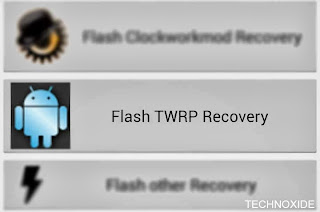
3. Tap on Flash TWRP Recovery and Tap Yes,please for the Download warning.

galaxy s3 twrp recovery tap

( Now Yo will see a downloading progress dialog, wait... )

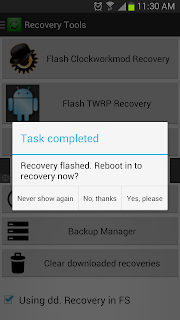
4. After Complete it will popup Task completed dialog.

galaxy s3 twrp recovery flashing finished

Thats it..

Note:
If you does not have Wifi or 3G download TWRP recovery.img for your variant and copy to /sdcard/Recovery-Tools/recoveries/twrp/ then follow the steps.

Keywords:
TWRP for Samsung Galaxy S3 (AT&T)
TWRP for Samsung Galaxy S3 (Canada)
TWRP for Samsung Galaxy S3 (Cricket)
TWRP for Samsung Galaxy S3 (International i9300)
TWRP for Samsung Galaxy S3 (Metro PCS)
TWRP for Samsung Galaxy S3 (Sprint)
TWRP for Samsung Galaxy S3 (T-Mobile USA)
TWRP for Samsung Galaxy S3 (US Cellular)
TWRP for Samsung Galaxy S3 (Verizon)


Available link for download

Read more »

Friday, November 25, 2016

How to enter recovery mode in Samsung Galaxy S Plus

How to enter recovery mode in Samsung Galaxy S Plus


When we need to root our Android device one common way is update root package from recovery mode.In Samsung Galaxy S Plus , Entering in to recovery mode need some extra touches than other popular samsung devices like SGS2,ACE etc. follow the simple steps below to enter in to recovery mode in your samsung galaxy s plus.

Methode:
1. Switch off your SGS Plus (wait until you get the vibration )
2. Now, press and hold the volume up key and the power button. Leave both buttons when you see the SAMSUNG logo.
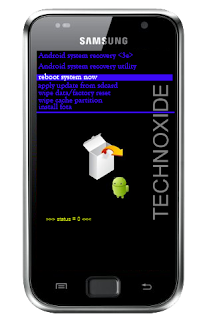
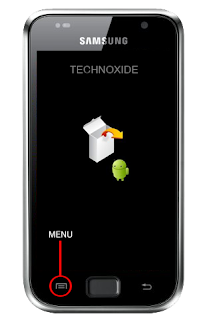
3. After "Galaxy S Plus" splash screen you will get a white box and android logo image like below,then press menu soft key and wait some second.


Thats it ! You will be in recovery mode !


Available link for download

Read more »

Friday, November 18, 2016

Guide How to Install TWRP Recovery and Root Android Lenovo Vibe K5 K5 Plus

Guide How to Install TWRP Recovery and Root Android Lenovo Vibe K5 K5 Plus


[Guide] How to Install TWRP Recovery and Root Android Lenovo Vibe K5 | K5 Plus.

Install TWRP Recovery and Root Vibe Lenovo K5. This guide will show you how to  Install TWRP Recovery and Root Android Lenovo Vibe K5 | K5 Plus. If you want root the Lenovo Vibe K5 or K5 plus you must install TWRP Recovery first on this device. We know that TWRP is custom recovery image for Android-based devices, and this recovery provided GUI interface or with touchscreen enabled, by using TWRP we allows users to install third-party firmware and backup the current system. therefore, TWRP often installed when rooting Android smartphone devices.

Lenovo Vibe K5  is the smartphone released on February, 2016. with 5,0 Inchi IPS capacitive touchscreen, 16M colors, work on Android OS, v5.1 (Lollipop), and supported with Quad-core 1.5 GHz Cortex-A53 & quad-core 1.2 GHz Cortex-A53 CPU, Qualcomm MSM8929 Snapdragon 415 chipset, Adreno 405 GPU, combined with 2 GB of RAM, 13 MP on primary camera and 5 MP on secondary camera.

Install TWRP on Lenovo Vibe K5.

Here is the guide started. Now follow all step carefully.
  1. Make sure Minimal ADB and fastboot installed on your compuer. you can see this guide.
  2. Make sure your battery is not empty or at least has 70% of battery capacity.
  3. Now, switch on your Lenovo Vibe K5.
  4. Then enable the Developer Options.
    • Go to Setting -> About Phone -> Phone Information -> tap 7 times at Build Number,
  5. Then, Enable USB Debugging
    • Go to Settings -> Developer -> USB Debugging
  6. Now, Enable OEM unlock.
    • Go to Settings -> Developer -> Unlock OEM
  7. Make sure driver for Lenovo Vibe K5 installed correctly on your computer, you can find the driver that come on the CD cell partition
  8. Now, connect your Lenovo Vibe K5 to the computer using original USB cable.
  9. Then, Download the TWRP recovery, and copy it to the folder where adb is installed on your computer.
  10. Open a command prompt from within your fastboot folder.
  11. To start this command prompt just hold shift + right click, select open command prompt here.
    Run ADB on computer
    Run ADB on computer
  12. Now type,
    • adb devices
  13. This command used to confirm the connection between Lenovo Vibe K5 and the computer.
  14. Once the connection confirmed. Now type.
    • adb reboot bootloader
  15. If you want to temporarily boot this recovery type ,
    • fastboot boot TWRP-k5-3.0.2-r1_shreps.img
  16. If you want to permanently flash it, type ;
    • fastboot flash recovery TWRP-k5-3.0.2-r1_shreps.img
  17. Finish.

Root on Lenovo Vibe K5.

  1. This step will show you how to root Lenovo Vibe K5
  2. To start it, you must Download the ZIP file SuperSU v2.46 
  3. Then save it in the micro SD card.
  4. Now turn off your Lenovo Vibe K5.
  5. Then enter to recovery mode.
    • Press and hold Power Button and Volume Up button
  6. Then follow instruction appear on screen. 
  7. Select recovery to install SuperSu from SD Card.


Available link for download

Read more »