Showing posts with label remove. Show all posts
Showing posts with label remove. Show all posts
Monday, April 10, 2017
How To Remove bypass ICloud ID on Iphone 4
How To Remove bypass ICloud ID on Iphone 4
How To Remove iCloud ID on Iphone 4 iOS 7.1.2
How to remove iCloud account from iphone 4
how to remove icloud id without password iOS 7
step by step how to tutorial
Note:- This tutorial is only for educational purpose . Android soldier does not support any illegal activities or stolen devices, even we condemn this kind of activities. The tutorial was written on the request of my followers . This tutorial is for those who originally bought devices,original owner and forget their icloud password or icloud id or they have bought 2nd hand iphone and previous owner block it , not for them who are involved in any illegal activities.
Understanding iCloud .
iCloud is backup service from APPLE . iCloud was the greatest addition in all Apple OS platforms to secure the consumers from lost , theft . This is best protection feature which every iphone user must use to backup his/her personal data . The main feature of Icloud is called "find my phone" option. If you ever have turn this option on ,then you can locate your stolen iphone , erase it and block it to prevent from misuse . Even restore ,flashing or upgrading iOS will not work until you know the exact icloud id which used to backup data or block the iphone. All you have to do login on icloud website , use your Apple ID, password which were installed on stolen or lost iphone. Icloud can also be used to transfer your data from iphone to another iphone (Contacts,sms,picture 5gb maximum).
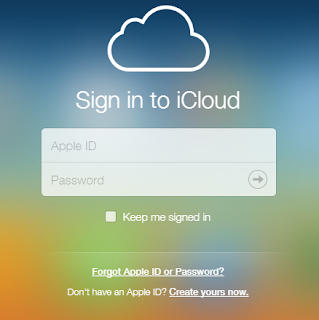
How to remove Icloud account from iphone 4
By following this tutorial you can only bypass iphone 4 which is not activated yet and stuck on icloud id . After bypass you will not be able to use cellular services any more . "NO MORE SIM". however there is method in which you can use cellular services as well after bypassing but for that you need to be on ios 7.1.1.
First download bypass package .The package include two software, one is called ssh_rd_rev04 and another one called winSCP. unzip folder and install winSCP .
- Put your iphone 4 into DFU mode . (press power + home button together and count 10 , then leave power button but keep pressing home button and count 01-30.) Now connect your iphone to computer . Windows will recognize iphone and install drivers for DFU Mode. do not run itunes during all procedure.
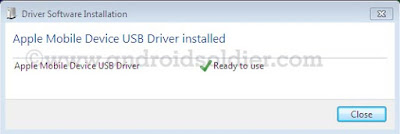
- Now open ssh.jar file . Make sure you have java installed on your computer

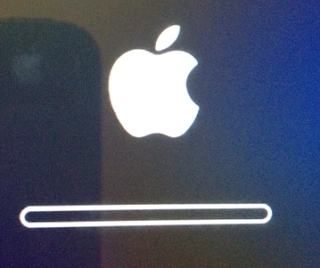
- Ssh.jar will download firmware . After few minutes ssh.jar will exploit bootrom. When the romdisk loaded your iphone will be reboot and freeze on apple logo throw out the whole process. Do not turn off your iphone.
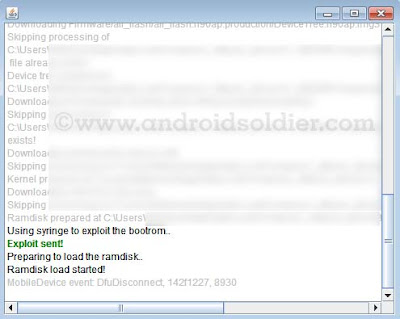
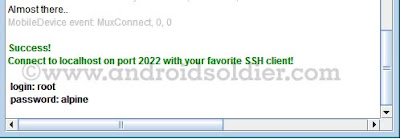
- Ssh.jar will do some more changes and at the end you will see the username and password shown by ssh.jar . Login:root password:alpine
- Now double click on winSCP icon and run it , and write information which is indicated in image below then click on login.
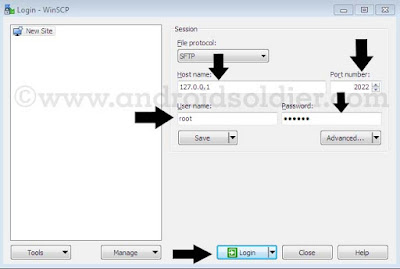
- A pop up window will be come forward and will search for host throw IP.

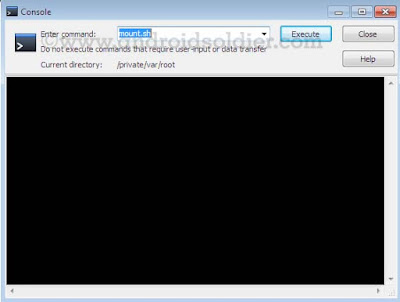
- winSCP window will open . Now open console by press CTRL+T or click on console option.
- Now write "mount.sh" and execute while winSCP window will remain open.
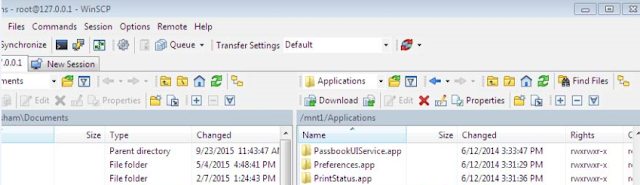
- Now you are in winSCP windows where you see root directory of your iphone. winSCP will display two windows , left will be show your desktop and right side will show your iphone root directories. Select /root as mentioned in image below .
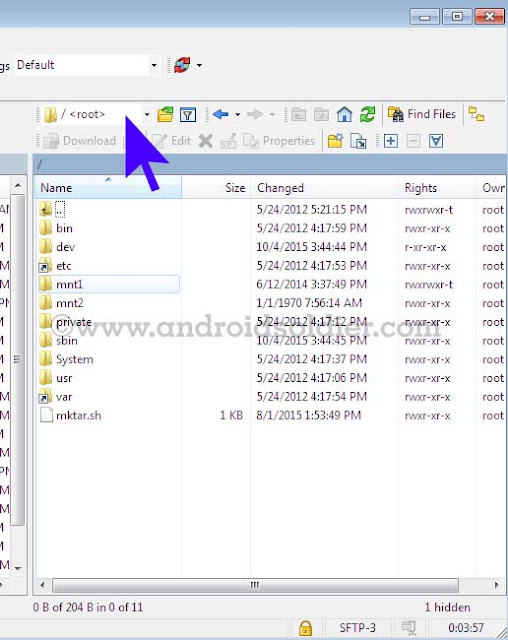
- Now go to var then application . you will see setup.app . Delete setup.app by right click .
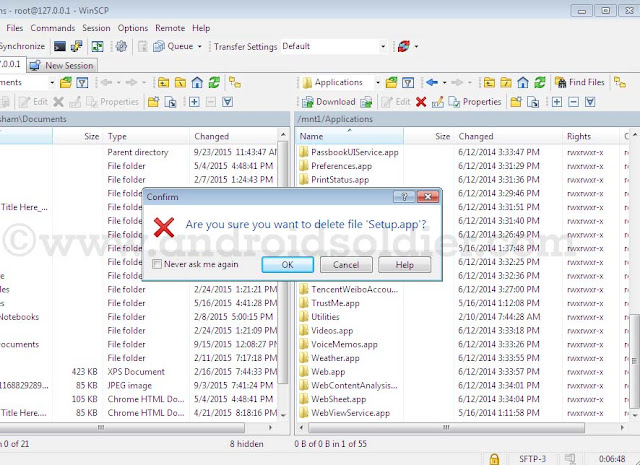
- you are done . You iphone 4 will be automatically reboot in recovery mode . An itunes and cable option will be come to screen on your iphone. If your phone does not reboot automatically , reboot it manually by pressing power button. Download TinyUmbrella , open and click on exit recovery. you are done .

There are many icloud bypass methods are available but this method is 100% successful method. So do not waste your time trying short methods.
Things to remember:-
This tutorial is only work with iphone 4 and not applicable on iphone 4s , iphone 5,5s,5c ,iPhone 6,6+,6s,6+s because except A4 Chip exploit of bootrom is not possible until now.
After bypass icloud account you will not be able to use cellular services .
You will not be able to use your iphone with iTunes.Wifi only.
During all procedure your iphone must stay on apple logo with flashing bar( see image ) . If your phone turn on at some point you have repeat all these steps again.
Available link for download

How to remove bypass please enter the Privacy Protection
How to remove bypass please enter the Privacy Protection
With this Miracle Box method, you wont need to flash the phones firmware to fix this "please enter the privacy protection password to unlock" error. Some Supported :- Spice , karbonn , lava , micromax , intex , vivo , and More
Requirement
* Download Miracle Box (MIRACLE BOX SETUP DOWNLOAD HERE)
* PC windows
* USB cord
* Manually Install Mediatek VCOM drivers (see MTK USB DRIVER DOWNLOAD )
IF YOU NEED FIRMWARE ALL MOBILES TO CLICK HERE
Note:-
If this method fails to work for whatever reason then you can always use the SP Flash tool format method (SP FLASH TOOL DOWNLOAD HERE)
Procedure
1. Extract the content of the Miracle Box to your desktop. Open the folder and run "Miracle_Loader_2.27A"

2. Wait till the Miracle Box program is launched
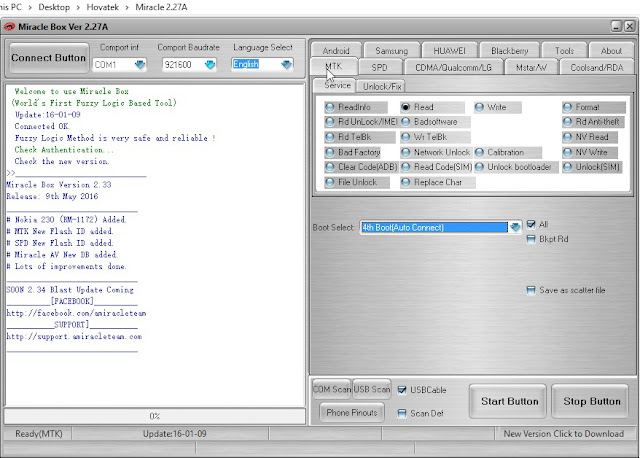
3. Click on the MTK tab
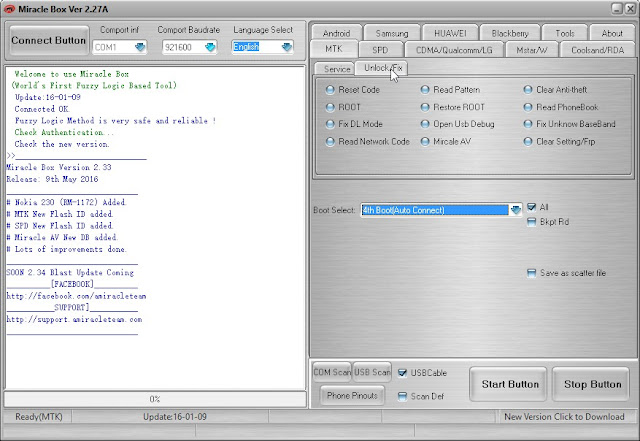
4. Click on the Unlock / Fix tab

5. Tick Clear Anti-theft

6. Click the dropdown box and select your chipset type MT****

7. Click the Start Button

8. Connect the phone to the PC (must be switched off still with battery inside)
9. Press the power button once (this is to ensure that your device is detected immediately). DO NOT hold down the power button else the phone will boot up normally
10. Wait for the message ">>Done. (Need to wait a few minutes the phone is switched)"
11. Disconnect and power on the phone !!!!! Download This App For future App !!!!!
Requirement
* Download Miracle Box (MIRACLE BOX SETUP DOWNLOAD HERE)
* PC windows
* USB cord
* Manually Install Mediatek VCOM drivers (see MTK USB DRIVER DOWNLOAD )
IF YOU NEED FIRMWARE ALL MOBILES TO CLICK HERE
Note:-
If this method fails to work for whatever reason then you can always use the SP Flash tool format method (SP FLASH TOOL DOWNLOAD HERE)
Procedure
1. Extract the content of the Miracle Box to your desktop. Open the folder and run "Miracle_Loader_2.27A"
2. Wait till the Miracle Box program is launched
3. Click on the MTK tab
4. Click on the Unlock / Fix tab
5. Tick Clear Anti-theft
6. Click the dropdown box and select your chipset type MT****
7. Click the Start Button
8. Connect the phone to the PC (must be switched off still with battery inside)
9. Press the power button once (this is to ensure that your device is detected immediately). DO NOT hold down the power button else the phone will boot up normally
10. Wait for the message ">>Done. (Need to wait a few minutes the phone is switched)"
11. Disconnect and power on the phone !!!!! Download This App For future App !!!!!
Available link for download
Tuesday, April 4, 2017
Hard Reset Android LENOVO X3 To Remove PIN Password and Restore Factory Setting Guide
Hard Reset Android LENOVO X3 To Remove PIN Password and Restore Factory Setting Guide
Hard Reset Android LENOVO X3 To Remove PIN, Password and Restore Factory Setting [Guide].
Hard Reset LENOVO X3. This device Also known as Lenovo Vibe P1 Pro, And now guidebelajar will show you how to perform hard reset on LENOVO X3 smartphone. Perform Hard reset on android device will erase or deleted all data stored and App installed on internal phone memory, so you must backup all data before perform it.
LENOVO X3 is the smartphone released on December, 2015. with 5,5 Inchi IPS LCD capacitive touchscreen, 16M colors, work on Android OS, v5.1 (Lollipop) and supported with chipset Qualcomm MSM8992 Snapdragon 808, Processor Quad-core 1.2 GHz Cortex-A53 & Dual-core 1.8 GHz Cortex-A57, GPU Adreno 418, combined with 3 GB of RAM, 21 MP on primary camera and 8 MP on secondary camera.
Some People say that Hard reset process is call with master reset or factory reset. Many people asking why shoud we perform hard reset to our phone. The logical answer that can we say for this asking is :
LENOVO X3 is the smartphone released on December, 2015. with 5,5 Inchi IPS LCD capacitive touchscreen, 16M colors, work on Android OS, v5.1 (Lollipop) and supported with chipset Qualcomm MSM8992 Snapdragon 808, Processor Quad-core 1.2 GHz Cortex-A53 & Dual-core 1.8 GHz Cortex-A57, GPU Adreno 418, combined with 3 GB of RAM, 21 MP on primary camera and 8 MP on secondary camera.
Some People say that Hard reset process is call with master reset or factory reset. Many people asking why shoud we perform hard reset to our phone. The logical answer that can we say for this asking is :
- There are many bug on LENOVO X3.
- Because we will sell our LENOVO X3 Android phones.
- Because we want to restore LENOVO X3 to Default Factory Setting.
- Because we We want to remove all personal data and setting that was stored in LENOVO X3.device.
- We will give our LENOVO X3 away to some one else, and we dont want that one know everything about our secret data, so we have to erase all data before back up it.
- Our LENOVO X3 has been lagging and stuck on android logo, this call with bootloop
- We have forgotten on PIN or Patern Lock at LENOVO X3.
- LENOVO X3 has a persistent problem that cannot be solved
- and many other reason.
1st Methode. Hard Reset LENOVO X3 Using Menu :
- Make sure your batery is fully charged, Recomended you have 80% of battery capacity
- Then Backup your LENOVO X3. see this guide
- Go to menu: System Setting >
- Select Backup and Reset >
- Factory Data Reset >
- Reset Phone
- Choose Erase everything to confirm that you already to perform hard reset on LENOVO X3
- LENOVO X3 will continue to hard reset process to restore factory default.
2ndMethode. Hard Reset LENOVO X3 Using Hardware Keys:
- Make sure your battery is fully charged, we recomended that your battery has 80% power
- Always BackUp your important data that store in LENOVO X3. see this guide
- Turn Off your LENOVO X3 by hold and press Power Button for a second.
- Release any SIM card and SD card that was installed on your LENOVO X3 smartphone.
- Then press and hold a combinatin key Power button + Volume Down.
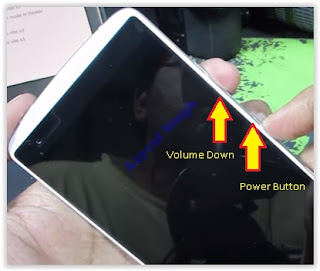
Hard Reset Android LENOVO X3 - Release power button only when you see Lenovo Logo apear on screen.

lenovo Logo - Then release all button when your LENOVO X3 vibrate and enter recovery mode.
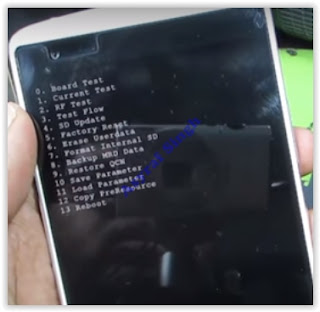
recovery mode lenovo x3 - Then Select Factory Reset.
- To navigate menu on this screen you can use volume up and volume down, then use power button to execute your selection.
- Then follow all instruction show on screen.
- Once finish, you can wait a while for LENOVO X3 to reboot system
- Done, your hard reset process success now.


Video Guide.
Available link for download
Saturday, April 1, 2017
How to remove write protection from a USB flash drive
How to remove write protection from a USB flash drive
Today i will show how to remove write protection from a USB flash drive (pendrive).When a pendrive is write protected, no files cannot be copied to it. It cannot be formatted also.When ever you will try to format the pendrive it will show you an error message -"Disk is Write Protected" exactly like the picture show below
 In order to format the penndrive and remove the write protection you need to do the following steps below:
First check whether the USB drive has a write protection switch on the bottom or the sides of the drive If it has a write protection switch then push the switch to the unlock position.Then insert the pendrive to your pcs USB port & go to "My computer".select that USB drive and right click on it and then Click on the Format.A dialog box will appear exactly like the picture below


Step 5

click on the start button and your USB drive will be formatted.
If above method doesnt work then you have to remove the write protection manually.In order to do this ..do the following steps below.
Step 1
Open the Start menu & go to "run".Type "regedit "& press enter or click on OK.This will open the windows registry editor.
Step 2
Navigate to the following path - " HKEY_LOCAL_MACHINESYSTEMCurrentControlSetControlStorageDevicePolicies "
Step 3
After that Double-click on the "WriteProtect" value in the right-hand pane of the Regedit.exe. Change the Value data from 1 to 0 and then click OK to save the change.
Step 4
Close Regedit exe and remove your USB drive .Then restart your PC.
Close Regedit exe and remove your USB drive .Then restart your PC.
Step 5
After restarting you pc connect your USB drive again and u will find it is not longer right protected.Then format the USB drive manually in the normal way by right clicking on it and choosing Format.
Note-
Sometimes you may find that StorageDevicePolicies doesnt exist .In such cases you need to create it manually. In order to do this. simply right click on the black spaces of the control folder & choose New -> key and enter the following name "StorageDevicePolicies"
Now Double click on the new key and right click then choose New -> DWORD.Name it WriteProtect then set the value to 0.Then click ok,exit regedit & reboot your pc..Hope this will work... :)
I will be posting a video tutorial on this..keep visiting regularly
REGARDS
SHANKHA JANA
Available link for download
Thursday, March 23, 2017
Guide Hard Reset Samsung Galaxy A7 2016 To Restore Factory Setting Remove Forgot Pattern PIN Password
Guide Hard Reset Samsung Galaxy A7 2016 To Restore Factory Setting Remove Forgot Pattern PIN Password
[Guide] Hard Reset Samsung Galaxy A7 2016 To Restore Factory Setting & Remove Forgot Pattern/PIN/Password.
Hard Reset Samsung Galaxy A7 2016. Samsung Galaxy A7 2016 has this version (A7100 (Hong Kong), A710M (Latin America), A710FD (Southeast Asia), A710Y (Taiwan), A710F (Europe)), and this Android Smartphone Also known as Samsung Galaxy A7 (2016) Duos with dual-SIM card slots. This device is released on December, 2015. And todays guidebelajar will explain to you how to perform hard reset on Samsung Galaxy A7 2016 smartphone. Please keep in mind, this tutorial will erase all data saved on your internal memory. Samsung Galaxy A7 2016 is the smartphone with 5,5 Inchi Super AMOLED capacitive touchscreen, 16M colors, work on Android OS, v5.1.1 (Lollipop), and supported with Processor Quad-core 1.2 GHz Cortex-A53 & Quad-core 1.5 GHz Cortex-A53, Qualcomm MSM8939 Snapdragon 615 chipset, Adreno 405 GPU, combined with 3 GB of RAM, 13 MP on primary camera and 5 MP on secondary camera to capture best moment and make a selfie on your life.
Most of Android user say that Hard reset process is call with master reset or factory reset. Many people asking why shoud we perform hard reset to our phone. The logical answer that can I say for this asking is :
Most of Android user say that Hard reset process is call with master reset or factory reset. Many people asking why shoud we perform hard reset to our phone. The logical answer that can I say for this asking is :
- Samsung Galaxy A7 2016 has a persistent problem that cannot be solved.
- Because we will sell our Samsung Galaxy A7 2016 Android phones
- We want to remove all personal data and setting that was stored in Samsung Galaxy A7 2016.device.
- There are many bug on Samsung Galaxy A7 2016.
- Our Samsung Galaxy A7 2016 has been lagging and stuck on android logo, this call with bootloop
- We have forgotten on PIN or Patern Lock at Samsung Galaxy A7 2016.
- We will give our Samsung Galaxy A7 2016 away to some one else, and we dont want that one know everything about our secret data, so we have to erase all data before back up it.
- and many other reason.
1st Methode. Hard Reset Samsung Galaxy A7 2016 Using Menu :
- Make sure your batery is fully charged, Recomended you have 80% of battery capacity
- Then Backup your Samsung Galaxy A7 2016. See This Guide
- Go to menu: System Setting >
- Select Backup and Reset >
- Factory Data Reset >
- Reset Phone
- Choose Erase everything to confirm that you already to perform hard reset on Samsung Galaxy A7 2016
- Samsung Galaxy A7 2016 will continue to hard reset process to restore factory default.
2ndMethode. Hard Reset Samsung Galaxy A7 2016 Using Hardware Keys:
- Make sure your battery is fully charged, we recomended that your battery has 80% power
- Always BackUp your important data that store in Samsung Galaxy A7 2016. see this guide
- Turn Off your Samsung Galaxy A7 2016 by hold and press Power Button for a second.
- Release any SIM card and SD card that was installed on your Samsung Galaxy A7 2016 smartphone.
- Then press and hold together a combination button Volume Up + Home Button + Power button at same time for a seconds.
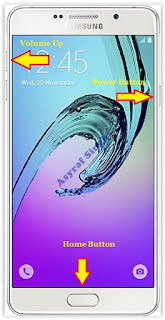
Hard Reset Samsung Galaxy A7 2016 - Then you will see Samsung Galaxy J7 Logo. On this step release Power Button only, while keep holding Volume Up and Home Button.
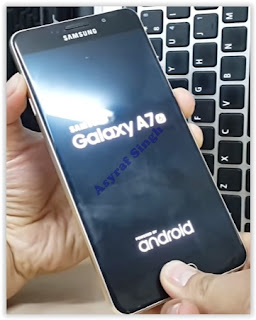
Samsung Galaxy A7 2016 Logo - When Android Logo appear on your screen. You must release all button.
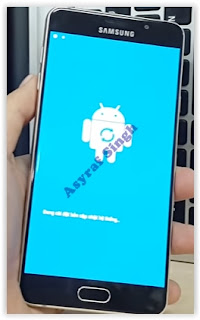
Android Logo - hard reset samsung galaxy A7 2016 - And now you will enter, Android System Recovery.
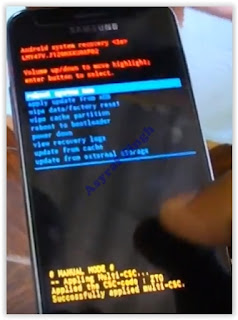
Android System Recovery - Scroll down using Power Down button, and you can select "wipe data/factory reset" and confirm it using Power Button.
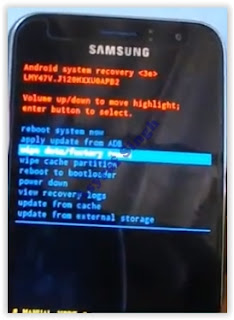
wipe data - Hard Reset - Then select "Yes ---Delete All User Data". use volume down button to choice menu, and again confirm it using Power Button. Please be ware, on this this step you will be lost everything stored on your phone. So, make sure to always backup all data before performing hard reset.

yes delete all user data - Now, wait the process untill you see data wipe complete appear on screen.
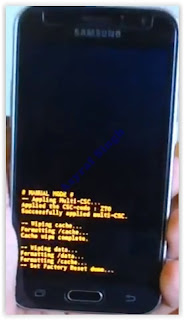
wipe data process - After a few minute hard reset process will finished, and your screen will be back to Android System recovery screen.
- Now, Select Reboot System Now to reboot your device.

Reboot System Now - You can wait a while for Samsung Galaxy A7 2016 to reboot system
- Done, your hard reset process success now.


Video Guide.
Available link for download
Saturday, March 18, 2017
Guide Hard Reset Samsung Galaxy J1 2016 To Restore Factory Setting Remove Forgot Pattern PIN Password
Guide Hard Reset Samsung Galaxy J1 2016 To Restore Factory Setting Remove Forgot Pattern PIN Password
[Guide] Hard Reset Samsung Galaxy J1 2016 To Restore Factory Setting & Remove Forgot Pattern/PIN/Password.
Hard Reset Samsung Galaxy J1 2016. Samsung Galaxy J1 2016 has this version (J120F (Global); J120H, J120M, J120M, J120T), and this Android Smartphone Also known as Samsung Galaxy J1 (2016) Duos with dual-SIM card slots. This device is released on January, 2016. And todays guidebelajar will explain to you how to perform hard reset on Samsung Galaxy J1 2016 smartphone. Please keep in mind, this tutorial will erase all data saved on your internal memory. Samsung Galaxy J1 2016 is the smartphone with 4,5 Inchi Super AMOLED capacitive touchscreen, 16M colors, work on Android OS, v5.1.1 (Lollipop), and supported with Processor Quad-core 1.3 GHz Cortex-A7, Exynos 3475 Quad chipset, Mali-T720 GPU, combined with 1 GB of RAM, 5 MP on primary camera and 2 MP on secondary camera to capture best moment and make a selfie on your life.
Most of Android user say that Hard reset process is call with master reset or factory reset. Many people asking why shoud we perform hard reset to our phone. The logical answer that can I say for this asking is :
Most of Android user say that Hard reset process is call with master reset or factory reset. Many people asking why shoud we perform hard reset to our phone. The logical answer that can I say for this asking is :
- There are many bug on Samsung Galaxy J1 2016.
- Samsung Galaxy J1 2016 has a persistent problem that cannot be solved.
- Because we will sell our Samsung Galaxy J1 2016 Android phones
- We want to remove all personal data and setting that was stored in Samsung Galaxy J1 2016.device.
- Our Samsung Galaxy J1 2016 has been lagging and stuck on android logo, this call with bootloop
- We have forgotten on PIN or Patern Lock at Samsung Galaxy J1 2016.
- We will give our Samsung Galaxy J1 2016 away to some one else, and we dont want that one know everything about our secret data, so we have to erase all data before back up it.
- and many other reason.
1st Methode. Hard Reset Samsung Galaxy J1 2016 Using Menu :
- Make sure your batery is fully charged, Recomended you have 80% of battery capacity
- Then Backup your Samsung Galaxy J1 2016. See This Guide
- Go to menu: System Setting >
- Select Backup and Reset >
- Factory Data Reset >
- Reset Phone
- Choose Erase everything to confirm that you already to perform hard reset on Samsung Galaxy J1 2016
- Samsung Galaxy J1 2016 will continue to hard reset process to restore factory default.
2ndMethode. Hard Reset Samsung Galaxy J1 2016 Using Hardware Keys:
- Make sure your battery is fully charged, we recomended that your battery has 80% power
- Always BackUp your important data that store in Samsung Galaxy J1 2016. see this guide
- Turn Off your Samsung Galaxy J1 2016 by hold and press Power Button for a second.
- Release any SIM card and SD card that was installed on your Samsung Galaxy J1 2016 smartphone.
- Then press and hold together a combination button Volume Up + Home Button + Power button at same time for a seconds.
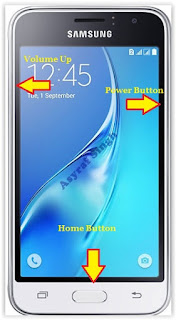
Hard Reset Samsung Galaxy J1 2016 - Then you will see Samsung Galaxy J7 Logo. On this step release Power Button only, while keep holding Volume Up and Home Button.
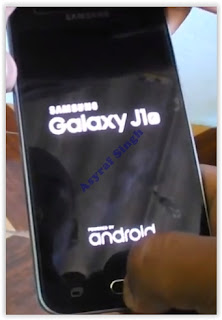
Samsung Galaxy J1 2016 Logo - When Android Logo appear on your screen. You must release all button.
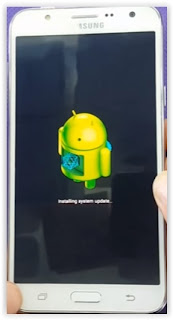
Android Logo - hard reset samsung galaxy J1 2016 - And now you will enter, Android System Recovery.
Android System Recovery - Scroll down using Power Down button, and you can select "wipe data/factory reset" and confirm it using Power Button.
wipe data - Hard Reset - Then select "Yes ---Delete All User Data". use volume down button to choice menu, and again confirm it using Power Button. Please be ware, on this this step you will be lost everything stored on your phone. So, make sure to always backup all data before performing hard reset.
yes delete all user data - Now, wait the process untill you see data wipe complete appear on screen.
wipe data process - After a few minute hard reset process will finished, and your screen will be back to Android System recovery screen.
- Now, Select Reboot System Now to reboot your device.
Reboot System Now - You can wait a while for Samsung Galaxy J1 2016 to reboot system
- Done, your hard reset process success now.


Video Guide.
Available link for download
Monday, March 13, 2017
Guide Hard Reset Samsung Galaxy J7 FOR METRO PCS T MOBILE To Restore Factory Setting Remove Forgot Pattern PIN Password
Guide Hard Reset Samsung Galaxy J7 FOR METRO PCS T MOBILE To Restore Factory Setting Remove Forgot Pattern PIN Password
[Guide] Hard Reset Samsung Galaxy J7 FOR METRO PCS / T-MOBILE To Restore Factory Setting & Remove Forgot Pattern/PIN/Password.
Hard Reset Samsung Galaxy J7 FOR METRO PCS / T-MOBILE. This device is released on April, 2016. And todays guidebelajar will explain to you how to perform hard reset on Samsung Galaxy J7 FOR METRO PCS / T-MOBILE smartphone. Please keep in mind, this tutorial will erase all data saved on your internal memory. Samsung Galaxy J7 FOR METRO PCS / T-MOBILE is the smartphone with 5,5 Inchi Super AMOLED capacitive touchscreen, 16M colors, work on Android OS, v5.1 (Lollipop), and supported with Processor Octa-core 1.6 GHz, combined with 2 GB of RAM, 13 MP on primary camera and 5 MP on secondary camera to capture best moment and make a selfie on your life.
Most of Android user say that Hard reset process is call with master reset or factory reset. Many people asking why shoud we perform hard reset to our phone. The logical answer that can I say for this asking is :
Most of Android user say that Hard reset process is call with master reset or factory reset. Many people asking why shoud we perform hard reset to our phone. The logical answer that can I say for this asking is :
- There are many bug on Samsung Galaxy J7 FOR METRO PCS / T-MOBILE.
- Samsung Galaxy J7 FOR METRO PCS / T-MOBILE has a persistent problem that cannot be solved.
- Because we will sell our Samsung Galaxy J7 FOR METRO PCS / T-MOBILE Android phones
- We want to remove all personal data and setting that was stored in Samsung Galaxy J7 FOR METRO PCS / T-MOBILE.device.
- Our Samsung Galaxy J7 FOR METRO PCS / T-MOBILE has been lagging and stuck on android logo, this call with bootloop
- We have forgotten on PIN or Patern Lock at Samsung Galaxy J7 FOR METRO PCS / T-MOBILE.
- We will give our Samsung Galaxy J7 FOR METRO PCS / T-MOBILE away to some one else, and we dont want that one know everything about our secret data, so we have to erase all data before back up it.
- and many other reason.
1st Methode. Hard Reset Samsung Galaxy J7 FOR METRO PCS / T-MOBILE Using Menu :
- Make sure your batery is fully charged, Recomended you have 80% of battery capacity
- Then Backup your Samsung Galaxy J7 FOR METRO PCS / T-MOBILE. See This Guide
- Go to menu: System Setting >
- Select Backup and Reset >
- Factory Data Reset >
- Reset Phone
- Choose Erase everything to confirm that you already to perform hard reset on Samsung Galaxy J7 FOR METRO PCS / T-MOBILE
- Samsung Galaxy J7 FOR METRO PCS / T-MOBILE will continue to hard reset process to restore factory default.
2ndMethode. Hard Reset Samsung Galaxy J7 FOR METRO PCS / T-MOBILE Using Hardware Keys:
- Make sure your battery is fully charged, we recomended that your battery has 80% power
- Always BackUp your important data that store in Samsung Galaxy J7 FOR METRO PCS / T-MOBILE. see this guide
- Turn Off your Samsung Galaxy J7 FOR METRO PCS / T-MOBILE by hold and press Power Button for a second.
- Release any SIM card and SD card that was installed on your Samsung Galaxy J7 FOR METRO PCS / T-MOBILE smartphone.
- Then press and hold together a combination button Volume Up + Home Button + Power button at same time for a seconds.
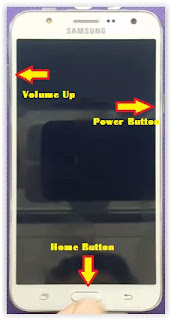
Hard Reset Samsung Galaxy J7 FOR METRO PCS / T-MOBILE - Then you will see Samsung Galaxy J7 Logo.
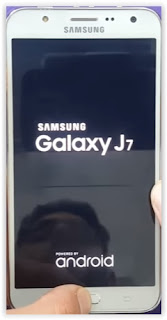
Samsung Galaxy J7 FOR METRO PCS / T-MOBILE Logo - When Android Logo appear on your screen. You must release all button.
Android Logo - hard reset samsung galaxy J7 for METRO PCS / T-Mobile - And now you will enter, Android System Recovery.
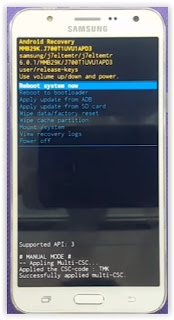
Android System Recovery - Scroll down using Power Down button, and you can select "wipe data/factory reset" and confirm it using Power Button.
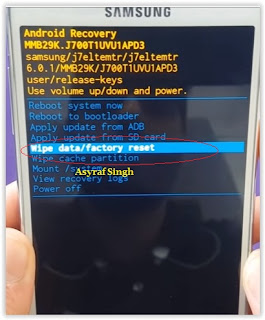
wipe data - Hard Reset - Then select "Yes". use volume down button to choice menu, and again confirm it using Power Button. Please be ware, on this this step you will be lost everything stored on your phone. So, make sure to always backup all data before performing hard reset.

- Now, wait the process untill you see data wipe complete appear on screen.

wipe data process - After a few minute hard reset process will finished, and your screen will be back to Android System recovery screen.
- Now, Select Reboot System Now to reboot your device.

Reboot System Now - You can wait a while for Samsung Galaxy J7 FOR METRO PCS / T-MOBILE to reboot system
- Done, your hard reset process success now.


Video Guide.
Available link for download
Subscribe to:
Posts (Atom)