Wednesday, April 12, 2017
How to HTC 10 S OFF Download Recovery
How to HTC 10 S OFF Download Recovery
How to HTC 10 S OFF Download Recovery
Unofficial Support site All Mobile Solution
Here is a step-by-step manual how to S-OFF your HTC 10:1. First step is to unlock bootloader:
a) If bootloader unlock is turned off on your phone, you need to turn it on first:
- Boot to Android OS and perform initial setup if necessary
- Go to Menu -> Developer settings and tick "Enable OEM unlock"
Run XTC 2 Tool and open "Bootloader unlock" tab, follow instructions to unlock your bootloader.
2. Reboot to download mode, open "HTC 10" tab and install twrp recovery, you can get it here:
Download twrp-3.0.2-5-pme.img
or
twrp-3.0.2-5-pme.img
3. Boot to Bootloader, and press "Reboot to recovery".
4. In "HTC 10" tab press "Do S-OFF button".
5. Wait for the process to finish. Done.
For More Information
Available link for download

Monday, April 3, 2017
How to Set Password on HTC One M7
How to Set Password on HTC One M7

If you feel embarrassed to orally warn other people not to use your HTC One M7 phone, you can set a password to it so as to euphemistically imply your idea. And the following steps can help you quickly set a password on your phone.
- How to Set Password on HTC One M8
- Android USB Drivers for HTC
- Restore Deleted SMS on HTC One Mini Android Phone
Available link for download
Thursday, March 30, 2017
How to Flash or Upgrade HTC Desire 620G dual sim with SP Flash tool tested
How to Flash or Upgrade HTC Desire 620G dual sim with SP Flash tool tested
Must read users:
This tutorial tested by me without any error but remember here some impotent question for successfully done with this tutorial, must be working device sub socket, must be working micro usb cable, must be working volume up or down keys for boot device, must be working computer or laptop usb socket, this tutorial you can use without any box its simple.
Required for HTC Desire 620G
- HTC Desire 620G dual Sim with good battery charged, it to be 80% up, and do not try with low battery
- HTC Desire 620G dual Sim tested Stock ROM Firmware | Download Mirror | Mirror
- HTC Desire 620G dual Sim USB (Flashing) Driver | Download here
- HTC Desire 620G dual Sim Flash tool | Download here
- Quality Micro USB Cable
- Computer or Laptop
Procedure for HTC Desire 620G
- First take files from above link which required for Flash or Upgrade, if link not working just leave your comment on below comment box
- Extract to Desktop or As you like path from the WinZip, Must be installed WinZip software in your computer or laptop
- Open SP Flash tool folder and choose flash_tool.exe file and open it
- Click on Scatter-loading button and choose MT6592_Android_scatter.txt file and click OK
- Now click on Download button and Just Insert Micro USB Cable into device after auto installing driver if installed in your computer or laptop
- If device not detect so just Press and hold Volume Up key and Insert USB cable into device
- If driver not take device after installed so just update Driver which above links from the device manager
- After updated flashing star automatically and wait until finished process, do not try to unplug device which in flashing
- You are done, Congratulation

Available link for download
Monday, February 20, 2017
How to Set Password on HTC Butterfly S
How to Set Password on HTC Butterfly S

Setting a password to your HTC Butterfly S phone will lesson your anxiety that anyone else can browse and even use the private and important data for improper purposes once he or she gets your phone. And the steps to set password on HTC Butterfly S phone are illustrated as follows.
Related Articles:
- Android USB Drivers for HTC
- Restore Deleted SMS on HTC One Mini Android Phone
- How to Set Password on HTC One M8
- How to Set Password on HTC One Max
- How to Set Password on HTC One X/One X+
Available link for download
Tuesday, January 31, 2017
How to Set Password on HTC One M8
How to Set Password on HTC One M8
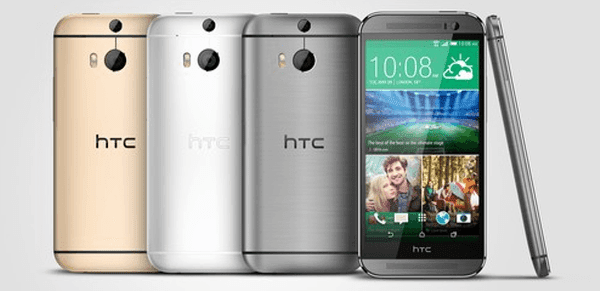
The method to set a password in HTC One M8 phoneis further illustrated by the following steps.
Related Articles:
- Android USB Drivers for HTC
- How to Get Back Deleted Text Messages on HTC Desire Phone
Available link for download
Friday, December 23, 2016
How to Get Back Deleted Text Messages on HTC Desire Android Phone
How to Get Back Deleted Text Messages on HTC Desire Android Phone
What do you do if you removed text messages of importance from your HTC Desire Android phone by accident? Giving them up and avoiding the same error can be your choice, but not the best one. Why don’t you try to seek out a method to get them back? If you are at your wits end, you can ask the help from Android phone data recovery apps of various kinds. And in this text, you can find how to use an Android phone contacts and text messages restore app named iSunshare Android Data Genius to get back the deleted text messages on HTC Desire-series Android phone.
In the first place, connect the HTC Desire Android phone to a computer through USB data line, and turn on the USB debugging mode in the phone.
Tips: If you are inquisitive about the method to open the USB debugging in HTC Android phone, you can try one of the ways in the following.
1. SettingsApplicationsDevelopmentUSB debugging
2. SettingsDeveloper optionsUSB debugging
Suppose you cannot find Developer options, after entering Settings, you can choose About phone, locate and tap Build number continuously until the developer mode is enabled, go back to Settings and you will see that Developer options turn up.
In the second place, install HTC phone driver and root the phone on the computer.
If the computer cannot detect your phone or you are unable to open phone data in it, you have to install a phone driver first. FYI, you can download “HTC_Android_USB_Driver.exe” which is a commonly-used HTC Android phone driver and have it installed. Additionally, root your phone by root software. If not, you cannot apply any phone data recovery app to get back your deleted short messages.
In the third place, download the cost-free version of the app mentioned before and accomplish its setup in the computer.
In the fourth place, wait for the app to scan and find the text messages in your phone.
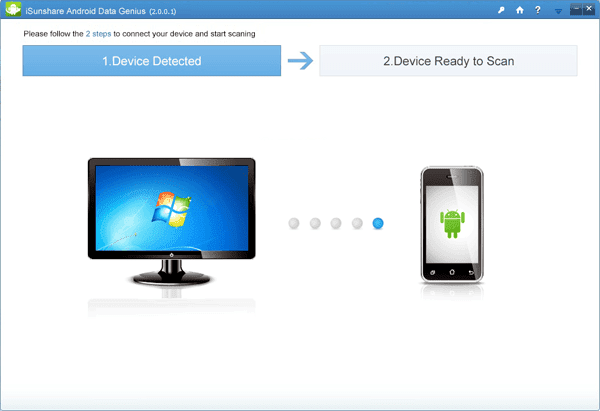
After its installation, this app will open by itself, so what you need to do is waiting for it to detect your phone and scan the short messages in the phone, as exhibited in the picture below.
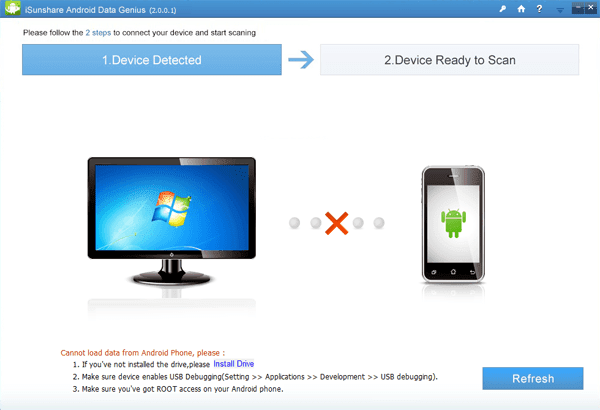
Note: If the preceding procedures are not well-prepared, the app will fail to detect the HTC phone and scan its short messages (see following photo).
In the fifth place, get the deleted text messages back by recovering them from the software.
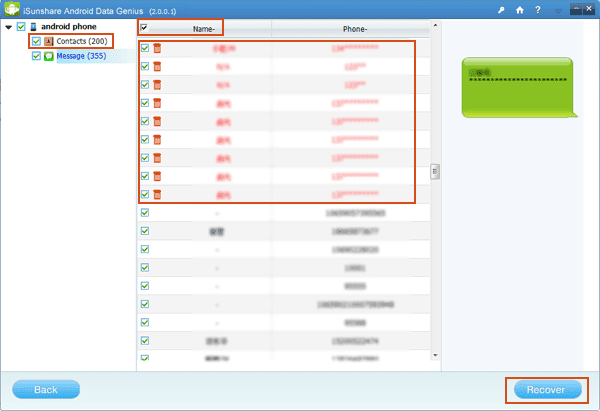
Unselect Contacts to cancel this default selection, uncheck the box before Name so as not to choose all of the text messages (the deleted and the existing included), select those items from the deleted in red character and then tap Recover button to save them in the computer.
With this method in your mind, you can be worry-free when you remove significant text messages from your HTC Desire Android phone or Android phone of another brand. Hopefully, no same mistake will be made.
Related article:
Android USB Drivers for HTC
Available link for download
Sunday, November 20, 2016
How to Set Password on HTC Desire 816
How to Set Password on HTC Desire 816
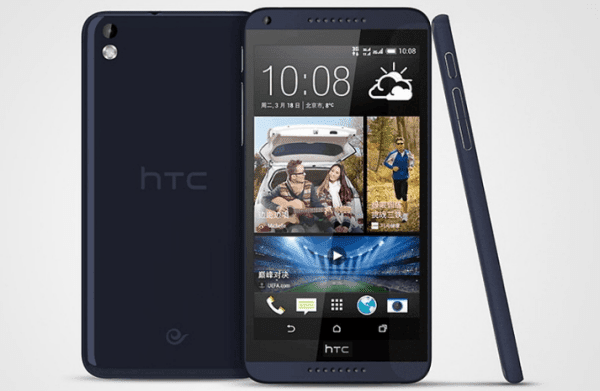
No matter it is a pattern lock, PIN lock or password lock, it is the first line of defense you can set up to prevent other people from checking or stealing the data in your HTC Desire 816 phone. If you have no idea how to set any of the locks mentioned, this post will introduce the steps to set a password for your reference.
Related Articles:
- How to Get Back Deleted Text Messages on HTC Desire Phone
- Android USB Drivers for HTC
- How to Set Password on HTC One X/One X+
- How to Set Password on HTC One M8
- How to Set Password on HTC One Max
Available link for download
Saturday, November 19, 2016
How to Set Password on HTC C7 K7 9p017
How to Set Password on HTC C7 K7 9p017
Related Articles:
- Android USB Drivers for HTC
- How to Set Password on HTC One M8
- How to Set Password on HTC One Max
- How to Set Password on HTC One X/One X+
- How to Get Back Deleted Text Messages on HTC Desire Phone
Available link for download
Saturday, October 29, 2016
How to Set Password on HTC Windows Phone 8X
How to Set Password on HTC Windows Phone 8X
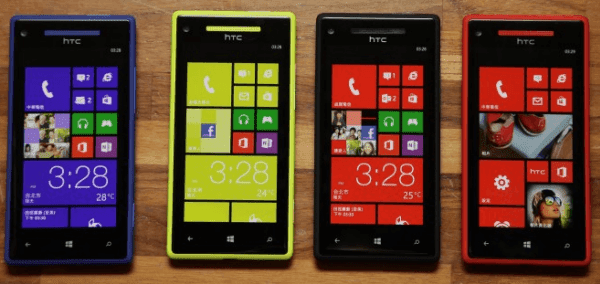
To protect the personal information in your HTC Windows Phone 8X phone, you are strongly recommended to set a password to it by referring to the procedures illustrated below.
Related Articles:
- Android USB Drivers for HTC
- Restore Deleted SMS on HTC One Mini Android Phone
- How to Set Password on HTC One M8
- How to Set Password on HTC One Max
- How to Set Password on HTC Butterfly S
Available link for download
Wednesday, October 26, 2016
How to Set Password on HTC One Max
How to Set Password on HTC One Max
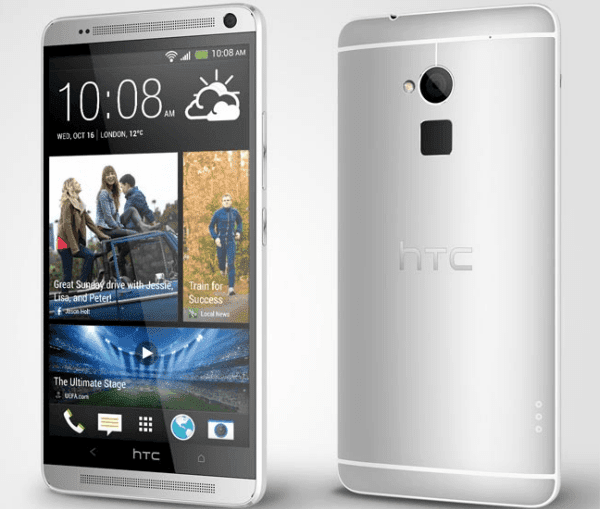
Have no idea where the password setting is in your HTC One Max phone? Just follow the steps below to find it and set a password independently.
Related Articles:
- How to Set Password on HTC One M8
- How to Set Password on HTC One M7
- Android USB Drivers for HTC
- Restore Deleted SMS on HTC One Mini Android Phone
Available link for download
Monday, October 17, 2016
How to Set Password on HTC One X One X
How to Set Password on HTC One X One X

More and more users have been aware of the significance of setting a password to protect the data in their HTC One X/One X+ phones, but not all of them know the practical method to create password. Hence, this post will list the concrete steps in detail.
Related Articles:
- Android USB Drivers for HTC
- How to Get Back Deleted Text Messages on HTC Desire Android Phone
- How to Set Password on HTC One Max
- How to Set Password on HTC One M8
- How to Set Password on HTC One M7
Available link for download