Showing posts with label easily. Show all posts
Showing posts with label easily. Show all posts
Friday, April 7, 2017
How To Easily Create AppFolders In GNOME Shell Using GNOME AppFolders Manager Or GNOME Software
How To Easily Create AppFolders In GNOME Shell Using GNOME AppFolders Manager Or GNOME Software
By default, the GNOME (Shell) overview displays applications in two views: "all", where all the applications are listed in alphabetic order, and "frequent", in which the frequently used applications are displayed.
GNOME Shell supports grouping applications in app folders, and there are two such predefined folders, "Utilities" and "Sundry". Some might not know how to create custom app folders, so here are two ways of achieving this.
Create and edit GNOME Shell app folders with GNOME AppFolders Manager
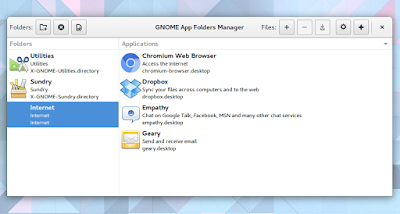
GNOME AppFolders Manager is a tool to create and edit app folders in GNOME Shell.
The application is fairly easy to use - in the left section, you can create, delete or edit app folders, while in the right section you can add (or remove) applications to app folders.
Once youve added the applications you want to an app folder, click the save button. Thats it! Heres a custom GNOME application folder I created using GNOME AppFolders Manager:
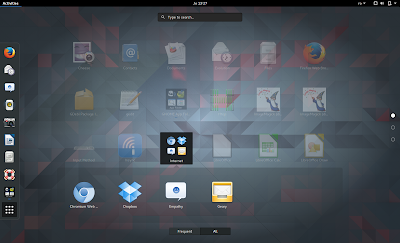
To install GNOME AppFolders Manager in Ubuntu GNOME 16.04, 15.10 or 15.04 (the app requires GNOME 3.12+, while Ubuntu 14.04 uses GNOME 3.10), you can use the main WebUpd8 PPA. Add the PPA and install the app using the following commands:
sudo add-apt-repository ppa:nilarimogard/webupd8
sudo apt update
sudo apt install gnome-appfolders-manager
Arch Linux users can install GNOME AppFolders Manager via AUR.
For other Linux distributions, see the application installation page.
Report any bugs you may find @ GitHub.
Add applications to app folders using GNOME Software
Note that in my test, the instructions below did not work in Ubuntu 16.04 with GNOME 3.18 and GNOME Software 3.20 (no error was displayed, the appfolder simply wasnt created). It didnt work in Fedora 24 with GNOME 3.20 either, but it did work in Fedora 22 with GNOME 3.16.
Also, GNOME Software is not available in the official repositories for Ubuntu versions older than 16.04. So for Ubuntu and for GNOME versions in which this functionality is broken, use GNOME AppFolders Manager.
Also, GNOME Software is not available in the official repositories for Ubuntu versions older than 16.04. So for Ubuntu and for GNOME versions in which this functionality is broken, use GNOME AppFolders Manager.
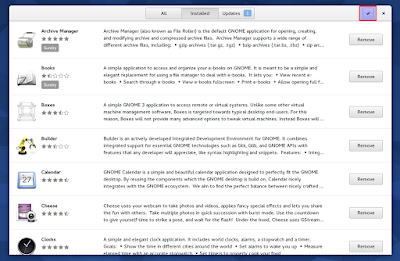
If youre using GNOME Software, you can easily add applications to app folders and create new app folders. To do this, launch GNOME Software, switch to the "Installed" tab and click the select button (top right):
Then, select the applications you want to add to a folder and click "Add to Folder":
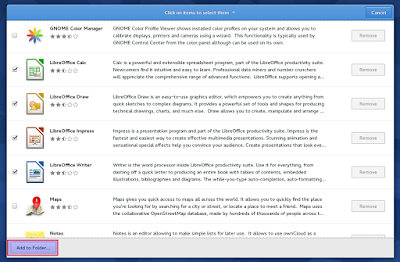
And finally, simply select the app folder you want to add the applications to, or click "+" to add a new app folder, and click "Add":

In the same way, you can also remove or move applications from app folders.
Heres the result:


Available link for download

Tuesday, January 31, 2017
How to Easily Download APK files from Google Play on PC
How to Easily Download APK files from Google Play on PC

By default Google Play will not allow you to download apk files from Play Store on your PC. But thanks to an Android app Developer, Evozi, who has made a one-click online APK download app that will allow you to easily download the APK file of any Android app that’s listed on the Google Play store. You can access the Downloader at apps.evozi.com.
To get started just visit apps.evozi.com and after that there you have to enter the web URL of the app which you want to download from Google Play and click on the “Generated Download Link” button. After that the Downloader will fetch the required APK file from Google Play stores and will give you the download link to download the file.
Note that, this app will only download those apps which are available free of cost on Google Play Store.
Available link for download
Monday, January 30, 2017
How to easily update firmware via OTA on Leagoo Z1 smartphone
How to easily update firmware via OTA on Leagoo Z1 smartphone

A few days ago the Leagoo Z1 smartphone users received a new OTA update, which is very good news, it means that the developers team working hard to offer to the users the best experience. Here you can read about the Leagoo Z1 smartphone First Impressions & Quick Review andd here about the unboxing of this device.
Firmware details
OTA? LEAGOO_Z1_OS_1.1_Lite_A_20160517
Size: 17.80 MB
Firmware: Android Lollipop 5.1 OTA update
Image: update.zip
Old build number: LEAGOO Z1_OS 1.1 Lite A 20160513
New build number: LEAGOO Z1_OS 1.1 Lite A 20160517
Change log
1. Fixed bugs and improved device performance.
Firmware details
OTA? LEAGOO_Z1_OS_1.1_Lite_A_20160517
Size: 17.80 MB
Firmware: Android Lollipop 5.1 OTA update
Image: update.zip
Model: Leagoo Z1 smartphone
Platform: Mediatek MT6580Old build number: LEAGOO Z1_OS 1.1 Lite A 20160513
New build number: LEAGOO Z1_OS 1.1 Lite A 20160517
Change log
1. Fixed bugs and improved device performance.
Install Guide
Search the new OTA update firmware from Settings menu, download it and install it. The device will reboot and enter into Recovery Mode. The whole process will take a few minutes, please make sure the battery power is enough.

Caution: Please do not update firmware unless you know what you are doing, you really want it or it is absolutely necessary. Firmware updates may occasionally have bad results, like bricking your device, temporarily or permanently. The firmware update process is done entirely at your own risk. Before attempting to update the firmware, back up your data.
Don’t miss any of our future video tutorials, follow us on Youtube. Like us on Facebook. Add us in your circles on Google+. Watch our photo albums on Flickr. Subscribe now to our newsletter. Biggest firmware download center.
Available link for download
Friday, December 30, 2016
How To Easily Access WiFi Mobile Data Bluetooth GPS Like Toggles Setting Screen in Samsung Stock ROMS
How To Easily Access WiFi Mobile Data Bluetooth GPS Like Toggles Setting Screen in Samsung Stock ROMS

For example if we want to receive files via Bluetooth we need to change the visibility settings if the device not paired. In this case, we can access the Bluetooth visibility settings by long pressing the Bluetooth toggle button. The feature may familiar to many Samsung users. But still its worth writing here if its helpful for any new user.
This feature is tested on TouchWiz Nature UX version dont know if its available in older TouchWiz version.
Method:
Long Press on the corresponding Toggle to access the settings screen.
Available link for download
Subscribe to:
Posts (Atom)