Monday, April 10, 2017
How to create a RESUME
How to create a RESUME
1. Start by making a list of all the jobs you had and the dates. Dont leave anything out. Include jobs, awards, educational degrees, skills, personal projects: anything that would be impressive and/or interesting to anyone (even if not impressive or interesting to everyone). Even after your resume is finished, maintain this list. That way, you dont have to revisit those portions year after year. Organize your list by category.
2. Tailor your list to the position youre applying for (this will require a bit of research). Trim out each item that is not directly relevant to the job and add on two or three sentences explaining the relevance of each item. Whenever possible, list your experience in terms of accomplishments and achievements rather than tasks and responsibilities. Show your success. You may end up with many different versions of your resume, each one emphasizing a different set of skills.
3. Consider stating your objective. Again, keep this short and to the point, a single sentence. Personalize it to the position. Make sure your objective doesnt contradict the position you are applying for. Many employers will ignore an objective; so if it doesnt add something to the resume, dont include it.
4. Its time to format. Mind the look and feel of your resume. It should have clean lines and be easy to read. Make it two pages max, and only one page if youre just out of school - if you have more to share, save it for the interview. The font should be 10-13, no smaller, no bigger, but you should be able to read it well when you print it out. Black and white is best unless youre emphasizing your artistic or publishing skills (and even then be careful and tasteful). Keep the format neat and organized.
5. Include an address, phone number and email address. But, do not include an email that shows you shouldnt be taken seriously, such as beerandboys@email.com. Dont use your current employers name, number or email, either. If necessary, get an extra email address with a professional name that you can use for job searches.
6. Proofread, proofread and proofread again. Have a friend or professional that you trust proofread. Have an enemy proofread. Have a stranger proofread. Then proof again! Take criticism well and remember that just because someone suggests something doesnt mean you have to make the change. Dont boast about written communication skills with a typo.
7. Toot your own horn, but be careful. There is a fine line between arrogance and confidence. Try not to cross that line.
8. Follow directions. This is a huge indicator of responsibility to a hiring manager. If the ad says "no calls please," then dont call! If the job description asks you to provide your salary history, then you will probably want to include that information in your resume. However, this is not an absolute: it may limit your negotiating power to get the best possible salary.
Tips
* The point of a resume is not to get the job, its to get the interview. Focus on your best accomplishments. Focus on things youve accomplished so that whoever reads the resume will think, "I want to find out more about how this person did that."
* Be consistent! Format each entry in your resume in the same way.
* Include an Executive Summary. Many (most?) resumes only get a brief look-through (there may well be 40 applicants for one job). Sometimes, just five or ten seconds is spent scanning through on each one. Therefore,consider including an Executive Summary as the very first thing the employer sees. This will be a concise (3-5 line) note on your education, experience, and abilities. Label this prominently (in a contrasting colour).
* Dont over-qualify yourself for a position. Give enough information for interest and save the "wow" factor for the interview. Write the resume for the position you are applying for without altering the truth.
* Dont go overboard with your attachments! Dont attach 6 letters of recommendation, your diploma, your birth certificate, and your CPR and fitness certifications. Indicate your current certifications and be prepared to give references upon request.
* If you list your references in your resume (which many employers request anyway), be sure you have their permission to list them.
* If youre just out of school put your educational details in before your employment details, with the most recent first on both of them. If youve been out of school for more than a year, or you have significant job credentials then list past employment and accomplishments first.
* Consider leading with your strong suit, whether it be education, skills, work or volunteer experience. The idea is to showcase your strengths and minimize your weaknesses.
* Detail your duties within each position but dont go overboard. Accomplishments are more impressive than duties. "Cut expenses by 25% over six months while maintaining historic revenue levels," is more impressive than, "Was responsible for a $500,000 budget." The latter says, "I did this," the former says, "I did this and I can do it for you."
* Highlight your expertise in any particular skills that will impress the interviewer, such as software programs, foreign languages, customer service, or anything else that might be relevant to the job.
* Listing personal hobbies is optional (and can make you look well-rounded), but make sure they are sending the right impression. You may be proud of your skateboarding prowess, but the employer will probably be more impressed with your Toastmasters International speaking experience.
* Quantify your accomplishments, if possible, by applying specific numbers to your successes. For instance, if you streamlined the flow of work for your department, define how much time it saved the company over a period of, say, 4 months. Time is money.
* Think hard about what youve done and what youve accomplished. Many people are somewhat shy and modest about what they have done on the job. Dont be! For instance, instead of saying "answered phones," say "answered multi-line phone and routed calls for an office of 43 people." The example here shows the prospective employer the volume of work youve handled and the complexity of the equipment.
* Consider double submissions: Send one application to Human Resources, another to the most applicable ranking officer (research and find out who that is). HR clerks have been known to disqualify resumes on a technicality, while it may catch the (less bureaucratically inclined) officers eye.
* If possible, keep the resume for a day or two before reading it again. You may think of something else you want to add before submitting it to prospective employers.
* Write a cover letter that is short, sweet and to the point (and specifically written for the job youre applying for). If at all possible, do not write more than a page-long cover letter (make sure, though, that you include everything the employer asks for). Try and remember that the person reading it is probably looking at hundreds of resumes. Address logical questions in your cover letter. If youre applying for a position in California but your resume has a New York address, explain why. If you dont, the reader will probably trash the resume (unless the company is ready and willing to pay for a relocation package).
* Keep your layout simple. For example, dont use too many type fonts, two or three at most. Sans-serif fonts are best for headers, serif fonts are best for listing the details. White space is free and makes for easier reading. Be very careful in using colour (except very occasionally and for emphasis). Make it easy for the employer to find the information he wants.
* Backup your resume, on a USB, hard-copy, or even in the draft folder of your email.
* Do not pad your resume. This may be illegal, and, if discovered, may well cost you the job, if not immediately, then months or even years later.
* Do not include irrelevant personal information. This includes age, religion, political affiliation, race, and similar (unless these are job-related).
* Be culturally aware. In some cultures it is customary to list your age, marital status, and family status, it is not common everywhere (such as in the US). If you think age is important, you can allude to it with the year you graduated college or high school. Otherwise, these dates arent necessary. Beware that, depending on the industry, you may face age discrimination if you graduated many years ago. For example, in creative industries, having graduated more than a few years ago may disqualify you from getting an interview for a junior position.
* Including a photograph? In some countries, or for certain jobs, this is expected. Elsewhere, it may be illegal for the employer to ask for one. It certainly personalizes your resume and adds visual appeal (assuming you dont make Quasimodo look handsome!)
* Fill-in-the-blank style resume builders are readily available, particularly on Microsoft word processors.
* Draft, re-draft, and revise again!
* Remember, the resume lands you the interview and the interview gets you the job!
Available link for download

Friday, April 7, 2017
How To Easily Create AppFolders In GNOME Shell Using GNOME AppFolders Manager Or GNOME Software
How To Easily Create AppFolders In GNOME Shell Using GNOME AppFolders Manager Or GNOME Software
Create and edit GNOME Shell app folders with GNOME AppFolders Manager
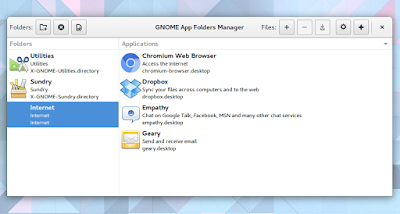
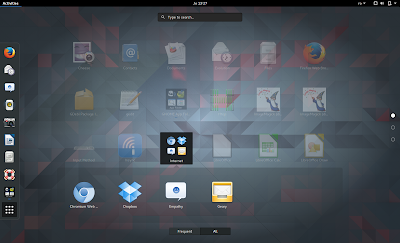
sudo add-apt-repository ppa:nilarimogard/webupd8
sudo apt update
sudo apt install gnome-appfolders-manager
Arch Linux users can install GNOME AppFolders Manager via AUR.
For other Linux distributions, see the application installation page.
Report any bugs you may find @ GitHub.
Add applications to app folders using GNOME Software
Also, GNOME Software is not available in the official repositories for Ubuntu versions older than 16.04. So for Ubuntu and for GNOME versions in which this functionality is broken, use GNOME AppFolders Manager.
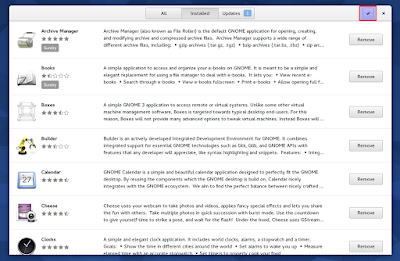
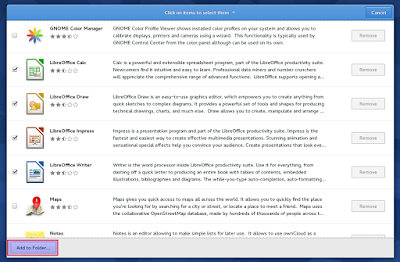

In the same way, you can also remove or move applications from app folders.
Heres the result:


Available link for download
Tuesday, March 7, 2017
How To Create Custom Redirects for Blogger Post
How To Create Custom Redirects for Blogger Post
 Yesterday i wrote a post on editing blogger post URL, and i was mentioned to write down the posts old URL before changing to a new one .Because, if the post you are decide to change the URL is an old one there is chance that the old URL may be indexed in search engine or in social website like Facebook or Twitter or GooglePlus. Because of that there is a chance to lose the visitor coming from those sites as the URL will give a does not exist error ! Here comes the importance of Custom Redirects.
 Custom Redirects will help us to redirect the user from those old URL to the new URL. This post describe the steps to create a Custom Redirect in Blogger. Just follow the steps below.
Steps:
1. Login to your Blogger account.
2. In your blogs dashboard , GO to Settings > Search Preferences

3. Click on Custom Redirects > Edit

4. Now you will get something like below image

5. Now Add the your posts Old URL to From textfield and add the posts new URL to To textfield.
( Dont add the full URL just add the the red marked part of the URL in the example below )
eg. http://technoxide.blogspot.com/2012/07/redirect-blogger-post.html
6. Click Save and Save Changes.
Update: [ Custom Redirect Mobile Version of Blogger URL ]
You also need to add the mobile version of the old URL to the custom redirect. add ?m=1 after the old post URL to get the mobile version.
eg: http://technoxide.blogspot.com/2012/07/redirect-blogger-post.html?m=1
Thats it ! Now navigate to your posts old URL it will automatically redirects to your posts new URL.
Available link for download
Saturday, February 25, 2017
How to Create Nameless Folder In Windows 8 7 Vista XP
How to Create Nameless Folder In Windows 8 7 Vista XP

Today i will tell you how to create a folder in your windows OS without any name.Just follow the steps below-
Steps-
1. First of all Create a New Folder.
2. Then Right Click on the New Folder and Select Rename Option (or press F2).
3. Now Erase the text ‘New Folder’.
4. Next Press and Hold the ALT Key and Type 255 (or 0141) from the NUMLOCK Keypad.
5. Leave the ALT Key and you are all done.You have successfully created a folder without name!
Friendly Tips- Make Sure that You are typing the Number with your NUMLOCK Keypad without using the numbers below the function keys .. :)
Available link for download
Monday, February 13, 2017
How to create a Snow Leopard USB installer – WITH PICTURES!
How to create a Snow Leopard USB installer – WITH PICTURES!
What you will need:
- A RETAIL copy of Snow Leopard
- A USB drive 8GB or larger
- A computer running OSX
- Meklorts Netbook Boot Maker 0.8.4 RC1
- MBR installation patch *** OPTIONAL ***
- Some time to kill (depending on your computer, this could take a LONG time)
You must have a flash drive that is at least 8 GB or larger. There is no way around it. Even if you follow a guide to trim down the installation to fit on a single layer DVD, there is no guarantee that the resulting disk image will even be bootable or work with Netbook Boot Maker, as its designed specifically to work with unmodified retail disks only. Not only that, but as I mentioned in my Windows 7 USB installer guide, very few USB drives are the actual size theyre advertised as. Some are as much as a few hundred MB smaller, especially if they have built in firmware virtual disks like a lot of Sandisk and Western Digital drives do. I actually used a 320 GB external USB hard drive which I also used to back up my files and it worked great, albeit somewhat slower than installing from flash memory media.
As I already mentioned, you NEED a computer running OSX to do any part of this guide. There is no way around it. However, you only need to be running OSX 10.4 or higher, so even an old eMac could technically do the job. A hackintosh, a buddys Macbook or even OSX running in a virtual machine (provided your virtual machine has USB access) will work. And before you even bother asking, NO!!!!! There is no way to do this using Linux or Windows. Transmac, Mac Drive, paragon HFS+ drivers or any other program will not help you. You need to be booted into OSX. Period.
1. Boot into OSX and pop your Snow Leopard disk into the DVD drive.
2. Open Disk Utility
3. click on the OSX install DVD and then click on File > New > Image from “OSX Install DVD”


1. Click on Images > Scan Image for Restore.
2. Once its done scanning, click on the disk image and click on the "restore" tab.
3. Drag and drop the disk image onto the Source field and drag and drop the USB drive onto the Destination field.
4. When prompted, click on Erase to restore the OSX install DVD image onto the USB drive.

Part 3: Prepare the USB drive for installing on non Apple hardware
The Netbook Boot Maker can be downloaded from here:
http://code.google.com/p/netbook-installer/downloads/list
Among other things, It provides a collection of .kexts that are patched specifically for netbook hardware. It also installs a specially modified version of Chameleon Boot Loader which patches things like the vanilla kernel to allow booting on unsupported hardware and the graphics kexts to display in the proper resolution (1024x600 native resolution). Although the Netbook Boot Maker and Netbook Installer are designed to work specifically on only a few netbooks -- most notably the HP Mini 9, Mini 10V, MSI Wind U100 and the Lenovo S10 to name a few -- since almost all netbooks share similar hardware this should work to some extent on almost any Intel Atom based netbook.

1. With the USB drive plugged in to the computer, open the Netbook Boot Maker app.
2. It should automatically detect the location of your USB installer. Click on "Prepare Boot Drive". It will only take a few minutes. Once it completes, youre done! The next step is optional and only required if you need to install OSX on an MBR partitioned hard drive.
Part 4: Prepare OSX for installing on MBR drives
If you plan on running only OSX on your netbook, you do not need to worry about installing on an MBR partitioned drive. It is perfectly possible to install Windows or Linux on either GPT or MBR partitioned drives, but you will run into all sorts of issues with configuring boot loaders and it is simply more advisable to use MBR. Boot Camp does not work on non Mac computers, so you will run into all kinds of issues trying to get each operating system to boot. If you want to install OSX alongside an existing Windows install, you have to patch your install disk to work on MBR drives. If you plan on triple booting, forget about GUID entirely. Sure, it may be technologically superior to MBR but the world is not quite ready for widespread adoption of GPT just yet.
In this step you will patch your install disk to enable installing on an MBR partition. The instructions are version specific, meaning that each release of OSX requires a different patch. Ive done this process on 10.6.0 10A432 and 10.6.3 10D575 successfully.
Patch 10.6.0 Build 10A432
Download the patch from here:
http://www.kexts.com/view/224-osinstall_framework_for_10.6_mbr_installs.html
1. You will have to open a finder window as root and enable viewing hidden files. Open a terminal window and type the following commands
sudo -s
defaults write com.apple.Finder AppleShowAllFiles YES
killall Finder
/System/Library/CoreServices/Finder.app/Contents/MacOS/Finder
Then click on a blank space on the desktop and open a new Finder window. You should now be browsing with hidden files visible.
2. As root, navigate to
/Volumes/{your-usb-installer]/System/Library/PrivateFrameworks/Install.framework/Frameworks/OSInstall.framework/Versions/A/
3. Replace the OSInstall file with the one you downloaded. That is it!

Available link for download
Wednesday, February 1, 2017
How to Make More Secure Your Phone Some Useful Android Apps to Create Strong Passwords
How to Make More Secure Your Phone Some Useful Android Apps to Create Strong Passwords

Create Strong Passwords With These Free Apps
1. Passera

2. Password Creator

3. Random Password Generator

4. Hash It

Available link for download
Sunday, January 15, 2017
How to create jTable right click popup menu Java Swing GUI
How to create jTable right click popup menu Java Swing GUI
table_6.addMouseListener(new MouseAdapter() {
 @Override
 public void mouseReleased(MouseEvent e)
 {
 int r = table_6.rowAtPoint(e.getPoint());
 if (r >= 0 && r < table_6.getRowCount()) {
 table_6.setRowSelectionInterval(r, r);
 } else {
 table_6.clearSelection();
 }

 //row index is found...
 int rowindex = table_6.getSelectedRow();
 if (rowindex < 0)
 return;
 if (e.isPopupTrigger() && e.getComponent() instanceof JTable ) {
 JPopupMenu popup = createYourPopUp(rowindex,table_6);
 popup.show(e.getComponent(), e.getX(), e.getY());
 }
 }

});public static JPopupMenu createYourPopUp(int rowindex, JTable table_6)
{
JPopupMenu popup=new JPopupMenu();
JMenuItem edit=new JMenuItem("Edit Details");
JMenuItem delete=new JMenuItem("Delete Details");
edit.addActionListener(new ActionListener() {
@Override
public void actionPerformed(ActionEvent e) {
// TODO Auto-generated method stub
JOptionPane.showMessageDialog(null, "Edit scucessfuly");
}
});
delete.addActionListener(new ActionListener() {
@Override
public void actionPerformed(ActionEvent e) {
// TODO Auto-generated method stub
JOptionPane.showMessageDialog(null, "Delete scucessfuly");
}
});
popup.add(edit);
popup.add(delete);
return popup;
}


Available link for download
Thursday, January 12, 2017
How to Create This Eerie Floating Island Photo Manipulation in Photoshop
How to Create This Eerie Floating Island Photo Manipulation in Photoshop

What you’ll be creating

Step 1

Step 2

Step 3

Step 4

Step 5

Step 6

Step 7

Step 8

Step 9

Step 10

Step 11

Step 12

Step 13

Step 14
Step 15

Step 16

Step 17

Step 18

Step 19

Step 20
 Available link for download