Showing posts with label files. Show all posts
Showing posts with label files. Show all posts
Friday, February 17, 2017
How to Identify Files that don’t have an Extension
How to Identify Files that don’t have an Extension
 When we download files from torrents or other sites, sometimes the downloaded file may not have any extension. So windows cant identify the file type. To open the file we should know the extension.
 By Googling you will get many tools to identify the extension and file type. I am sharing a best tool that worked well for me. It is very small in size and very easy to use.
Download TrIDNet and XML Definition here
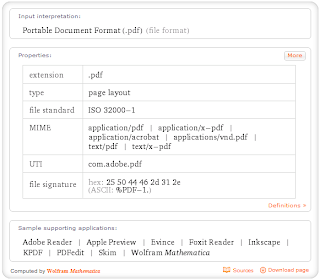
When you get the file extension if you want to know which software is required to preview that file.Just go to WolframAlpha Website and enter the extension with dot.for example if you want to know pdf enter .pdf ,now you will get something like below image.
Available link for download

Wednesday, February 15, 2017
How to copy android system files
How to copy android system files
Have you experienced copying system files, reboot and nothing happen? Unable to replace system files?
One major problem is you did not mount system folder to Read and Write!

After running Root Explorer and inside the system folder. Remember to click on the MOUNT R/W.
If you do not mount it to Read/Write you will not be able to copy new files.


Make sure Root Explorer allow in SuperUser! If not, you will not be able to access system files will full right.

REBOOT! New system file will only executed after reboot.
NOTE:
Make sure you rename existing system file to BAK before copying new file! Else you might end up asking around for original file :)
Available link for download
Tuesday, January 31, 2017
How to Easily Download APK files from Google Play on PC
How to Easily Download APK files from Google Play on PC

By default Google Play will not allow you to download apk files from Play Store on your PC. But thanks to an Android app Developer, Evozi, who has made a one-click online APK download app that will allow you to easily download the APK file of any Android app that’s listed on the Google Play store. You can access the Downloader at apps.evozi.com.
To get started just visit apps.evozi.com and after that there you have to enter the web URL of the app which you want to download from Google Play and click on the “Generated Download Link” button. After that the Downloader will fetch the required APK file from Google Play stores and will give you the download link to download the file.
Note that, this app will only download those apps which are available free of cost on Google Play Store.
Available link for download
Wednesday, January 25, 2017
GNOME Software Update That Fixes Installing Third Party Deb Files Lands In Ubuntu 16 04 Proposed Repository
GNOME Software Update That Fixes Installing Third Party Deb Files Lands In Ubuntu 16 04 Proposed Repository
A GNOME Software update that fixes the issue with installing third-party deb files was pushed to the Ubuntu 16.04 Proposed repository a few minutes ago.

Ubuntu 16.04 shipped with a pretty nasty bug (see here and here): GNOME Software (rebranded as Ubuntu Software in Ubuntu with Unity) doesnt allow installing third-party deb files, like Google Chrome, Google Talk Plugin, the Mega client and so on.
A fix for this has been pushed to the Ubuntu 16.04 Proposed repository and will be promoted into the main repositories once its tested.
- support for apt:// URLs;
- increased the number of displayed reviews from 10 to 30;
- GNOME Software now displays version and size information for non-installed applications;
- enabled the Snappy backend.
Those interested in testing the latest GNOME Software from the Proposed repository should see THIS page. Note that the Proposed repository is for testing purposes only and may introduce instability! Also, the option to enable the Proposed repository was moved to the "Developer Options" tab in Software & Updates in the latest Ubuntu 16.04.
Until the update is available in the main repositories, you can use GDebi GTK (or dpkg via command line) to install deb files. Check out our Things To Do After Installing Ubuntu 16.04 article for how to install and set GDebi GTK to open deb files, along with other tweaks.

Available link for download
Sunday, January 1, 2017
How To Download Files From Mega With Internet Download Manager
How To Download Files From Mega With Internet Download Manager

Langsung Saja Ke Pokok Permasalahan nya , Gimana Caranya Supaya Download Dari Files Host Mega Ke IDM/Internet Download Manager ?
Langkah-Langkah nya :
- Siapkan Link Download Dari Host Mega Drive nya , Lalu Anda Copy Link nya .
- Setelah Anda Copy Link Mega nya Anda Masuk Ke Sini!
- Setelah Anda Masuk Ke Link No 2 Terus Paste Link Yang Anda Copy Dari Mega Ke Kotak Dan Klik Generate Tunggu Hingga Link Hasil Generate Muncul, Jika Sudah Muncul Copy Link Hasil Generate Tersebut Dan Setelah itu Anda Buka IDM Dan Paste Kan Link Hasil Generate Tadi Ke Url IDM Selesai IDM Akan Secara otomatis Men-Download Files Tersebut.
Jika Anda Kurang Pahan Dengan Totorial Text Di Atas Anda Bisa Lihat Totorial Video Nya Di Bawah ini.
Trimakasih sudah menyaksikan video ini Salam Rantau021.
Englis Version
How To Download Files From Mega With Internet Download Manager .Just Jump Into Her Main Problem , How How In order Download From the Files Into Host Mega IDM / Internet Download Manager ?
Steps it:
- Prepare Link Download From Host Mega Drive it , then you Copy Link her .
- Once you Copy Link Mega Her Into Your Sign Here!
- Once you Log Into Link No. 2 Keep Paste Link That You Copy Of ??Mega To Box And Click Generate Wait Until Sponsored Results Generate Appear , If It Appears Copy Link Results Generate Such And Then You Open IDM And Paste Kan Sponsored Results Generate Tadi To Url Done IDM IDM Will automatically Download Download Files Such .
If you are less Pahan With Totorial Text Above You Can See His Video Totorial Under this .
Thank you to watch this video Salam Rantau021 .
Firmware Sony Xperia
- Firmare Sony Xperia E4g E2003 - New!
- Firmware Sony Ericsson Xperia X10 Mini Pro - New!
- Firmware Sony Xperi M C1905
- Firmware Sony Xperia C3 D2502 - New!
- Firmware Sony Xperia C3 D2533 - New!
- Firmware Sony Xperia C3 D2533 Part 2 - New!
- Firmware Sony Xperia C5 Ultra Dual E5563 - New!
- Firmware Sony Xperia E C1505
- Firmware Sony Xperia E4g Dual E2033 - New!
- Firmware Sony Xperia L C2105
- Firmware Sony Xperia M2 Aqua D2403
- Firmware Sony Xperia M2 Dual D2302
- Firmware Sony Xperia X Dual (F5122)
- Firmware Sony Xperia X F5121
- Firmware Sony Xperia X Ferformance F8131
- Firmware Sony Xperia XA F3111
- Firmware Sony Xperia XA Ultra F3211
- Firmware Sony Xperia Z C6602
- Firmware Sony Xperia Z1 C6902
- Firmware Sony Xperia Z1 Conpact D5503
- Firmware Sony Xperia Z2 D6502/L50W
- Firmware Sony Xperia Z2a D6563
- Firmware Sony Xperia Z3 Compact D5803
- Firmware Sony Xperia Z3+ Dual E6533
- Firmware Sony Xperia Z3/Z3V D6603
- Firmware Sony Xperia Z5 Compact E5803
- Firmware Sony Xperia Z5 E6603
- Firmware Sony Xperia ZL/ZQ C6502/C6503 - New!
- Firmware Sony Xperia ZR/A C5502/C5503/M36H - New!
- Firmware Xperia Z5 Premium Dual E6833
Available link for download
Sunday, December 11, 2016
How To Hide Files And Folders In Your File Manager Without Renaming Them Quick Tip
How To Hide Files And Folders In Your File Manager Without Renaming Them Quick Tip
Usually if you want to hide a file or folder so it doesnt show up in your file manager, you can rename it by adding a dot (".") at the beginning of the filename.
However, there are situations in which you may want to hide a file or folder without renaming it. For instance, some applications insist on creating a folder in the users home directory or in the Documents folder (and they cant be renamed) and so on. But I dont want these folders cluttered - I want to easily find what Im looking for.
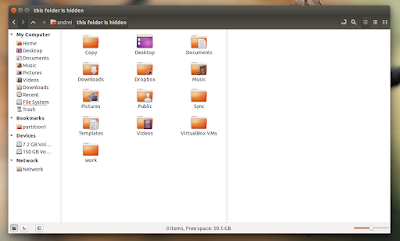
For such situations or whatever other reasons, theres another way of hiding files and folders (prevent them from showing up in the file manager only): you can create a file called ".hidden" (theres a dot in front of "hidden" so this is a hidden file!) and in this file, enter the name of the files and folders you want to hide, each on a separate line. Then, refresh the folder (press F5 or Ctrl + R) and those files or folders should no longer be visible in your file manager.
This should work (at least, it worked in my test) with the following file managers: Nautilus, Nemo, Caja, Thunar (Im not sure when this was introduced but I can tell you that it doesnt work with version 1.2.2 available in Xubuntu 12.04; it does work with versions 1.6.3 and newer) and Pantheon Files (from Freya only), but there might be others to support it.
Note: for Thunar youll need to navigate to a separate folder for the changes to be applied, refreshing isnt enough.
Heres an example: lets assume you have a folder called "FOLDER1" and a file call "FILE1" in your home directory and you want to hide both without renaming them. To do this, create a file called ".hidden" in your home directory and in this file, add the following two lines:
FOLDER1
FILE1
Then save the file and press F5 to refresh the home folder - "FOLDER1" and "FILE1" shouldnt be displayed any more.
Extra tip: HEREs a Nautilus extension which allows hiding files and folders using this method via the context menu.
Available link for download
Subscribe to:
Posts (Atom)