Showing posts with label installing. Show all posts
Showing posts with label installing. Show all posts
Wednesday, April 12, 2017
How To Get Chrome To Support Installing GNOME Shell Extensions From The GNOME Extensions Repository
How To Get Chrome To Support Installing GNOME Shell Extensions From The GNOME Extensions Repository
[Quick tip for GNOME Shell users] By default, users are able to install GNOME Shell extensions from extensions.gnome.org only by using Firefox or Epiphany (Web) browsers.
Until GNOME Software will be able to install and update GNOME Shell extensions, Google Chrome / Chromium users are a bit left out, at least as far as the default experience goes.
However, there is an easy way of installing GNOME Shell extensions using Chrome: with the help of a Chrome extension and a native connector that provides integration with GNOME Shell and its extensions repository, extensions.gnome.org.
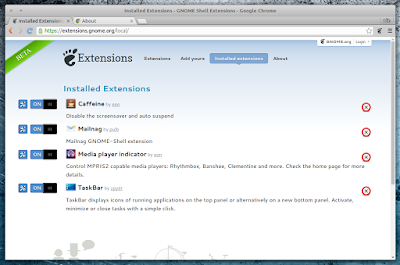 |
| extensions.gnome.org integration for Google Chrome |
For Ubuntu, this Chrome integration for GNOME Shell is available in a PPA, as a package called "chrome-gnome-shell", which includes the native GS-Chrome connector. The browser extension should be installed automatically upon installing this package and running Google Chrome / Chromium.
In my test, using the "chrome-gnome-shell" package brought support for installing extensions from extensions.gnome.org (and accessing their preferences), not only to Google Chrome and Chromium, but also to Vivaldi browser. Unfortunately, I it doesnt seem to work with Opera.
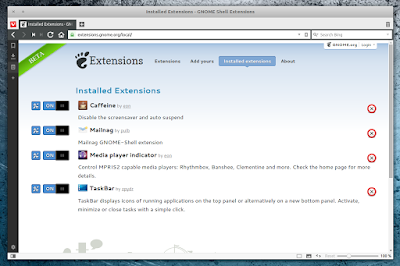 |
| extensions.gnome.org Chrome integration also works with Vivaldi |
The "GNOME Shell integration for Chrome" Ubuntu PPA is only available for Ubuntu 14.04. Add the PPA and install it using the following commands:
sudo add-apt-repository ppa:ne0sight/chrome-gnome-shell
sudo apt-get update
sudo apt-get install chrome-gnome-shell
For Ubuntu (GNOME) versions newer than 14.04, you can download the deb from HERE and install it manually. I tested it under Ubuntu GNOME 16.04 (with GNOME Shell 3.18) and I didnt encounter any issues. The package might also work in Debian, but I didnt test it.
Once installed, restart Chromium / Google Chrome and you should be able to install extensions from https://extensions.gnome.org (just like with Firefox and Epiphany, you need to use GNOME Shell to be able to install extensions).
For other Linux distributions, check out the GNOME Shell integration for Chrome wiki installation page.

Available link for download

Wednesday, January 25, 2017
GNOME Software Update That Fixes Installing Third Party Deb Files Lands In Ubuntu 16 04 Proposed Repository
GNOME Software Update That Fixes Installing Third Party Deb Files Lands In Ubuntu 16 04 Proposed Repository
A GNOME Software update that fixes the issue with installing third-party deb files was pushed to the Ubuntu 16.04 Proposed repository a few minutes ago.

Ubuntu 16.04 shipped with a pretty nasty bug (see here and here): GNOME Software (rebranded as Ubuntu Software in Ubuntu with Unity) doesnt allow installing third-party deb files, like Google Chrome, Google Talk Plugin, the Mega client and so on.
A fix for this has been pushed to the Ubuntu 16.04 Proposed repository and will be promoted into the main repositories once its tested.
- support for apt:// URLs;
- increased the number of displayed reviews from 10 to 30;
- GNOME Software now displays version and size information for non-installed applications;
- enabled the Snappy backend.
Those interested in testing the latest GNOME Software from the Proposed repository should see THIS page. Note that the Proposed repository is for testing purposes only and may introduce instability! Also, the option to enable the Proposed repository was moved to the "Developer Options" tab in Software & Updates in the latest Ubuntu 16.04.
Until the update is available in the main repositories, you can use GDebi GTK (or dpkg via command line) to install deb files. Check out our Things To Do After Installing Ubuntu 16.04 article for how to install and set GDebi GTK to open deb files, along with other tweaks.
Available link for download
Sunday, October 23, 2016
Having Trouble Installing Windows 7 By USB With Your GIGABYTE 100 Series Motherboard
Having Trouble Installing Windows 7 By USB With Your GIGABYTE 100 Series Motherboard
We understand that some users are having trouble installing Windows 7 by USB drive on their systems that have a GIGABYTE 100 series motherboard inside.
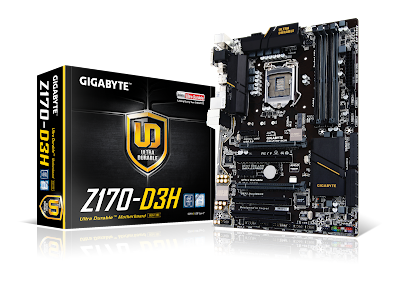

Thankfully there is a fix for this which allows you to package the updated driver on to your USB driver.
In order to build the patched version of Windows 7, youll need a few things:
1) A genuine copy of Windows 7 or iso file
2) A USB drive with over 4GB of storage
3) A separate computer
4) The Windows Image Tool available for free from GIGABYTE
Once you download the Windows Image Tool from GIGABYTE the process is fairly easy. Heres the process you need to follow step-by-step:
1) Open the tool from GIGABYTE. Theres no need to install it.
2) In the source option select your disc drive
3) In the destination path pick your USB drive.
4) Make sure the add USB drivers option is selected
5) Click start and wait for the process to finish.
Note: if you just need to add the USB drivers to an existing ISO you can do that from the source option.
Check out this video from our YouTube channel to learn more:
Available link for download
Subscribe to:
Posts (Atom)