Showing posts with label hide. Show all posts

Sunday, December 11, 2016

How To Hide Files And Folders In Your File Manager Without Renaming Them Quick Tip

How To Hide Files And Folders In Your File Manager Without Renaming Them Quick Tip
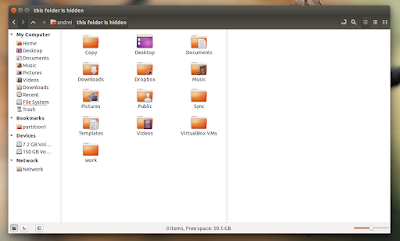

Usually if you want to hide a file or folder so it doesnt show up in your file manager, you can rename it by adding a dot (".") at the beginning of the filename.

However, there are situations in which you may want to hide a file or folder without renaming it. For instance, some applications insist on creating a folder in the users home directory or in the Documents folder (and they cant be renamed) and so on. But I dont want these folders cluttered - I want to easily find what Im looking for.

Nemo hidden folder

For such situations or whatever other reasons, theres another way of hiding files and folders (prevent them from showing up in the file manager only): you can create a file called ".hidden" (theres a dot in front of "hidden" so this is a hidden file!) and in this file, enter the name of the files and folders you want to hide, each on a separate line. Then, refresh the folder (press F5 or Ctrl + R) and those files or folders should no longer be visible in your file manager.

This should work (at least, it worked in my test) with the following file managers: Nautilus, Nemo, Caja, Thunar (Im not sure when this was introduced but I can tell you that it doesnt work with version 1.2.2 available in Xubuntu 12.04; it does work with versions 1.6.3 and newer) and Pantheon Files (from Freya only), but there might be others to support it.

Note: for Thunar youll need to navigate to a separate folder for the changes to be applied, refreshing isnt enough.

Heres an example: lets assume you have a folder called "FOLDER1" and a file call "FILE1" in your home directory and you want to hide both without renaming them. To do this, create a file called ".hidden" in your home directory and in this file, add the following two lines:
FOLDER1
FILE1

Then save the file and press F5 to refresh the home folder - "FOLDER1" and "FILE1" shouldnt be displayed any more.

Extra tip: HEREs a Nautilus extension which allows hiding files and folders using this method via the context menu.


Available link for download

Read more »

Thursday, November 10, 2016

HIDE A FILE BEHIND A IMAGE

HIDE A FILE BEHIND A IMAGE


1. Gather the file you wish to bind, and the image file, and place them in a folder. For the sake of this demonstration, I will be using C:New Folder
-The image will hereby be referred to in all examples as fluffy.jpg
-The file will hereby be referred to in all examples as New Text Document.txt

2. Add the file/files you will be injecting into the image into a WinRar .rar or .zip. From here on this will be referred to as (secret.rar)

3. Open command prompt by going to Start > Run > cmd

4. In Command Prompt, navigate to the folder where your two files are by typingcd location [ex: cd C:New Folder]

5. Type [copy /b fluffy.jpg + secret.rar fluffy.jpg] (remove the brackets)

Congrats, as far as anyone viewing is concerned, this file looks like a JPEG, acts like a JPEG, and is a JPEG, yet it now contains your file.

In order to view/extract your file, there are two options that you can take
a) Change the file extension from fluffy.jpg to fluffy.rar, then open and your file is there
b) Leave the file extension as is, right click, open with WinRar and your file is there


Available link for download

Read more »

Saturday, October 8, 2016

How to Hide Photos on Android without Using Any App

How to Hide Photos on Android without Using Any App


How-to-hide-albums-in-your-Android-gallery-app-600x341.jpg (600×341)


How to Hide Photos on Android without Using Any App


Images are one of the most wonderful modes of recapturing memories, but they also are one of the most disastrous ways of distorting your reputation. Sometimes people view your images that are too personal or are just straight-out embarrassing. If you want to hide that creepy sleepy face of yours, but still retain the memories, then this is the right place you’ve come to. Down below, you will learn how to hide photos on Android.
However, this guide is going to be a bit different. Instead of insisting you to go download a locker application of some sort, this method on how to hide photos on Android doesn’t require any downloads. All you need is your Android device, and a file explorer, with the photos you want to hide. With these prerequisites fulfilled, you’re pretty much good to go.
So, how are we going to achieve this? With no sort of third-party help, we are going to use a nifty little trick that you don’t even know exists in all Android devices. You see, adding a (.) or a period before a folder or a file makes it hidden from any of the system applications. The only way you will be able to view the hidden photo is with the help of your file manager. Without any further ado, here is how to hide photos on Android.

 Hide Photos on Android Devices without Any Apps

  1. Download a file explorer, such as ES File Explorer, File Expert, or OI File Manager. Or, if your Android device has a built-in file explorer, then that made just one step less to your success!
  2. Open the file explorer of your choice. 
  3. Add a new folder which starts with a period (.) followed by a name, like “.hidden”.
  4. Move your photos into this folder.create-hidden-folder-640x356 (1)
  5. The next time you launch your gallery, there will be no photos you just hid.
Going going! Now you’ve successfully hidden your private photos. Just in case you want them back, just remove the period (.) from your folder, and you’re all set to go.


Available link for download

Read more »