Showing posts with label internet. Show all posts
Showing posts with label internet. Show all posts
Thursday, January 26, 2017
How To Connect Internet On PC Using Android Phone
How To Connect Internet On PC Using Android Phone
Android is a new generation of mobile phones which are changing the way of telecommunication. Android phones are mainly built for internet purpose; if we look them closely then we can easily notice that without internet connection most of the android functions won’t work efficiently. That’s why Almost 80% of android phone users are using internet on android phones. The main problem comes when you have a PC as well as android and need internet connection on both.
It’s a common problem that happens with most of the android users, most of them can’t afford two internet connection at a same time, that’s why satisfies only with one. Today we are sharing an android trick by which you can connect internet on PC using your android phone; with the help of thisandroid trick you don’t need different internet connections for your PC as well as your android phone which will surly reduces your monthly internet budget.
Most of the android user thinks that connecting internet on PC using android phone is a sophisticated task, but its not like that, we can easily connect internet on PC using android phone by just following some simple steps.
Things require:
We need following things in order to connect internet on PC using android phone.
1) Working internet on android phone.
2) A device compatible USB cable.
So, finally How to connect internet on PC using android Phone:
1) First, Turn on data connection on your android phone.
2) Connect your android phone to PC using USB cable.
3) Now open Setting > Wireless & Network > Tethering on your android device, once done, you will see something like this.
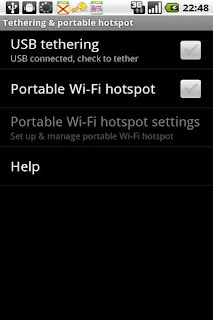
4) After that check mark on USB tethering box.
5) Verify if your device is showing the blue USB icon on the notification bar.
6) If phone drivers are properly installed on your PC then, it will show that android phone is connected to “AndroidNet NDIS Adapter”.
After following the above steps you will see that your PC is connected to internet using android phone.
If you are facing any kind of problem during this, then most probably it is due to driver error, to solve driver error, Open the device manager, and the check the device list under network adapter, once you will get the name of the driver which is not working properly. You can easily download that driver from the manufacturer site of your android phone, once done, install it and then again follow the above steps.
This android trick will work for windows 7, 8, Linux but if you are using windows xp on your PC then you will need software to connect internet to PC using your android phone.
Available link for download

Friday, January 13, 2017
How to increase Internet speed in Android Device
How to increase Internet speed in Android Device

steps to increase internet speed:-
Step 1: Clear all the cache memory from your mobile phone. Don’t fulfil your mobile phone with the cache memory. If any kind of information or any apps, data which is not useful for you then immediately remove them. This step can increase the speed of internet in your mobile.
Step 2: If you are trying to load lot of un-wanted software’s in your mobile, they reduce internet speed from your mobile. So, always uninstall unused software from your mobile which is no longer useful.
Step 3: For loading highest Kilo Byte date, you need to change or set internet setting to grow internet speed in your mobile.
Step 4: You need to block large or high quality images from your mobile. These images occupy lot of space and also charge to load per KG. You can also use any small quality images to increase the internet speed on your mobile.
Step 5: Never download other applications during the surfing.
Step 6: Always remember mobiles are not provide good speed of internet and if you are receiving weak network signal that you are not able to get proper connectivity of internet. So, always use that SIM card which network is easily available in anywhere.
Step 7: Load opera mini software in your mobile, to get better internet speed
**************************************************************
Available link for download
Tuesday, January 3, 2017
How To Connect Access Android To PC Internet Via USB
How To Connect Access Android To PC Internet Via USB

For a long time, I have been writing about drivers for your different devices and provided you links to download them. Android phones have a huge fan base and most of the people today use them since they are the boss these days. That is due to many features that other devices cant provide. There are millions of amazing apps, games and other features that other devices cant compete with an android device.
One of the many benefits that you can get from android is using it as your internet adapter when your internet connection is not working or finished. In this post, I am going to tell you an easy method, with the help of which you can easily use your data plan on your PC. You shouldnt let it go to waste and use it on your PC by connecting the android device as a router. This process is also known as Tethering. Now lets move on to the step by step guide of how to connect android device to use the internet on PC?
Step by Step Guide how to connect android device to use the internet on PC.
Note: Connect your android device using a USB data cable to do the following process.
1. On your Android phone, go to the Settings.
2. In the settings, go to the Wireless & Networks after you are in the settings.
3. Next step is to tap on more to find some new options in the place.
4. After doing that, search for Tethering and portable hotspot.
5. Now, enable this option. Also, make sure that you have enabled the Mobile Data from the widget bar.
There is nothing more you have to do. Now your PC is ready to use the internet from your mobile data since your android will now work as internet router. Did you like our guide? Leave us your feedback and keep visiting our blog for more amazing tips, tricks, and drivers!
Available link for download
Sunday, January 1, 2017
How To Download Files From Mega With Internet Download Manager
How To Download Files From Mega With Internet Download Manager

Langsung Saja Ke Pokok Permasalahan nya , Gimana Caranya Supaya Download Dari Files Host Mega Ke IDM/Internet Download Manager ?
Langkah-Langkah nya :
- Siapkan Link Download Dari Host Mega Drive nya , Lalu Anda Copy Link nya .
- Setelah Anda Copy Link Mega nya Anda Masuk Ke Sini!
- Setelah Anda Masuk Ke Link No 2 Terus Paste Link Yang Anda Copy Dari Mega Ke Kotak Dan Klik Generate Tunggu Hingga Link Hasil Generate Muncul, Jika Sudah Muncul Copy Link Hasil Generate Tersebut Dan Setelah itu Anda Buka IDM Dan Paste Kan Link Hasil Generate Tadi Ke Url IDM Selesai IDM Akan Secara otomatis Men-Download Files Tersebut.
Jika Anda Kurang Pahan Dengan Totorial Text Di Atas Anda Bisa Lihat Totorial Video Nya Di Bawah ini.
Trimakasih sudah menyaksikan video ini Salam Rantau021.
Englis Version
How To Download Files From Mega With Internet Download Manager .Just Jump Into Her Main Problem , How How In order Download From the Files Into Host Mega IDM / Internet Download Manager ?
Steps it:
- Prepare Link Download From Host Mega Drive it , then you Copy Link her .
- Once you Copy Link Mega Her Into Your Sign Here!
- Once you Log Into Link No. 2 Keep Paste Link That You Copy Of ??Mega To Box And Click Generate Wait Until Sponsored Results Generate Appear , If It Appears Copy Link Results Generate Such And Then You Open IDM And Paste Kan Sponsored Results Generate Tadi To Url Done IDM IDM Will automatically Download Download Files Such .
If you are less Pahan With Totorial Text Above You Can See His Video Totorial Under this .
Thank you to watch this video Salam Rantau021 .
Firmware Sony Xperia
- Firmare Sony Xperia E4g E2003 - New!
- Firmware Sony Ericsson Xperia X10 Mini Pro - New!
- Firmware Sony Xperi M C1905
- Firmware Sony Xperia C3 D2502 - New!
- Firmware Sony Xperia C3 D2533 - New!
- Firmware Sony Xperia C3 D2533 Part 2 - New!
- Firmware Sony Xperia C5 Ultra Dual E5563 - New!
- Firmware Sony Xperia E C1505
- Firmware Sony Xperia E4g Dual E2033 - New!
- Firmware Sony Xperia L C2105
- Firmware Sony Xperia M2 Aqua D2403
- Firmware Sony Xperia M2 Dual D2302
- Firmware Sony Xperia X Dual (F5122)
- Firmware Sony Xperia X F5121
- Firmware Sony Xperia X Ferformance F8131
- Firmware Sony Xperia XA F3111
- Firmware Sony Xperia XA Ultra F3211
- Firmware Sony Xperia Z C6602
- Firmware Sony Xperia Z1 C6902
- Firmware Sony Xperia Z1 Conpact D5503
- Firmware Sony Xperia Z2 D6502/L50W
- Firmware Sony Xperia Z2a D6563
- Firmware Sony Xperia Z3 Compact D5803
- Firmware Sony Xperia Z3+ Dual E6533
- Firmware Sony Xperia Z3/Z3V D6603
- Firmware Sony Xperia Z5 Compact E5803
- Firmware Sony Xperia Z5 E6603
- Firmware Sony Xperia ZL/ZQ C6502/C6503 - New!
- Firmware Sony Xperia ZR/A C5502/C5503/M36H - New!
- Firmware Xperia Z5 Premium Dual E6833
Available link for download
Subscribe to:
Posts (Atom)