Showing posts with label tablet. Show all posts

Friday, March 17, 2017

Hard Reset 7 inch APPTAB Android Tablet RK3066 Rockchip

Hard Reset 7 inch APPTAB Android Tablet RK3066 Rockchip


Hard Reset APPTAB

 7 inch Android Tablet via Android System Recovery.

RK3066 Rockchip .

Step by Step Tutorial . 
Forgotten Pattern Lock , Gmail Account , Reset User Lock  on Android Tablet 


What is Hard Reset ?
hard reset is also called Factory reset. its a situation when you  restore your Android device to state when it  left the factory or first time the Smartphones or Tablets turns on . Hard Reset erase all user setting,contents (i.e games,contacts,messages,apps preference setting ,bookmarks,third party apps as well .) So if youre enough lucky then you can make  backup of all your data before hard reset .In most cases user data lost. Different Android Devices have different method for Hard Reset

 Forgotten Pattern Lock on APPTAB 7 Inch Android Tablet. 

APPTAB 7 inch Android Tablet is available without Power buttons. Power buttons play major role when it comes to Android System Recovery. This is a bit tricky. I have spend  a lot of time to find out how to Hard Reset this unknown tablet . I succeed so like to share it . 

1. Turn off APPTAB completely by holding power button. 
2. Now turn on android tablet . 


3. When logo appear , press home button . 
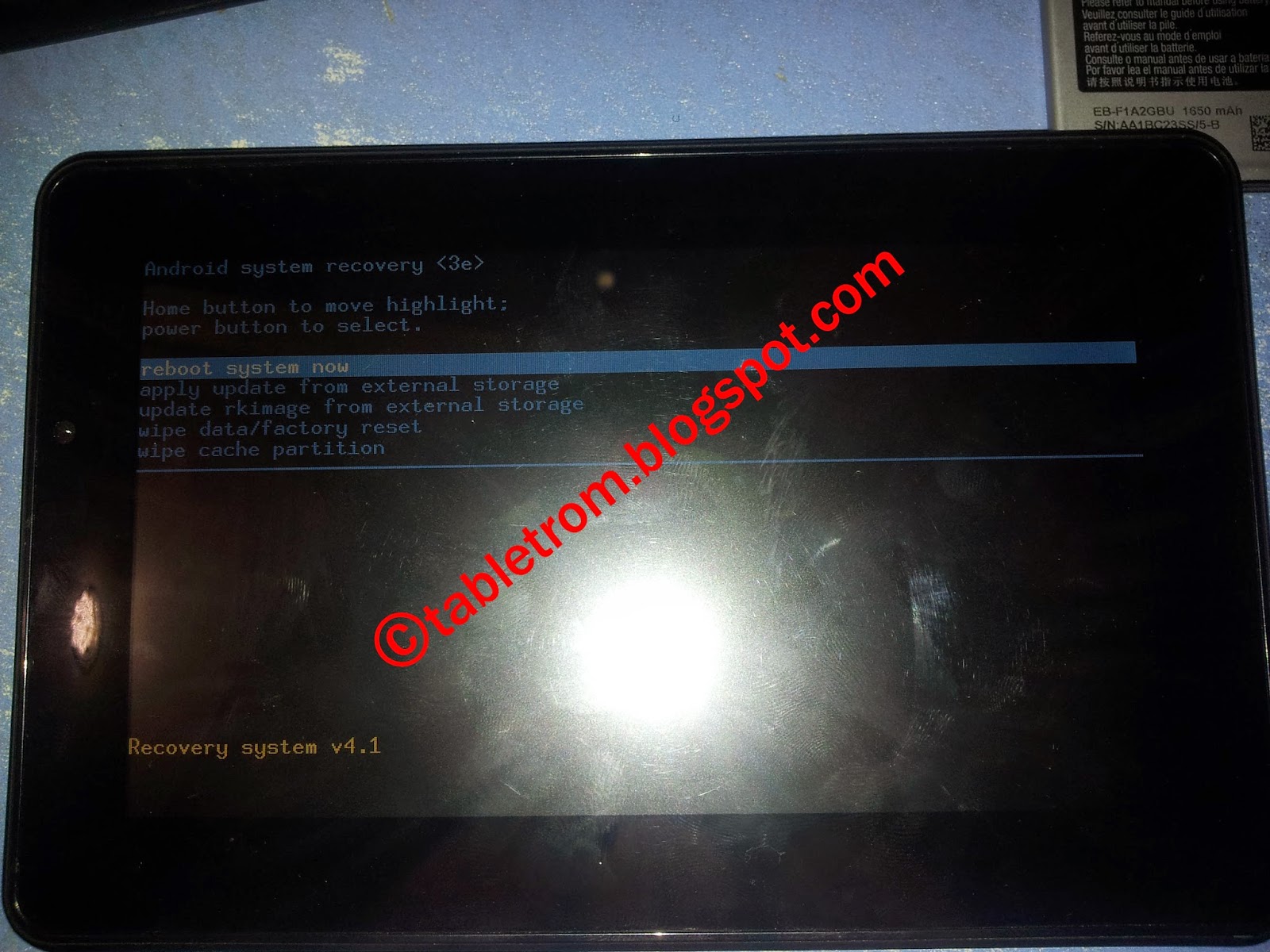
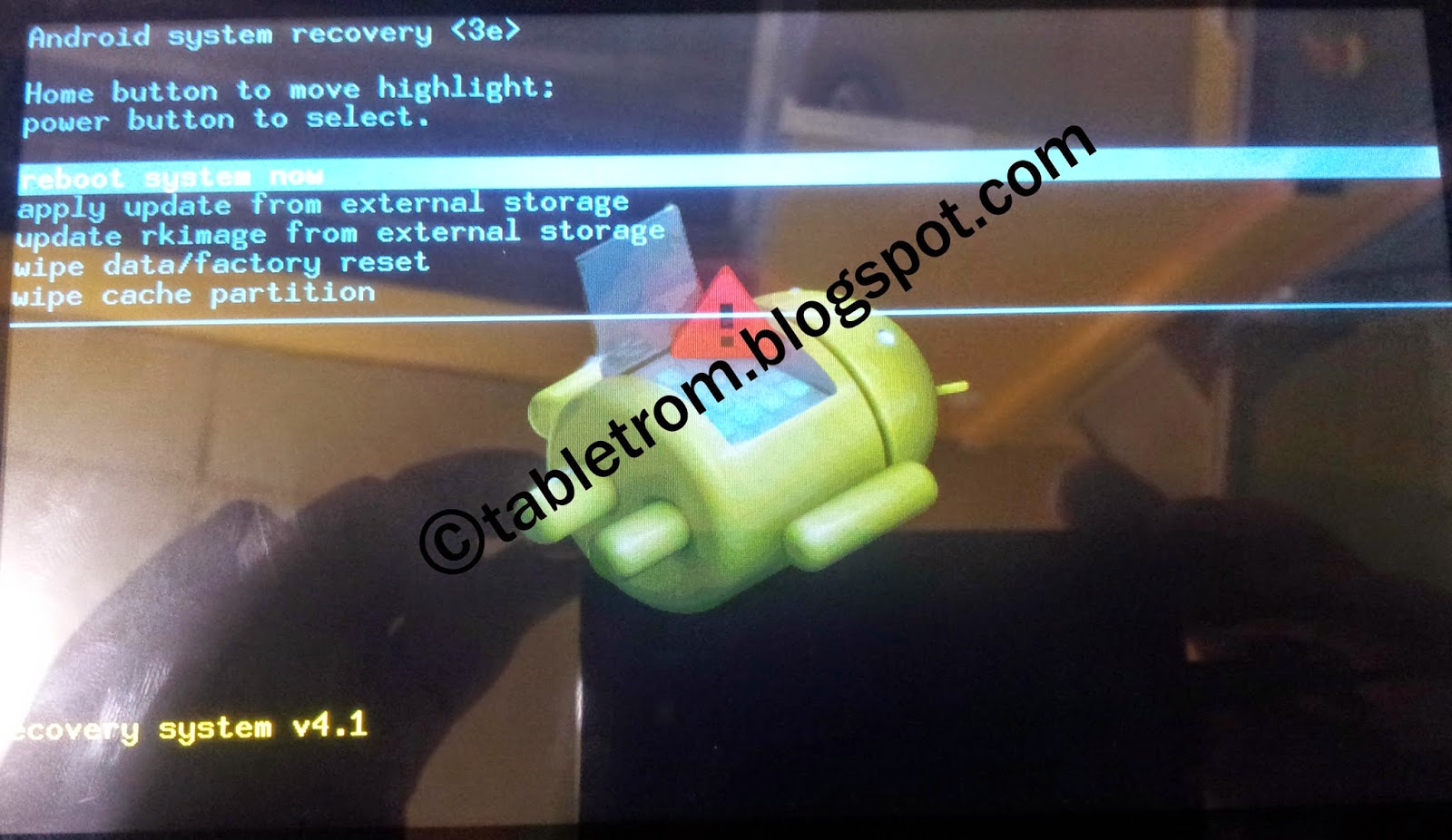
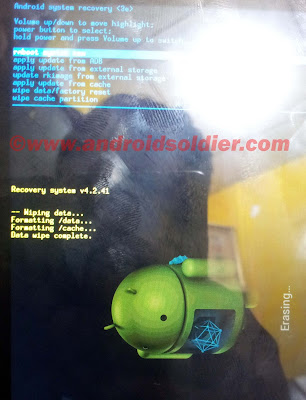
4. Few second later recovery menu will be appear . 


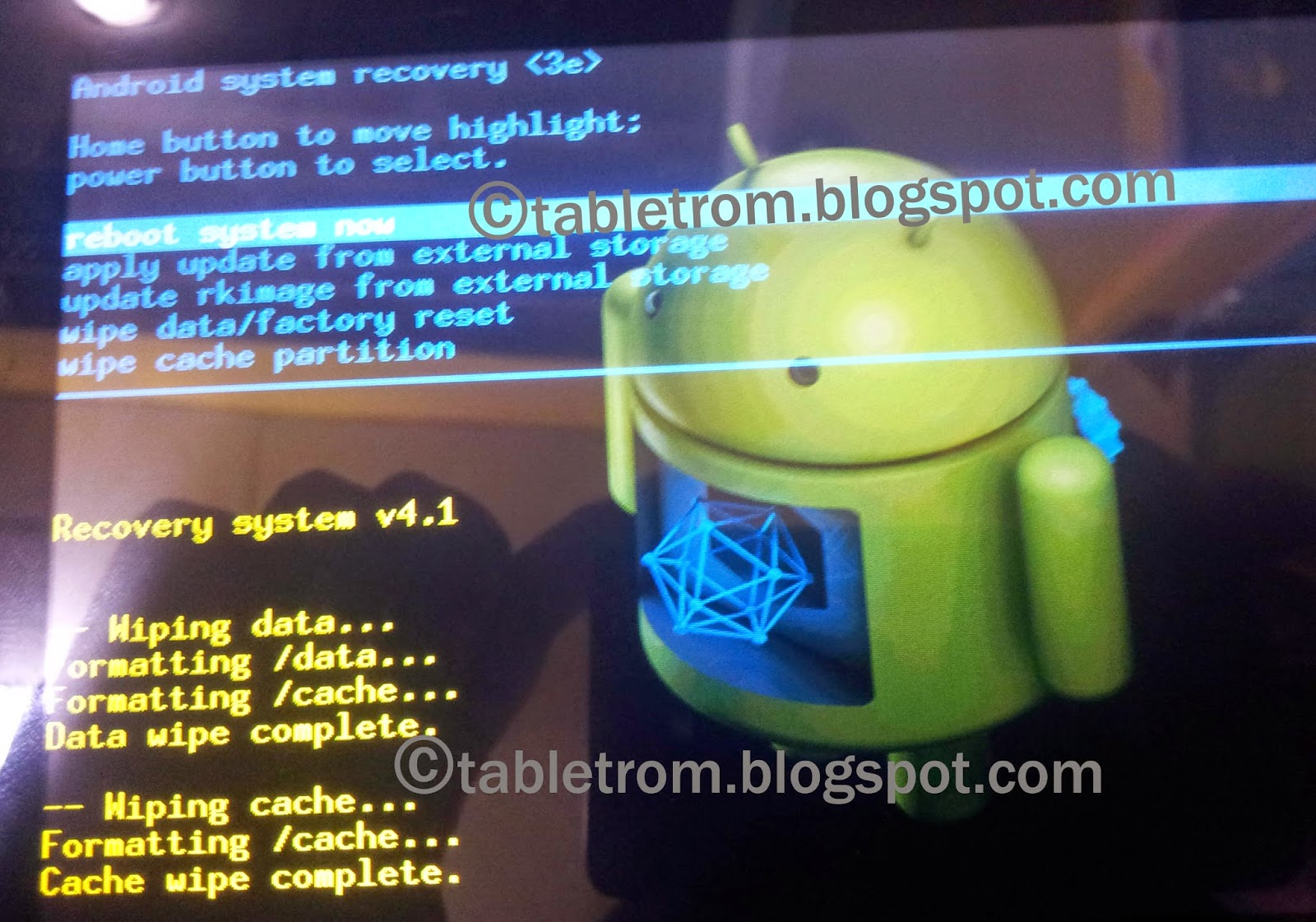
 5. Select wipe data / factory reset by pressing home button. (you can wipe cache partition as well ).

6. To select the option press power button. 


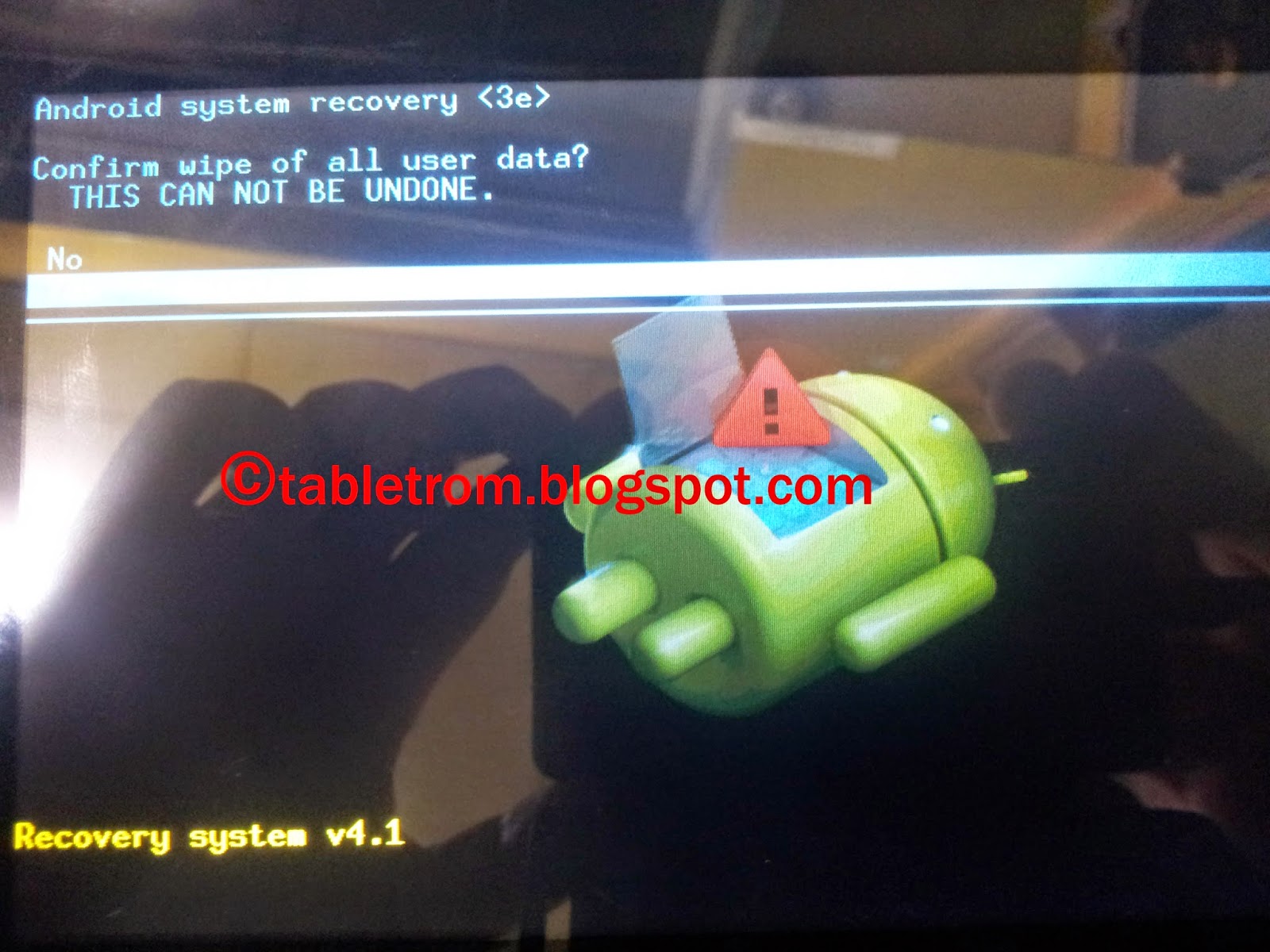
7. Confirm Yes by pressing power button. 


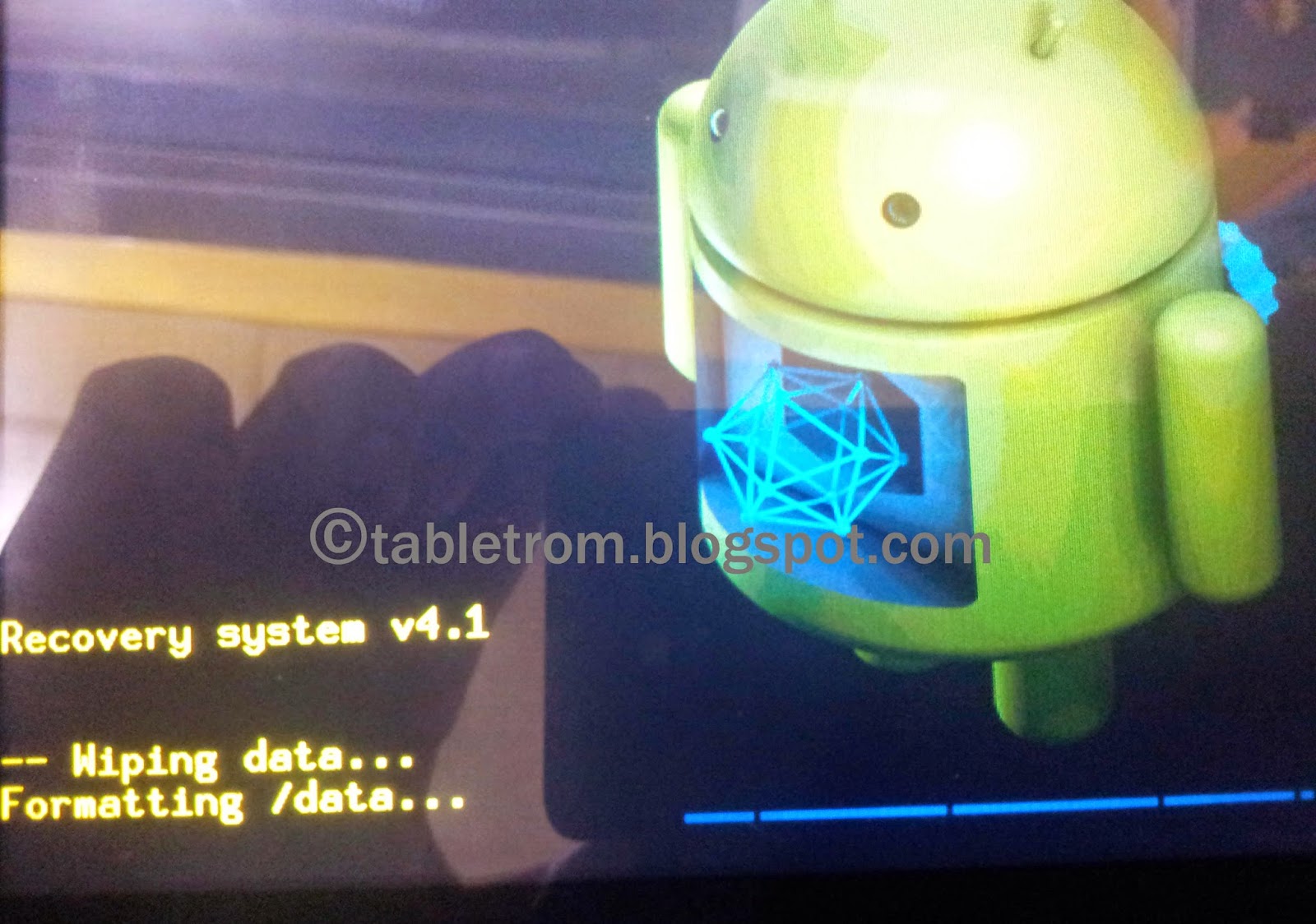
8. Wiping Data. 


9. Reboot . 


Available link for download

Read more »

Wednesday, March 15, 2017

Hard Reset Tesco Hudl Tablet

Hard Reset Tesco Hudl Tablet


Hard Reset Tesco Hudl Tablet 

hudl factory reset

best android tablets UK.

Hudl is a 7 inch Tesco tablet . Tesco produce tablet under the name of hudl. Well organized and well designed tablet. If you compare tablet hudl with other android tablets then hudl is a  best new tablet and best rated tablets among best android tablets UK. This tutorial is about how to hard reset your tesco tablet if you are having some serious issues with tesco tablet. for example if your hudl tablet is stuck on logo , forgotten pattern lock or stuck on gmail account then hard reset via Android Recovery is best solution for your tablet. 

Hard Reset Tesco Hudl Tablet. 


best android tablets UK.

  • Turn off your tablet.
  • Press Volume UP (+) button and Power button together until hudl logo appear. 
  •  Android System Recovery menu will appear. 
  • Use volume up and down buttons to navigate. 
  • Select Wipe data / factory reset by pressing Power button. 
  • Reboot system now by selecting and pressing power button. 
Wait for reboot. You are good to go . This function will erase all of your personal data stored in internal memory. The following method could be apply on hudl 1 and hudl 2 android tablets. 


best android tablets UK.

The above mentioned method is work like charm and based on personal experience. Found no harm to tablet. All the logo and products are property of their respected owners. If viewers have any questions regarding tutorial you can write in comment section. 

You may also like to read :

How to hard reset Lenovo Ideatab a2107a-h
How to hard reset Asus Memo Pad 
How to hard reset Scroll Basic Plus tablets.
How to hard reset Vox Mid V91 Tablets
Hard Reset Mediacom Smartpad 715i Tablets.
Hard Reset Coby Kyros Mid 7010 WC Tablets
Hard Reset Samsung Galaxy Tab 2 P5100 Tablets
Hard Reset Acer Iconia A500 Tablets
Hard Reset Symphony w20 Tablets
Hard Reset Archos 101 Titanium Tablets


Available link for download

Read more »

Sunday, February 12, 2017

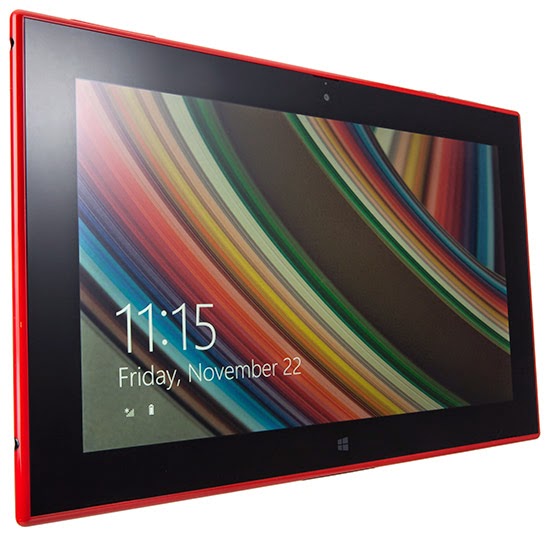
Hard Reset Nokia Lumia 2520 Window Tablet

Hard Reset Nokia Lumia 2520 Window Tablet


Hard Reset Nokia Lumia Tablet 2520

Windows Tablet 

Hard reset nokia lumia 2520 window tablet
Nokia Lumia 2520 Window Tablet


What is Hard Reset ?

hard reset is also called Factory reset. When you restore your Android device to state when it  left the factory or first time the Smartphones or Tablets turns on . Hard Reset erase all user setting,contents (i.e games,contacts,messages,apps preference setting ,bookmarks,third party apps as well .) So if youre enough lucky then you can make  backup of all your data before hard reset .In most cases user data lost. Different Android Devices have different method for Hard Reset

How to Hard Reset Nokia Lumia 2520 Windows Tablet ?

  • Turn off the window tablet completely . Hold down power button for 10 sec. 
  • Press power button momentarily to turn on the Nokia Lumia tablet
  • You will see green led light near front camera . 
  • As soon as you see Nokia logo press power button to turn off  Window tablet
  • Basically you have to interrupt the boot sequence to enter in recovery mode
  • Repeat this step for once more. 
  • Turn on window tablet 3rd time without interpreting the boot sequence. You will seePreparing Automatic Repair followed by Diagnosing your PC.
  • You have successfully enter into recovery mode
  • Follow the guide shown on screen . 
You may also like to Read. 

How to hard reset Scroll Basic Plus tablets.
How to hard reset Vox Mid V91 Tablets
Hard Reset Mediacom Smartpad 715i Tablets.
Hard Reset Coby Kyros Mid 7010 WC Tablets
Hard Reset Samsung Galaxy Tab 2 P5100 Tablets
Hard Reset Acer Iconia A500 Tablets
Hard Reset Symphony w20 Tablets
Hard Reset Archos 101 Titanium Tablets


Available link for download

Read more »

Friday, December 30, 2016

How To Load the Desktop Version Of Websites On Your Google Android Honeycomb Tablet

How To Load the Desktop Version Of Websites On Your Google Android Honeycomb Tablet


tablet web browsingTablets are great devices for reading and browsing websites. Using the touchpad is intuitive and convenient, and tablet screens don’t present the size limitations of mobile phones. However, with tablet web browsing, you will notice that many websites automatically load their mobile version. This is because the browser you are using identifies itself as a mobile based application to the websites you are visiting.
Being restricted to the mobile version of a website can be annoying since they often lack features offered by their desktop version. If you would prefer to view the desktop version of websites on your Google Android Honeycomb tablet, you will be delighted to hear that there are two simple ways to achieve this. Read on to find out how you can toggle between the desktop and mobile versions on your Honeycomb tablet.

Change The Honeycomb Browser User Agent Setting

The Honeycomb browser’s user agent is set to ‘Android’, which most websites interpret as ‘smartphone’, thus displaying the compact version of their website. To change this, you need to change the respective user agent string.
  • Open the native browser on your Android Honeycomb tablet.
  • Type about:debug in the address / URL bar and press Enter.
  • Don’t expect anything to happen; it will probably look like nothing happened.
  • Next, open the browser’s settings via the icon in the top right corner.
tablet web browsing
  • Select Settings from the drop-down menu.
  • Switch to the Debug tab via the left-hand menu.
  • On the right side now select UAString.
  • Select Desktop.
change user string setting

  • Click the Back button in the bottom left corner of the browser to exit settings.
  • Repeat step 2 to exit debugging mode.
Note that the setting may be reset every time you reboot your device.
Interestingly, the browser on Android-based smartphones has a different user agent setting, which reads ‘Android Mobile’. This actually allows websites to differentiate between tablets and smartphones. Unfortunately, not all websites support the two different settings and surprisingly, this includes Google Mail.

Use A Different Browser

You may find that some mobile websites are actually more convenient than their desktop counterparts. In this case you probably don’t want to change the user agent setting since switching back and forth between different settings is quite a hassle. The alternative solution is to use a different browser which allows you to toggle easily between the desktop and mobile version of a website.
A browser I highly recommend is Dolphin Browser HD. To rapidly switch between the mobile and desktop versions of a website, you also need to install the Dolphin Desktop Toggle add-on. Once installed, you will find a toggle button in the right-hand menu of the browser. The right-hand menu opens when you attempt to slide the browser window to the left. Pressing the toggle button will load the respective other version of the website, if available.
tablet web browsing
Are you still undecided which tablet to get? There are at least 5 Things To Consider Before Buying A Tablet PC. Maybe you would like to Try Google’s Android Mobile OS on Your Computer with Live CD? And if you have made up your mind about getting an Android Tablet, be sure to review The 3 Best Android Tablets Available Today That A Buyer Should Check Out.

Available link for download

Read more »

Friday, December 9, 2016

Hot! Download latest Android Marshmallow 6 0 1 stock firmware for N106 tablet

Hot! Download latest Android Marshmallow 6 0 1 stock firmware for N106 tablet


Download latest Android Marshmallow 6.0.1 stock firmware for N106 tablet from here or from here.

  
Firmware details
Archive? A83T_N106_N1061L6BC_20160309-ok
Image: A83T_N106_N1061L6BC_20160309-ok.img
Model: N106 tablet
Firmware:  Android Marshmallow 6.0.1 stock
Archive size: 254 MB
Platform: Allwinner A83T octa-core
Build number: A83T_N106_N1061L6BC.20160309 / octopus_ibt-eng 6.0.1 MMB29M 20160309 test-keys
FW version: v6.0rc4_20160307

Style: N1061L6BC
Company: Inet
Pixels: 800 x 1280


Caution: Please do not update firmware unless you know what you are doing, you really want it or it is absolutely necessary. Firmware updates may occasionally have bad results, like bricking your device, temporarily or permanently. The firmware update process is done entirely at your own risk. Before attempting to update the firmware, back up your data. 
 

Don’t miss any of our future video tutorials, follow us on Youtube. Like us on Facebook. Add us in your circles on Google+. Watch our photo albums on Flickr. Subscribe now to our newsletter.
Biggest firmware download center.


Available link for download

Read more »

Tuesday, December 6, 2016

Gemei G6 Tablet PC Andoind Driver Firmware

Gemei G6 Tablet PC Andoind Driver Firmware


[Firmware Download] 

Date: 2012-10-10   G6    Version?v2.34.004

Details      Download


[Firmware Download] 

Date: 2012-8-21   G6    Version?0718????

Details      Download


[Firmware Download] 

Date: 2012-9-10   G6    Version?V2.31.00??

Details      Download


[Firmware Download] 

Date: 2012-9-14   G9T?G6?G9?G9TM    Version?V1.0

Details      Download


Available link for download

Read more »

Saturday, November 26, 2016

How to Fix Touch Screen on Android Tablet with Android App

How to Fix Touch Screen on Android Tablet with Android App


How to Fix Touch Screen on Android Tablet with Android App.

Android touch screen problem. 

A13 Touch Screen Calibration.


Android touch screen problem. A13 Touch Screen Calibration.


This tutorial is about to fix  touch screen drivers on Android tablets in simple way. Most of the time when user flash or restore their tablet via Livesuit (Allwinner AXX)or other flashers,  most of the time drivers or tablet components  does not match exactly with firmware and in results ,  touch screen does not work properly , inverted touch screen. There is a easy way to fix the touch screen problem on Allwinner tablets after flashing. This method will work only if debug mode is on. If touch screen is not working  and debug mode is off ,  you need to attach usb keyboard with Android tablet and try to find a way to turn debug mode on. If there is will there is way. 

Download Android Calibration2.Apk
1.Install Any android Pc Suit on computer . 
2. Connect your tablet to Pc Suit  and  install Calibration2.apk via any Android Pc Suit. (There are many Android PC Suits available . Mobogenie , Wondershare etc)
3. Open Calibration App .
4. Click on + icon to set calibration for TS
The best thing is about Calibration2.apk is its auto correct x,y axes on Touch Screen

Note:- Unfortunately I have not use this app other than Allwinner Tablets. I am not sure it will work or not on other tablets.As soon as I am able to try it with multiple tabs , I will  update results. You can also post results in Comment Section.


Available link for download

Read more »

Monday, November 7, 2016

Gemei G1 Tablet PC Andoind Driver Firmware

Gemei G1 Tablet PC Andoind Driver Firmware


[Firmware Download] 

Date: 2011-11-10   G1    Version?0917

Details      Download


[Users Manual] 

Date: 2012-3-26   G1    Version?

Details      Click to read, right click save as to download


Available link for download

Read more »