Showing posts with label stock. Show all posts
Showing posts with label stock. Show all posts
Wednesday, April 12, 2017
Guide How to Flash Stock ROM on Android OPPO F1 PLUS to Fix a Bootloop Removing Malware Stuck
Guide How to Flash Stock ROM on Android OPPO F1 PLUS to Fix a Bootloop Removing Malware Stuck
[Guide] How to Flash Stock ROM on Android OPPO F1 PLUS to Fix a Bootloop, Removing Malware, Stuck.
Flash Stock ROM on Android OPPO F1 PLUS. This guide will help you to Flash Stock ROM on Android OPPO F1 PLUS Smartphone. By flashing your Android phone you can get something new on your phone, such as new experience to use latest update of Stock ROM, or new installed Stock ROM after your phone died or bootloop, and much more. Before we proceed to flash this Android OPPO F1 PLUS Smartphone, let we know what is detail specification of this Android smartphone. OPPO F1 PLUS was released On 2016, March. And OPPO F1 PLUS is the smartphone that comes with 5,5 Inches AMOLED capacitive touchscreen, 16M colors, Run on Android OS, v5.1 (Lollipop) - ColorOS 3.0 UI as it Operating System and supported with Mediatek MT6755 Helio P10 Chipset, Octa-core 2.0 GHz Cortex-A53 CPU, GPU Mali-T860MP2, combined with 4 GB of RAM as their engine. And you can enjoy exciting 13 MP on main camera, and 16 MP on secondary camera.
Now, we start to flash Stock ROM on Android OPPO F1 PLUS Smartphone. Just follow this guide below carefully. take your own risk, a damage or broken phone by following this tutorial is not our responsibility.
Guide Flash Stock ROM OPPO F1 PLUS.
Before you flash OPPO F1 PLUS you must read this instruction carefully, so. you can get best result at the end of your flash.
Preparation.
- Make sure you have enough battery capacity on your OPPO F1 PLUS. Its recomended you have at least 80% of battery capacity.
- Always backup your important file (contact, music, video, app) that stored on OPPO F1 PLUS,
- Prepare the Memory Card / SD Card which has a V-Gen Brand. For some reason OPPO F1 PLUS does not recognized besides V-Gen Memory card.
- Then download OPPO F1 PLUS Stock ROM.
- Oppo F1 PLUS
- Once download finish, now copy Stock ROM from computer to the phone memory or SD Card. but note that you copy this ROM at outside not to the public folder for easy finding. (if you download ROM Via PC)
- But, Stock ROM can be download directly from yourAndroid phone. And you must have a good and stable internet connection for it, such as Wi-Fi connection.
- Rom download directly from the Android phone located in the File Manager / phone / download.
http://downloads.oppo.com.s3.amazonaws.com/firmware/X9009/X9009EX_11_OTA_013_all_201604131943.zip
Flashing Stock ROM.
- To start flashing Stock ROM on OPPO F1 PLUS you must enter Recovery Mode. how to do it ?
- Press and Hold Power Button + Volume Down.
- Then you will see menu like this picture. You can select English
- Select Wipe data and cache by pressing the power button. for Up and down choice, use the volume keys Up / Down, on the next Popup screen select Wipe your data cache to make faster process.
- If appears confirmation you can select : "YES"
- Then you will bring to previous menu, and you can select Install form sd.
- Now you will see 2 options. From mobile phone storage & form SD,.
- Previously you have copy firmware file on SD Card, So. now you must select From SD. and now you can see your Firmware file name on this screen.(Stock rom name is similar as shown on the picture below)
- Select this file name using Power Button
- For Up or Down navigation you can use volume Up and Down Button.
- Then you will see a confirmation page, and you can select yes to proceed this flash on OPPO F1 PLUS
- Just wait the process finish updating system, and your OPPO F1 PLUS will ask to you to reboot the device.
- Now you have finished flash Stock ROM on Android OPPO F1 PLUS Smartphone.
 |
| Flash Bootloop OPPO F1 PLUS |
 |
| Flash Bootloop OPPO F1 PLUS |
 |
| Flash Bootloop OPPO F1 PLUS |
 |
| Flash Bootloop OPPO F1 PLUS |
 |
| Flash Bootloop OPPO F1 PLUS |
 |
| Flash Bootloop OPPO F1 PLUS |
 |
| Flash Bootloop OPPO F1 PLUS |
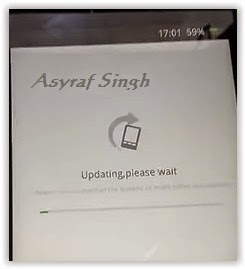 |
| Flash Bootloop OPPO F1 PLUS |
Available link for download

Monday, April 3, 2017
How to Flash Stock Firmware on Samsung Galaxy Devices
How to Flash Stock Firmware on Samsung Galaxy Devices

How to Flash Stock Firmware on Samsung Galaxy Devices
Samsung phones are notoriously known for the lag issue on its TouchWiz interface. However, one cannot deny the fact that despite their minor and major drawbacks of their phones, Samsung is still the most popular OEM of smartphones. One of the reasons why Samsung Galaxy devices are popular among users is the ease with which we can find the official firmware for our phones and install them using their Odin tool.
If you got a Samsung phone or tablet and are having software based issues, you can easily restore the stock firmware on it and fix it yourself. Flashing a Samsung device is easier than most Android phones. This is because Samsung provides their own software that can be used to flash all their phone models (Samsung Kies). By using the unofficially released Odin tool, the flashing process becomes easier and smoother as compared to Kies.
The process described below is for flashing any Samsung device back to the original operating system (ROM) and/or for upgrading to any higher or a lesser version of Android version.
Disclaimer/Warning!
This tutorial is only for Samsung Android smartphones and tablets. While we have taken utmost care in describing the procedure in a detailed way, the user must be extra careful with selecting the correct firmware file to install it succesfully. If you have any doubts regarding the procedure, we suggest you to drop us a comment below to clear the same.Flashing the stock firmwares do not void your device’s warranty or trip KNOX Warranty counter. However, if you flash CF-Auto-Root packages or a custom recovery using Odin, doing so will void the warranty. Just follow the tutorial to the word carefully and everything will go fine hopefully. Technastic will not be responsible for any damages caused to your device.
Preparations
Charge Your Device
Before you proceed to install the firmware on your Samsung device, it’s important that your device has sufficient battery juice left on it. In case the battery turns off during firmware flashing, your phone be hard-bricked. To avoid any unpleasant experience, make sure your device has 60-70% battery power at least.

Enable Developer options and USB Debugging
To install a firmware successfully, you must enable USB Debugging on your phone and tablet. You can find this option under Developer Options. If you don’t find it under Settings, here’s is how you can enable it:
- Open Settings and go to About Device.
- Scroll down to Build number and tap it 7 times.
- You will see a toast message that “Developer mode has been enabled” on your device.
- Now go back to Settings panel and scroll down to Developer options.
- Tap it and check the box for USB debugging option to enable it.


Install the Latest Samsung USB Drivers
Install the latest Samsung USB drivers on your PC. If you already have them installed on your computer, you can skip this step.omputer. If you have Kies on your computer, make sure that the program is closed while you use Odin. You can download the Samsung USB Drivers from google search.
Backup the Apps and Important Data
It’s very important that you take a backup of all your apps, images, videos, messages, memos, and other important data present on your device before installing a new firmware. Usually, new firmwares don’t wipe any data, but you should still take precautions. You can find hundreds of useful backup apps at the Google Play Store to help you with the job.
Download Odin Flashing Tool
Now download the recommended Odin tool for flashing firmware on your Samsung device. As you know that there are several Odin versions available but considering the rate of success, you should use Odin3 v3.09 (for JellyBean and KitKat), or Odin3 v3.10.7, (for Lollipop and Marshmallow).
Download the Stock Firmware for Your Samsung Device
While downloading the stock firmware for your device, make sure you download the correct file for your device model. You can check the model by going to Settings> About. You can download the firmware from Samsung-Updates or Sammobile.
Reboot Your Samsung Galaxy Phone/Tab into the Download Mode
To install a stock firmware, or any .tar file, you will have to reboot your Samsung device into the Download or Odin Mode. You can easily access the Download Mode as follows: Turn off your device and then press and hold
Turn off your device. Now press and hold Volume UP+Home+Power buttons at the same time for about 2-3 seconds.

When you see the warning screen with a yellow triangle sign, press the Volume Up key to enter Download/Odin mode:
After pressing the Volume Up key, you device will get into the Odin or Download mode.

Flash Stock Firmware on Samsung Galaxy Using Odin
- If the firmware/CF-Root/custom recovery file you downloaded is a zip file, extract it to get the file with .tar or .tar.md5 extension.
- Extract the Odin zip file too, and launch the program by clicking the Odin3 vx.xx.exe file.
- Now turn off your device and reboot it into the Download Mode.
- Connect your device to the computer using a compatible USB cable.
- When your device is detected by Odin, the ID: COM port on Odin will turnBlue or Yellow depending on the Odin version and you’ll see “Added!!”message in the message box in Odin.
- In case your phone is not detected by Odin, try the following things:
- Reboot your phone and turn it off.
- Disable and enable USB Debugging again.
- Uninstall Samsung USB Driver or Kies and reinstall it.
- Reboot your PC.
- Use a different USB port.
- Try a different USB cable, preferably the one provided with your device.
- Click the AP or PDA button on Odin.
- Single firmware file installation: Navigate to the firmware or recovery file and select the file with .tar/.tar.md5 extension.
- Multi-file firmware installation: In case you have to install a multi-file firmware with AP, BL (bootloader), CP (modem), CSC, and .PIT files, you must add the firmware components to corresponding slots in Odin like shown below. If you don’t have the .PIT file for your device, click here to download or request it. Below is an example of Odin configuration while flashing a multifile firmware.
- Single firmware file installation: Navigate to the firmware or recovery file and select the file with .tar/.tar.md5 extension.
- In the Option section, make sure that only the Auto Reboot and F. Reset Time boxes are checked and everything else are unchecked.
- Having made sure that everything looks fine (as shown in the screenshots above), just click the Start button on Odin to initiate the firmware installation.
- Available link for download


Guide How to Flash Stock ROM on Android OPPO R2001 YOYO to Fix a Bootloop Removing Malware Stuck
Guide How to Flash Stock ROM on Android OPPO R2001 YOYO to Fix a Bootloop Removing Malware Stuck
[Guide] How to Flash Stock ROM on Android OPPO R2001 YOYO to Fix a Bootloop, Removing Malware, Stuck.
Flash Stock ROM on Android OPPO R2001 YOYO. This guide will help you to Flash Stock ROM on Android OPPO R2001 YOYO Smartphone. By flashing your Android phone you can get something new on your phone, such as new experience to use latest update of Stock ROM, or new installed Stock ROM after your phone died or bootloop, and much more. Before we proceed to flash this Android OPPO R2001 YOYO Smartphone, let we know what is detail specification of this Android smartphone.OPPO R2001 YOYO was released On 2014, May. And OPPO R2001 YOYO is the smartphone that comes with 4,7 Inches IPS LCD capacitive touchscreen, 16M colors, Run on Android OS, v4.2.1 (Jelly Bean) - ColorOSUI as it Operating System and supported with Mediatek MT6582M Chipset, Quad-core 1.3 GHz Cortex-A7 CPU, GPU Mali-400MP2, combined with 1 GB of RAM as their engine. And you can enjoy exciting 5 MP on main camera, and 2 MP on secondary camera.
Now, we start to flash Stock ROM on Android OPPO R2001 YOYO Smartphone. Just follow this guide below carefully. take your own risk, a damage or broken phone by following this tutorial is not our responsibility.
Guide Flash Stock ROM OPPO R2001 YOYO.
Before you flash OPPO R2001 YOYO you must read this instruction carefully, so. you can get best result at the end of your flash.
Preparation.
- Make sure you have enough battery capacity on your OPPO R2001 YOYO. Its recomended you have at least 80% of battery capacity.
- Always backup your important file (contact, music, video, app) that stored on OPPO R2001 YOYO,
- Prepare the Memory Card / SD Card which has a V-Gen Brand. For some reason OPPO R2001 YOYO does not recognized besides V-Gen Memory card.
- Then download OPPO R2001 YOYO Stock ROM.
- Oppo R2001 YOYO
- Once download finish, now copy Stock ROM from computer to the phone memory or SD Card. but note that you copy this ROM at outside not to the public folder for easy finding. (if you download ROM Via PC)
- But, Stock ROM can be download directly from yourAndroid phone. And you must have a good and stable internet connection for it, such as Wi-Fi connection.
- Rom download directly from the Android phone located in the File Manager / phone / download.
http://assorted.downloads.oppo.com/firmware/R2001/R2001_11.A.14_OTA_INT_014_all_151016.zip
Flashing Stock ROM.
- To start flashing Stock ROM on OPPO R2001 YOYO you must enter Recovery Mode. how to do it ?
- Press and Hold Power Button + Volume Down.
- Then you will see menu like this picture. You can select English
- Select Wipe data and cache by pressing the power button. for Up and down choice, use the volume keys Up / Down, on the next Popup screen select Wipe your data cache to make faster process.
- If appears confirmation you can select : "YES"
- Then you will bring to previous menu, and you can select Install form sd.
- Now you will see 2 options. From mobile phone storage & form SD,.
- Previously you have copy firmware file on SD Card, So. now you must select From SD. and now you can see your Firmware file name on this screen.(Stock rom name is similar as shown on the picture below)
- Select this file name using Power Button
- For Up or Down navigation you can use volume Up and Down Button.
- Then you will see a confirmation page, and you can select yes to proceed this flash on OPPO R2001 YOYO
- Just wait the process finish updating system, and your OPPO R2001 YOYO will ask to you to reboot the device.
- Now you have finished flash Stock ROM on Android OPPO R2001 YOYO Smartphone.
|
| Flash Bootloop OPPO R2001 YOYO |
|
| Flash Bootloop OPPO R2001 YOYO |
|
| Flash Bootloop OPPO R2001 YOYO |
|
| Flash Bootloop OPPO R2001 YOYO |
|
| Flash Bootloop OPPO R2001 YOYO |
|
| Flash Bootloop OPPO R2001 YOYO |
|
| Flash Bootloop OPPO R2001 YOYO |
|
| Flash Bootloop OPPO R2001 YOYO |
Available link for download
Saturday, March 25, 2017
Guide How to Flash Stock ROM on Android OPPO NEO 3 to Fix a Bootloop Removing Malware Stuck
Guide How to Flash Stock ROM on Android OPPO NEO 3 to Fix a Bootloop Removing Malware Stuck
[Guide] How to Flash Stock ROM on Android OPPO NEO 3 to Fix a Bootloop, Removing Malware, Stuck.
Flash Stock ROM on Android OPPO NEO 3. This guide will help you to Flash Stock ROM on Android OPPO NEO 3 Smartphone. By flashing your Android phone you can get something new on your phone, such as new experience to use latest update of Stock ROM, or new installed Stock ROM after your phone died or bootloop, and much more. Before we proceed to flash this Android OPPO NEO 3 Smartphone, let we know what is detail specification of this Android smartphone.OPPO NEO 3 was released On 2014, August. And OPPO NEO 3 is the smartphone that comes with 4,5 Inches IPS LCD capacitive touchscreen, 16M colors, Run on Android OS, v4.2.1 (Jelly Bean) - ColorOS v1.4 UI as it Operating System and Dual-core 1.3 GHz CPU, combined with 1 GB of RAM as their engine. And you can enjoy exciting 5 MP on main camera, and 2 MP on secondary camera.
Now, we start to flash Stock ROM on Android OPPO NEO 3 Smartphone. Just follow this guide below carefully. take your own risk, a damage or broken phone by following this tutorial is not our responsibility.
Guide Flash Stock ROM OPPO NEO 3.
Before you flash OPPO NEO 3 you must read this instruction carefully, so. you can get best result at the end of your flash.
Preparation.
- Make sure you have enough battery capacity on your OPPO NEO 3. Its recomended you have at least 80% of battery capacity.
- Always backup your important file (contact, music, video, app) that stored on OPPO NEO 3,
- Prepare the Memory Card / SD Card which has a V-Gen Brand. For some reason OPPO NEO 3 does not recognized besides V-Gen Memory card.
- Then download OPPO NEO 3 Stock ROM.
- Oppo NEO 3
- Once download finish, now copy Stock ROM from computer to the phone memory or SD Card. but note that you copy this ROM at outside not to the public folder for easy finding. (if you download ROM Via PC)
- But, Stock ROM can be download directly from yourAndroid phone. And you must have a good and stable internet connection for it, such as Wi-Fi connection.
- Rom download directly from the Android phone located in the File Manager / phone / download.
http://assorted.downloads.oppo.com/firmware/R831K/R831K_11.A.16_OTA_INT_016_all_151103.zip
Flashing Stock ROM.
- To start flashing Stock ROM on OPPO NEO 3 you must enter Recovery Mode. how to do it ?
- Press and Hold Power Button + Volume Down.
- Then you will see menu like this picture. You can select English
- Select Wipe data and cache by pressing the power button. for Up and down choice, use the volume keys Up / Down, on the next Popup screen select Wipe your data cache to make faster process.
- If appears confirmation you can select : "YES"
- Then you will bring to previous menu, and you can select Install form sd.
- Now you will see 2 options. From mobile phone storage & form SD,.
- Previously you have copy firmware file on SD Card, So. now you must select From SD. and now you can see your Firmware file name on this screen.(Stock rom name is similar as shown on the picture below)
- Select this file name using Power Button
- For Up or Down navigation you can use volume Up and Down Button.
- Then you will see a confirmation page, and you can select yes to proceed this flash on OPPO NEO 3
- Just wait the process finish updating system, and your OPPO NEO 3 will ask to you to reboot the device.
- Now you have finished flash Stock ROM on Android OPPO NEO 3 Smartphone.
|
| Flash Bootloop OPPO NEO 3 |
|
| Flash Bootloop OPPO NEO 3 |
|
| Flash Bootloop OPPO NEO 3 |
|
| Flash Bootloop OPPO NEO 3 |
|
| Flash Bootloop OPPO NEO 3 |
|
| Flash Bootloop OPPO NEO 3 |
|
| Flash Bootloop OPPO NEO 3 |
|
| Flash Bootloop OPPO NEO 3 |
Available link for download
Saturday, March 11, 2017
How to Flash Stock ROM on Android OPPO R1X to Fix a Bootloop Removing Malware Stuck Guide
How to Flash Stock ROM on Android OPPO R1X to Fix a Bootloop Removing Malware Stuck Guide
How to Flash Stock ROM on Android OPPO R1X to Fix a Bootloop, Removing Malware, Stuck [Guide].
Flash Stock ROM on Android OPPO R1X. This guide will help you to Flash Stock ROM on Android OPPO R1X Smartphone. By flashing your Android phone you can get something new on your phone, such as new experience to use latest update of Stock ROM, or new installed Stock ROM after your phone died or bootloop, and much more. Before we proceed to flash this Android OPPO R1X Smartphone, let we know what is detail specification of this Android smartphone. OPPO R1X was released On 2015, January. And OPPO R1X is the smartphone that comes with 5,0 Inches IPS LCD capacitive touchscreen, 16M colors, Run on Android OS, v4.4 (KitKat) - Color OS 2.0.1 UI as it Operating System and supported with Qualcomm MSM8939 Snapdragon 615 Chipset, QQuad-core 1.7 GHz Cortex-A53 & quad-core 1.0 GHz Cortex-A53 CPU, GPU Adreno 405, combined with 2 GB of RAM as their engine. And you can enjoy exciting 13 MP on main camera, and 5 MP on secondary camera.
Now, we start to flash Stock ROM on Android OPPO R1X Smartphone. Just follow this guide below carefully. take your own risk, a damage or broken phone by following this tutorial is not our responsibility.
Guide Flash Stock ROM OPPO R1X.
Before you flash OPPO R1X you must read this instruction carefully, so. you can get best result at the end of your flash.
Preparation.
- Make sure you have enough battery capacity on your OPPO R1X. Its recomended you have at least 80% of battery capacity.
- Always backup your important file (contact, music, video, app) that stored on OPPO R1X,
- Prepare the Memory Card / SD Card which has a V-Gen Brand. For some reason OPPO R1X does not recognized besides V-Gen Memory card.
- Then download OPPO R1X Stock ROM.
- Oppo R1X
- Once download finish, now copy Stock ROM from computer to the phone memory or SD Card. but note that you copy this ROM at outside not to the public folder for easy finding. (if you download ROM Via PC)
- But, Stock ROM can be download directly from yourAndroid phone. And you must have a good and stable internet connection for it, such as Wi-Fi connection.
- Rom download directly from the Android phone located in the File Manager / phone / download.
http://assorted.downloads.oppo.com/firmware/R1x/R1xEX_11.A.05_OTA_INT_005_all_150706.zip
Flashing Stock ROM.
- To start flashing Stock ROM on OPPO R1X you must enter Recovery Mode. how to do it ?
- Press and Hold Power Button + Volume Down.
- Then you will see menu like this picture. You can select English
- Select Wipe data and cache by pressing the power button. for Up and down choice, use the volume keys Up / Down, on the next Popup screen select Wipe your data cache to make faster process.
- If appears confirmation you can select : "YES"
- Then you will bring to previous menu, and you can select Install form sd.
- Now you will see 2 options. From mobile phone storage & form SD,.
- Previously you have copy firmware file on SD Card, So. now you must select From SD. and now you can see your Firmware file name on this screen.(Stock rom name is similar as shown on the picture below)
- Select this file name using Power Button
- For Up or Down navigation you can use volume Up and Down Button.
- Then you will see a confirmation page, and you can select yes to proceed this flash on OPPO R1X
- Just wait the process finish updating system, and your OPPO R1X will ask to you to reboot the device.
- Now you have finished flash Stock ROM on Android OPPO R1X Smartphone.
|
| Flash Bootloop OPPO R1X |
|
| Flash Bootloop OPPO R1X |
|
| Flash Bootloop OPPO R1X |
|
| Flash Bootloop OPPO R1X |
|
| Flash Bootloop OPPO R1X |
|
| Flash Bootloop OPPO R1X |
|
| Flash Bootloop OPPO R1X |
|
| Flash Bootloop OPPO R1X |
Available link for download
Thursday, March 2, 2017
Guide How to Flash Stock ROM on Android OPPO NEO 5 to Fix a Bootloop Removing Malware Stuck
Guide How to Flash Stock ROM on Android OPPO NEO 5 to Fix a Bootloop Removing Malware Stuck
[Guide] How to Flash Stock ROM on Android OPPO NEO 5 to Fix a Bootloop, Removing Malware, Stuck.
Flash Stock ROM on Android OPPO NEO 5. This guide will help you to Flash Stock ROM on Android OPPO NEO 5 Smartphone. By flashing your Android phone you can get something new on your phone, such as new experience to use latest update of Stock ROM, or new installed Stock ROM after your phone died or bootloop, and much more. Before we proceed to flash this Android OPPO NEO 5 Smartphone, let we know what is detail specification of this Android smartphone.OPPO NEO 5 was released On 2014, August. And OPPO NEO 5 is the smartphone that comes with 4,5 Inches IPS LCD capacitive touchscreen, 16M colors, Run on Android OS, v4.3 (Jelly Bean) - ColorOS v1.4 UI as it Operating System and supported with Qualcomm Snapdragon 400 Chipset, Quad-core 1.2 GHz Cortex-A7 CPU, GPU Adreno 305, combined with 1 GB of RAM as their engine. And you can enjoy exciting 5 MP on main camera, and 2 MP on secondary camera.
Now, we start to flash Stock ROM on Android OPPO NEO 5 Smartphone. Just follow this guide below carefully. take your own risk, a damage or broken phone by following this tutorial is not our responsibility.
Guide Flash Stock ROM OPPO NEO 5.
Before you flash OPPO NEO 5 you must read this instruction carefully, so. you can get best result at the end of your flash.
Preparation.
- Make sure you have enough battery capacity on your OPPO NEO 5. Its recomended you have at least 80% of battery capacity.
- Always backup your important file (contact, music, video, app) that stored on OPPO NEO 5,
- Prepare the Memory Card / SD Card which has a V-Gen Brand. For some reason OPPO NEO 5 does not recognized besides V-Gen Memory card.
- Then download OPPO NEO 5 Stock ROM.
- Oppo NEO 5
- Once download finish, now copy Stock ROM from computer to the phone memory or SD Card. but note that you copy this ROM at outside not to the public folder for easy finding. (if you download ROM Via PC)
- But, Stock ROM can be download directly from yourAndroid phone. And you must have a good and stable internet connection for it, such as Wi-Fi connection.
- Rom download directly from the Android phone located in the File Manager / phone / download.
http://assorted.downloads.oppo.com/firmware/1201/1201EX_11.A.11_OTA_INT_011_all_151020.zip
Flashing Stock ROM.
- To start flashing Stock ROM on OPPO NEO 5 you must enter Recovery Mode. how to do it ?
- Press and Hold Power Button + Volume Down.
- Then you will see menu like this picture. You can select English
- Select Wipe data and cache by pressing the power button. for Up and down choice, use the volume keys Up / Down, on the next Popup screen select Wipe your data cache to make faster process.
- If appears confirmation you can select : "YES"
- Then you will bring to previous menu, and you can select Install form sd.
- Now you will see 2 options. From mobile phone storage & form SD,.
- Previously you have copy firmware file on SD Card, So. now you must select From SD. and now you can see your Firmware file name on this screen.(Stock rom name is similar as shown on the picture below)
- Select this file name using Power Button
- For Up or Down navigation you can use volume Up and Down Button.
- Then you will see a confirmation page, and you can select yes to proceed this flash on OPPO NEO 5
- Just wait the process finish updating system, and your OPPO NEO 5 will ask to you to reboot the device.
- Now you have finished flash Stock ROM on Android OPPO NEO 5 Smartphone.
|
| Flash Bootloop OPPO NEO 5 |
|
| Flash Bootloop OPPO NEO 5 |
|
| Flash Bootloop OPPO NEO 5 |
|
| Flash Bootloop OPPO NEO 5 |
|
| Flash Bootloop OPPO NEO 5 |
|
| Flash Bootloop OPPO NEO 5 |
|
| Flash Bootloop OPPO NEO 5 |
|
| Flash Bootloop OPPO NEO 5 |
Available link for download
Subscribe to:
Posts (Atom)