Showing posts with label etc. Show all posts
Showing posts with label etc. Show all posts
Monday, January 30, 2017
How To Root Nokia X Android Phone and Install GApps Include Google Play Google Now Launcher etc
How To Root Nokia X Android Phone and Install GApps Include Google Play Google Now Launcher etc
 Nokia X, the budget Android mobile got root access. The phone has a decent specification for the price tag includes a Dual Core 1 GHz Qualcomm Snapdragon S4 processor and a 512 MB RAM. According to the official source the phone is expected to release in India on 10 March 2014 for Rs. 8500 /-.
As I mentioned in the older post the phone comes without Google Play Store. The independent Nokia store may have few apps compared to Google Play. So it may be a pain on the ass for those who not interested in side-loading apk files. In this post I included the steps to root Nokia X and Install Google Play on the device. Here are the steps..
How To Root Nokia X Android Phone ?
1. Download and Install Framaroot - Download2. Open Framroot app
3. Select Install SuperSU and tap on Gandalf.
4. On Success you will get a Success dialog ... tap OK.


5. Finally, Reboot device to complete root process.
Thats it....Now Your Phone will be successfully Rooted...Follow the below steps to Install Google Play, Google Now Launcher in Nokia X.
How To Install Google Play, Google Now Launcher, etc. in Nokia X ?
Assume You have rooted your Nokia x ... If not follow the rooting instruction included above.1. Download and Install any root explorer - ES File Explorer or Root Explorer
2. Download and extract NokiaX_Gapps_KashaMalaga_28.02.2014.zip and copy all apk files to /system/app
3. Now change permission of all the copied files to rw-r--r--. see the image below.
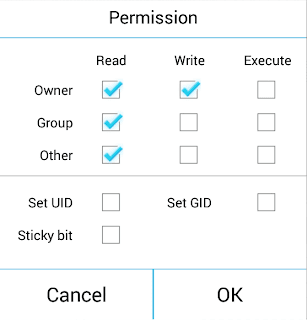
4. After setting permission....Reboot device...
5. After boot up....Download and extract NokiaX_SomeGoogleApps.zip then, install needed apk files in the archive.
Thats it....
source
Available link for download

Thursday, December 15, 2016
How To Fix Nokia Lumia Headphone Jack Problems Like One side Only Low Volume etc
How To Fix Nokia Lumia Headphone Jack Problems Like One side Only Low Volume etc
Last week my friend bought Nokia Lumia 625. The phone is amazing in looks and build quality. It has a great spec for the price tag expect the 512 MB RAM and the lack of NFC and magnetic sensor. It could be better if it has a 1 GB RAM as some of the games in the windows app store are optimized only for 1 GB RAM only. Even it has 512 MB RAM there is no hang or lag issues that we are facing in the low end Android mobiles.
After using 3 days he faced a problem with the headphone jack. In headphone the sound was only coming in one side. The same headphone tested with galaxy S3 and worked fine. We tried using S3 headset, but no luck. According to Google search results the headphone problem is a common issue in almost all Lumia phones mostly in 520,620,625,720,820,920 etc. Finally, I found a simple and working solution commented by MaulerX at WP Central forum.
Solution
- Restart the Phone
Thats It....Tested and Works Fine in Lumia 625.

source
After using 3 days he faced a problem with the headphone jack. In headphone the sound was only coming in one side. The same headphone tested with galaxy S3 and worked fine. We tried using S3 headset, but no luck. According to Google search results the headphone problem is a common issue in almost all Lumia phones mostly in 520,620,625,720,820,920 etc. Finally, I found a simple and working solution commented by MaulerX at WP Central forum.
Solution
- Restart the Phone
Thats It....Tested and Works Fine in Lumia 625.
source
Available link for download
Monday, October 3, 2016
How To Change NotePad Default Shortcut Keys For Plugins Like Emmet Intent By Fold Etc
How To Change NotePad Default Shortcut Keys For Plugins Like Emmet Intent By Fold Etc
 In Windows Platform, Notepad++ is the most popular code Editor among the developers. Its code highlighting available on a wide range of languages includes Java, PHP,HTML,CSS, XML, etc. The availability of wide range of plugins extends Notepad++ to the level of premium IDEs.
Shortcut keys will be more helpful when the keys are handy for the user. It depends by the user. Most of the popular Notepad++ plugins like Emmet, Indent By Fold, etc. has a default shortcut to execute the command. But many users like to change it to another hot-key which feels more comfortable for them.
Luckily in Notepad++ we have the option to change or assign new shortcut keys for the built-in Notepad++ commands and the third party plugin commands. In this post I included the simple steps to change the default shortcut keys in Notepad++ code editor.
Change Notepad++ Short cut Keys
1. Open Notepad++2. Goto Settings -> Shortcut Mapper..
3. To change plugin shortcut click on Plugin Command tab
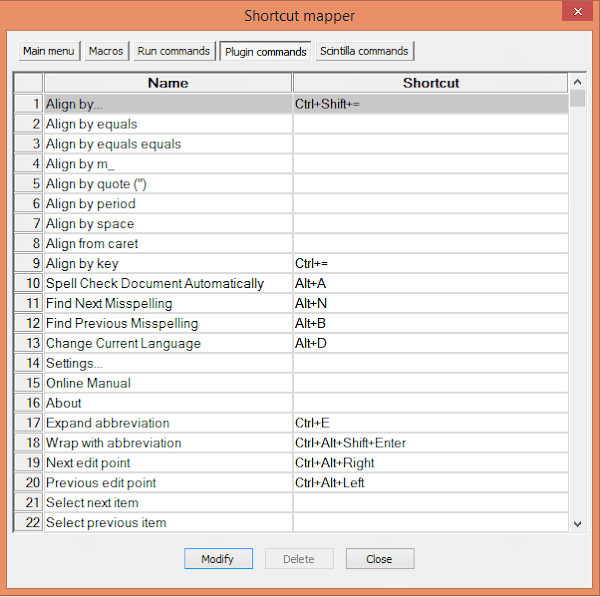
4. In the shortcut mapper window...double click on the desired command you wish to change or select the command and click Modify.
5. Modify to the desired one...
(For example, if You need Ctrl + E for Expand Abbreviation, then the selection will be like in the image below)

6. Finally, Click OK...Restart NotePad++. Thats it.
Available link for download
Subscribe to:
Posts (Atom)