Showing posts with label shortcut. Show all posts
Showing posts with label shortcut. Show all posts
Wednesday, January 11, 2017
How To Add Application Shortcut To Desktop Context Right Click Menu in Windows
How To Add Application Shortcut To Desktop Context Right Click Menu in Windows
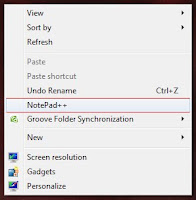 Do you want to add your favorite application to desktop context menu ? If your answer is yes, then this post is for you. There are many third party software available to do the same, but I am not writing about them.
 You can add any application to your desktop context menu by simply editing your registry. Just follow the simple steps to get it worked !
Steps
1. Press Windrows + R to open the Run box
2. Enter regedit in the open textfield and click OK
- It will open Registry Editor window
3. In Registry Editor expand HKEY_CLASSES_ROOTDirectoryBackgroundshell
4. Right click on the shell node click New > Key
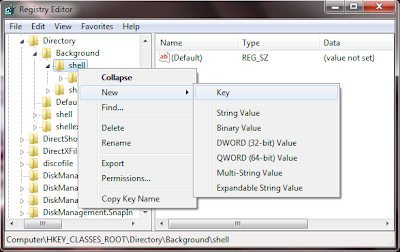
5. Now name the newly created Key to your apps name or anything you wish, because this name will show on the context menu of desktop. I am named it Notepad++.
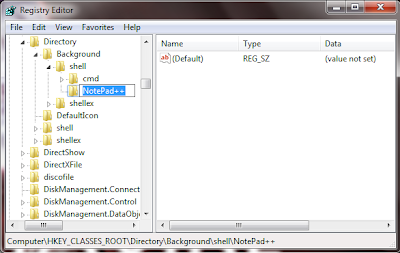
6. Now right click on the newly created key ( in my case NotePad++ ) and click New > Key
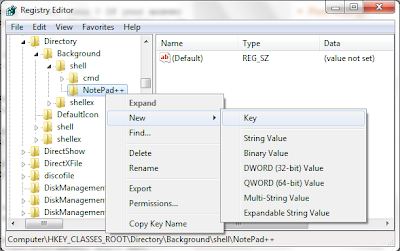
7. Name it to command

8. Now Right click on (Default) of command key and select Modify
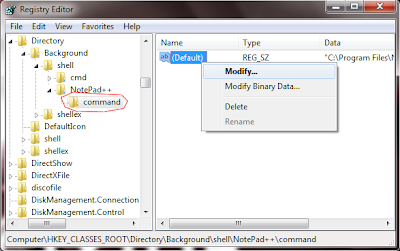
9. Now Copy the full path of your favorite application to the Value data textfield.... Click OK
Note : To copy the full path of application. Go to application folder find the apps .exe file. Shift + Right Click on the exe and click Copy as path.

Thats it done ! Now Go and check by right clicking desktop you will see the added menu item in Context menu !
Available link for download

Monday, October 3, 2016
How To Change NotePad Default Shortcut Keys For Plugins Like Emmet Intent By Fold Etc
How To Change NotePad Default Shortcut Keys For Plugins Like Emmet Intent By Fold Etc
 In Windows Platform, Notepad++ is the most popular code Editor among the developers. Its code highlighting available on a wide range of languages includes Java, PHP,HTML,CSS, XML, etc. The availability of wide range of plugins extends Notepad++ to the level of premium IDEs.
Shortcut keys will be more helpful when the keys are handy for the user. It depends by the user. Most of the popular Notepad++ plugins like Emmet, Indent By Fold, etc. has a default shortcut to execute the command. But many users like to change it to another hot-key which feels more comfortable for them.
Luckily in Notepad++ we have the option to change or assign new shortcut keys for the built-in Notepad++ commands and the third party plugin commands. In this post I included the simple steps to change the default shortcut keys in Notepad++ code editor.
Change Notepad++ Short cut Keys
1. Open Notepad++2. Goto Settings -> Shortcut Mapper..
3. To change plugin shortcut click on Plugin Command tab
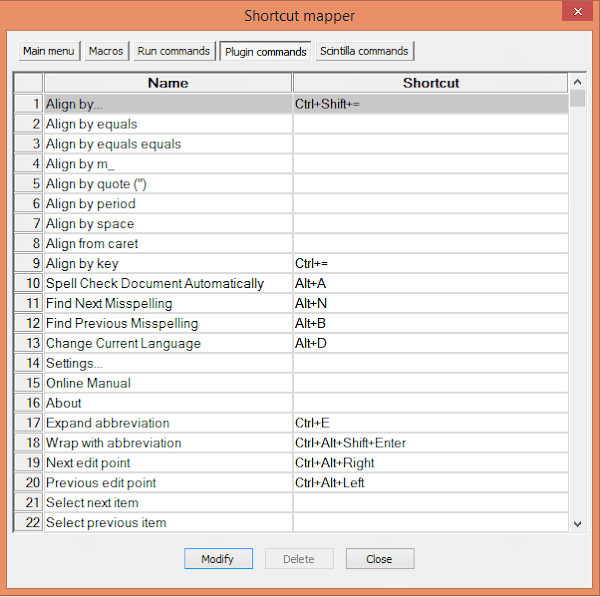
4. In the shortcut mapper window...double click on the desired command you wish to change or select the command and click Modify.
5. Modify to the desired one...
(For example, if You need Ctrl + E for Expand Abbreviation, then the selection will be like in the image below)

6. Finally, Click OK...Restart NotePad++. Thats it.
Available link for download
Subscribe to:
Posts (Atom)