Showing posts with label notepad. Show all posts
Showing posts with label notepad. Show all posts
Thursday, October 20, 2016
How to make a text to speech application using Notepad Tutorial
How to make a text to speech application using Notepad Tutorial
Hello !!.... Today i will show you how make a simple text to speech application using notepad.It is very easy...just follow the procedure given below & Enjoy your own Text to Speech application.
Step 1
Open Notepad and type the following code :
Step 2


Step 1
Open Notepad and type the following code :
Dim Message, Speak
Message=InputBox("Enter your text","Text to Speech")
Set Speak=CreateObject("sapi.spvoice")
Speak.Speak Message
Step 2
Go to File and click on save as.Give the file name Speak and give the
Extension .vbs
Step 3
A dialog box will appear with a msg like the following picture given below:
Click on yes. A file named Speak.vbs , will be created.This is our Text to Speech application.Just double click on it to open..Type anything in the Edit text box & then click ok to make your application talk !! Here is the Final Output given below :
Enjoy this awesome trick...& for more tricks keep visiting this blog...:)
REGARDS
Shankha Jana
Available link for download

Monday, October 3, 2016
How To Change NotePad Default Shortcut Keys For Plugins Like Emmet Intent By Fold Etc
How To Change NotePad Default Shortcut Keys For Plugins Like Emmet Intent By Fold Etc
 In Windows Platform, Notepad++ is the most popular code Editor among the developers. Its code highlighting available on a wide range of languages includes Java, PHP,HTML,CSS, XML, etc. The availability of wide range of plugins extends Notepad++ to the level of premium IDEs.
Shortcut keys will be more helpful when the keys are handy for the user. It depends by the user. Most of the popular Notepad++ plugins like Emmet, Indent By Fold, etc. has a default shortcut to execute the command. But many users like to change it to another hot-key which feels more comfortable for them.
Luckily in Notepad++ we have the option to change or assign new shortcut keys for the built-in Notepad++ commands and the third party plugin commands. In this post I included the simple steps to change the default shortcut keys in Notepad++ code editor.
Change Notepad++ Short cut Keys
1. Open Notepad++2. Goto Settings -> Shortcut Mapper..
3. To change plugin shortcut click on Plugin Command tab
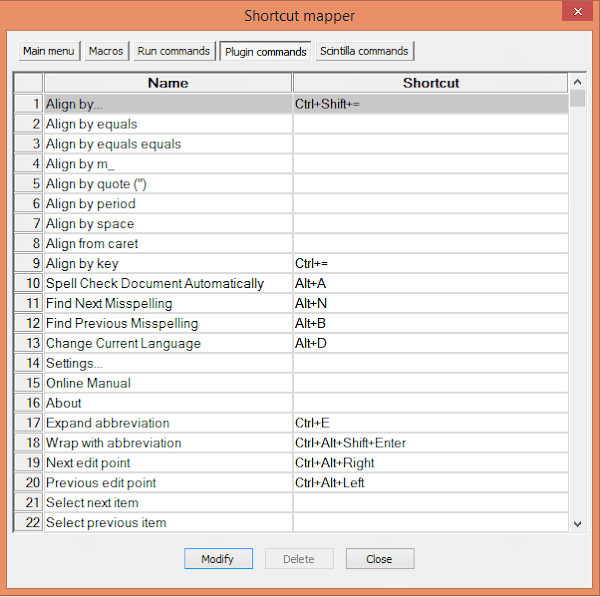
4. In the shortcut mapper window...double click on the desired command you wish to change or select the command and click Modify.
5. Modify to the desired one...
(For example, if You need Ctrl + E for Expand Abbreviation, then the selection will be like in the image below)

6. Finally, Click OK...Restart NotePad++. Thats it.
Available link for download
Subscribe to:
Posts (Atom)