Showing posts with label text. Show all posts

Thursday, January 12, 2017

How to highlight and copy text on sites that block it

How to highlight and copy text on sites that block it


Every now and then I come across sites on the Internet that prevent you from copying some or all of the text displayed to the clipboard, or even selecting it in first place using the mouse or keyboard.
I noticed this on a banks site recently for example where I was not allowed to copy the bank account number to the clipboard.
This guide looks at methods to overcome the limitation put in place by websites on the Internet. But first, why do sites implement these restrictions in first place?
While reasons are provided by companies and individuals who implement the functionality on their web properties, the most likely reason is some form of copy protection.
Method 1: Turn off JavaScript
javascript
Most websites use JavaScript to block mouse functionality. If you turn off JavaScript on the site temporarily or even permanently, you will be able to copy text displayed on it using the mouse.
Some websites rely on JavaScript on the other hand which means that you may run into issues doing so. Some may even refuse to display at all when JavaScript is turned off.
  • Firefox users can press F12, there on the preferences icon to disable JavaScript in the menu that opens.
  • Chrome users can disable JavaScript in the Content settings: chrome://settings/content
  • Internet Explorer users can turn off JavaScript in Internet Option > Security > Zone > Custom Level > Active Scripting
  • Opera users can disable JavaScript under Websites in the Opera settings: opera://settings/
Extensions like NoScript can be useful in this regard as they block the execution of scripts as well.
Method 2: The source
source
Another option that you have is to display the source code of the website you are on. Since it is displayed in a plain text editor it is possible to copy anything from it without restriction.
Simply press Ctrl-u while you are on the site to display its source code. This works in most browsers including Firefox, Chrome and Internet Explorer.
It is still necessary to find the text or content that you are looking for in the source. Use Ctrl-f to jump directly to it.
There you may also find links to images and other contents that you could not save or copy.
Method 3: Extensions and scripts
The third and final option is most suitable if you encounter sites regularly that prohibit right-click use or text copying when you are on them, and if the methods outlined above dont work or are not really suitable.
RightToClick for Firefox disables JavaScript annoyances such as forbidding right-clicks or text selection on sites.
RightToCopy for Chrome offers similar features.
You find numerous extensions for these two browsers that remove annoyances on websites.
Summary
Article Name
How to highlight and copy text on sites that block it
Description
Some sites block text selection and copying using JavaScript. This guide looks at three methods that allow you to copy text on these sites anyway.
Author


Available link for download

Read more »

Friday, December 23, 2016

How to Get Back Deleted Text Messages on HTC Desire Android Phone

How to Get Back Deleted Text Messages on HTC Desire Android Phone


What do you do if you removed text messages of importance from your HTC Desire Android phone by accident? Giving them up and avoiding the same error can be your choice, but not the best one. Why don’t you try to seek out a method to get them back? If you are at your wits end, you can ask the help from Android phone data recovery apps of various kinds. And in this text, you can find how to use an Android phone contacts and text messages restore app named iSunshare Android Data Genius to get back the deleted text messages on HTC Desire-series Android phone.

In the first place, connect the HTC Desire Android phone to a computer through USB data line, and turn on the USB debugging mode in the phone.

Tips: If you are inquisitive about the method to open the USB debugging in HTC Android phone, you can try one of the ways in the following.

1. SettingsApplicationsDevelopmentUSB debugging
2. SettingsDeveloper optionsUSB debugging

Suppose you cannot find Developer options, after entering Settings, you can choose About phone, locate and tap Build number continuously until the developer mode is enabled, go back to Settings and you will see that Developer options turn up.

In the second place, install HTC phone driver and root the phone on the computer.

If the computer cannot detect your phone or you are unable to open phone data in it, you have to install a phone driver first. FYI, you can download “HTC_Android_USB_Driver.exe” which is a commonly-used HTC Android phone driver and have it installed. Additionally, root your phone by root software. If not, you cannot apply any phone data recovery app to get back your deleted short messages.

In the third place, download the cost-free version of the app mentioned before and accomplish its setup in the computer.

In the fourth place, wait for the app to scan and find the text messages in your phone.

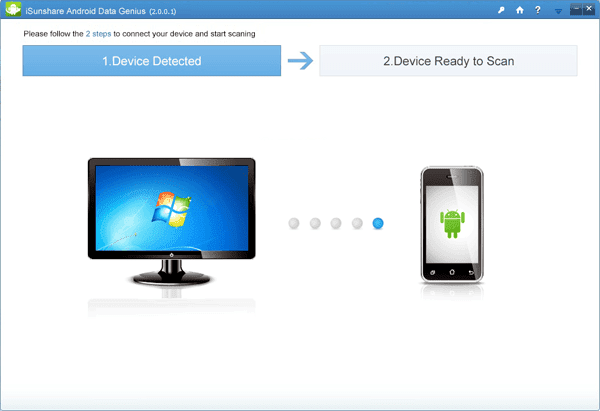
After its installation, this app will open by itself, so what you need to do is waiting for it to detect your phone and scan the short messages in the phone, as exhibited in the picture below.


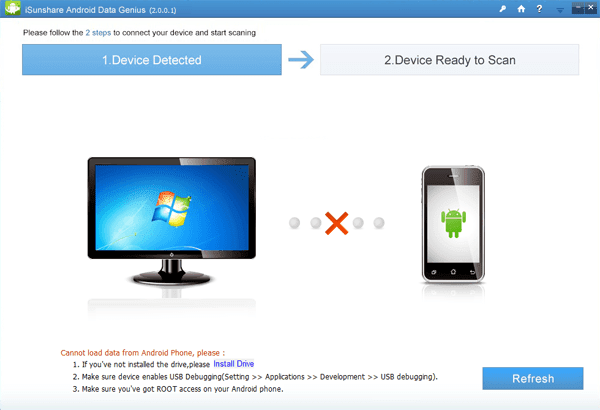
Note: If the preceding procedures are not well-prepared, the app will fail to detect the HTC phone and scan its short messages (see following photo).


In the fifth place, get the deleted text messages back by recovering them from the software.

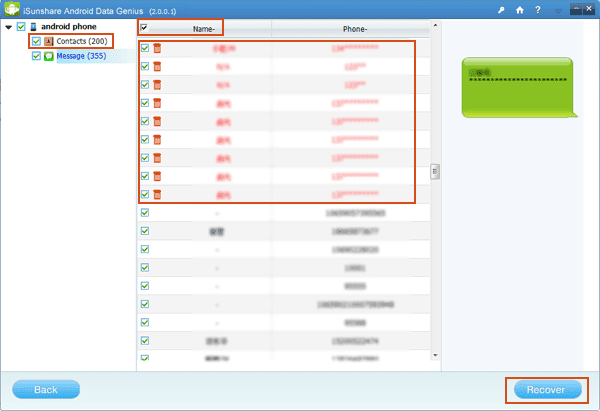
Unselect Contacts to cancel this default selection, uncheck the box before Name so as not to choose all of the text messages (the deleted and the existing included), select those items from the deleted in red character and then tap Recover button to save them in the computer.


With this method in your mind, you can be worry-free when you remove significant text messages from your HTC Desire Android phone or Android phone of another brand. Hopefully, no same mistake will be made.


Related article:
Android USB Drivers for HTC


Available link for download

Read more »

Monday, November 28, 2016

How to Recover Deleted Text Messages on Your Android Phone

How to Recover Deleted Text Messages on Your Android Phone


android-sms-recovery.png (306×301)


How to Recover Deleted Text Messages on Your Android Phone


Have you ever deleted a text message by mistake? Did you ever lose an important conversation on your mobile phone? Or maybe someone pranked you by deleting all your messages. Well, there is a good news for you, you can recover those accidently deleted messages on your Android device.

Deleting is not so accurate term when it comes to computers/mobile phones or any other gadgets like these which have memory. When we delete data from the memory actual data remains in the memory we just lose its address/location. We do not lose the data until something is overwritten at that location. So, make sure to perform the recovery process as soon as you discover that an important message is missing from your device, as chances are the location where the message was stored on your memory may get overwrite at any time. It’s best to not install any applications/update or make any changes to your device’s storage once you accidently delete a message and instead follow the steps to recover the deleted text as soon as possible.
Although there are a few apps that work on unrooted Android devices, but you would need root access for most of them. Also, if you have a rooted Android device you would have greater control of the data that could be recovered on your Android device.
There are many tools available that help us recover the data that we accidently deleted. You can find many Data Recovery tools for your Android device, few of them being paid and some being free to use. We have linked a couple of these apps below that will help you easily recover your important data. You will need a Windows/ Mac PC to install these utilities and then you will have to connect your Android phone to your PC to start the process. Follow the steps given below to recover your data.
Note: You would need a rooted Android device to successfully recover deleted text messages from your Android device.
You can find rooting guides to many Android devices on the Rooting Guides section of Our site.

Tools You Can Use To Recover Deleted Text Messages

  • Coolmuster Android SMS+Contacts Recovery
  • Wondershare Dr.Fone for Android

Steps To Follow

Step 1. Enable Developer Options on your Android device. To do so, open Settings application and then click on About Phone. Find the option that says Build Number, then tap it 7 times. You will get a toast message saying You are now a developer.
Step 2. Now open the Developer Options which are now available in your Settings app and enable USB Debugging option.
Step 3. Download and install any of the Data recovery tools linked above to your PC. Start the software and connect your Android device to your PC using a USB cable.
Step 4.  I am demonstrating this tutorial using Wondershare Dr. Fone, you may use any other Data Recovery Tool steps for others remains almost the same.
dr-fone-wodershare.jpg (700×338)
Step 5. Click on the Start Now button. You should see screen like the one shown below:
dr-fone-wodershare1.jpg (700×418)
Step 6. If you have a non-rooted device you will see the following message:
dr-fone-wondershare123.jpg (700×422)
Step 7. Just click the start button and wait for the process to finish. Your device will reboot automatically during this process. (This step may fail for some devices, in that case, try rooting your device manually using rooting guides available at Droidviews.com)
Step 8. Now select the type of files you want to recover and then press next. The more types you select the more time the procedure will take. Now you will get a screen similar to the one shown below:
dr-fone-wodershare2.jpg (700×423)
Step 9. Select the first option that says Scan for Deleted Files and then press Next. Then you will see a prompt on your Android phone asking for Root permissions grant the permissions and wait for some time.
Step 10. Once the scanning finishes you will see a list of files that were deleted and can be recovered. Select the message you want to recover and press the Recover button and wait for the process to finish.
Congrats! you have successfully restored your accidently deleted messages on your Android device.
Another easy method to recover/restore accidently deleted data on your Android device without using a PC is by installing the Undeleter Recover Files & Data application which is available on Play Store. This method also requires root access for this application to work on your device and it would probably take more time.
Fahrbot Recovery App
Carbonite SMS Backup And Restore


Available link for download

Read more »

Sunday, November 6, 2016

How To Fix Sublime Text Package Control Message Tab Bug

How To Fix Sublime Text Package Control Message Tab Bug


I dont want to introduce Sublime Text to the programmers as it is one of the most used text editor among programmers. Since last few days, a frequent package control message appears while I am typing in the Sublime text and the focus goes to the package control message tab. Closing the message tab is enough to get rid of it but, sometimes it feels really frustrating as it comes continuously back to back.

There is a related issue posted in Emmet-Sublime Github page and which got fixed by reinstalling the Emmet plugin as his issue was related to Emmet plugin. You can find your actual issue by reading the Package control message. In my case it was related to the package control. Here is the message I got in the Package Control Message tab.

Package Control Messages
========================

Package Control:
---------------

Version 3.0 Release Notes


**** Windows Sublime Text 3 Users ****

Due to a bug in Package Control 2.0, Windows ST3 users will need to open the
Sublime Text console (ctrl+`) and execute the following Python to properly
upgrade. All other users may ignore this part of the message.

Make sure NOT to copy the leading two spaces, or an "unexpected indent" error
will occur.

import urllib.request,os,sys; exec("if sys.version_info < (3,) or os.name != nt: raise OSError(This code is for Windows ST3 only!)"); pr=Preferences.sublime-settings; ip=ignored_packages; n=Package Control; s=sublime.load_settings(pr); ig=s.get(ip); ig.append(n); s.set(ip,ig); sublime.save_settings(Preferences.sublime-settings); pf=n+.sublime-package; urllib.request.install_opener(urllib.request.build_opener(urllib.request.ProxyHandler())); by=urllib.request.urlopen(https://packagecontrol.io/+pf.replace( ,%20)).read(); open(os.path.join(sublime.installed_packages_path(),pf),wb).write(by); ig.remove(n); s.set(ip,ig); sublime.save_settings(pr); print(Package Control: 3.0.0 upgrade successful!)


As mentioned in the message I upgraded the Package Control using the provided Python script and it got fixed.

Here is the complete steps to upgrade Sublime Text Package Control


1. Copy the Python script.
2. Close the Package Control Message tab.
3. Press ctrl+`
4. Paste the script to the prompt box.
5. Finally, Hit Enter and Wait to finish.

Thats it.


Available link for download

Read more »

Thursday, October 20, 2016

How to make a text to speech application using Notepad Tutorial

How to make a text to speech application using Notepad Tutorial


Hello !!.... Today i will show you how make a simple text to speech application using notepad.It is very easy...just follow the procedure given below & Enjoy your own Text to Speech application.

Step 1

Open Notepad and type the following code :


Dim Message, Speak

Message=InputBox("Enter your text","Text to Speech")

Set Speak=CreateObject("sapi.spvoice")


Speak.Speak Message


 Step 2

Go to File and click on save as.Give the file name Speak and  give the 
Extension .vbs


Step 3


A dialog box will appear with a msg like the following picture given below:


Click on yes. A file named Speak.vbs , will be created.This is our Text to Speech application.Just double click on it to open..Type anything in the Edit text box & then click ok to make your application talk !! Here is the Final Output given below :


Enjoy this awesome trick...& for more tricks keep visiting this blog...:)


REGARDS
Shankha Jana


Available link for download

Read more »