Showing posts with label rom. Show all posts
Showing posts with label rom. Show all posts
Wednesday, April 12, 2017
Guide How to Flash Stock ROM on Android OPPO F1 PLUS to Fix a Bootloop Removing Malware Stuck
Guide How to Flash Stock ROM on Android OPPO F1 PLUS to Fix a Bootloop Removing Malware Stuck
[Guide] How to Flash Stock ROM on Android OPPO F1 PLUS to Fix a Bootloop, Removing Malware, Stuck.
Flash Stock ROM on Android OPPO F1 PLUS. This guide will help you to Flash Stock ROM on Android OPPO F1 PLUS Smartphone. By flashing your Android phone you can get something new on your phone, such as new experience to use latest update of Stock ROM, or new installed Stock ROM after your phone died or bootloop, and much more. Before we proceed to flash this Android OPPO F1 PLUS Smartphone, let we know what is detail specification of this Android smartphone. OPPO F1 PLUS was released On 2016, March. And OPPO F1 PLUS is the smartphone that comes with 5,5 Inches AMOLED capacitive touchscreen, 16M colors, Run on Android OS, v5.1 (Lollipop) - ColorOS 3.0 UI as it Operating System and supported with Mediatek MT6755 Helio P10 Chipset, Octa-core 2.0 GHz Cortex-A53 CPU, GPU Mali-T860MP2, combined with 4 GB of RAM as their engine. And you can enjoy exciting 13 MP on main camera, and 16 MP on secondary camera.
Now, we start to flash Stock ROM on Android OPPO F1 PLUS Smartphone. Just follow this guide below carefully. take your own risk, a damage or broken phone by following this tutorial is not our responsibility.
Guide Flash Stock ROM OPPO F1 PLUS.
Before you flash OPPO F1 PLUS you must read this instruction carefully, so. you can get best result at the end of your flash.
Preparation.
- Make sure you have enough battery capacity on your OPPO F1 PLUS. Its recomended you have at least 80% of battery capacity.
- Always backup your important file (contact, music, video, app) that stored on OPPO F1 PLUS,
- Prepare the Memory Card / SD Card which has a V-Gen Brand. For some reason OPPO F1 PLUS does not recognized besides V-Gen Memory card.
- Then download OPPO F1 PLUS Stock ROM.
- Oppo F1 PLUS
- Once download finish, now copy Stock ROM from computer to the phone memory or SD Card. but note that you copy this ROM at outside not to the public folder for easy finding. (if you download ROM Via PC)
- But, Stock ROM can be download directly from yourAndroid phone. And you must have a good and stable internet connection for it, such as Wi-Fi connection.
- Rom download directly from the Android phone located in the File Manager / phone / download.
http://downloads.oppo.com.s3.amazonaws.com/firmware/X9009/X9009EX_11_OTA_013_all_201604131943.zip
Flashing Stock ROM.
- To start flashing Stock ROM on OPPO F1 PLUS you must enter Recovery Mode. how to do it ?
- Press and Hold Power Button + Volume Down.
- Then you will see menu like this picture. You can select English
- Select Wipe data and cache by pressing the power button. for Up and down choice, use the volume keys Up / Down, on the next Popup screen select Wipe your data cache to make faster process.
- If appears confirmation you can select : "YES"
- Then you will bring to previous menu, and you can select Install form sd.
- Now you will see 2 options. From mobile phone storage & form SD,.
- Previously you have copy firmware file on SD Card, So. now you must select From SD. and now you can see your Firmware file name on this screen.(Stock rom name is similar as shown on the picture below)
- Select this file name using Power Button
- For Up or Down navigation you can use volume Up and Down Button.
- Then you will see a confirmation page, and you can select yes to proceed this flash on OPPO F1 PLUS
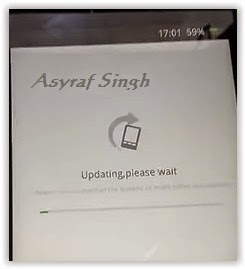
- Just wait the process finish updating system, and your OPPO F1 PLUS will ask to you to reboot the device.
- Now you have finished flash Stock ROM on Android OPPO F1 PLUS Smartphone.
 |
| Flash Bootloop OPPO F1 PLUS |
 |
| Flash Bootloop OPPO F1 PLUS |
 |
| Flash Bootloop OPPO F1 PLUS |
 |
| Flash Bootloop OPPO F1 PLUS |
 |
| Flash Bootloop OPPO F1 PLUS |
 |
| Flash Bootloop OPPO F1 PLUS |
 |
| Flash Bootloop OPPO F1 PLUS |
 |
| Flash Bootloop OPPO F1 PLUS |
Available link for download

Monday, April 3, 2017
Guide How to Flash Stock ROM on Android OPPO R2001 YOYO to Fix a Bootloop Removing Malware Stuck
Guide How to Flash Stock ROM on Android OPPO R2001 YOYO to Fix a Bootloop Removing Malware Stuck
[Guide] How to Flash Stock ROM on Android OPPO R2001 YOYO to Fix a Bootloop, Removing Malware, Stuck.
Flash Stock ROM on Android OPPO R2001 YOYO. This guide will help you to Flash Stock ROM on Android OPPO R2001 YOYO Smartphone. By flashing your Android phone you can get something new on your phone, such as new experience to use latest update of Stock ROM, or new installed Stock ROM after your phone died or bootloop, and much more. Before we proceed to flash this Android OPPO R2001 YOYO Smartphone, let we know what is detail specification of this Android smartphone.OPPO R2001 YOYO was released On 2014, May. And OPPO R2001 YOYO is the smartphone that comes with 4,7 Inches IPS LCD capacitive touchscreen, 16M colors, Run on Android OS, v4.2.1 (Jelly Bean) - ColorOSUI as it Operating System and supported with Mediatek MT6582M Chipset, Quad-core 1.3 GHz Cortex-A7 CPU, GPU Mali-400MP2, combined with 1 GB of RAM as their engine. And you can enjoy exciting 5 MP on main camera, and 2 MP on secondary camera.
Now, we start to flash Stock ROM on Android OPPO R2001 YOYO Smartphone. Just follow this guide below carefully. take your own risk, a damage or broken phone by following this tutorial is not our responsibility.
Guide Flash Stock ROM OPPO R2001 YOYO.
Before you flash OPPO R2001 YOYO you must read this instruction carefully, so. you can get best result at the end of your flash.
Preparation.
- Make sure you have enough battery capacity on your OPPO R2001 YOYO. Its recomended you have at least 80% of battery capacity.
- Always backup your important file (contact, music, video, app) that stored on OPPO R2001 YOYO,
- Prepare the Memory Card / SD Card which has a V-Gen Brand. For some reason OPPO R2001 YOYO does not recognized besides V-Gen Memory card.
- Then download OPPO R2001 YOYO Stock ROM.
- Oppo R2001 YOYO
- Once download finish, now copy Stock ROM from computer to the phone memory or SD Card. but note that you copy this ROM at outside not to the public folder for easy finding. (if you download ROM Via PC)
- But, Stock ROM can be download directly from yourAndroid phone. And you must have a good and stable internet connection for it, such as Wi-Fi connection.
- Rom download directly from the Android phone located in the File Manager / phone / download.
http://assorted.downloads.oppo.com/firmware/R2001/R2001_11.A.14_OTA_INT_014_all_151016.zip
Flashing Stock ROM.
- To start flashing Stock ROM on OPPO R2001 YOYO you must enter Recovery Mode. how to do it ?
- Press and Hold Power Button + Volume Down.
- Then you will see menu like this picture. You can select English
- Select Wipe data and cache by pressing the power button. for Up and down choice, use the volume keys Up / Down, on the next Popup screen select Wipe your data cache to make faster process.
- If appears confirmation you can select : "YES"
- Then you will bring to previous menu, and you can select Install form sd.
- Now you will see 2 options. From mobile phone storage & form SD,.
- Previously you have copy firmware file on SD Card, So. now you must select From SD. and now you can see your Firmware file name on this screen.(Stock rom name is similar as shown on the picture below)
- Select this file name using Power Button
- For Up or Down navigation you can use volume Up and Down Button.
- Then you will see a confirmation page, and you can select yes to proceed this flash on OPPO R2001 YOYO
- Just wait the process finish updating system, and your OPPO R2001 YOYO will ask to you to reboot the device.
- Now you have finished flash Stock ROM on Android OPPO R2001 YOYO Smartphone.
|
| Flash Bootloop OPPO R2001 YOYO |
|
| Flash Bootloop OPPO R2001 YOYO |
|
| Flash Bootloop OPPO R2001 YOYO |
|
| Flash Bootloop OPPO R2001 YOYO |
|
| Flash Bootloop OPPO R2001 YOYO |
|
| Flash Bootloop OPPO R2001 YOYO |
|
| Flash Bootloop OPPO R2001 YOYO |
|
| Flash Bootloop OPPO R2001 YOYO |
Available link for download
Saturday, March 25, 2017
Guide How to Flash Stock ROM on Android OPPO NEO 3 to Fix a Bootloop Removing Malware Stuck
Guide How to Flash Stock ROM on Android OPPO NEO 3 to Fix a Bootloop Removing Malware Stuck
[Guide] How to Flash Stock ROM on Android OPPO NEO 3 to Fix a Bootloop, Removing Malware, Stuck.
Flash Stock ROM on Android OPPO NEO 3. This guide will help you to Flash Stock ROM on Android OPPO NEO 3 Smartphone. By flashing your Android phone you can get something new on your phone, such as new experience to use latest update of Stock ROM, or new installed Stock ROM after your phone died or bootloop, and much more. Before we proceed to flash this Android OPPO NEO 3 Smartphone, let we know what is detail specification of this Android smartphone.OPPO NEO 3 was released On 2014, August. And OPPO NEO 3 is the smartphone that comes with 4,5 Inches IPS LCD capacitive touchscreen, 16M colors, Run on Android OS, v4.2.1 (Jelly Bean) - ColorOS v1.4 UI as it Operating System and Dual-core 1.3 GHz CPU, combined with 1 GB of RAM as their engine. And you can enjoy exciting 5 MP on main camera, and 2 MP on secondary camera.
Now, we start to flash Stock ROM on Android OPPO NEO 3 Smartphone. Just follow this guide below carefully. take your own risk, a damage or broken phone by following this tutorial is not our responsibility.
Guide Flash Stock ROM OPPO NEO 3.
Before you flash OPPO NEO 3 you must read this instruction carefully, so. you can get best result at the end of your flash.
Preparation.
- Make sure you have enough battery capacity on your OPPO NEO 3. Its recomended you have at least 80% of battery capacity.
- Always backup your important file (contact, music, video, app) that stored on OPPO NEO 3,
- Prepare the Memory Card / SD Card which has a V-Gen Brand. For some reason OPPO NEO 3 does not recognized besides V-Gen Memory card.
- Then download OPPO NEO 3 Stock ROM.
- Oppo NEO 3
- Once download finish, now copy Stock ROM from computer to the phone memory or SD Card. but note that you copy this ROM at outside not to the public folder for easy finding. (if you download ROM Via PC)
- But, Stock ROM can be download directly from yourAndroid phone. And you must have a good and stable internet connection for it, such as Wi-Fi connection.
- Rom download directly from the Android phone located in the File Manager / phone / download.
http://assorted.downloads.oppo.com/firmware/R831K/R831K_11.A.16_OTA_INT_016_all_151103.zip
Flashing Stock ROM.
- To start flashing Stock ROM on OPPO NEO 3 you must enter Recovery Mode. how to do it ?
- Press and Hold Power Button + Volume Down.
- Then you will see menu like this picture. You can select English
- Select Wipe data and cache by pressing the power button. for Up and down choice, use the volume keys Up / Down, on the next Popup screen select Wipe your data cache to make faster process.
- If appears confirmation you can select : "YES"
- Then you will bring to previous menu, and you can select Install form sd.
- Now you will see 2 options. From mobile phone storage & form SD,.
- Previously you have copy firmware file on SD Card, So. now you must select From SD. and now you can see your Firmware file name on this screen.(Stock rom name is similar as shown on the picture below)
- Select this file name using Power Button
- For Up or Down navigation you can use volume Up and Down Button.
- Then you will see a confirmation page, and you can select yes to proceed this flash on OPPO NEO 3
- Just wait the process finish updating system, and your OPPO NEO 3 will ask to you to reboot the device.
- Now you have finished flash Stock ROM on Android OPPO NEO 3 Smartphone.
|
| Flash Bootloop OPPO NEO 3 |
|
| Flash Bootloop OPPO NEO 3 |
|
| Flash Bootloop OPPO NEO 3 |
|
| Flash Bootloop OPPO NEO 3 |
|
| Flash Bootloop OPPO NEO 3 |
|
| Flash Bootloop OPPO NEO 3 |
|
| Flash Bootloop OPPO NEO 3 |
|
| Flash Bootloop OPPO NEO 3 |
Available link for download
Saturday, March 11, 2017
How to Flash Stock ROM on Android OPPO R1X to Fix a Bootloop Removing Malware Stuck Guide
How to Flash Stock ROM on Android OPPO R1X to Fix a Bootloop Removing Malware Stuck Guide
How to Flash Stock ROM on Android OPPO R1X to Fix a Bootloop, Removing Malware, Stuck [Guide].
Flash Stock ROM on Android OPPO R1X. This guide will help you to Flash Stock ROM on Android OPPO R1X Smartphone. By flashing your Android phone you can get something new on your phone, such as new experience to use latest update of Stock ROM, or new installed Stock ROM after your phone died or bootloop, and much more. Before we proceed to flash this Android OPPO R1X Smartphone, let we know what is detail specification of this Android smartphone. OPPO R1X was released On 2015, January. And OPPO R1X is the smartphone that comes with 5,0 Inches IPS LCD capacitive touchscreen, 16M colors, Run on Android OS, v4.4 (KitKat) - Color OS 2.0.1 UI as it Operating System and supported with Qualcomm MSM8939 Snapdragon 615 Chipset, QQuad-core 1.7 GHz Cortex-A53 & quad-core 1.0 GHz Cortex-A53 CPU, GPU Adreno 405, combined with 2 GB of RAM as their engine. And you can enjoy exciting 13 MP on main camera, and 5 MP on secondary camera.
Now, we start to flash Stock ROM on Android OPPO R1X Smartphone. Just follow this guide below carefully. take your own risk, a damage or broken phone by following this tutorial is not our responsibility.
Guide Flash Stock ROM OPPO R1X.
Before you flash OPPO R1X you must read this instruction carefully, so. you can get best result at the end of your flash.
Preparation.
- Make sure you have enough battery capacity on your OPPO R1X. Its recomended you have at least 80% of battery capacity.
- Always backup your important file (contact, music, video, app) that stored on OPPO R1X,
- Prepare the Memory Card / SD Card which has a V-Gen Brand. For some reason OPPO R1X does not recognized besides V-Gen Memory card.
- Then download OPPO R1X Stock ROM.
- Oppo R1X
- Once download finish, now copy Stock ROM from computer to the phone memory or SD Card. but note that you copy this ROM at outside not to the public folder for easy finding. (if you download ROM Via PC)
- But, Stock ROM can be download directly from yourAndroid phone. And you must have a good and stable internet connection for it, such as Wi-Fi connection.
- Rom download directly from the Android phone located in the File Manager / phone / download.
http://assorted.downloads.oppo.com/firmware/R1x/R1xEX_11.A.05_OTA_INT_005_all_150706.zip
Flashing Stock ROM.
- To start flashing Stock ROM on OPPO R1X you must enter Recovery Mode. how to do it ?
- Press and Hold Power Button + Volume Down.
- Then you will see menu like this picture. You can select English
- Select Wipe data and cache by pressing the power button. for Up and down choice, use the volume keys Up / Down, on the next Popup screen select Wipe your data cache to make faster process.
- If appears confirmation you can select : "YES"
- Then you will bring to previous menu, and you can select Install form sd.
- Now you will see 2 options. From mobile phone storage & form SD,.
- Previously you have copy firmware file on SD Card, So. now you must select From SD. and now you can see your Firmware file name on this screen.(Stock rom name is similar as shown on the picture below)
- Select this file name using Power Button
- For Up or Down navigation you can use volume Up and Down Button.
- Then you will see a confirmation page, and you can select yes to proceed this flash on OPPO R1X
- Just wait the process finish updating system, and your OPPO R1X will ask to you to reboot the device.
- Now you have finished flash Stock ROM on Android OPPO R1X Smartphone.
|
| Flash Bootloop OPPO R1X |
|
| Flash Bootloop OPPO R1X |
|
| Flash Bootloop OPPO R1X |
|
| Flash Bootloop OPPO R1X |
|
| Flash Bootloop OPPO R1X |
|
| Flash Bootloop OPPO R1X |
|
| Flash Bootloop OPPO R1X |
|
| Flash Bootloop OPPO R1X |
Available link for download
Wednesday, March 8, 2017
How to Check If ROM Is Odexed or Deodexed
How to Check If ROM Is Odexed or Deodexed
Sometimes the developers create separate mod or patch for the Odexed and Deodexed ROMs. In such cases we should know whether our ROM is Odexed or Deodexed. If you are using the Official stock ROM by the manufacturer then there is no more confusion your ROM is odexed. If you are using a custom ROM it may Odexed or Deodexed.
In this post I included the common and simple way to check if our ROM is Odexed or Deodexed.
2. Open the downloaded app and navigate to /system/app
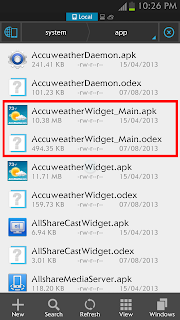
If your ROM is Odexed you can see the .apk and .odex file in the app directory. If your ROM is Deodexed you will not see any .odex file in the app directory.
Thats it.
In this post I included the common and simple way to check if our ROM is Odexed or Deodexed.
how to check if rom is odexed or deodexed ?
1. Download and install any Root explorer eg. ES File Explorer2. Open the downloaded app and navigate to /system/app
If your ROM is Odexed you can see the .apk and .odex file in the app directory. If your ROM is Deodexed you will not see any .odex file in the app directory.
Thats it.
Available link for download
Thursday, March 2, 2017
Guide How to Flash Stock ROM on Android OPPO NEO 5 to Fix a Bootloop Removing Malware Stuck
Guide How to Flash Stock ROM on Android OPPO NEO 5 to Fix a Bootloop Removing Malware Stuck
[Guide] How to Flash Stock ROM on Android OPPO NEO 5 to Fix a Bootloop, Removing Malware, Stuck.
Flash Stock ROM on Android OPPO NEO 5. This guide will help you to Flash Stock ROM on Android OPPO NEO 5 Smartphone. By flashing your Android phone you can get something new on your phone, such as new experience to use latest update of Stock ROM, or new installed Stock ROM after your phone died or bootloop, and much more. Before we proceed to flash this Android OPPO NEO 5 Smartphone, let we know what is detail specification of this Android smartphone.OPPO NEO 5 was released On 2014, August. And OPPO NEO 5 is the smartphone that comes with 4,5 Inches IPS LCD capacitive touchscreen, 16M colors, Run on Android OS, v4.3 (Jelly Bean) - ColorOS v1.4 UI as it Operating System and supported with Qualcomm Snapdragon 400 Chipset, Quad-core 1.2 GHz Cortex-A7 CPU, GPU Adreno 305, combined with 1 GB of RAM as their engine. And you can enjoy exciting 5 MP on main camera, and 2 MP on secondary camera.
Now, we start to flash Stock ROM on Android OPPO NEO 5 Smartphone. Just follow this guide below carefully. take your own risk, a damage or broken phone by following this tutorial is not our responsibility.
Guide Flash Stock ROM OPPO NEO 5.
Before you flash OPPO NEO 5 you must read this instruction carefully, so. you can get best result at the end of your flash.
Preparation.
- Make sure you have enough battery capacity on your OPPO NEO 5. Its recomended you have at least 80% of battery capacity.
- Always backup your important file (contact, music, video, app) that stored on OPPO NEO 5,
- Prepare the Memory Card / SD Card which has a V-Gen Brand. For some reason OPPO NEO 5 does not recognized besides V-Gen Memory card.
- Then download OPPO NEO 5 Stock ROM.
- Oppo NEO 5
- Once download finish, now copy Stock ROM from computer to the phone memory or SD Card. but note that you copy this ROM at outside not to the public folder for easy finding. (if you download ROM Via PC)
- But, Stock ROM can be download directly from yourAndroid phone. And you must have a good and stable internet connection for it, such as Wi-Fi connection.
- Rom download directly from the Android phone located in the File Manager / phone / download.
http://assorted.downloads.oppo.com/firmware/1201/1201EX_11.A.11_OTA_INT_011_all_151020.zip
Flashing Stock ROM.
- To start flashing Stock ROM on OPPO NEO 5 you must enter Recovery Mode. how to do it ?
- Press and Hold Power Button + Volume Down.
- Then you will see menu like this picture. You can select English
- Select Wipe data and cache by pressing the power button. for Up and down choice, use the volume keys Up / Down, on the next Popup screen select Wipe your data cache to make faster process.
- If appears confirmation you can select : "YES"
- Then you will bring to previous menu, and you can select Install form sd.
- Now you will see 2 options. From mobile phone storage & form SD,.
- Previously you have copy firmware file on SD Card, So. now you must select From SD. and now you can see your Firmware file name on this screen.(Stock rom name is similar as shown on the picture below)
- Select this file name using Power Button
- For Up or Down navigation you can use volume Up and Down Button.
- Then you will see a confirmation page, and you can select yes to proceed this flash on OPPO NEO 5
- Just wait the process finish updating system, and your OPPO NEO 5 will ask to you to reboot the device.
- Now you have finished flash Stock ROM on Android OPPO NEO 5 Smartphone.
|
| Flash Bootloop OPPO NEO 5 |
|
| Flash Bootloop OPPO NEO 5 |
|
| Flash Bootloop OPPO NEO 5 |
|
| Flash Bootloop OPPO NEO 5 |
|
| Flash Bootloop OPPO NEO 5 |
|
| Flash Bootloop OPPO NEO 5 |
|
| Flash Bootloop OPPO NEO 5 |
|
| Flash Bootloop OPPO NEO 5 |
Available link for download
Wednesday, March 1, 2017
How to change rom Lenovo A316i to be Xperia Papyrus 2014
How to change rom Lenovo A316i to be Xperia Papyrus 2014
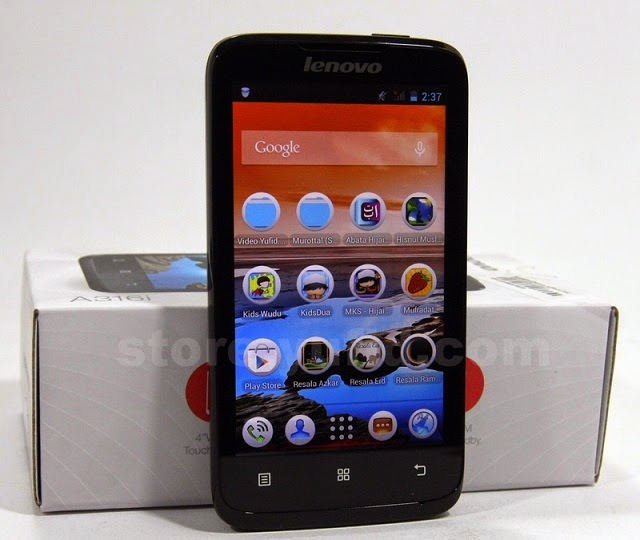
First, you must have done a root on the target phone, if still not rooted then you can read the article, how to root the phone china easily HERE.
Second, your mobile phone must be installed CWM recovery, if not you can read HERE.
Third, download the ROM xperia HERE, then after the download is complete,
place the xperia ROM on the sdcard and do not enter into the folder.
Fourth, reboot into CWM recovery menu, you can do it by :
1. Turn off HP, press the power button and volume up simultaneously and
hold until the boot selection menu appears on the HP, then select recovery.
2. Delete user data, cache partititon and Dalvik cache.
3. Select install.zip from sd card, select the ROM xperia.zip who have downloaded earlier, and
select install.
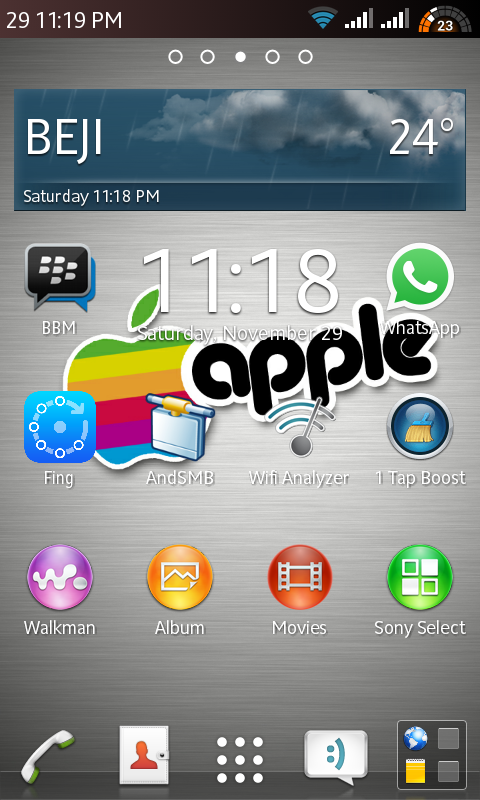
Wait until the process is completed and enjoy Lenovo A316i, with a sense of the Sony Xperia ;)
Look this Screenshot :
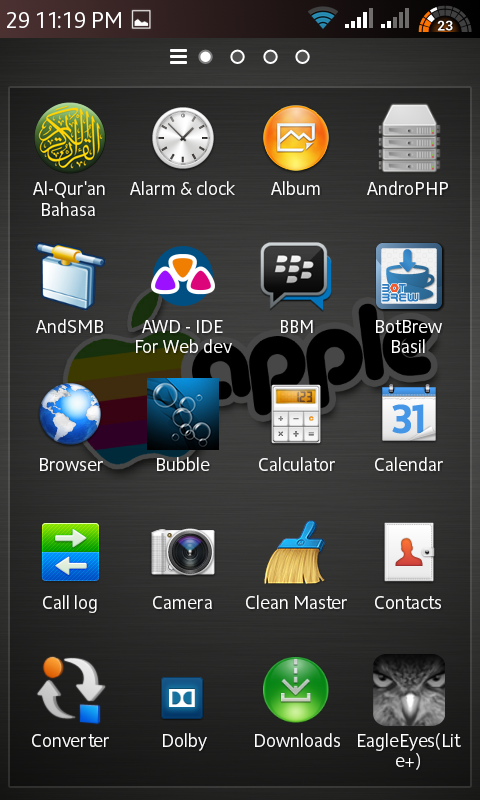
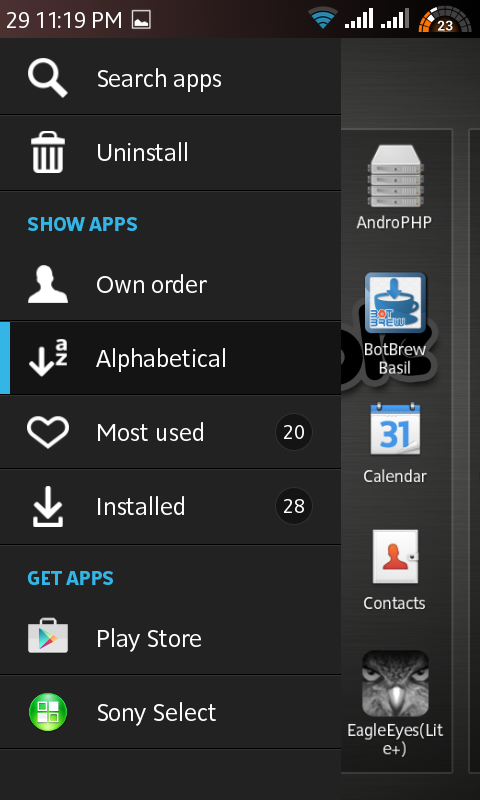
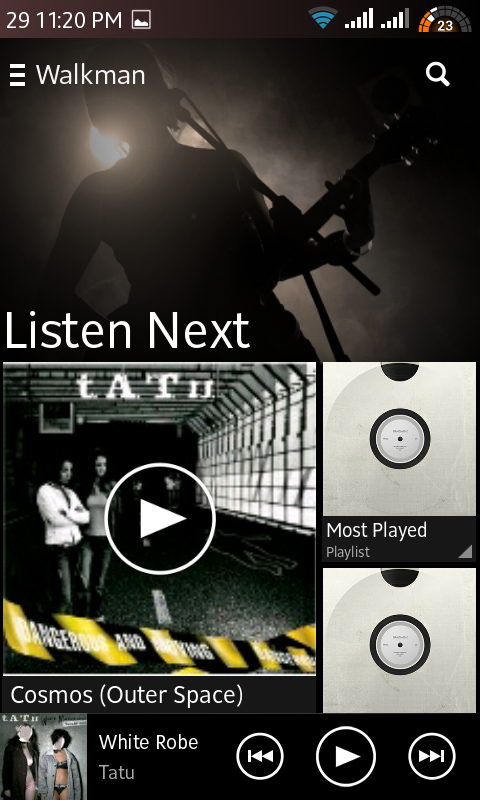
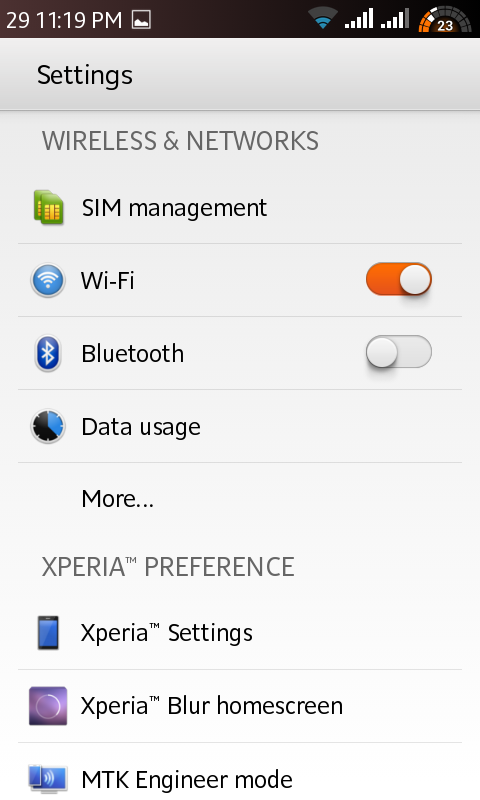
Thanks for coming and dont forget give this blog spirit from your like :)
Available link for download
Tuesday, February 21, 2017
Guide How to Flash Stock ROM on Android OPPO N1 MINI to Fix a Bootloop
Guide How to Flash Stock ROM on Android OPPO N1 MINI to Fix a Bootloop
[Guide] How to Flash Stock ROM on Android OPPO N1 MINI to Fix a Bootloop.
Flash Stock ROM on Android OPPO N1 MINI. This guide will help you to Flash Stock ROM on Android OPPO N1 MINI Smartphone. By flashing your Android phone you can get something new on your phone, such as new experience to use latest update of Stock ROM, or new installed Stock ROM after your phone died or bootloop, and much more. Before we proceed to flash this Android OPPO N1 MINI Smartphone, let we know what is detail specification of this Android smartphone. OPPO N1 MINI was released On 2014, August. And OPPO N1 MINI is the smartphone that comes with 5.0 Inches IPS LCD capacitive touchscreen, 16M colors, Run on Android OS, v4.3 (Jelly Bean) - ColorOS 1,4 UI as it Operating System and supported with Qualcomm Snapdragon 400 Chipset, Quad-core 1.6 GHz Cortex-A7 CPU, GPU Adreno 305, combined with 2 GB of RAM as their engine. And you can enjoy exciting 13 MP on main camera, and 13 MP on secondary camera.
Now, we start to flash Stock ROM on Android OPPO N1 MINI Smartphone. Just follow this guide below carefully. take your own risk, a damage or broken phone by following this tutorial is not our responsibility.
Guide Flash Stock ROM OPPO N1 MINI.
Before you flash OPPO N1 MINI you must read this instruction carefully, so. you can get best result at the end of your flash.
Preparation.
- Make sure you have enough battery capacity on your OPPO N1 MINI. Its recomended you have at least 80% of battery capacity.
- Always backup your important file (contact, music, video, app) that stored on OPPO N1 MINI,
- Prepare the Memory Card / SD Card which has a V-Gen Brand. For some reason OPPO N1 MINI does not recognized besides V-Gen Memory card.
- Then download OPPO N1 MINI Stock ROM.
- Oppo N1 MINI
- Once download finish, now copy Stock ROM from computer to the phone memory or SD Card. but note that you copy this ROM at outside not to the public folder for easy finding. (if you download ROM Via PC)
- But, Stock ROM can be download directly from yourAndroid phone. And you must have a good and stable internet connection for it, such as Wi-Fi connection.
- Rom download directly from the Android phone located in the File Manager / phone / download.
http://assorted.downloads.oppo.com/firmware/N5116%26N5111/N1mini_11_A.11_INT_150322_OTA_011_all.zip
Flashing Stock ROM.
- To start flashing Stock ROM on OPPO N1 MINI you must enter Recovery Mode. how to do it ?
- Press and Hold Power Button + Volume Down.
- Then you will see menu like this picture. You can select English
- Select Wipe data and cache by pressing the power button. for Up and down choice, use the volume keys Up / Down, on the next Popup screen select Wipe your data cache to make faster process.
- If appears confirmation you can select : "YES"
- Then you will bring to previous menu, and you can select Install form sd.
- Now you will see 2 options. From mobile phone storage & form SD,.
- Previously you have copy firmware file on SD Card, So. now you must select From SD. and now you can see your Firmware file name on this screen.(Stock rom name is similar as shown on the picture below)
- Select this file name using Power Button
- For Up or Down navigation you can use volume Up and Down Button.
- Then you will see a confirmation page, and you can select yes to proceed this flash on OPPO N1 MINI
- Just wait the process finish updating system, and your OPPO N1 MINI will ask to you to reboot the device.
- Now you have finished flash Stock ROM on Android OPPO N1 MINI Smartphone.
|
| Flash Bootloop OPPO N1 MINI |
|
| Flash Bootloop OPPO N1 MINI |
|
| Flash Bootloop OPPO N1 MINI |
|
| Flash Bootloop OPPO N1 MINI |
|
| Flash Bootloop OPPO N1 MINI |
|
| Flash Bootloop OPPO N1 MINI |
|
| Flash Bootloop OPPO N1 MINI |
|
| Flash Bootloop OPPO N1 MINI |
Available link for download
Subscribe to:
Posts (Atom)