Showing posts with label cinnamon. Show all posts
Showing posts with label cinnamon. Show all posts
Wednesday, February 15, 2017
How To Install Cinnamon 3 0 In Ubuntu 16 04 Or 15 10 Via PPA
How To Install Cinnamon 3 0 In Ubuntu 16 04 Or 15 10 Via PPA
Cinnamon 3.0 was released yesterday and it includes improved GTK+ 3.20 support, new accessibility and sound settings and more.
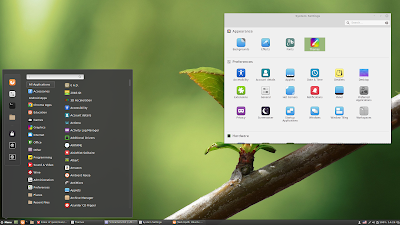
Cinnamon is a GTK3 desktop environment, initially started as a fork of GNOME Shell, which is used by default in Linux Mint Cinnamon edition. Among its features are:
- panel with a menu, launchers, window list, system tray;
- support for panel applets and desktop widgets (Desklets);
- supports desktop animations and transition effects;
- highly configurable: users can customize the panel (besides applets, the panel supports autohide and the panel layout can be changed: you can use one panel or two panels like the old GNOME 2 layout), easily change themes, customize desktop animations, hot corners, etc.;
- much more.
Changes in Cinnamon 3.0 include:
- window management improvements on tiling, mapping and unmapping windows, compositor’s window groups and tracking of full screen windows
- improved out of the box touchpad support (edge-scrolling and two-finger-scrolling can now be configured independently and are both enabled by default)
- new accessibility and sound settings (both rewritten as native cinnamon-settings modules)
- battery powered devices can be renamed
- different favorite applications can now be set for plain-text, documents and source code files
- panel launchers now include application actions
- animation effects are now enabled by default on dialogs and menus
- favorites and system options can now be disabled in the menu applet
- the photo-frame desklet now also scans subdirectories
- improved support for GTK 3.20, Spotify 0.27, Viber
Here are the new Cinnamon accessibility and sound settings:
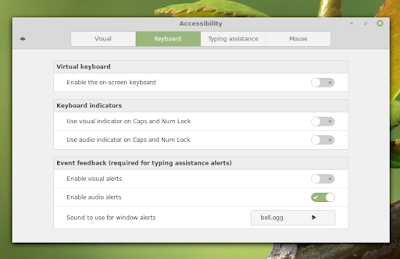
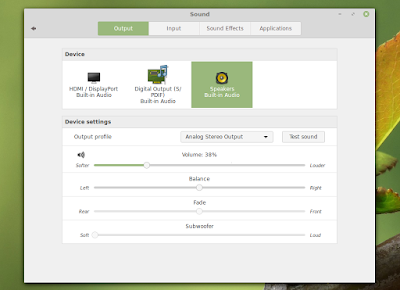
And the Preferred Applications dialog which now allows settings different applications for opening documents, plain text, and source code files:
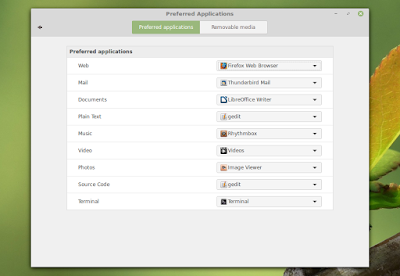
Cinnamon 3.0 will be included with Linux Mint 18 Cinnamon edition. Its not yet clear if it will be available for Linux Mint 17.3, but I assume thats pretty difficult to achieve, considering that Linux Mint 17.3 is based on Ubuntu 14.04 which uses a pretty old GTK+ version (3.10).
Update: Clem mentioned in a comment that "versions 3.0, 3.2, 3.4 and 3.6 are targeting Mint 18.x.", so Linux Mint 17.x users wont be getting Cinnamon 3.x.
Update: Clem mentioned in a comment that "versions 3.0, 3.2, 3.4 and 3.6 are targeting Mint 18.x.", so Linux Mint 17.x users wont be getting Cinnamon 3.x.
Note that in the screenshots above, Im using the new Linux Mint Mint Y GTK and icon themes as well as the Linux Mint Cinnamon theme. Youll find download links for these below, under "Cinnamon 3.0 tweaks for Ubuntu".
Install Cinnamon 3.0 in Ubuntu 16.04 or 15.10 via PPA
Important: if you want to install Cinnamon in Ubuntu and youre using the WebUpd8 Nemo PPA, purge that PPA before proceeding. Also, dont add this PPA if you use Linux Mint.
The PPAs that uses to provide Cinnamon stable werent updated with the latest Cinnamon 3.0. I did find 2 PPAs with Cinnamon 3.0:
- Sunderland93s Cinnamon PPA (Ubuntu 16.04 only - its still in the process of being updated at the time Im writing this article)
- embrosyns Cinnamon PPA (for Ubuntu 16.04 and 15.10)
Theres also the Cinnamon Nightly Builds PPA, but its not recommended for regular users because it contains untested / unstable code from Git!
For the instructions below Im using embrosyns Cinnamon stable PPA.
To add the PPA and install Cinnamon 3.0 in Ubuntu 16.04 or 15.10, use the following commands:
sudo add-apt-repository ppa:embrosyn/cinnamon
sudo apt update
sudo apt install cinnamon blueberry
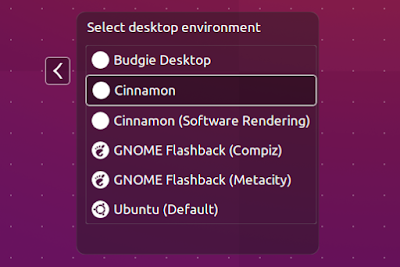
Once installed, log out and select Cinnamon from the login screen:
Tweaks
1. Themes
In Ubuntu 16.04, Ambiance and Radiance themes have some issues in Cinnamon, like missing shadows for CSD apps.
In Ubuntu 16.04, Ambiance and Radiance themes have some issues in Cinnamon, like missing shadows for CSD apps.
However, there are quite a few themes out there that should work properly in Cinnamon, like Numix GTK Theme (available in the official repositories). To install Numix GTK Theme, use the following command:
sudo apt install numix-gtk-themeYou can also download the official Linux Mint themes, including the new Mint Y Theme from Linux Mint 18, by using the links below:
- mint-themes (youll also need libreoffice-style-mint because mint-themes depends on it, as well as mint-x-icons and mint-themes-gtk3, both linked below)
- mint-themes-gtk3 (download the 3.18 version - its for GTK 3.18, available in Ubuntu 16.04)
- mint-y-theme
- mint-x-icons
- mint-y-icons
- cinnamon-themes
Note: to be able to install "libreoffice-style-mint", youll need to remove the "libreoffice-style-human" package, which is installed by default in Ubuntu 15.10.
To install them, download the deb files using the links above and place them in a folder - lets call it "deb" -, in your home directory (~/deb). Then use dpkg to install all the packages at once, using the following command:
To install them, download the deb files using the links above and place them in a folder - lets call it "deb" -, in your home directory (~/deb). Then use dpkg to install all the packages at once, using the following command:
sudo dpkg -i ~/deb/*.debIn my test in Ubuntu 15.10, selecting "Quit" from the Cinnamon menu (which allows you to shutdown the computer) doesnt work properly - the dialog doesnt display any buttons other than "Cancel".
gsettings set org.cinnamon.desktop.session settings-daemon-uses-logind true
gsettings set org.cinnamon.desktop.session session-manager-uses-logind true
gsettings set org.cinnamon.desktop.session screensaver-uses-logind falseI should also mention that I didnt encounter this issue in Ubuntu 16.04.
Thanks to Kevin @ AskUbuntu for the fix!
How to revert the changes
There are two ways you can revert the changes made by using the PPA above to install Cinnamon: either completely remove Cinnamon 3.0 or you can downgrade the packages installed from the PPA and use the Cinnamon version available in the official Ubuntu repositories.
A) Completely remove Cinnamon 3.0
Firstly remove the PPA:
sudo rm /etc/apt/sources.list.d/embrosyn-cinnamon*.listThen, to completely remove Cinnamon, you can use the following command:
sudo apt purge cinnamon* libcinnamon* nemo* libnemo-extension1 cjs libcjs0e blueberry gir1.2-cinnamondesktop-3.0 gir1.2-meta-muffin-0.0 libmuffin0 muffin-commonYou may then use "autoremove" to remove all the depedencies that were installed and are no longer required:
sudo apt autoremoveB) Purge the PPA
By purging the PPA, you can downgrade Cinnamon to the version available in the official Ubuntu repositories. You can do this with PPA Purge:
sudo apt install ppa-purge
sudo ppa-purge ppa:embrosyn/cinnamon
Available link for download

Monday, October 10, 2016
Global Menu Applet For Cinnamon Desktop Global Application Menu
Global Menu Applet For Cinnamon Desktop Global Application Menu
A much requested applet was released to the Cinnamon Applets website recently: Global Application Menu.
Global Application Menu is a Cinnamon (the desktop environment used by default in Linux Mint Cinnamon edition) applet which allows displaying the application menu on the Cinnamon panel, either as a horizontal menu or as a menu button:


The applet, developed by Lester Carballo Pérez (lestcape) is based on the GNOME Shell AppIndicator extension and it makes use of unity-gtk-module (so it requires unity-gtk2-module and unity-gtk3-module to be installed). Thanks to this, the new Cinnamon global menu works with GTK2, GTK3 and Qt applications (requires appmenu-qt) as well as LibreOffice.
From the Global Application Menu settings, you can change the way the menu looks an behaves: you can show or hide the application icon on the panel, desaturate the app icon, show or hide the app name, display the menu as an horizontal menu or as a menu button and more:

Important. Please read.
According to its description, the applet is currently in beta and there are some potential/known issues. For instance, the applet can completely freeze Cinnamon in some cases and the Firefox menu disappears after some time. Also, in my test, the GNOME Terminal menu didnt work, even though I enabled "Show menubar" from its context menu.
I tested Global Application Menu with Linux Mint 17.1 and Ubuntu 15.04 with Cinnamon installed from the official Ubuntu repositories and while everything worked great under Linux Mint 17.1, Cinnamon failed to load under Ubuntu 15.04 after installing the Unity GTK modules and adding Global Application Menu applet to the panel (this might be caused by something I had installed or it might be related to the incomplete Cinnamon available in the official Ubuntu 15.04 repositories).
To recover from this issue, I removed the applet from ~/.local/share/cinnamon/applets/ and followed the uninstall instructions from HERE. So use this at your own risk and only if you know how to fix everything in case things go wrong!
The global menu did work in my test under Ubuntu 14.04 using the latest stable Cinnamon version from the lestcape PPA. So to use it in Ubuntu, I recommend using that PPA (the PPA only supports Ubuntu 14.04).
The global menu did work in my test under Ubuntu 14.04 using the latest stable Cinnamon version from the lestcape PPA. So to use it in Ubuntu, I recommend using that PPA (the PPA only supports Ubuntu 14.04).
Install Global Application Menu Cinnamon Applet in Linux Mint or Ubuntu (14.04)
The Global Application Menu might not work with the Cinnamon versions available in the official repositories so to use this in Ubuntu, I recommend using letscape PPA (Ubuntu 14.04 only). Also, please read the notes above before installing Global Application Menu applet!
1. Install Unity/Qt appmenu modules.
To be able to use the Cinnamon Global Application Menu applet, youll firstly need to install the Unity (AppMenu) GTK and Qt modules:
sudo apt-get install unity-gtk2-module unity-gtk3-module appmenu-qt appmenu-qt52. Restart your computer.
The Unity GTK/Qt modules load at system boot so to load them, a system restart is required.
3. Install Global Menu applet via Cinnamon Settings.
To do this, open Cinnamons System Settings and go to Applets > Available applets (online), then search for "Global Application Menu", select it and click "Install or update selected items":

4. Add the Global Application Menu to the panel.
To do this, right click on the panel on which you want to add the applet (preferably set up either a single top panel or two panels, one at the top and one at the bottom, so you can add the global menu to the top panel), select "Add applets to the panel" and from the "Installed applets" tab, select "Global Application Menu" and click "Add to panel".
5. Log out, log back in and you should now see a Global Application Menu on the Cinnamon panel, like in the screenshots above.
To configure it, right click the applet on the panel and select "Configure".
For how to completely uninstall Global Application Menu Cinnamon applet, see the instructions from HERE.
Report any bugs you may find @ GitHub.
Report any bugs you may find @ GitHub.
Thanks to Iain Closs for the tip!
Available link for download
Subscribe to:
Posts (Atom)