Showing posts with label auto. Show all posts
Showing posts with label auto. Show all posts
Thursday, March 2, 2017
How to Kill Auto Start Applications Windows7
How to Kill Auto Start Applications Windows7
Many of the auto start applications start automatically when the system turns on.
This will slows down the system and boot time will be more. Follow these simple steps and you can kill unnecessary AUTO START APPLICATIONS.
1. First click on the START button, and type " Run", click on "Run" Program (or) Just click on +R
+R
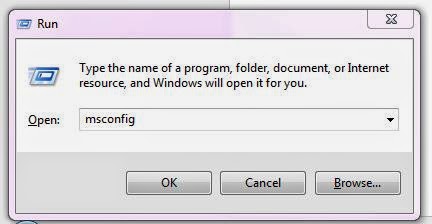
2.Type "msconfig" and press OK.
This will slows down the system and boot time will be more. Follow these simple steps and you can kill unnecessary AUTO START APPLICATIONS.
1. First click on the START button, and type " Run", click on "Run" Program (or) Just click on
+R2.Type "msconfig" and press OK.
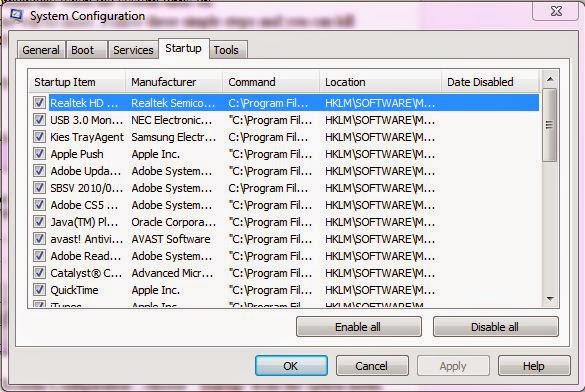
3. Now a new window opens with name "System Configuration", choose " Startup" from the option menu.
4. There you will find all the StartUp Applications.
5. Deselect any unnecessary application from that window and click on "OK".
6. You need to restart the system to become your settings effective.
7. Thats it and you FIXED it.
Available link for download

Monday, February 13, 2017
Grand Theft Auto Vice City
Grand Theft Auto Vice City

To celebrate its 10 year anniversary, Rockstar Games brings Grand Theft Auto: Vice City to mobile devices with high-resolution graphics, updated controls and a host of new features including:
• Beautifully updated graphics, character models and lighting effects
• New, precisely tailored firing and targeting options
• Custom controls with a fully customizable layout
• Massive campaign with countless hours of gameplay
• Compatible with the MoGa Wireless Game Controller and select USB gamepads
• Integrated with Immersion tactile effects
• Tailor your visual experience with adjustable graphic settings
Languages Supported: English, French, Italian, German, Spanish, Korean, Russian, and Japanese.
Grand Theft Auto: Vice City is now available on:
Android Phones: Motorola Atrix, Motorola Atrix HD, Motorola Atrix 4G, Motorola Photon, HTC Rezound, HTC One X, HTC One X+, Samsung Galaxy Nexus, Samsung Galaxy Note, Samsung Galaxy Note 2, Samsung Galaxy R, Samsung Epic 4G, Samsung Galaxy S2, Samsung Galaxy S3, Google Nexus 4, Sony Xperia Play, Sony Xperia Sola, Sony Xperia S / P / T & TL, Sony Walkman Z Series Media Player
Android Tablets: Acer Iconia, Asus Eee Pad Transformer Prime, Asus Transformer Pad TF300T, Asus Transformer Pad Infinity 700, Motorola Xoom, Samsung Galaxy Tab 7.0 / 7.7 / 8.9 & 10.1, Samsung Galaxy Note 10.1, Sony Tablet S, Sony Tablet P, Sony Xperia Tablet S, Toshiba Thrive, Toshiba Regza, Google Nexus 7, Google Nexus 10, Fujitsu Stylistic 10.1
**Grand Theft Auto: Vice City was developed and tested only on these devices. If your device is not listed, please check support.rockstargames.com for any updates to this list**
For optimal performance, we recommend re-booting your device after downloading and closing other applications when playing Grand Theft Auto: Vice City.
Please ensure you have at least 1.5 GB of free space before installing Grand Theft Auto: Vice City.
copy the folder com.rockstargames.gtavc to /Android/obb
install apk and enjoy
DOWNLOAD
Available link for download
Monday, December 19, 2016
Hentikan Gmail dari Auto Saving Alamat Email ke Kontak
Hentikan Gmail dari Auto Saving Alamat Email ke Kontak
 Gmail adalah layanan yang didukung webmail, POP3, IMAP dan layanan gratis, yang disediakan oleh Google. Gmail mendukung sejumlah fitur dengan mengaktifkan dan menonaktifkan pilihan sehingga Anda dapat menghentikan / menjalankan sebagian besar fitur pada setiap waktu dan mengkonfigurasi Gmail sesuai dengan kebutuhan Anda. Biasanya, ketika Anda mengirim email dari Gmail, ia menambahkan alamat email penerima ke daftar kontak. Jika Anda membalas sejumlah besar mail setiap hari maka Gmail secara otomatis menyimpan semua kontak yang nantinya bisa sangat menyakitkan untuk mengelola. Tapi Gmail memberikan kita pilihan untuk menonaktifkan fitur ini dari pengaturannya.
Anda dapat menonaktifkan kontak auto-save dari "Membuat kontak untuk auto-lengkap" di bagian tab General dari layar Pengaturan, seperti yang ditunjukkan pada gambar di bawah.
Available link for download
Thursday, October 20, 2016
How to Clear Browsing History and auto saved Password from Android
How to Clear Browsing History and auto saved Password from Android
How to Clear Browsing History and auto saved Password from the Browser of Android Smartphones and Tablets.
Step by Step Tutorial with Screen Shots.
Many Android user do not know how to clear the browsing history and auto saved password from Android smartphones and tablets. Sometimes Browsing history contains on your private material ,and auto saved passwords re open your email or other personal web side which nobody wants to show up others or always try to hide from others. The other android user easily view what you were doing on internet from the history of your browser. So better to remove the history of browser to protect your personal data . There are few simple tips to clear browsing data and saved password from Android smartphones and tablets.


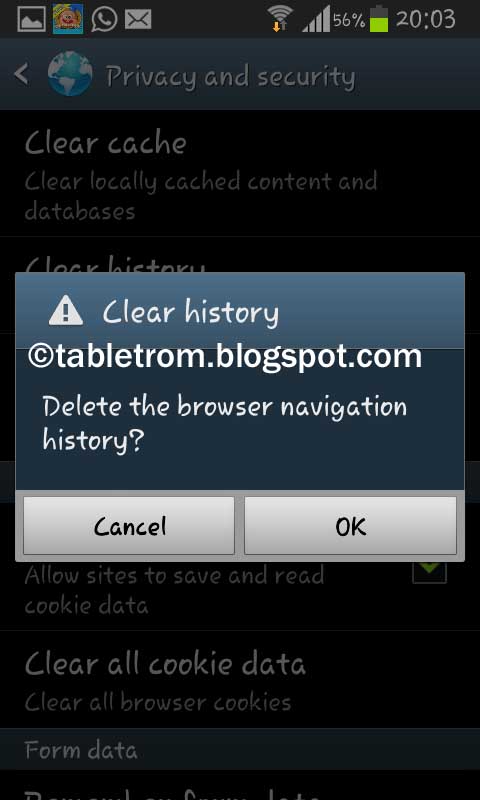
Click OK to delete the browser navigation history.

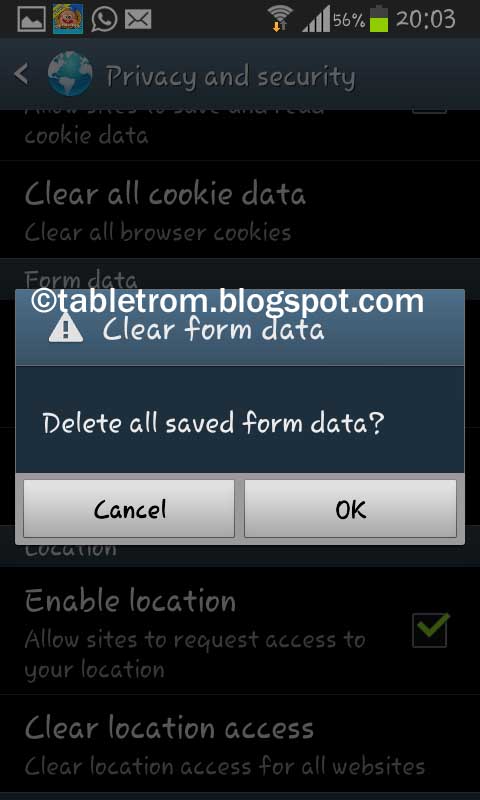
Delete all saved from data. (This will delete all your auto saved password as well ).
Open browser from Android smartphone or tablet.
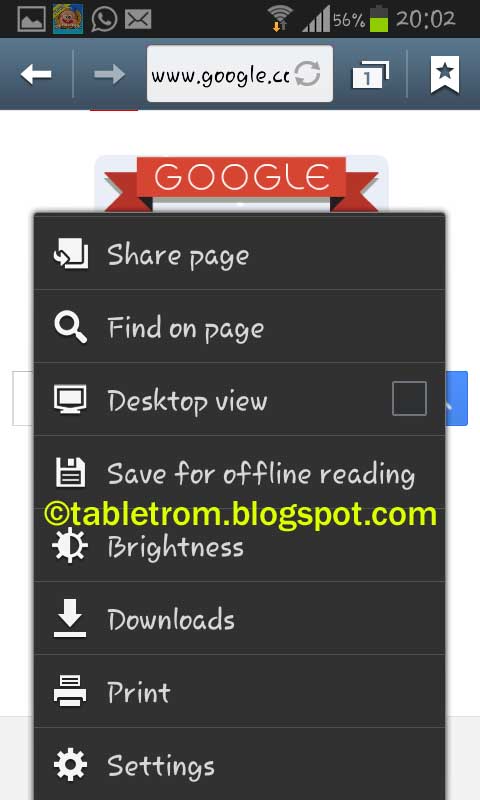
2. Click on Menu to open option tab and select Setting.
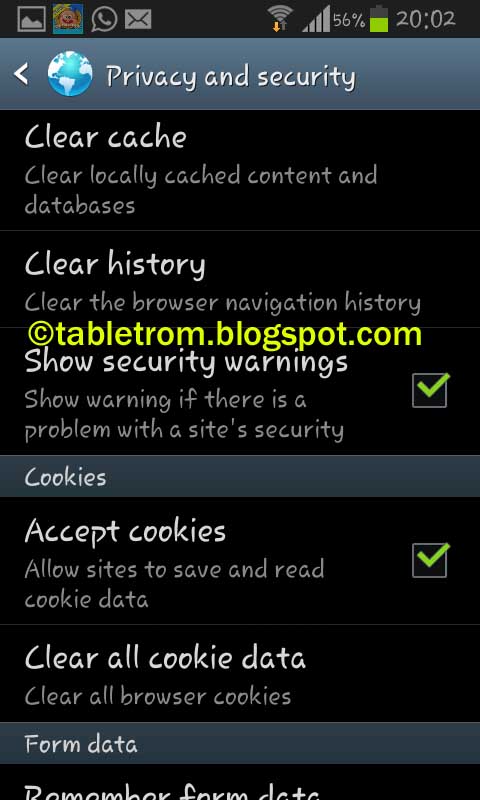
Select Privacy and Security.
Click on Clear History .
Click OK to delete the browser navigation history.
Delete Cache by clicking on Clear Cache .
Delete all saved from data. (This will delete all your auto saved password as well ).
Note :- This tutorial and snapshot was taken on Jelly Bean 4.1.2 . On other versions of Android might be some options are different but the procedure is same.
Available link for download
Tuesday, October 18, 2016
Grand Theft Auto III GTA 3 v1 4 Android Game download
Grand Theft Auto III GTA 3 v1 4 Android Game download
Grand Theft Auto III
GTA 3 v1.4
download Android Game

 |
| GTA III |
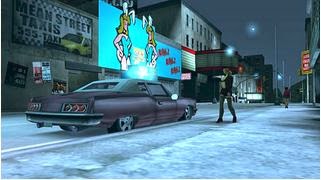

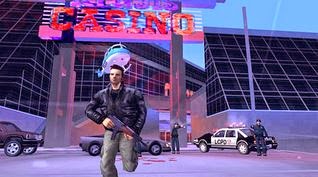
Grand Theft Auto is most famous and amazing game . The Liberty City allow to do everything with freedom. The game is action adventure genre. Act like criminal or play the missions. The game is about complete different task in different getups . Sometimes Rob a bank or kill a person when you will have ordered from boss. GTA is actually shooting phenomena . Hit , fight , or shoot. Grab a taxi , ambulance or hummer,play as a social worker or killer . A character from every walk of life . Freedom to explore wherever you want, Infact GTA III puts the dark and heartless world of crime at your smartphones.
Status : PaidPrice: 5.20 $ approx. Download from Google Play Store
Available link for download
Subscribe to:
Posts (Atom)