Showing posts with label s7. Show all posts
Showing posts with label s7. Show all posts
Monday, March 6, 2017
Guide Hard Reset Samsung Galaxy S7 To Restore Factory Setting Remove Forgot Pattern PIN Password
Guide Hard Reset Samsung Galaxy S7 To Restore Factory Setting Remove Forgot Pattern PIN Password
[Guide] Hard Reset Samsung Galaxy S7 To Restore Factory Setting & Remove Forgot Pattern/PIN/Password.
Hard Reset Samsung Galaxy S7. Samsung Galaxy S7 has many version, among them are G930 (USA); G930F (Global); G930FD (Southeast Asia), and this smartphone Also known as Samsung Galaxy S7 Duos with dual-SIM card slots. This device is released on March, 2016. And todays guidebelajar will explain to you how to perform hard reset on Samsung Galaxy S7 smartphone. Please keep in mind, this tutorial will erase all data saved on your internal memory. Samsung Galaxy S7 is the smartphone with 5,1 Inchi Super AMOLED capacitive touchscreen, 16M colors, work on Android OS, v6.0 (Marshmallow), and supported with Processor Dual-core 2.15 GHz Kryo & dual-core 1.6 GHz Kryo, Qualcomm MSM8996 Snapdragon 820 chipset, Adreno 530 GPU, combined with 4 GB of RAM, 12 MP on primary camera and 5 MP on secondary camera to capture best moment and make a selfie on your life.
Most of Android user say that Hard reset process is call with master reset or factory reset. Many people asking why shoud we perform hard reset to our phone. The logical answer that can I say for this asking is :
Most of Android user say that Hard reset process is call with master reset or factory reset. Many people asking why shoud we perform hard reset to our phone. The logical answer that can I say for this asking is :
- We have forgotten on PIN or Patern Lock at Samsung Galaxy S7.
- We want to remove all personal data and setting that was stored in Samsung Galaxy S7.device.
- Samsung Galaxy S7 has a persistent problem that cannot be solved.
- Because we will sell our Samsung Galaxy S7 Android phones.
- Our Samsung Galaxy S7 has been lagging and stuck on android logo, this call with bootloop
- There are many bug on Samsung Galaxy S7.
- We will give our Samsung Galaxy S7 away to some one else, and we dont want that one know everything about our secret data, so we have to erase all data before back up it.
- and many other reason.
1st Methode. Hard Reset Samsung Galaxy S7 Using Menu :
- Make sure your batery is fully charged, Recomended you have 80% of battery capacity
- Then Backup your Samsung Galaxy S7. See This Guide
- Go to menu: System Setting >
- Select Backup and Reset >
- Factory Data Reset >
- Reset Phone
- Choose Erase everything to confirm that you already to perform hard reset on Samsung Galaxy S7
- Samsung Galaxy S7 will continue to hard reset process to restore factory default.
2ndMethode. Hard Reset Samsung Galaxy S7 Using Hardware Keys:
- Make sure your battery is fully charged, we recomended that your battery has 80% power
- Always BackUp your important data that store in Samsung Galaxy S7. see this guide
- Turn Off your Samsung Galaxy S7 by hold and press Power Button for a second.
- Release any SIM card and SD card that was installed on your Samsung Galaxy S7 smartphone.
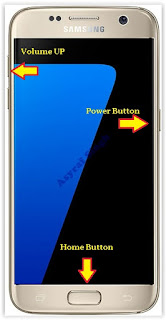
- Then press and hold together a combination button Volume Up + Home Button + Power button at same time for a seconds.

Hard Reset Samsung Galaxy S7 - Release Power Button, and keep holding volume up and home button for a few minute. Then release All button.

samsung galaxy s7 - android logo - Then you will see picture like shown on image below.

logo samsung galaxy s7 - And now you will enter, Android System Recovery.
- Scroll down using Power Down button, and you can select "wipe data/factory reset" and confirm it using Power Button.
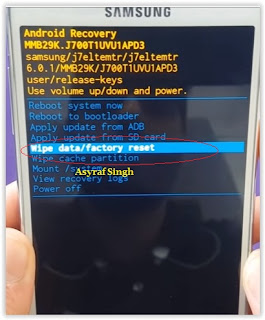
wipe data - Hard Reset - Then select "Yes". use volume down button to choice menu, and again confirm it using Power Button. Please be ware, on this this step you will be lost everything stored on your phone. So, make sure to always backup all data before performing hard reset.

- Now, wait the process untill you see data wipe complete appear on screen.

wipe data process - After a few minute hard reset process will finished, and your screen will be back to Android System recovery screen.
- Now, Select Reboot System Now to reboot your device.

Reboot System Now - You can wait a while for Samsung Galaxy S7 to reboot system
- Done, your hard reset process success now.


 |
| Android System Recovery |


Video Guide.
Available link for download

Wednesday, February 15, 2017
Gionee S7 USB Driver Download here
Gionee S7 USB Driver Download here

This driver for windows computer no need to install PC Suit if install this driver and this is most impotent and this is help to you for data transfer like contacts, videos, photos etc and also mobile updating if driver not installed in your computer or laptop then you cant flashing without driver so need must installed driver after you can do update if your device software related issue so then need flash to device then again need to driver here different driver for usb debugging that driver different here all are driver just you must know how to install that here all models driver available but if some models not include in this list just write down comment on below comment box i will soon updated it.
This driver you can use when your device in issue software and if software issue then need to update stock firmware or if you want to data transfer device to computer or laptop then also need to driver but here two type driver available firs for stock firmware update or second for just connect device to computer or laptop.
Gionee S7 USB Driver Download
CDC Driver here
VCOM Driver here
ADB Driver here
Available link for download
Monday, February 13, 2017
Gionee Elife S7 Mobile Flash File And Usb Driver Download
Gionee Elife S7 Mobile Flash File And Usb Driver Download
Gionee Elife S7 Flash File Mobile Usb Driver For Window 7-8-Xp-Vista 32-Bit 64-Bit

Related Info For Gionee Mobile Driver For USB
Supported Models For Following Gionee Elife S7
Usb driver - Com port - Flash - MTP USB driver - Driver , Flash Supported - Mass Storage -
Lion Storage Driver - Root - Restore
Download Details
Download Driver Before You Disable Your Anti Virus and download driver after download youneed open driver and install this driver auto download driver and driver use for all windows
7 , 8 , xp and vista for 32-bit , 64-bit also supported and easily root and flash option , Flash File firmware Factory Unlocked
restore mobile fast and delete your Mobile Password Lock Break Any Keywords Passwords And
secret Code Install driver and enjoy and easily see which country brand found easily option
this driver .
Gionee Mobile Usb Driver Features :
Gionee mobile Gionee driver supported for root the mobile Gionee brands easily 1 click to root and reset for 1 click save for mobile data and battery all in one Gionee mobile driver so download now button click and download easily use but this driver only for computer install not for apk .
- Miniclip 8 Ball pool apk/ios Hack Auto Win
- bowling king hack apk and ios hack auto strikes
- Facebook credits hack apk and ios hack
- skype credits free iphone and android
- Mod Free Clash Of Clans
- Unlimited Gems Clash Of Calns
Supported Driver For Windows :
Window 7 For 32-Bit , 64-Bit Install SupportedWindow 8 For 32-Bit , 64-Bit Install Supported
Window 9 For 32-Bit , 64-Bit Install Supported
Window XP For 32-Bit , 64-Bit Install Supported
Window Vista For 32-Bit , 64-Bit Install Supported
Note:This Driver By http://flash-driver.blogspot.com/ Official Mobile Drivers For Gionee Mobile Brands Risk Free Download.
Available link for download
Thursday, January 12, 2017
Guide Hard Reset Samsung Galaxy S7 EDGE To Restore Factory Setting Remove Forgot Pattern Password PIN
Guide Hard Reset Samsung Galaxy S7 EDGE To Restore Factory Setting Remove Forgot Pattern Password PIN
[Guide] Hard Reset Samsung Galaxy S7 EDGE To Restore Factory Setting & Remove Forgot Pattern/Password/PIN.
Hard Reset Samsung Galaxy S7 EDGE. Samsung Galaxy S7 EDGE has many version, among them are G935 (USA); G935F (Global); G935FD (Southeast Asia), and this smartphone Also known as Samsung Galaxy S7 EDGE Duos with dual-SIM card slots. This device is released on March, 2016. And todays guidebelajar will explain to you how to perform hard reset on Samsung Galaxy S7 EDGE smartphone. Please keep in mind, this tutorial will erase all data saved on your internal memory. Samsung Galaxy S7 EDGE is the smartphone with 5,5 Inchi Super AMOLED capacitive touchscreen, 16M colors, work on Android OS, v6.0 (Marshmallow), and supported with Processor Dual-core 2.15 GHz Kryo & dual-core 1.6 GHz Kryo, Qualcomm MSM8996 Snapdragon 820 chipset, Adreno 530 GPU, combined with 4 GB of RAM, 12 MP on primary camera and 5 MP on secondary camera to capture best moment and make a selfie on your life.
Most of Android user say that Hard reset process is call with master reset or factory reset. Many people asking why shoud we perform hard reset to our phone. The logical answer that can I say for this asking is :
Most of Android user say that Hard reset process is call with master reset or factory reset. Many people asking why shoud we perform hard reset to our phone. The logical answer that can I say for this asking is :
- We will give our Samsung Galaxy S7 EDGE away to some one else, and we dont want that one know everything about our secret data, so we have to erase all data before back up it.
- We have forgotten on PIN or Patern Lock at Samsung Galaxy S7 EDGE.
- Samsung Galaxy S7 EDGE has a persistent problem that cannot be solved.
- Because we will sell our Samsung Galaxy S7 EDGE Android phones.
- Our Samsung Galaxy S7 EDGE has been lagging and stuck on android logo, this call with bootloop
- There are many bug on Samsung Galaxy S7 EDGE.
- We want to remove all personal data and setting that was stored in Samsung Galaxy S7 EDGE.device.
- and many other reason.
1st Methode. Hard Reset Samsung Galaxy S7 EDGE Using Menu :
- Make sure your batery is fully charged, Recomended you have 80% of battery capacity
- Then Backup your Samsung Galaxy S7 EDGE. See This Guide
- Go to menu: System Setting >
- Select Backup and Reset >
- Factory Data Reset >
- Reset Phone
- Choose Erase everything to confirm that you already to perform hard reset on Samsung Galaxy S7 EDGE
- Samsung Galaxy S7 EDGE will continue to hard reset process to restore factory default.
2ndMethode. Hard Reset Samsung Galaxy S7 EDGE Using Hardware Keys:
- Make sure your battery is fully charged, we recomended that your battery has 80% power
- Always BackUp your important data that store in Samsung Galaxy S7 EDGE. see this guide
- Turn Off your Samsung Galaxy S7 EDGE by hold and press Power Button for a second.
- Release any SIM card and SD card that was installed on your Samsung Galaxy S7 EDGE smartphone.
- Then press and hold together a combination button Volume Up + Home Button + Power button at same time for a seconds.
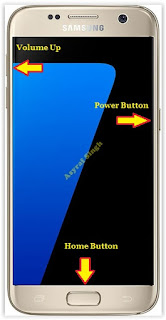
Hard Reset Samsung Galaxy S7 EDGE - Release Power Button, and keep holding volume up and home button for a few minute. Then release All button.
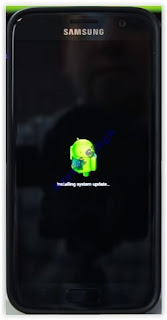
samsung galaxy S7 Edge - android logo - And now you will enter, Android System Recovery.
- Scroll down using Power Down button, and you can select "wipe data/factory reset" and confirm it using Power Button.
wipe data - Hard Reset - Then select "Yes". use volume down button to choice menu, and again confirm it using Power Button. Please be ware, on this this step you will be lost everything stored on your phone. So, make sure to always backup all data before performing hard reset.
- Now, wait the process untill you see data wipe complete appear on screen.
wipe data process - After a few minute hard reset process will finished, and your screen will be back to Android System recovery screen.
- Now, Select Reboot System Now to reboot your device.
Reboot System Now - You can wait a while for Samsung Galaxy S7 EDGE to reboot system
- Done, your hard reset process success now.


|
| Android System Recovery |
Video Guide.
Available link for download
Tuesday, November 29, 2016
Guide Flash Update Firmware Samsung GALAXY S7 EDGE SM G935F Using ODIN v3 11 1
Guide Flash Update Firmware Samsung GALAXY S7 EDGE SM G935F Using ODIN v3 11 1
[Guide] Flash / Update Firmware Samsung GALAXY S7 EDGE SM-G935F Using ODIN v3.11.1.
Flash Stock Firmware On Samsung GALAXY S7 EDGE SM-G935F. This guide show you how to flash a stock ROM on Samsung GALAXY S7 EDGE SM-G935F using Odin V3.11.1 software. Before you decide to use this guide, we recommend using Samsung’s own utilities, Samsung Kies and OTA (Over-the-air). Only use this guide if you are 100% sure about the risks involved in flashing your device. guidebelajar is not responsible for any damage caused by following this guide.
This Samsung android device is released on 2016, March. and available on USA, Global and Southeast Asia. Samsung GALAXY S7 EDGE SM-G935F is the smartphone with 5,1 Inchi Super AMOLED capacitive touchscreen, 16M colors, work on Android OS, v6.0 (Marshmallow), with Quad-core 1.8 GHz CDual-core 2.15 GHz Kryo & dual-core 1.6 GHz Kryo CPU, Qualcomm MSM8996 Snapdragon 820 chipset, Adreno 530 GPU, combined with 4 GB of RAM and 12 MP of Main camera and 5 MP on secondary camera.
This Samsung android device is released on 2016, March. and available on USA, Global and Southeast Asia. Samsung GALAXY S7 EDGE SM-G935F is the smartphone with 5,1 Inchi Super AMOLED capacitive touchscreen, 16M colors, work on Android OS, v6.0 (Marshmallow), with Quad-core 1.8 GHz CDual-core 2.15 GHz Kryo & dual-core 1.6 GHz Kryo CPU, Qualcomm MSM8996 Snapdragon 820 chipset, Adreno 530 GPU, combined with 4 GB of RAM and 12 MP of Main camera and 5 MP on secondary camera.
Flashing process in android Smartphone is like reinstall process on windows computer PC, with flash your Samsung GALAXY S7 EDGE SM-G935F android device you can unbrick, downgrade, manually upgrade (instead of updating via OTA or Samsung Smart Switch), or restore Samsungs stock firmware instead of custom ROM. I make this guide just for you as user all Samsung GALAXY S7 EDGE SM-G935F variant.
You need to read this guide carefully, so you can get the best result flashing on your Samsung GALAXY S7 EDGE SM-G935F. Cause you need to download necessary file, you must ensure that you have good internet connection in your computer device, this guide using a windows computer.
Initial Step To Flash Samsung GALAXY S7 EDGE SM-G935F
Now, we have reached on beginning guide, so you must to do initial step to ensure everything run smoothly.
- Make sure your Samsung GALAXY S7 EDGE SM-G935F battery is not in a low battery state, a minimum of 80%. If the battery runs out in the middle of the Root, it can lead to failure
- Always perform backup your important data before flashing process, Cause this process will delete or erase the data in memory.
- Make sure you have installed a Latest of Driver Samsung that support with your Smartphone, If you dont have, please download here
- Original USB cable driver for your Samsung GALAXY S7 EDGE SM-G935F
- Download Samsung Smart Switch, Here
- Download Odin V3.11.1, Here
- Download Official firmware file for the model number of your device, download it from - SamMobile, or you can visit the other site, Here
Main Guide To Flash Samsung GALAXY S7 EDGE SM-G935F
- You must download all necessary file.(Samsung USB driver or Smart Switch and Odin)
- Then you must install all driver or samsung smart switch to your computer or PC.
- Extraxt Odin V3.11.1. file on the destination folder.
- To download Samsung firmware you must visit this link, you can download specific firmware file for your device model number. you must Log In with your registered account on this website.
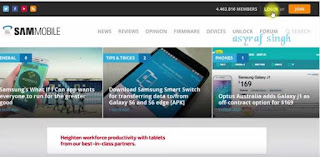
sammobile website Log In - On the row menu at the top of page, you can select firmware.

sammobile website GALAXY S7 EDGE SM-G935F - Then you must enter in search bar with your phone model number.
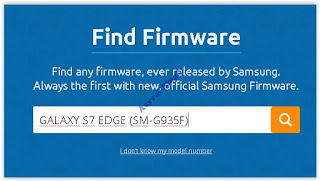
Firmware Samsung GALAXY S7 EDGE SM-G935F - Then select your country/carrier.
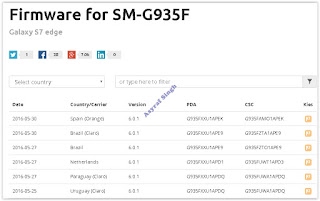
select country or carrier for samsung firmware - Then you click on available country link.
- For Non-Premium member you can Select regular download.

sammobile download non premium member - And Donwload button again. Approximately file size is 1,9 GB
- Wait untill your file finish downloaded, after that you must extract all firmware file on specific folder on your computer.
- This is your file.

Flash Stock Firmware On Samsung GALAXY S7 EDGE SM-G935F - Switch Off your Samsung GALAXY S7 EDGE SM-G935F to start flashing process.
- Then, you must run Odin3 v3.11.1 by right click on Odin.exe and select Run as Administrator.
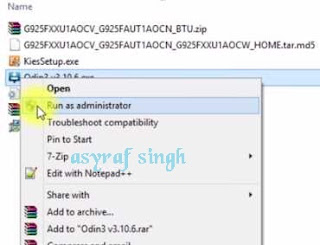
Flash Stock Firmware On Samsung GALAXY S7 EDGE SM-G935F - When program is running, now you can click AP, and navigate to the *.tar or *.tar.md5 firmware file.
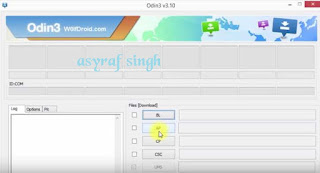
Flash Stock Firmware On Samsung GALAXY S7 EDGE SM-G935F - Now your firmware file has been inserted in Odin3

Flash Stock Firmware On Samsung GALAXY S7 EDGE SM-G935F - Then, Enter download mode your Samsung GALAXY S7 EDGE SM-G935F by pressing and hold Volume Down Button + Home Button + Power Button. Hold and press all button untill your phone vibrate and LCD show menu.
download mode Samsung GALAXY S7 EDGE SM-G935F - And you will see picture like this on your LCD screen.
- On this mode, now you must connect your Samsung GALAXY S7 EDGE SM-G935F to your PC / laptop using a USB cable.
- After your phone connected, you will see a message appear that show your device added and there is info on the ID: COM at top left corner. Keep in mind for this COM vary depending on the PC / Laptop. Just Ignore all, in this picture you will see that your device is detected on (COM 5)
Port Com samsung GALAXY S7 EDGE SM-G935F - Make sure re-partition is NOT ticked
- When everything already you can click Start Button. at the bottom left corner
- Just wait for the process to run about 2-5 minutes, and make sure there is no interference in this process.
- When complete it will display a notification PASS and your smartphone Samsung GALAXY S7 EDGE SM-G935F will automatically restart.
- Wait your device to boot up, it will take a while.
- When your Samsung GALAXY S7 EDGE SM-G935F is ready to use, you can check your firmware update version by dial *#1234# on dial pad.

dial pad samsung GALAXY S7 EDGE SM-G935F - And you will see your new firmware version.

firmware version samsung GALAXY S7 EDGE SM-G935F - Finish.


 |
| Download Mode GALAXY S7 EDGE SM-G935F |


Warning.
Never disconnect the USB cable while flashing process is running.
Install Samsung Mobile Driver or Samsung Smart Switch if you dont see a sign in Odin.
Flash your Samsung GALAXY S7 EDGE SM-G935F device at your own risk.
Flashing firmwares which contains more than one *.tar.md5 file will wipe all data on internal storage. Flashing official/stock firmware wont increase the binary flash nor KNOX WARRANTY VOID counter and wont cancel the Samsung GALAXY S7 EDGE SM-G935F devices warranty.
Available link for download
Friday, November 11, 2016
Guide Flash Update Firmware Samsung GALAXY S7 SM G930F Using ODIN v3 11 1
Guide Flash Update Firmware Samsung GALAXY S7 SM G930F Using ODIN v3 11 1
[Guide] Flash / Update Firmware Samsung GALAXY S7 SM-G930F Using ODIN v3.11.1.
Flash Stock Firmware On Samsung GALAXY S7 SM-G930F. This guide show you how to flash a stock ROM on Samsung GALAXY S7 SM-G930F using Odin V3.11.1 software. Before you decide to use this guide, we recommend using Samsung’s own utilities, Samsung Kies and OTA (Over-the-air). Only use this guide if you are 100% sure about the risks involved in flashing your device. guidebelajar is not responsible for any damage caused by following this guide.
This Samsung android device is released on 2016, February. and available on USA, Global and Southeast Asia. Samsung GALAXY S7 SM-G930F is the smartphone with 5,1 Inchi Super AMOLED capacitive touchscreen, 16M colors, work on Android OS, v6.0 (Marshmallow), with Quad-core 1.8 GHz CDual-core 2.15 GHz Kryo & dual-core 1.6 GHz Kryo CPU, Qualcomm MSM8996 Snapdragon 820 chipset, Adreno 530 GPU, combined with 4 GB of RAM and 12 MP of Main camera and 5 MP on secondary camera.
This Samsung android device is released on 2016, February. and available on USA, Global and Southeast Asia. Samsung GALAXY S7 SM-G930F is the smartphone with 5,1 Inchi Super AMOLED capacitive touchscreen, 16M colors, work on Android OS, v6.0 (Marshmallow), with Quad-core 1.8 GHz CDual-core 2.15 GHz Kryo & dual-core 1.6 GHz Kryo CPU, Qualcomm MSM8996 Snapdragon 820 chipset, Adreno 530 GPU, combined with 4 GB of RAM and 12 MP of Main camera and 5 MP on secondary camera.
Flashing process in android Smartphone is like reinstall process on windows computer PC, with flash your Samsung GALAXY S7 SM-G930F android device you can unbrick, downgrade, manually upgrade (instead of updating via OTA or Samsung Smart Switch), or restore Samsungs stock firmware instead of custom ROM. I make this guide just for you as user all Samsung GALAXY S7 SM-G930F variant.
You need to read this guide carefully, so you can get the best result flashing on your Samsung GALAXY S7 SM-G930F. Cause you need to download necessary file, you must ensure that you have good internet connection in your computer device, this guide using a windows computer.
Initial Step To Flash Samsung GALAXY S7 SM-G930F
Now, we have reached on beginning guide, so you must to do initial step to ensure everything run smoothly.
- Make sure your Samsung GALAXY S7 SM-G930F battery is not in a low battery state, a minimum of 80%. If the battery runs out in the middle of the Root, it can lead to failure
- Always perform backup your important data before flashing process, Cause this process will delete or erase the data in memory.
- Make sure you have installed a Latest of Driver Samsung that support with your Smartphone, If you dont have, please download here
- Original USB cable driver for your Samsung GALAXY S7 SM-G930F
- Download Samsung Smart Switch, Here
- Download Odin V3.11.1, Here
- Download Official firmware file for the model number of your device, download it from - SamMobile, or you can visit the other site, Here
Main Guide To Flash Samsung GALAXY S7 SM-G930F
- You must download all necessary file.(Samsung USB driver or Smart Switch and Odin)
- Then you must install all driver or samsung smart switch to your computer or PC.
- Extraxt Odin V3.11.1. file on the destination folder.
- To download Samsung firmware you must visit this link, you can download specific firmware file for your device model number. you must Log In with your registered account on this website.
sammobile website Log In - On the row menu at the top of page, you can select firmware.
sammobile website GALAXY S7 SM-G930F - Then you must enter in search bar with your phone model number.

Firmware Samsung GALAXY S7 SM-G930F - Then select your country/carrier.

select country or carrier for samsung firmware - Then you click on available country link.
- For Non-Premium member you can Select regular download.

sammobile download non premium member - And Donwload button again. Approximately file size is 1,5 GB
- Wait untill your file finish downloaded, after that you must extract all firmware file on specific folder on your computer.
- This is your file.
Flash Stock Firmware On Samsung GALAXY S7 SM-G930F - Switch Off your Samsung GALAXY S7 SM-G930F to start flashing process.
- Then, you must run Odin3 v3.11.1 by right click on Odin.exe and select Run as Administrator.
Flash Stock Firmware On Samsung GALAXY S7 SM-G930F - When program is running, now you can click AP, and navigate to the *.tar or *.tar.md5 firmware file.
Flash Stock Firmware On Samsung GALAXY S7 SM-G930F - Now your firmware file has been inserted in Odin3
Flash Stock Firmware On Samsung GALAXY S7 SM-G930F - Then, Enter download mode your Samsung GALAXY S7 SM-G930F by pressing and hold Volume Down Button + Home Button + Power Button. Hold and press all button untill your phone vibrate and LCD show menu.
download mode Samsung GALAXY S7 SM-G930F - And you will see picture like this on your LCD screen.
- On this mode, now you must connect your Samsung GALAXY S7 SM-G930F to your PC / laptop using a USB cable.
- After your phone connected, you will see a message appear that show your device added and there is info on the ID: COM at top left corner. Keep in mind for this COM vary depending on the PC / Laptop. Just Ignore all, in this picture you will see that your device is detected on (COM 5)
Port Com samsung GALAXY S7 SM-G930F - Make sure re-partition is NOT ticked
- When everything already you can click Start Button. at the bottom left corner
- Just wait for the process to run about 2-5 minutes, and make sure there is no interference in this process.
- When complete it will display a notification PASS and your smartphone Samsung GALAXY S7 SM-G930F will automatically restart.
- Wait your device to boot up, it will take a while.
- When your Samsung GALAXY S7 SM-G930F is ready to use, you can check your firmware update version by dial *#1234# on dial pad.
dial pad samsung GALAXY S7 SM-G930F - And you will see your new firmware version.
firmware version samsung GALAXY S7 SM-G930F - Finish.


|
| Download Mode GALAXY S7 SM-G930F |
Warning.
Never disconnect the USB cable while flashing process is running.
Install Samsung Mobile Driver or Samsung Smart Switch if you dont see a sign in Odin.
Flash your Samsung GALAXY S7 SM-G930F device at your own risk.
Flashing firmwares which contains more than one *.tar.md5 file will wipe all data on internal storage. Flashing official/stock firmware wont increase the binary flash nor KNOX WARRANTY VOID counter and wont cancel the Samsung GALAXY S7 SM-G930F devices warranty.
Available link for download
Friday, November 4, 2016
Harga Acer Aspire S7 dan Spesifikasi
Harga Acer Aspire S7 dan Spesifikasi
Bagi anda yang sedang mencari informasi Harga Acer Aspire S7 dan Spesifikasi mungkin artikel ini bisa sedikit membantu. kehadiran Windows 8 menginspirasi Acer sebagai vendor komputer untuk menciptakan dan memproduksi Acer Aspire S7 11" inc dan 13" inc. Produk baru Acer ini akan diluncurkan saat Microsoft mengumumkan sistem operasi Windows 8. Dengan penanaman beberapa technologi canggih Acer Aspire S7 sangat menarik untuk kita miliki. Salah satunya adalah dengan dibekalinya layar sentuh berukuran 11,6 inc. Acer Aspire s7 versi 11 inci ini bisa dikatakan sebagai Ultrabook terkecil dengan layar sentuh yang canggih. Untuk ketebalan bodi Aspire S7 ukuran 11 inci hanya sekitar 12,5 milimeter. Body Acer Aspire S7 ini sangat tipis sekali, bahkan untuk ukuran Ultrabook yang biasa tebalnya sekitar 17 milimeter. Dan yang asiknya lagi Layar Acer Aspire S7 ukuran 13 inci dapat direbahkan dengan sudut 180 derajat. Untuk Harga Acer Aspire S7 sendiri dipastikan tidak akan membuat kantong kita bolong karena biasanya produk acer sangatlah terjangkau.
 Di dalam Spesifikasi Acer Aspire S7 telah juga telah dipasang teknologi Dolby Home Theater untuk menghasilkan kualitas suara lebih baik. Penempatan Tombol keyboard yang trendy dan easy for use bergaya chicklet telah dilengkapi backlit sehingga memudahkan kita saat mengetik. Untuk memudahkan pengguna dalam mengkoneksikan produk Acer Aspire S7 pada sisi kanannya terdapat dua port USB dan sebuah slot memory card, dan juga terdapat konektor micro HDMI dan juga Thunderbolt untuk transfer data. Produk Acer Aspire S7 telah menggunakan bahan aluminium yang kokoh sehiungga akan menjadi tahan banting untuk penggunaan sehari-hari. Selain tipis, baterai Acer Aspire S7 diklaim mampu bertahan antara 9-12 jam. Pada cover Untuk versi 13 incinya Aspire S7 telah menggunakan lapisan kaca untuk ketahanan lebih baik dan yang pasti penampilannya akan lebih eye catching.


Di bawah ini adalah Spesifikasi Acer Aspire S7 - 13.3" :
CPU type: Intel Core 3rd Generation (2012)
Graphics: Intel HD 4000
Operating System: Windows 8
Display Size: 13.3" 1920 X 1080
Screen Type: LED-Backlit LCD
Touch Technology: Capacitive Multi-touch
Physical Interfaces: DC-in, Line-out / Headphone (3.5mm), Micro HDMI, SDHC Card Slot, Thunderbolt, USB3.0 (x2)
Wireless Interfaces: 802.11 b/g/n, Bluetooth Info N/A
Additional Specs and Accessories
Backlit Keyboard
Capacitive Touchscreen
Microphone
Multitouch Touchpad
Stereo speakers
WebCam
Semoga Harga Acer Aspire S7 benar-benar terjangkau :). Apakah anda tertarik untuk memilikinya ? ;)
Available link for download
Subscribe to:
Posts (Atom)