Recently I had an unpleasant experience with my Pioneer DEH-159OUB car stereo, when I inserted my SanDisk Ultra Dual USB Drive 3.0 16 GB to play some music. Each time when switched the mode to USB, it was displaying ERROR 23 again and again no matter what I did. It was a long drive that I was up to and unfortunately drove without playing a single song because of that error.
So whats this ERROR 23 really is?
The following error shows up when the stereo doesnt detects the USB device which we insert or in other words the Files system of the USB is not recognized by it.
Soon after when the error was encountered, I recalled back and spent hours thinking what else I did with my USB flash drive which was causing the error and finally got the answer. I had made my flash drive bootable using RUFUS which changed the format of the thumb drive to NTFS, and when my job was finished I simply copied my songs folder in it and started packing up for the journey.
So here are the simplest steps to bypass the USB ERROR 23,
• First thing first, connect your USB flash drive to the PC & backup whats inside!!
• After that, Right click on the drive and click Properties. Where you can see that its not the same format that the stereo supports (which is FAT 32).
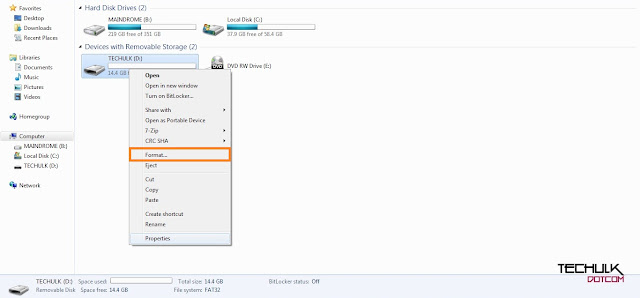
• Now close the properties window and right click on the drive again and hit the format option. (As shown in figure)
• Change the File system to FAT 32 (Default) and hit the Start option.
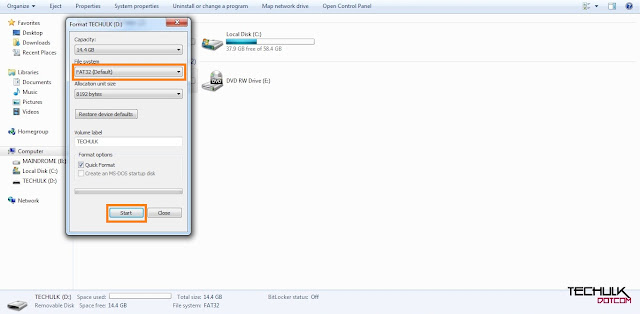
• It will delete all the files in it (thats why we did the backup of the contents before).
• Done!!! Just copy your music files back to your flash drive and connect it to the stereo again, there will be no sign of ERROR 23 from now.
Note: Even after following the steps still the error is showing up, then probably the problem is with your USB thumb drive. You can simply run a check using free tools like windows Check Disk (CHKDSK) to see whats wrong with the device. Sometimes lots of bad sectors present in drives causes performance degradation.
Thats it!! If you have any kind of problem related to the following topic you can comment it down below like always.
Happy Driving!!
So whats this ERROR 23 really is?
The following error shows up when the stereo doesnt detects the USB device which we insert or in other words the Files system of the USB is not recognized by it.
Soon after when the error was encountered, I recalled back and spent hours thinking what else I did with my USB flash drive which was causing the error and finally got the answer. I had made my flash drive bootable using RUFUS which changed the format of the thumb drive to NTFS, and when my job was finished I simply copied my songs folder in it and started packing up for the journey.
So here are the simplest steps to bypass the USB ERROR 23,
• First thing first, connect your USB flash drive to the PC & backup whats inside!!
• After that, Right click on the drive and click Properties. Where you can see that its not the same format that the stereo supports (which is FAT 32).
• Now close the properties window and right click on the drive again and hit the format option. (As shown in figure)
• Change the File system to FAT 32 (Default) and hit the Start option.
• It will delete all the files in it (thats why we did the backup of the contents before).
• Done!!! Just copy your music files back to your flash drive and connect it to the stereo again, there will be no sign of ERROR 23 from now.
Note: Even after following the steps still the error is showing up, then probably the problem is with your USB thumb drive. You can simply run a check using free tools like windows Check Disk (CHKDSK) to see whats wrong with the device. Sometimes lots of bad sectors present in drives causes performance degradation.
Thats it!! If you have any kind of problem related to the following topic you can comment it down below like always.
Happy Driving!!

 Unable to resolve the servers DNS address, Mostly I get this error on embedded video players in web pages. This is a common error, mainly because the ISP cant find the server or the server blocked by the ISP. When we connect to internet, by default we use the DNS provided by an ISP (Assigns Automatically ). So changing this default DNS to any free DNS servers like Google DNS, OpenDNS, etc. will fix the issue completely.