Showing posts with label a5. Show all posts
Showing posts with label a5. Show all posts
Wednesday, March 8, 2017
How to root Karbonn A5 plus
How to root Karbonn A5 plus

Requirements :
KARBONN USB DRIVER
BIN4RY
Step-By-Step Instructions:-
1.Go To Settings>Security & Enable The Install From Unknown Source. (Skip If Already Enabled)
2. Open Rooting Software File and Unzip Software
3. After that Connect Your Karbonn Android Mobile, and before to connecting make sure you have install Driver and Enable USB Debugging.
4. After that Wait few mins
5. Then open Rooting software folder and click on "RunMe.bat" file
6. Then you see Many option, so Type "1" for normal and press enter, then in few sec your mobile rooted and you have see message "Your mobile is rooted successfully".
7. And when you have need to unroot your mobile then open "RunMe.bat" file and type "x" and press enter then your mobile unrooted.
NOTE:
This article related to Rooting of Karboon Android Mobile Phone, and may be its work properly, if you have getting any problem use universal root
Available link for download

Tuesday, January 10, 2017
Hard Reset QMobile A5 Classic pattern unlock
Hard Reset QMobile A5 Classic pattern unlock
Hard Reset QMobile A5 Classic
Qmobile a5 classic pattern unlock

Qmobile is largest best smartphones selling company after Samsung in Asia Region. Working with different names in different counties of Asia (i.e micromax mobiles, Qmobiles).The company is also well known in manufacture of smartphone with best battery life and cheap phones.If you are owner of Qmobile A5 Classic cellular phones and you are stuck into recovery , hang on logo , or forgot pattern lock , here is easy solution to sort this out. All you have to do is
- Turn off your Qmobile Smartphone .
- Press and hold Volume up , Volume Down and Power button together. (as mention into image below).
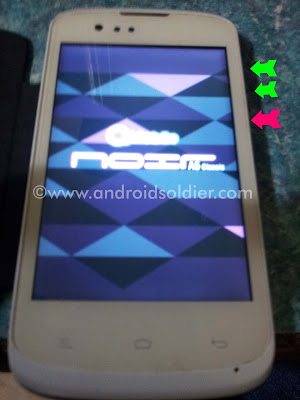
- Leave power button when phone turn on but keep holding volume buttons until you see the factory menu (as shown below image).
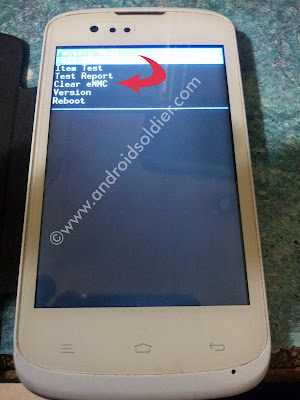
- Now select 4th option Clear eMMC . This will erase all your data store on internal storage including smartphone apps.
- Your smartphone will turn on and you are good to go.
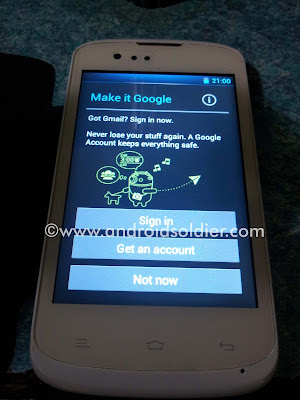
Follow the instructions on screen and enjoy your amazing android smartphone. If you question or queries please write in comments section.
Available link for download
Sunday, December 25, 2016
How to root karbonn A5
How to root karbonn A5
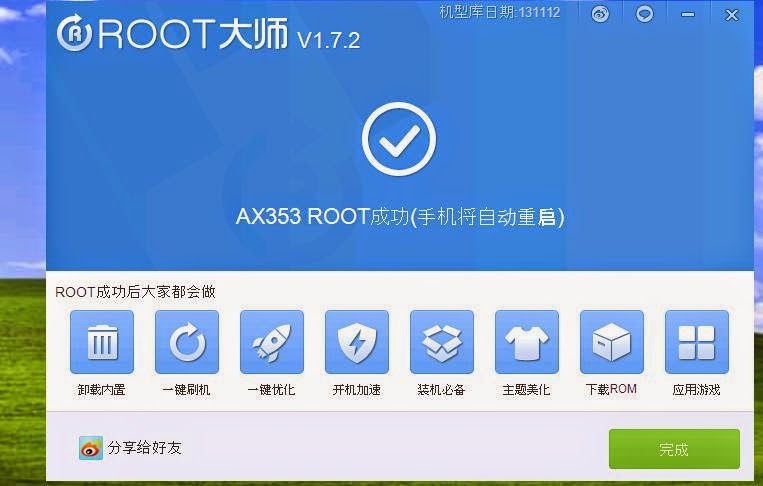
Requirements:
1.Vroot
2.USB driver(for your android click here)
3.Root checker
STEPS TO ROOT ANDROID :-
Step 1: Enable USB Debugging on your Android Smartphone. To enable USB debugging, Open Settings > Developers Option > USB Debugging > Tick (if u dont know how to enable usb debugging click here
Step 2: Download and install vRoot Application on your Windows Computer
.
Step 3: Once vRoot Application is installed on your Computer, and install usb driver and Open vroot.
Step 4: Once vRoot Application is launched, connect your Android device to the computer
Step 5: Once Your Smartphone is connected successfully to the computer, vRoot will automatically detect your Smartphone.
Step 6: Now, Click on the “Root” button to begin the rooting process.
Step 7: Now, vRoot will automatically “Reboot” your Smartphone and install the SuperSU Application
Step 8: Now your Android Device is Rooted. To check whether your phone is rooted correctly, open Applications Menu, there you will be able to see a new app installed, called SuperSU. If this app exist then it means you have successfully rooted your device.
Optional: You can also verify that your device is successfully rooted or not by Root Checker Application.
**************************************************************
Available link for download
Tuesday, December 13, 2016
Guide Hard Reset Samsung Galaxy A5 2016 To Restore Factory Setting Remove Forgot Pattern PIN Password
Guide Hard Reset Samsung Galaxy A5 2016 To Restore Factory Setting Remove Forgot Pattern PIN Password
[Guide] Hard Reset Samsung Galaxy A5 2016 To Restore Factory Setting & Remove Forgot Pattern/PIN/Password.
Hard Reset Samsung Galaxy A5 2016. Samsung Galaxy A5 2016 has this version (A510Y (Taiwan), A510FD (Southeast Asia), A510M (Latin America), A5100 (Hong Kong), A510F (Europe)), and this Android Smartphone Also known as Samsung Galaxy A5 (2016) Duos with dual-SIM card slots. This device is released on December, 2015. And todays guidebelajar will explain to you how to perform hard reset on Samsung Galaxy A5 2016 smartphone. Please keep in mind, this tutorial will erase all data saved on your internal memory. Samsung Galaxy A5 2016 is the smartphone with 5,2 Inchi Super AMOLED capacitive touchscreen, 16M colors, work on Android OS, v5.1.1 (Lollipop), and supported with Quad-core 1.2 GHz Cortex-A53 & Quad-core 1.5 GHz Cortex-A53, Qualcomm MSM8939 Snapdragon 615 chipset, Adreno 405 GPU, combined with 2 GB of RAM, 13 MP on primary camera and 5 MP on secondary camera to capture best moment and make a selfie on your life.
Most of Android user say that Hard reset process is call with master reset or factory reset. Many people asking why shoud we perform hard reset to our phone. The logical answer that can I say for this asking is :
Most of Android user say that Hard reset process is call with master reset or factory reset. Many people asking why shoud we perform hard reset to our phone. The logical answer that can I say for this asking is :
- We will give our Samsung Galaxy A5 2016 away to some one else, and we dont want that one know everything about our secret data, so we have to erase all data before back up it.
- There are many bug on Samsung Galaxy A5 2016.
- Because we will sell our Samsung Galaxy A5 2016 Android phones
- We want to remove all personal data and setting that was stored in Samsung Galaxy A5 2016.device.
- Our Samsung Galaxy A5 2016 has been lagging and stuck on android logo, this call with bootloop
- Samsung Galaxy A5 2016 has a persistent problem that cannot be solved.
- We have forgotten on PIN or Patern Lock at Samsung Galaxy A5 2016.
- and many other reason.
1st Methode. Hard Reset Samsung Galaxy A5 2016 Using Menu :
- Make sure your batery is fully charged, Recomended you have 80% of battery capacity
- Then Backup your Samsung Galaxy A5 2016. See This Guide
- Go to menu: System Setting >
- Select Backup and Reset >
- Factory Data Reset >
- Reset Phone
- Choose Erase everything to confirm that you already to perform hard reset on Samsung Galaxy A5 2016
- Samsung Galaxy A5 2016 will continue to hard reset process to restore factory default.
2ndMethode. Hard Reset Samsung Galaxy A5 2016 Using Hardware Keys:
- Make sure your battery is fully charged, we recomended that your battery has 80% power
- Always BackUp your important data that store in Samsung Galaxy A5 2016. see this guide
- Turn Off your Samsung Galaxy A5 2016 by hold and press Power Button for a second.
- Release any SIM card and SD card that was installed on your Samsung Galaxy A5 2016 smartphone.
- Then press and hold together a combination button Volume Up + Home Button + Power button at same time for a seconds.

Hard Reset Samsung Galaxy A5 2016 - Then you will see Samsung Galaxy J7 Logo. On this step release Power Button only, while keep holding Volume Up and Home Button.

Samsung Galaxy A5 2016 Logo - When Android Logo appear on your screen. You must release all button.

Android Logo - hard reset samsung galaxy A5 2016 - And now you will enter, Android System Recovery.
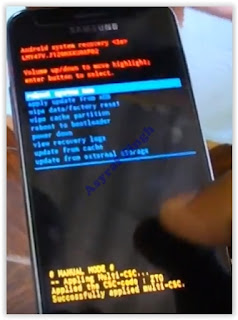
Android System Recovery - Scroll down using Power Down button, and you can select "wipe data/factory reset" and confirm it using Power Button.
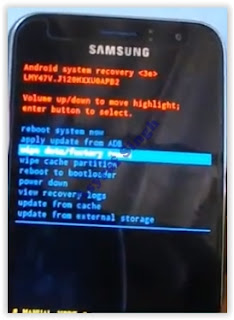
wipe data - Hard Reset - Then select "Yes ---Delete All User Data". use volume down button to choice menu, and again confirm it using Power Button. Please be ware, on this this step you will be lost everything stored on your phone. So, make sure to always backup all data before performing hard reset.

yes delete all user data - Now, wait the process untill you see data wipe complete appear on screen.
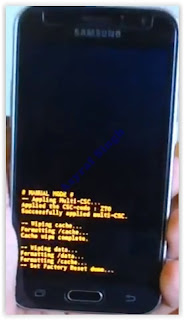
wipe data process - After a few minute hard reset process will finished, and your screen will be back to Android System recovery screen.
- Now, Select Reboot System Now to reboot your device.

Reboot System Now - You can wait a while for Samsung Galaxy A5 2016 to reboot system
- Done, your hard reset process success now.


Video Guide.
Available link for download
Sunday, November 27, 2016
how to root Samsung Galaxy A5 Duos
how to root Samsung Galaxy A5 Duos

REQUIREMENT:
1.Kingo root
2.USB driver(for your android click here)
3.Root checker
STEPS TO ROOT ANDROID :-
Step 1: Enable USB Debugging on your Android Smartphone. To enable USB debugging, Open Settings > Developers Option > USB Debugging > Tick (if u dont know how to enable usb debugging click here
Step 2: Download and install Kingo Root Application and usb driver on your Windows Computer
Step 3: Once Kingo Root Application is installed on your Computer, Open It.
Step 4: Once Kingo Root Application is launched, connect your Android device to the computer
Step 5: Once Your Smartphone is connected successfully to the computer, Kingo Root will automatically detect your Smartphone and install the necessary drivers.
Step 6: Now, Click on the “Root” button to begin the rooting process.
Step 7: Now, Kingo Root will root your Smartphone and install the SuperSU Application
Step 8: Once rooting procedure is completed you will be able to see Finish Button. Click on finish button to reboot your device automatically.
Step 8: Now your Android Device is Rooted. To check whether your phone is rooted correctly, open Applications Menu, there you will be able to see a new app installed, called SuperSU. If this app exist then it means you have successfully rooted your device
Optional: You can also verify that your device is successfully rooted or not by Root Checker Application.
Step 2: Download and install Kingo Root Application and usb driver on your Windows Computer
Step 3: Once Kingo Root Application is installed on your Computer, Open It.
Step 4: Once Kingo Root Application is launched, connect your Android device to the computer
Step 5: Once Your Smartphone is connected successfully to the computer, Kingo Root will automatically detect your Smartphone and install the necessary drivers.
Step 6: Now, Click on the “Root” button to begin the rooting process.
Step 7: Now, Kingo Root will root your Smartphone and install the SuperSU Application
Step 8: Once rooting procedure is completed you will be able to see Finish Button. Click on finish button to reboot your device automatically.
Step 8: Now your Android Device is Rooted. To check whether your phone is rooted correctly, open Applications Menu, there you will be able to see a new app installed, called SuperSU. If this app exist then it means you have successfully rooted your device
Optional: You can also verify that your device is successfully rooted or not by Root Checker Application.
***********************************************
Available link for download
Sunday, October 16, 2016
How to root karbonn a5 star
How to root karbonn a5 star
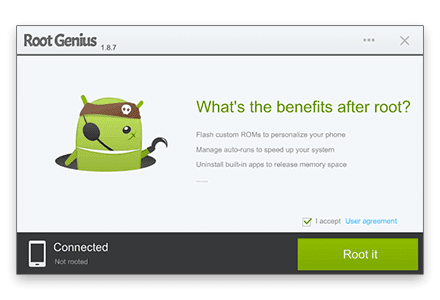
Root Genius is One click root tool designed to work on Windows Computer. It helps user to root their Android Smartphone in single click. Here, we are going to guide you how to use Root Genius to root any Android Device.
Note: If you are using any Antivirus Application on your computer then disable it first then after follow the below tutorial.Requirements:
1. Root genius
2.USB driver(for your android click here)
STEPS TO ROOT ANDROID :-
Step 1: Enable USB Debugging on your Android Smartphone. To enable USB debugging, Open Settings > Developers Option > USB Debugging > Tick to Enable. (if u dont know how to enable usb debugging click here )Step 2: Download and Open Root Genius Application on your Windows Computer and install usb driver
Step 3: Once Root Genius Application is launched, connect your Android device to the computer (with USB Debugging enabled).
Step 4: Once Your Smartphone is connected successfully to the computer, Root Genius will automatically detect your Android Device.
Step 5: Now, Click on the “Root Now” button to begin the rooting process.
Step 6: Now, Root Genius will automatically “Root” your Android Device and install the KingUser Application
Step 7: Now your Android Device is Rooted. To check whether your phone is rooted correctly, open Applications Menu, there you will be able to see a new app installed, called KingUser. If this app exist then it means you have successfully rooted your device.
Optional: You can also verify that your device is successfully rooted or not by Root Checker Application.
************************************************************
Available link for download
Tuesday, October 4, 2016
How to root Samsung Galaxy A5
How to root Samsung Galaxy A5
Requirements :
? frama root
? Root checker
Step-By-Step Instructions:-
1.Go To Settings>Security & Enable The Install From Unknown Source. (Skip If Already Enabled)
2.Open Settings>Application>Development>USB Debugging>Enable USB Debugging.(Skip If Already Enabled)
3.Download The frama root App From Above Link.
4.Copy It To Your Phone Sdcard. Install The App.
5.Open The App and install it
6. click super user And install super user
7.And reboot the device
8.your mobile is now rooted
9. using root checker check if the mobile rooting or not
? frama root
? Root checker
Step-By-Step Instructions:-
1.Go To Settings>Security & Enable The Install From Unknown Source. (Skip If Already Enabled)
2.Open Settings>Application>Development>USB Debugging>Enable USB Debugging.(Skip If Already Enabled)
3.Download The frama root App From Above Link.
4.Copy It To Your Phone Sdcard. Install The App.
5.Open The App and install it
6. click super user And install super user
7.And reboot the device
8.your mobile is now rooted
9. using root checker check if the mobile rooting or not
*************************************************
Available link for download
Subscribe to:
Posts (Atom)