Showing posts with label unity. Show all posts
Showing posts with label unity. Show all posts
Thursday, January 26, 2017
How To Get A Unity Like HUD Searchable Menu In Xubuntu Ubuntu MATE Linux Mint More
How To Get A Unity Like HUD Searchable Menu In Xubuntu Ubuntu MATE Linux Mint More
Youre probably familiar with the Unity HUD, or Head-Up Display, which lets you search through and applications menu. Thanks to Rafael Bocquets i3-hud-menu (and J.A. McNaughtons fork), you can use this menu search feature in pretty much any desktop environment (and in any Linux distribution in which you can install unity-gtk-module).
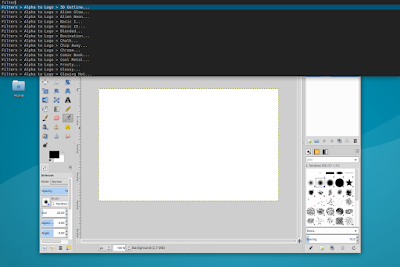
i3-hud-menu allows searching and navigating through an applications menu using the keyboard, with the use of dmenu (dmenu doesnt have mouse support by default). Heres how it looks like in Xubuntu 16.04:
And in Linux Mint 17.3 Cinnamon:

i3-hud-menu works with GTK2, GTK3 (but not client-side decorated apps) and Qt4 applications.
i3-hud-menu works with GTK2, GTK3 (but not client-side decorated apps) and Qt4 applications.
The tool is buggy with Qt5 applications as well as LibreOffice - see the limitations / issues section below for more information.
Important: issues and limitations
i3-hud-menu has quite a few issues / limitations but I decided to post an article about it anyway since some of you might still find it useful.
Also, Im hoping someone reading this article might be able to fix or at least come up with some workarounds for some of the issues below. If you do, please let us know in the comments!
i3-hud-menu limitations / issues:
- it doesnt work with client-side decorated applications;
- it doesnt work with Firefox or Thunderbird;
- it doesnt work with Qt5 apps (make sure appmenu-qt5 and libdbusmenu-qt5 are not installed or else you wont have a menu for Qt5 apps, such as VLC in Ubuntu 16.04 - if you do install those packages, you can use the menu via i3-hud-menu, but the actual menu wont be visible in the application);
- using it, LibreOffice no longer has a menu if the "libreoffice-gtk" package is installed - this package is used for GTK+ integration (though using i3-hud-menu, you can search the menu, but actually using the menu items doesnt work for some reason);
- to get i3-hud-menu to work with Java swing applications, youll need JAyatana;
- probably more.
It appears that the LibreOffice and the Qt5 applications issue occur because "APPMENU_DISPLAY_BOTH=1" is not respected. Furthermore, using "UBUNTU_MENUPROXY=" (for example, using "UBUNTU_MENUPROXY= libreoffice --writer") or blacklisting it via Dconf Editor (com > canonical > unity-gtk-module > blacklist) doesnt get the LibreOffice menu to show up.
On Arch Linux (possibly in other Linux distributions as well), which requires the unity-gtk-module-standalone-bzr package, you need to run the following command (or change this via Dconf Editor: com > canonical > unity-gtk-module, set gtk2-shell-shows-menubar to "false") and reboot to ensure that menus are displayed in GTK applications:
gsettings set com.canonical.unity-gtk-module gtk2-shell-shows-menubar falseInstall and configure i3-hud-menu
Important note: I included exact instructions for Xubuntu, Ubuntu MATE and Linux Mint Cinnamon edition, but this should work with any Ubuntu or Linux Mint flavor (14.04 and newer only). It may also work in other Linux distributions, as long as you can install unity-gtk-module and appmenu-qt.
1. Install the required dependencies: python3, python-dbus, dmenu, appmenu-qt and unity-gtk-module.
In Ubuntu (14.04 and newer), use the following command (will also install "wget", required under step 2):
sudo apt install python3 python-dbus dmenu appmenu-qt unity-gtk2-module unity-gtk3-module wget2. Download and install i3-hud-menu
To download and install J.A. McNaughtons i3-hud-menu fork from the command line, use the following commands:
cd /tmp
wget https://github.com/jamcnaughton/i3-hud-menu/archive/master.tar.gz
tar -xvf master.tar.gz
sudo mkdir -p /opt/i3-hud-menu
sudo cp -r i3-hud-menu-master/* /opt/i3-hud-menu/
If you want to install it yourself, grab the code from GitHub (but note that the instructions below assume that youve installed i3-hud-menu in /opt/i3-hud-menu/)
3. Load the Unity gtk module
Open ~/.profile with a text editor (".profile" is a hidden file in your home folder so use Ctrl + H to see hidden files in your gile manager), paste the following at the end of the file:
export APPMENU_DISPLAY_BOTH=1
if [ -n "$GTK_MODULES" ]
then
 GTK_MODULES="$GTK_MODULES:unity-gtk-module"
else
 GTK_MODULES="unity-gtk-module"
fi

if [ -z "$UBUNTU_MENUPROXY" ]
then
 UBUNTU_MENUPROXY=1
fi

export GTK_MODULES
export UBUNTU_MENUPROXYIf after completing all the steps below, i3-hud-menu doesnt work, you can try to paste the lines above in ~/.bashrc instead of ~/.profile.
4. Add i3-appmenu-service.py to startup
The next step is to add i3-appmenu-service.py to the system startup. If youve installed i3-hud-menu using the commands above, this file should be located in /opt/i3-hud-menu/
Xubuntu: To add i3-appmenu-service.py to startup, launch Session and Startup from the menu / System Settings, and on the "Application Autostart" tab click "Add", enter "i3 menu service" under "Name", and "/opt/i3-hud-menu/i3-appmenu-service.py" (without the quotes) under "Command":

Ubuntu MATE: launch Control Center and open Startup Applications, click "Add", use "i3 menu service" under "Name", and "/opt/i3-hud-menu/i3-appmenu-service.py" (without the quotes) under "Command", and click "Add":

Linux Mint (Cinnamon): launch Startup Applications from the menu, click Add > Custom Command, use "i3 menu service" under "Name", and "/opt/i3-hud-menu/i3-appmenu-service.py" (without the quotes) under "Command", and click "Add":

5. Assign a keyboard shortcut to i3-hud-menu.py
The keyboard shortcut you assign to i3-hud-menu.py will be used to open i3-hud-menu and search through an applications menu. Heres how to configure it in some Ubuntu flavors and Linux Mint (Cinnamon).
Xubuntu: open "Keyboard" from the menu / System Settings, and on the "Application Shortcuts" tab, click "Add". Use "/opt/i3-hud-menu/i3-hud-menu.py" (without the quotes; if youve installed i3-hud-menu to a different location, make sure you use the correct path) for the command, click "OK:

... and assign it a keyboard shortcut:

You can even use "Alt", like in Ubuntu (with Unity), but I dont recommend it as you wont be able to use other shortcuts that use Alt. You can use something like Alt + 1 or any other keyboard shortcut thats not already in use.
Ubuntu MATE: from Control Center open Keyboard Shortcuts, click "Add", under "Name" enter "i3-hud-menu" (without the quotes), and use "/opt/i3-hud-menu/i3-hud-menu.py" (without the quotes; if youve installed i3-hud-menu to a different location, make sure you use the correct path) for "Command":

... and assign it a keyboard shortcut. Note that unlike Xubuntu, Ubuntu MATE doesnt allow assigning Alt as a shortcut. You can use something like Alt + 1 or whatever other keyboard shortcut you want, but make sure its not already in use.
Linux Mint (Cinnamon): launch Keyboard from the menu, click "Add custom shortcut", enter "i3-hud-menu" (without the quotes) under "Name", "/opt/i3-hud-menu/i3-hud-menu.py" (without the quotes; if youve installed i3-hud-menu to a different location, make sure you use the correct path) under "Command" and click "Add":

... and assign it a keyboard shortcut.
6. And finally, restart the session (logout/login), focus an application and use the keyboard shortcut you set in step 5 to open i3-hud-menu.
via / further reference:
- Reddit (thanks to JaZoray)
- jamcnaughton.com

Available link for download

Monday, October 10, 2016
How To Save And Restore The Unity Session In Ubuntu Using A Script
How To Save And Restore The Unity Session In Ubuntu Using A Script
Unity doesnt support saving the current session and restoring it upon login for quite some time however, you can do this with the help of a script.
Arnon Weinberg created a script that allows saving and restoring a desktop session. The script doesnt work exactly like the GNOME session save and restore feature, but it does the job and gives some control over what you want to restore and when.
Heres how the script works: you must manually save a session using a simple command, and then choose when to restore it, with three different options:
- restore geometries of existing windows - restores the window geometry and position (including workspace) for all running windows;
- restore matching windows - restores the window geometry and position (including workspace) for both apps that are still running as well as those that were restarted;
- restore running applications: restores all application windows that were running (even if they are now closed) when the session was saved, along with their position (including workspace) and window geometry;
Obviously, if you dont want to restore the session manually, you can add the script to startup so it restores your last saved session at login, but youll still have to save the session manually.
Arnons original session save and restore script doesnt work properly in Unity, but I was able to get it to work with some very simple fixes.
Arnons original session save and restore script doesnt work properly in Unity, but I was able to get it to work with some very simple fixes.
The script is not perfect and there are a few things you should know before using it:
- it doesnt work for every single application. For instance, it cant restore an open Nemo window because Nemo lacks the "--new-window" command line option (which does exist in Nautilus);
- when using "restore 2" (so the apps that arent running are restored along with their window position and size): theres a delay between launching the app and resizing / positioning its window - thats because the script waits a few seconds to make sure the app actually starts before trying to manipulate its window.
Despite this, the script does the job pretty well and its probably the best solution for saving and restoring the Unity session.
Its important to mention that the script is not Unity or even Ubuntu specific! In fact, Arnon created it for Fedora and GNOME Shell however, Ive only tested it in Ubuntu with Unity (and thus, Ive only included modifications for it).
Unity session save and restore script installation and usage
1. The script requires perl, xprop (available in the x11-utils package), wmctrl and xdotool. To install these in Ubuntu, use the command below:
sudo apt-get install perl x11-utils wmctrl xdotoolwget http://raw.githubusercontent.com/hotice/webupd8/master/session -O /tmp/session
sudo install /tmp/session /usr/local/bin/
sudo chmod +x /usr/local/bin/sessionThats it!
To save the current session, simply use the following command:
session savesession restore X- 2 - Restore geometries of missing windows (opens any previously running app windows and restores both windows positions and geometries);
- 1 - Restore geometries of matching windows (restores window geometry and position for all running apps, even if they were restarted since the session was saved);
- 0 - Restore geometries of existing windows (restores window geometry and position for apps that werent closed since the session was saved).
For instance "session restore 2" to restore geometries of missing windows, etc.
Below you can see a quick demo video, which shows using the script to save the session and restore window geometries of missing windows (opens any previously running app windows and restores both windows positions and geometries), equivalent to the command "session restore 2":
(direct video link)
Original script via thewebsitepeople.org
Also see:
- Organize Your Unity Launcher Based On The Current Workspace With LSwitcher
- Set Different Wallpapers For Each Workspace While Keeping Desktop Icons With Unity WallpaperSwitcher
Available link for download
Subscribe to:
Posts (Atom)