Saturday, January 28, 2017
How to Delete Locked Games in Corby 2
How to Delete Locked Games in Corby 2

eliminate this locked games? Follow these easy steps.
1. Gather the required things.
Deleting locked games cannot be done on your phone manually. You need to do it by plugging your phone ( Corby 2 ) on your computer. Prepare your Samsung USB Cord and configure your Corby 2. Remove your Sim card and Memory card for safety reasons.
If you havent installed Samsung USB Driver yet, download and install one so that your device will run smoothly. To make sure that you have successfully installed Samsung USB Driver, check it manually. Plug your phone on your Computer.
For Windows XP Users:
- Go to "Control Panel"
- Click "Performance and Maintenance"
- Click "System"
- Click "Hardware" then "Device Manager"
- Under "Modems", You should see "Samsung USB Modem"
- Click "Start" then search "Device Manager"
- Under "Modems", You should see "Samsung USB Modem"
- Launch TK File Explorer 2.4
- Click "Connect" and set your "Port" ( Example COM5 ) then click "Ok". Click "Connect" once again.
- Using your keyboard, press the Windows logo+R (not CTRL+R) then type devmgmt.mschit enter and the Device Manager window should appear. Click "Modems" and right click SAMSUNG Mobile USB Modem. Select Properties. Click the Modem tab and you will see your Port number. Take note of that.
- Using Multiloader v5.65, you can also know what your port number is using. Download Multiloader v5.65 here. Launch Multiloader and then connect your phone in "Download Mode" in your computer. Now click "Port Search" you should see what your port number is.
- Click "AppEx" then click "User"


- Click "Java" then click "Games"

- You should see a list of your games. Finally, delete the locked games.
- Click "Disconnect" and unplug your phone ( Corby 2 ).
Available link for download

Wednesday, January 11, 2017
How to save power on your Corby
How to save power on your Corby
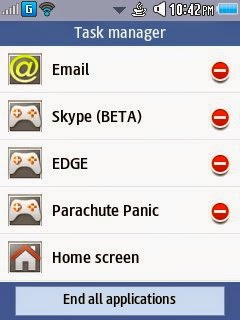
NOTE: Credits to the owner. CorbySociety do not intend to own this.
Available link for download
Saturday, December 24, 2016
How to Install Firmware in Corby
How to Install Firmware in Corby
How to Install Firmware in Corby 2 ( Samsung GTS850 )
At last, finally done. I hope that this tutorial will help you even though I wasnt able to do a demonstration with my corby 2 ( Samsung USB Cable was missing ). Perhaps, there are example images which will guide you through the tutorial.
* Extra Tags
* Corby 2 Firmware Tutorial
* Corby 2 Firmware Installation Tutorial
* Samsung GTS3850 Firmware Tutorial
* How to Install Firmware in Corby 2
* How to Install Firmware in Samsung GTS3850
* How to Download Firmware in Corby 2
The Video above shows how to Download Firmware in Corby 2 ( Samsung GTS3850 ) Featuring Android Jelly Bean Firmware. The next tutorial will be all about installing Fonts in Corby 2. Stay tuned Corby People !
The video was originally made via Windows Movie Maker. All rights goes to Corby Society.
Available link for download
Wednesday, December 14, 2016
How to Install Firmware in Corby 2
How to Install Firmware in Corby 2
In this section, you are going to know how to install Firmware in Corby 2. Before we proceed, let us know first the definition of firmware and its possible outcomes.
What is firmware ? Firmware is a permanent software programmed into a read-only memory . ( According to Google )
Many of you are thinking that once we install a new firmware ( Android, for example ) the Operating system will be changed to Android. NO! Thats totally wrong, as what i had observed,most of the time, it is just the homescreen or other limited feauters that will be changed similar to ANDROID.You cant have Android games, because they are totally different.
Now before we begin, let us know first what are the things needed
* ( Software ) Multiloader v5.65 :
Dowload here http://adf.ly/iG8il
( If link wont work, try searching on Google )
* ( Software ) Firmware
( Download any from the blog )
* ( Software ) Samsung USB Driver ( Recommended )
Download here: http://adf.ly/QhzLw
* Samsung USB Cable / Cord for Corby 2
* Samsung Corby 2
( You must have all the things needed above )
Step by step guide:
1. Install Samsung USB Driver.
2. Turn off your phone and set in into DOWNLOAD MODE.
( Get your memory card and Sim card )
How to set your phone into DOWNLOAD MODE?
( Press & Hold volume down+Lock Screen+ Call button )
3. Plug your phone on your computer using Samsung USB Cable / Cord.
( NOTE: Memory Card wont work , you need to use this method )
Check if your device has been successfully installed.
For Windows 7 users:
Start->run->type "device manager"
Under Network, check if your device is there.
If its not there, install Samsung USB Driver.
For Windows XP users:
Start->control panel->Performance and maintenance->System->Hardware->device manager.
Under network,check if your device is there.
If its not there,install Samsung USB Driver.
4. Open Multiloader and click rsrc1 ( NOTE: It depends on
the firmware if what type. You must see the format of the firmware that you have downloaded if it is an Rsrc1, Rsrc2 or etc. )
Now inject the firmware that you have downloaded.
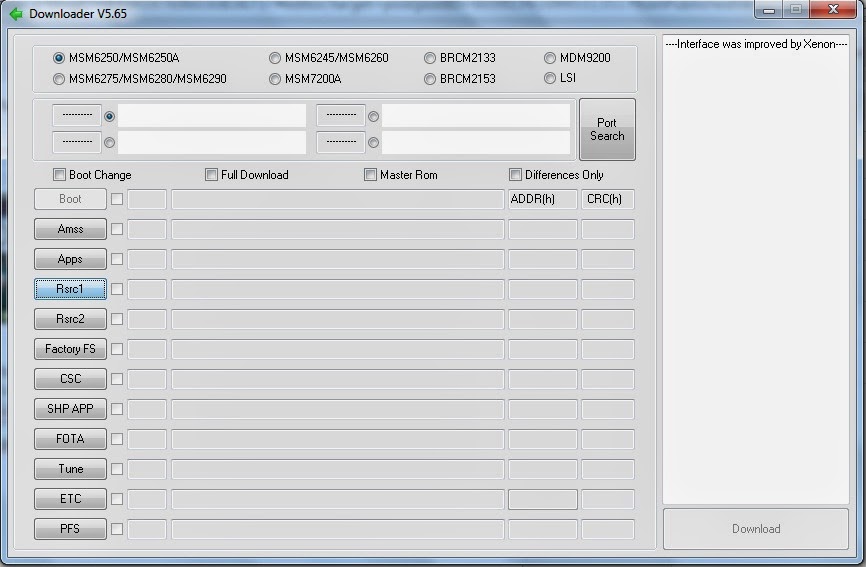
5. Now click PORT SEARCH and then DOWNLOAD.
Wait until your phone will reboot. Now your done.
( if you are not able to click the download button, then go back to step 4 )
If you have questions / clarifications, please leave a comment.
Available link for download